60-second bug video: what to record to get fixes faster
Learn how a 60-second bug video can speed up fixes: what to show, how to capture the URL, and how to redact sensitive data safely.
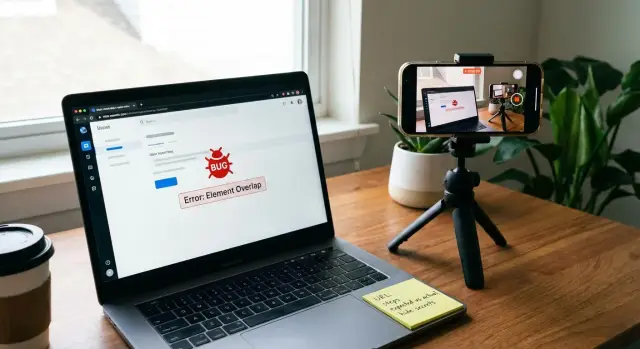
Why a 60-second video often gets your bug fixed faster
Text-only bug reports usually miss the one detail that matters most: what you did right before it broke. People summarize, skip steps that feel obvious, or forget the exact wording of an error. The person fixing it then has to guess, ask follow-up questions, and wait.
A 60-second bug video removes the guessing. It shows the real sequence: where you started, what you clicked, what you typed, and what happened. In under a minute, it can also show things that are hard to describe in text, like a button that looks clickable but does nothing, a spinner that never stops, or a form that clears itself.
A short video can confirm, fast:
- The bug is real and repeatable.
- The exact trigger (one click, one field, one route).
- The visible impact (error message, wrong data, blank screen).
- The context (which page, which account type, which browser window).
- The severity (blocked checkout vs. minor layout issue).
This helps everyone involved. Founders get answers with less back-and-forth. PMs and testers can hand off a clear repro to engineering. Agencies can show clients what’s happening without writing a mini essay. And if you inherited AI-generated code, a quick screen recording often helps a repair team recognize patterns immediately (broken auth flows, route mismatches, requests failing due to missing environment values).
A “good enough” bug video is simpler than most people think. It should be clear, repeatable, and safe. Clear means the viewer can read what you click and see the result. Repeatable means you show the steps from a fresh starting point, not from the middle of a session. Safe means you avoid exposing secrets or personal data while still showing the bug.
If you can record one clean run from start to failure, you’ll usually cut fix time more than any extra paragraph of description.
What a bug video should accomplish (in plain language)
A 60-second bug video isn’t a story and it isn’t a demo. Its job is simple: make the bug easy to reproduce so someone else can hit the same failure on their machine.
Think of it like leaving clear footprints. If the person watching can follow your steps and see the same problem, the fix moves faster.
Start by showing the state right before anything goes wrong: the page already loaded, the kind of account you’re using (without private details), and anything that matters like a filter selected or a draft already typed.
Then record the full path, click by click, without skipping. Small steps matter. One missed click on a tab, one keyboard shortcut, or one field left blank can turn “works for me” into a repeatable bug.
By the end, the video should make five things obvious: where you started, what you did (in order), what you expected (one sentence), what happened instead, and any on-screen message the app showed.
End on the failure and pause for a beat so it’s readable. If there’s an error banner, toast, modal, or validation text, keep it on screen long enough to read without squinting.
Example: you open a dashboard, click “New Project,” fill in a name, hit “Create,” and the page spins forever. A good video shows the project list before you start, the exact clicks and typing, and the spinner or error that never clears.
Set up your screen so the video is easy to read
A bug video only helps if someone can clearly see what you clicked, what changed, and what the app showed you. Before you hit record, take 20 seconds to make the screen readable. That small prep can be the difference between “can’t reproduce” and a same-day fix.
Use the simplest recorder your device already has. Built-in tools tend to be reliable, with fewer popups and fewer settings to get wrong. You don’t need editing for a 60-second clip.
Make your pointer obvious. If your system supports a larger cursor, click highlights, or touch indicators, turn them on. Viewers shouldn’t have to guess where you tapped or which field you focused.
Aim for “comfortable reading” size. If the UI looks small to you, it’ll look tiny to someone watching in a chat window.
A few quick tweaks usually help:
- Zoom the browser to about 110% to 125%.
- Widen narrow side panels so labels and error messages are visible.
- Use a normal window size (avoid ultrawide layouts that shrink UI elements).
- Keep the recording to one monitor so the viewer doesn’t lose context.
Clean up distractions before recording. Close unrelated tabs, dismiss cookie banners, and clear popups that might cover the moment the bug happens. Pause anything that can steal focus, like chat apps.
Protect privacy at the same time. Hide bookmarks with client names, close password managers, and turn on Do Not Disturb so notifications don’t appear on screen.
Example: you’re about to record a login bug. You set browser zoom to 125%, widen the panel so the error text is readable, enable cursor click highlights, close extra tabs, and silence notifications. Now when the password field clears itself after you click “Sign in,” the viewer can actually see it happen and read the message.
Step-by-step: record the 60 seconds in the right order
A useful bug video is a tiny story: where you started, what you tried, what you expected, and what happened. When you record in a consistent order, the person fixing it can replay your path without guessing.
Before you hit record, get to the screen right before the problem starts (not after it already broke). Your goal is to capture setup and trigger in one continuous take.
A simple flow that fits in about a minute:
- Start one step before the bug. Land on the page or state right before the key click or submit.
- State the goal in one sentence. “I expect X to happen.” Keep it plain.
- Repeat the steps at normal speed. Avoid fast scrolling or jumping around.
- Pause at the failure moment. Stop moving the mouse for a second so the wrong result is obvious.
- Capture the on-screen evidence. Hover or zoom in on the error text or status, and hold it long enough to read.
A short, calm narration helps: “Clicking Save. I expect a success message. Instead it spins and then shows ‘Something went wrong.’” That one line often saves a full back-and-forth.
Example: you’re on an “Edit Profile” page. You say “I expect Save to update my name,” type one change, click Save once, the button disables forever, and you pause on the stuck spinner while the error toast appears.
How to include the URL and environment without confusion
A bug video is only useful if someone can land on the same page you were on. The fastest way is to show the full address bar early, before you click anything.
Start with the browser UI visible (not full-screen). Click the address bar so the entire URL is highlighted and readable. If your app redirects after login or after a button click, show the address bar again when it changes.
If the URL updates quickly, slow down on purpose. Let the viewer read it. If needed, briefly zoom in (browser zoom or an OS magnifier), then zoom back out so the rest of the steps still fit.
Query parameters matter only when they affect the bug. A parameter like ?tab=billing can change what loads, but long tracking strings usually don’t help. If a specific parameter triggers the issue, say it clearly: “This only happens when tab=billing is in the URL.” Otherwise, don’t waste time scrolling through a huge address.
Environment should be a one-line callout near the start: “This is staging,” “This is production,” or “This is local.” If the environment shows up in the URL (like staging.) or in a header badge, point to it briefly.
If you’re not in a normal browser, show the location inside the app instead. On mobile, show the screen title or route (for example, Settings -> Billing). For an embedded view, show the host app name and the exact menu path you used.
A simple order that stays unambiguous:
- Show the full URL, then say the environment.
- Reproduce the bug with one clear path.
- When the URL changes, pause and show it again.
- Call out a query parameter only if it matters.
- End on the final page where the bug is visible.
This is often the difference between “can you send the link?” and an immediate fix.
How to avoid revealing sensitive data (without losing the bug)
A useful bug video shows what you did and what went wrong. It doesn’t need to show everything on your screen. A little planning keeps it safe to share while still being easy to fix.
Sensitive data includes the obvious (passwords, API keys, access tokens, secret URLs) and the easy-to-miss (customer names, emails, addresses, invoices, support tickets, internal dashboards, even a browser tab title with a project name).
If you can, record with a test account. A “dummy” user that behaves like a real user but contains no real data is often the safest way to show auth and payment flows.
Mask what matters, keep what helps
Before recording, do a quick sweep: close extra tabs, hide chat apps, and move notifications out of the way. Watch for password managers and autofill dropdowns, which can pop up and reveal saved emails or passwords.
If you need to hide part of the screen, keep it simple:
- Crop the recording area to just the app window.
- Blur or block a small region (like an email column).
- Avoid lingering on sensitive screens.
- Record a clean repro path that skips admin pages and raw logs.
Don’t over-redact. If you blur the entire page, the team can’t see which button you clicked or which field failed validation.
When you must reference private data
Sometimes the bug only happens for one specific account or record. In that case, reference the sensitive detail without showing it. For example: “This is user ID 1842 from production. I’ll paste it after this call,” while keeping the ID off-screen.
Example: you’re showing a login loop. Use a test email like [email protected], type a fake password, and keep the recording focused on the app window. If the bug depends on a real customer record, blur the customer name in the sidebar but keep the steps and error message readable.
If you’re unsure what’s safe to share, send the clip and keep sensitive values separate. Often a team can reproduce the issue from the flow and error state alone, then ask for a specific value through a safer channel only if it’s truly needed.
Common mistakes that make bug videos hard to use
A 60-second bug video only helps if the person fixing the issue can replay your exact path and see the same result. Most unusable videos show the symptom, but not what triggered it.
Mistake 1: Showing the error, not the steps
If the video starts on an error screen, the viewer has no idea what caused it. Show the last 2-4 actions before the problem. That short lead-in often reveals the real issue (wrong button, missing field, unexpected redirect).
Example: instead of recording “Checkout failed” on a blank page, record: open cart, click Checkout, select shipping, click Pay, then show the failure.
Mistake 2: Starting after you already did the important setup
A common pattern is “it breaks after I log in,” but the video begins after you’re already logged in, or after you changed a setting earlier. If login or a toggle matters, capture it.
If you can’t show login safely, you can still show the login page, pause recording, log in off-camera, then resume right before the step that triggers the bug. Say one sentence: “I logged in as a normal user, no special roles.”
Mistake 3: Fast motion and frantic tab switching
People rush to keep it short, and the text becomes unreadable. Slow down slightly and let each screen sit for a second. Avoid switching tabs to “prove” something unless it directly affects the bug.
Common patterns that make videos hard to use:
- Clicking so fast that messages can’t be read.
- Scrolling up and down repeatedly so it’s unclear what changed.
- Jumping between windows without explaining why.
- Cropping out the URL, page title, or exact error text.
- Accidentally showing secrets (tokens, API keys, private emails) in the address bar, dev tools, or headers.
Mistake 4: Hiding the context that proves it’s the same page
If the URL, page title, or environment is missing, the fixer can’t confirm where the bug happened (staging vs production, app vs admin, different tenant). A quick glance at the address bar and the page title is often enough.
Mistake 5: Leaking sensitive data while trying to be helpful
The riskiest mistake is capturing secrets during the “proof” part: opening dev tools, copying request headers, or revealing a reset link. If you suspect the bug needs that view, record once with sensitive parts blurred or covered, then describe what you hid in a note.
Quick checklist before you send the video
Before you hit send, do a quick pass. The goal isn’t perfect production quality. It’s removing guesswork so someone else can reproduce the problem quickly.
- Starting state is clear: show the exact page and the account type (admin vs regular user).
- URL is visible and readable: highlight the full URL, and say prod/staging/local.
- Steps are complete and in order: no missing clicks, no jumps.
- Expected vs actual is obvious: state what you expected, then show what happens.
- Sensitive info is protected: scan for tokens, keys, emails, and customer data.
Keep the length tight: about 45 to 75 seconds. If you can’t fit it, you probably have multiple paths. Record one path per video.
If the issue feels deeper than one screen, pair the video with one short note about what changed recently. For AI-generated apps (Lovable, Bolt, v0, Cursor, Replit), that context helps because these projects often break in the same places: state handling, auth flows, deployment config, and “works locally, breaks in production.”
Example: a realistic 60-second bug video that works
Imagine a founder testing an AI-built web app prototype. The bug: checkout fails with a server error right after clicking Pay.
They start recording with the browser window sized so text is readable. In the first two seconds, they show the full URL in the address bar and pause long enough that someone could grab it.
The clip, in order:
- Show the cart page with 1-2 visible items (no customer names).
- Briefly scroll so the subtotal and shipping area are visible.
- Show the checkout form with required fields filled (using safe data).
- Click the Pay button once.
- Capture what happens next: loading state, then an error toast saying “500 - Internal Server Error”.
They say one clear sentence: “I expected a confirmation screen and order number, but I get a 500 error as soon as I click Pay.” No guessing needed.
They keep it safe by using a test payment method, using a fake email (like [email protected]), and making sure nothing sensitive is visible (no API keys in tabs, no tokens in the URL, no password manager popups).
With that, a developer can act immediately: copy the URL, replay the click path, see the exact failure moment, and search logs for the matching 500 error.
Next steps after recording (and when to ask for help)
Treat the video as the proof, then add a small amount of context so someone can reproduce it without guessing. When you send your clip, include a one-sentence summary like: “Checkout fails after clicking Pay Now, page reloads and shows a blank screen.” Then add device and browser (for example: Mac + Chrome 121, or iPhone 14 + Safari).
If it matters, add one extra detail that explains “why it only happens for me”: approximate time (with time zone), account role, a feature flag being on, region/language, or whether it happens in one browser or all of them. Pick just one so the message stays readable.
Ask for deeper help when the bug looks like more than a simple UI glitch. Good signals include login loops, password reset emails not sending, random logouts, exposed keys in the front end, security warnings, database errors, or code that’s hard to change without breaking other parts.
If you’re dealing with an AI-generated prototype that doesn’t hold up in production, FixMyMess (fixmymess.ai) can use a short repro video as input to a codebase diagnosis. They also offer a free code audit to identify issues before any commitment.
FAQ
Why does a 60-second bug video get issues fixed faster than a text report?
Because it shows the exact steps and timing right before the failure. That removes guesswork, reduces follow-up questions, and lets someone reproduce the bug quickly instead of trying to interpret a summary.
What should I make sure the video shows from start to finish?
Start one step before the bug, then show every click and input until it fails. Make it obvious where you started, what you expected, what happened instead, and keep the error message on screen long enough to read.
How long should the bug video be, and what if the repro takes longer?
Aim for about 45 to 75 seconds. If it needs more time, record one path per video and keep each clip focused on a single failure so it’s easy to replay and verify.
Do I need to talk in the video, or is silent recording fine?
A short narration helps if it’s calm and specific. Say one sentence about what you expect, then one sentence about what actually happens, and let the screen do most of the work.
How do I include the URL and environment without confusing the person fixing it?
Show the full URL early with the browser UI visible, then say whether it’s production, staging, or local. If the URL changes during the repro, pause and show it again so the viewer can land on the same page.
How do I record a bug video without leaking sensitive data?
Use a test account when you can, and keep the recording focused on the app window so unrelated tabs and notifications don’t appear. Avoid showing passwords, tokens, API keys, customer data, and anything in the address bar that looks like a secret.
What’s the easiest setup for recording a clear, readable bug video?
Use the simplest built-in recorder your device already has, and make the screen readable first. Increase browser zoom slightly, keep the window at a normal size, and make the cursor easy to see so clicks are obvious.
What are the most common mistakes that make bug videos useless?
The most common issue is starting on the error screen instead of showing the last few actions that triggered it. Other problems are clicking too fast to read messages, hiding the URL, and skipping setup steps like login or a toggle that changed behavior.
What should I write alongside the video when I send it to the team?
Add a one-sentence summary plus your device and browser. If it matters, include one extra detail like account role, approximate time, or whether it happens in all browsers, but keep it short so the video remains the main source of truth.
When should I stop trying to self-debug and ask FixMyMess for help?
If the bug involves login loops, broken auth, exposed secrets, database errors, or an AI-generated codebase that works locally but breaks in production, it often needs deeper diagnosis. FixMyMess can take your short repro video and run a codebase diagnosis, starting with a free code audit, and typically get projects stabilized within 48–72 hours.