Build a course platform with AI tools: hosting and tracking
Build a course platform with AI tools and keep it simple: pick video and file hosting, track learner progress, and avoid custom code you will regret.
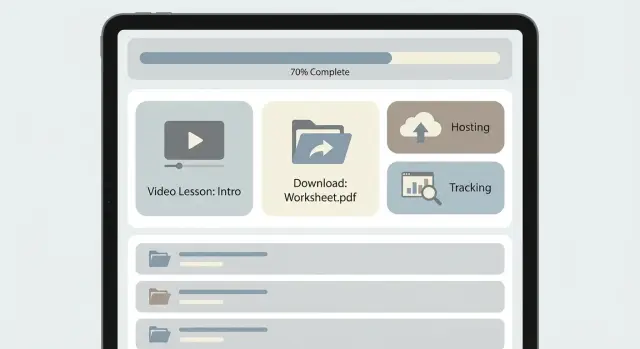
What you are really building (in plain terms)
A “course platform” sounds big, but it’s usually four small systems that have to agree with each other: content delivery, access control, progress tracking, and payments. Keep those parts clear and you can build a course platform with AI tools without shipping something that looks finished but breaks under real use.
- Content delivery: where videos live, and where students download PDFs, templates, and slides.
- Access control: who can see what (and when).
- Progress tracking: what each student has watched or completed.
- Payments: how a purchase turns into access, plus basics like refunds and failed charges.
AI builders are great at getting the first version on screen. They can generate a clean course page, a lesson list, and a “Continue” button fast. They’re also decent at simple flows like signup, login, and a basic dashboard.
Where things usually break isn’t the UI. It’s the parts that must stay consistent over time: hosting decisions that don’t match real traffic, permissions that leak, and data that drifts (progress resets, purchases don’t unlock access, or lessons show as completed when they’re not).
“No custom complexity” doesn’t mean “no code.” It means you avoid custom code in the areas that get risky and time-consuming. In practice, that usually means: use a dedicated video host (not your own server), keep one source of truth for users and purchases, track progress with a small set of events, and keep roles simple (admin, student) until you truly need more.
A simple example: you sell a 6-module course with short videos and a workbook. Students pay once, get instant access, and see a checklist of lessons. Progress only needs “completed” per lesson, plus the last lesson they opened. That’s enough for most creators and it keeps the build stable.
Decide your course format before picking tools
Before you choose video hosting or build tracking, get clear on the kind of course you’re selling. The format changes what you need to store, what you measure, and how strict access control must be.
Most course platforms fall into a few patterns:
- Self-paced: students start anytime and move at their own pace.
- Cohort-based: everyone starts together, often with deadlines and submissions.
- Drip release: content unlocks by date or days since purchase.
- Hybrid: self-paced lessons plus live calls.
Next, decide what learning activities you truly need. If your course is mostly video, completion tracking is often enough. Once you add quizzes or assignments, you’re no longer just hosting content. You’re collecting attempts, scores, and submissions, which raises privacy, storage, and support needs.
Also think about your catalog. A single course is simplest: one set of lessons and one progress path. Multiple courses and bundles create real edge cases (like whether a later bundle purchase keeps prior progress or resets it).
Define what “progress” means in one sentence and stick to one primary definition:
- Completed (student marks done)
- Watched (based on video milestones)
- Passed (quiz score or approval)
- Lesson-unlocked (prerequisites, common in drip/cohort)
If you’re building a 6-module self-paced program, “completed per lesson” plus one final quiz is often plenty. The more complicated your progress rules get, the easier it is for an AI-generated build to drift into fragile logic.
Choose video hosting that will not create headaches
Video is where “it worked in a demo” turns into real-world pain. The simplest rule: don’t self-host video on your app server.
Self-hosting fails for boring reasons that still hurt. Big files overload your server, students in different regions get buffering, and a few popular lessons can spike bandwidth costs overnight. Even if the rest of your app is light, video delivery is its own problem.
What to look for in a video host
Pick a provider that treats video as its main job. You want fewer moving parts, predictable bills, and controls that match how courses are sold.
Look for:
- Playback quality across devices (mobile matters a lot)
- Privacy controls (unlisted, domain restrictions, expiring links, signed playback)
- Cost predictability (storage, bandwidth, plays)
- Upload and embed simplicity (captions, player options)
- Reliability and support (because your support inbox becomes the buffer bar)
Gut-check: if the host makes you build your own player, transcoding, or adaptive streaming setup, it’s not the simple option.
“Members only” without building DRM
Most course platforms don’t need DRM-level complexity. What you need is access control that’s strong enough for paid members without turning your app into a security project.
A common approach: keep the video private on the host, and enforce access in your app. When a logged-in student opens a lesson, your app only renders the embedded player if they have permission. For higher-value content, use expiring playback tokens or signed URLs so casual sharing doesn’t work.
The workflow that stays sane
Aim for “upload once, embed everywhere.” The creator uploads a lesson, the host handles encoding, and your platform stores only the video ID plus lesson metadata. Your app decides who can see the lesson page.
Example: you launch a 12-lesson course and expect a few thousand plays in week one. With proper video hosting, your app server load barely changes. You can focus on progress tracking and support instead of chasing buffering reports.
Choose file hosting for downloads and resources
Downloads look simple until the first student says, “I can’t access the workbook,” or worse, your paid files start circulating. Treat file hosting as its own decision, not an afterthought.
Students expect fast downloads and clear access. Public files are easy, but easy to copy and share. Private files are safer, but you need a clean way to check who’s signed in and what they bought.
Public vs private: pick per file type
A practical split: public for free previews (sample PDFs, teaser resources), private for anything behind a paywall (worksheets, templates, project files). To reduce accidents, make “private by default” the rule.
Many AI-generated prototypes leak files by uploading everything into a publicly readable bucket or embedding direct file URLs in lesson pages. Instead, generate time-limited download links only after a permission check.
Keep the protection simple:
- Store paid files in a private location with no anonymous access
- Gate every download behind a permission check (logged-in + enrolled)
- Use expiring download links instead of permanent URLs
- Keep secrets (API keys, storage tokens) out of the browser and out of the repo
- Test in a logged-out browser to confirm files aren’t reachable
Versioning: update files without breaking lessons
Courses change. If you replace a workbook later, old lesson pages and student bookmarks should still work.
The simplest approach: every file download happens through a stable “Download” button in your app, and your app points to the latest version behind the scenes. If you must use direct URLs, use versioned filenames (workbook-v2.pdf) and keep older versions available for students who started earlier. Add a short “Updated on” note so students understand what changed.
Large files and bandwidth: avoid surprise bills
Big ZIPs and design assets can eat bandwidth quickly. Compress files, split huge packs into smaller ones, and host heavy assets where bandwidth pricing is predictable. If students don’t need raw 4K footage, don’t ship it.
Progress tracking that stays simple
Progress tracking is where many AI-built course apps overcomplicate things. You don’t need fancy analytics to launch. Start with the smallest set of signals that helps a learner pick up where they left off and helps you spot who’s stuck.
For most courses, this is enough:
- Lesson status (not started, in progress, completed)
- A completed toggle per lesson
- Last opened lesson (to power “Continue”)
- Optional: last video position (timestamp) if your player provides it
Store progress in your own database even if you use a third-party video host. That way, you can switch video providers later without losing progress.
Where to store progress (simple database basics)
Keep the data model boring. If you build a course platform with AI tools, have it create a minimal schema and review it before you build the UI:
- users (id, email)
- courses (id, title)
- lessons (id, course_id, title, order)
- enrollments (id, user_id, course_id, created_at)
- lesson_progress (id, user_id, lesson_id, status, last_position_seconds, updated_at)
With this setup, “continue where I left off” is straightforward: look up the most recently updated lesson_progress for that user.
What to avoid: tracking every second of playback, every pause, and every click. It creates lots of data, more bugs, and more privacy questions. Collect detailed events only if you truly need them.
Instructor and admin view (what matters)
Admins don’t need a complex dashboard on day one. They need quick answers:
- Who enrolled but hasn’t started?
- Who is stuck on the same lesson?
- Which lessons have low completion?
- Who completed the course (for certificates or upgrades)?
Access control basics (auth, payments, permissions)
Access control decides who can see what, and when. For course platforms, it usually breaks in two places: login (authentication) and permissions tied to payments.
Authentication: pick the simplest option that fits your audience
You can start with a basic login and still be safe. Pick what matches your users and your support capacity:
- Email magic link: fewer password-reset tickets, but deliverability matters
- Email + password: familiar, but you must handle resets and security rules
- Social login: fast signup, but more moving parts and account-linking edge cases
- Invited accounts only: good for cohorts or B2B training, not great for open sales
Whatever you choose, make sure you create a real session (or token) and check it on every protected page.
Payments and permissions: define the rules before you code
Write down your access rules in plain sentences. Examples:
- “A purchase unlocks Course A forever.”
- “A subscription unlocks all courses while active.”
- “Refund removes access within 24 hours.”
If you don’t define this upfront, AI-built apps often end up with hard-coded exceptions that are painful later.
“Gated content” is more than hiding a button:
- The server must check access before returning a video or file URL.
- Downloads should use time-limited URLs, not permanent public links.
- Direct page loads must be blocked for non-members, not just clicks.
Before launch, do a basic security pass. The problems that show up most often in AI-generated prototypes include exposed secrets (API keys, database URLs), broken auth checks (guessable lesson URLs), injection risks (unsafe SQL/query building), missing refund or cancel handling, and no audit trail for support.
Step-by-step: assemble a simple stack using AI builders
AI builders work best when you give them clear boundaries. Before you generate screens and glue code, decide what must be true for a student: what they can see, what they can download, and how you know they finished.
1) Start with a one-page spec
Keep it short and specific. Write down roles (admin, student), structure (course -> module -> lesson), and progress rules (what counts as complete, what “resume” means). Reuse that page as your prompt whenever the builder starts drifting.
2) Build the data model first, then the UI
Generate the core tables/collections and relationships before drawing anything. If the data is wrong, the UI will keep breaking.
A build order that stays manageable:
- Define course and lesson fields (title, order, content type, duration estimate).
- Add enrollment (user_id, course_id, status) and progress (per-lesson status + last opened).
- Generate basic pages: course list, lesson player, dashboard.
- Plug in video and file hosting using placeholders first.
- Add progress events: mark complete, save last seen, resume.
Once it runs end-to-end, polish layout and lesson pages without changing the rules underneath.
3) Add gating and test like a real student
Payment gating often fails because nobody tests the “unpaid” path. Create a real student account and walk through: sign up -> buy (or simulate paid) -> enroll -> watch -> complete -> log out -> log back in -> resume. If any step feels confusing, users will get stuck too.
Before inviting people, do a security and deployment pass: confirm private videos and files aren’t public, secrets aren’t exposed, and auth rules match your roles.
Example: a small course platform that can go live fast
Picture one creator with one flagship course updated weekly and about 200 paying students. You want it polished, but you don’t want to babysit custom code every time you add a lesson.
A simple setup works well when you build a course platform with AI tools because each piece has a clear job.
The “small but real” stack
Each lesson is a member-only page in your site or app. The page embeds a video player and shows downloads for that lesson. Under the hood:
- Video lives on a private video service and is embedded on lesson pages.
- Files live in private storage and are only downloadable for enrolled students.
- Progress is a per-lesson completion toggle plus a course progress bar.
- Admin is a simple “Lessons” screen to paste video embeds, upload files, and publish.
This keeps your app logic small. You’re not building your own streaming system and you’re not reinventing file delivery.
How it feels for students (and for you)
A student buys access, lands on the dashboard, and sees the lesson list. Each lesson page has the video at the top, downloads below, and one completion toggle. Marking a lesson complete updates the course percent immediately.
On the admin side, weekly updates stay repeatable: create a new lesson, paste the hosted video embed, attach a few files, publish, and optionally email enrolled students.
The key rule is simple: if you have access to the lesson, you have access to its video and files. Keep everything aligned with that rule.
Common mistakes that turn a prototype into a mess
The first version often “works” in a demo and then falls apart with real users. The issues usually aren’t fancy. They’re small shortcuts that create leaks, broken tracking, or security holes.
1) Sharing direct file and video URLs outside the paywall
Putting direct download links (or unlisted video URLs) straight into a page means a paying student can copy and share them. The same problem happens when course files live in a public bucket or folder that never checks who’s asking.
Instead of “here’s the file URL,” aim for “request access, then receive a time-limited download,” and keep private content private on the host.
2) Progress tracking that breaks the moment someone refreshes
Progress bugs often come from duplicate events and missing identity. A page fires “completed” on load, a user refreshes, and completion gets recorded twice. Or progress gets tracked without a real user ID, so records collide.
Real scenario: a student watches on their phone, then opens the same lesson on a laptop. If progress is stored in local storage, it disappears across devices. If it’s stored on the server but tied to an anonymous session, records get mixed.
3) Auth flows that feel random
Prototypes often have login that works once, then logs users out. Password reset is another weak spot: emails don’t send, tokens don’t validate, reset pages fail silently. For a paid course, this kills trust quickly.
4) Exposed secrets and unsafe queries
It’s easy for AI-generated code to ship API keys in client code or build database queries by concatenating strings. That can lead to leaked services, unexpected bills, or SQL injection.
Fast red flags:
- API keys in frontend code or in a public repo
- Database queries built from raw user input
- Progress updates that don’t include a user ID
- Download links that work in a private browser window
- Password reset tokens that don’t expire or validate
5) Overbuilding the hard parts
Building your own video pipeline, complex role systems, or microservices sounds serious, but it’s how prototypes become hard to fix. Start with boring defaults. Add complexity only after users demand it.
Quick checks before launch and practical next steps
Before you invite real students, do a short “payment and tracking” test pass. If you can’t answer these questions confidently, you’re not ready to charge yet.
A 15-minute launch checklist
Do one run as a brand-new visitor (incognito) and one run as a paying student:
- Try to open a paid lesson video and download a paid file while logged out. If anything plays or downloads, access is leaking.
- Buy access, watch part of a lesson, then switch devices or browsers and come back. Progress should still be there.
- Confirm what you can export (users, purchases, progress). Even a basic CSV export is a safety net.
- Do a deployment rehearsal: push a change, confirm it goes live, then practice a rollback.
- Look for secrets in the browser and public config. If a student can see it, assume others can too.
A common gotcha: progress looks fine on your laptop, but a student starts on mobile and later sees Lesson 1 again on a work laptop. That’s usually local-only storage instead of saving to the user account in your database.
Practical next steps (without adding complexity)
If any check fails, don’t patch randomly. Fix the one layer that owns the problem (permissions, progress storage, or deployment).
A simple plan:
- Write down your “source of truth” for access and progress (usually your database) and avoid splitting logic across tools.
- Keep a few test accounts (free, paid, admin) forever for regression checks.
- Decide what you must be able to export and schedule a recurring export (weekly is enough for most new courses).
- Freeze features for a day and focus on reliability: login, payments, video access, downloads, progress.
If you inherited an AI-generated course app that looks finished but has broken auth, exposed secrets, or unreliable progress, FixMyMess (fixmymess.ai) focuses on diagnosing and repairing those production issues so the core rules stay simple and dependable.
FAQ
What are the core parts of a course platform I need to get right first?
Start by separating the four systems: content delivery, access control, progress tracking, and payments. If you keep one clear “source of truth” for users and purchases (usually your database) and avoid mixing rules across tools, the platform stays stable even as you add lessons.
Why shouldn’t I host course videos on my own app server?
Because video delivery is its own scaling and reliability problem. Self-hosting often leads to buffering, sudden bandwidth bills, and server slowdowns, even if the rest of your app is fine. A dedicated video host handles encoding and playback so your app can focus on gating and progress.
How do I make videos “members only” without building full DRM?
Keep videos private on the host and only render the player after your server confirms the user is enrolled. For higher-value courses, use expiring playback tokens or signed URLs so shared links stop working after a short time.
How do I stop students from sharing my paid downloads?
Don’t embed permanent direct URLs to paid files in your lesson pages. Instead, keep files in private storage and have your app generate time-limited download links only after checking the student is logged in and enrolled.
What’s the easiest way to update a workbook without breaking existing lessons?
Use a stable download button inside your app and have it always point to the latest approved version behind the scenes. That way you can replace a workbook without breaking old lesson pages or bookmarks, and students always know where to get the current file.
What’s the simplest progress tracking that still feels professional?
For most courses, track per-lesson status (not started, in progress, completed) plus the last opened lesson for the “Continue” button. That’s enough to help learners resume and gives you basic insight without creating fragile logic or tons of data.
Where should progress be stored so it works across devices?
Store it in your own database tied to a real user ID and lesson ID. If you store progress only in the browser (like local storage), it won’t sync across devices and it’s easy to lose when users clear data or switch browsers.
How do I connect payments to access without confusing edge cases?
Write the rules in plain sentences before you build, like “a purchase unlocks Course A forever” or “refund removes access within 24 hours.” Then enforce those rules on the server, not just in the UI, so direct page loads and downloads are blocked for non-members.
What should I test before I invite real students?
Test the full unpaid-to-paid journey with a real student account, including logout/login and switching devices. Also test the “unpaid” path in an incognito window, because many leaks only show up when you try to access a lesson directly without a session.
What are the most common security mistakes in AI-generated course apps?
The most common failures are leaked secrets in client code, weak permission checks on lesson URLs, and unsafe query handling that can lead to injection issues. If your AI-generated build looks finished but these basics are shaky, FixMyMess can run a free code audit and then repair auth, gating, security, and progress so it works reliably in production.