AI quoting calculator: keep pricing logic in one place
Build an AI quoting calculator that keeps pricing logic in one place and uses real example inputs to catch mistakes before customers see wrong quotes.
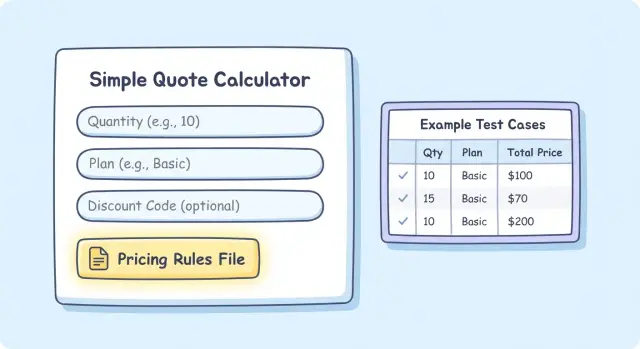
Why AI-built quoting calculators often give wrong numbers
A quoting calculator is the form (or spreadsheet-like screen) that turns a few inputs into a price: seats, usage, plan, setup fees, discounts, tax, and the final total. People rely on it for one reason: the number they see should match what they get billed.
AI-built calculators often look correct in a demo, but the pricing rules end up scattered. One screen applies a discount, another recomputes totals, and a third “fixes” rounding. Once the same math exists in multiple places, it only takes one missed edit for the calculator to drift out of sync.
The bugs are usually small. The damage isn’t. A $20 mistake becomes a trust problem. It also creates awkward handoffs: sales promises one total, finance invoices another, and the customer feels tricked even when it was an honest bug.
Wrong numbers usually sneak in through a few patterns:
- Rules split across the UI, backend code, and database settings
- Hidden defaults (tax on/off, currency, minimum fees)
- Order-of-operations mistakes (discount before tax vs after tax)
- Rounding differences between line items and the final total
- Old rules left behind after a pricing update
A simple scenario: a customer chooses Pro, adds 12 seats, and applies a 15% annual discount. The app shows a discounted total, but the invoice system applies the discount to a different subtotal. Both sides “followed the rules” as implemented. The customer gets the headache.
The fix is straightforward: keep pricing logic in one place, then validate it with real examples and expected outputs.
Start by writing down the inputs, outputs, and rules
Before you ask an AI tool to build a quoting calculator, write the spec in plain words. If you skip this, you’ll often get something that looks right but breaks on real customer combinations.
Start with the questions the calculator must ask. Keep them customer-friendly: “How many seats?”, “Monthly or annual billing?”, “Do you need onboarding?”, “Which country are you in?” If an input is optional, spell out what happens when it’s blank.
Next, define the outputs and the format. A quote is not just “a price.” Decide what the calculator must return every time, such as:
- Subtotal
- Discount line
- Tax line
- Final total
Also decide how money is displayed (currency, decimals, and whether you show cents).
A quote needs a clear definition of “valid.” Write down the rules that tend to cause disputes:
- Currency: one currency only, or choose based on country
- Taxes: included in the displayed price or added at checkout
- Rounding: when you round (per line item vs final total) and to how many decimals
- Minimums: smallest allowed quantity, price floor, and when you reject an input
- Effective dates: when a pricing change starts, and how you handle old quotes
Here’s a simple “pricing rules summary” a non-technical founder can approve:
“If a user selects 10 seats on monthly billing, price is $29 per seat. Annual billing applies a 10% discount to the subtotal. Onboarding is a one-time $500 fee. Tax is not included. Final total is rounded to 2 decimals.”
Keep pricing logic in one place (a single source of truth)
The fastest way to get wrong quotes is to copy pricing rules into multiple places: a formula in the UI, another version in the backend, and a “quick fix” in a webhook. Your calculator needs one home for pricing rules, and everything else should call it.
Pick a single location and stick to it: one pricing function, one module, or one config file the app treats as the authority. If you ever find yourself editing two files to change one price, you already have drift.
Keep the UI separate from pricing. The UI should collect inputs (plan, seats, add-ons, country, coupon) and display results. It should not decide how discounts stack, how tax is applied, or how rounding works. That separation makes changes safer because you’re not hunting through buttons, screens, and form handlers to find hidden math.
A clean pattern is: one call in, one response out. The UI sends a complete input object, and pricing returns a structured result with a human-friendly breakdown.
// pricing.js
export function priceQuote(input) {
  // Rules live here. Update this, not the UI.
  // Note: coupons apply before tax; tax is on discounted subtotal.
  return {
    subtotal: 120,
    discount: 20,
    tax: 10,
    total: 110,
    breakdown: [
      "Base: $120",
      "Coupon: -$20",
      "Tax: $10"
    ]
  };
}
Add short notes right next to the rules people tend to break later: tier boundaries, stacking order, and any weird exception that exists for a reason. Comments don’t need to be long. They just need to prevent accidental rewrites.
A simple pricing structure that stays readable
Most quote bugs show up when pricing rules become a pile of scattered if statements. Keep the rules easy to scan, and keep the calculation function boring.
Use variable names that match your business language. If someone can’t explain what discount_rate means, they’ll misuse it later.
A pricing model you can read in 30 seconds
Here’s a simple shape that avoids sprinkling logic throughout the app:
const pricing = {
  base_price: 49,
  per_unit: 12,
  discount_rate: 0.10,
  discount_min_qty: 10,
  tax_rate: 0.07
};

function quote({ quantity }, pricing) {
  const subtotal = pricing.base_price + (quantity * pricing.per_unit);
  const discount = quantity >= pricing.discount_min_qty ? subtotal * pricing.discount_rate : 0;
  const taxable = subtotal - discount;
  const tax = taxable * pricing.tax_rate;
  const total = taxable + tax;

  return {
    total: Math.round(total * 100) / 100,
    breakdown: { subtotal, discount, taxable, tax }
  };
}
Two habits keep this stable:
- Round once at the end (not mid-calculation).
- Always return a breakdown.
That breakdown is how you spot mistakes fast, like tax being applied before discounts.
Step by step: build the calculator with AI tools without a mess
Quoting calculators go wrong when the UI and the pricing rules grow together in the same file. Separate them from day one and you’ll catch mistakes earlier.
A clean build sequence
Start by getting the interface working without real math. Generate only the form and the display: inputs (plan, seats, add-ons, country) and outputs (subtotal and total). If you can type values and see them reflected on screen, you have a solid base.
Then add a single pricing function and connect everything to it. Keep it simple: one function takes a plain object of inputs and returns plain results. Don’t tuck calculations into button handlers or UI components.
A build order that stays tidy:
- Build the UI first, using placeholder numbers.
- Create one pricing function and call it from the UI.
- Make the function return a full breakdown: subtotal, discount, tax, total.
- Add basic validation for missing fields and negative values, with clear messages.
- Put the rules in one rules file and treat it as the only place pricing can change.
Once the function returns a breakdown, the UI becomes “dumb” in a good way: it just renders the lines. Reviews also get easier because you can compare the breakdown to a manual calculation.
Add real example inputs to catch mistakes early
The fastest way to miss bugs is to test with made up numbers. Real quotes have combinations you won’t think to try: a tiny order with a minimum fee, an order that crosses a tier boundary, or a discount that should apply before tax.
Collect 10 to 20 real example inputs from your pricing sheet, past invoices, or quotes you already sent. Mix your common order sizes with a few that used discounts, add-ons, or special terms.
Before you code anything, write the expected total next to each example. Do it as a human check using the same rules you told the calculator to use. If two people can’t agree on the expected total, your rules are unclear, not your math.
Here’s a simple set you can keep as a rerunnable table:
| Case | Inputs (example) | Expected total | Notes |
|---|---|---|---|
| Typical | 5 users, monthly, no discount | $250.00 | Base case |
| Small | 1 user, monthly, no discount | $50.00 | Checks minimums |
| Tier jump | 51 users, monthly | $2,295.00 | Crosses tier boundary |
| Discount + tax | 10 users, 10% discount, 8% tax | $486.00 | Order of operations |
| Large | 1,000 users, annual prepay | $42,000.00 | Rounding and scale |
Keep this table in the project and rerun it after every change. Failures should be obvious: expected vs actual, plus which rule triggered (tier, discount, tax, rounding). If the calculator can’t explain why a number changed, it’s not safe to ship.
Quick checks before you ship a pricing change
Small pricing edits break calculators more often than people expect. A renamed option, a new discount toggle, or “just one more fee” can quietly change the math.
A 10-minute pre-ship checklist
Run these checks any time you touch prices, tiers, discounts, taxes, or the quote layout:
- Change UI text only (labels, helper text, currency symbols) and confirm the numbers don’t change.
- Hand-calc 3 to 5 quotes and verify the calculator matches exactly.
- Confirm rounding rules are consistent: round each line item or only the final total.
- Try blanks, zeros, and negative values. Blanks should mean “not provided,” not NaN.
- Check that the itemized breakdown adds up to the final total with no missing fees or double-counted discounts.
After the checklist, do one “smell test” with realistic inputs (for example: 3 seats, monthly plan, 10% discount, plus tax). If tax or discount looks off, you’ll usually see it immediately.
Keep a tiny set of “golden quotes”
Pick a few representative quotes and keep their expected totals written down. When you change pricing, rerun the same quotes and compare.
A practical set is: the smallest order, a typical order, and a large order near a tier boundary. Add one with a discount and one with tax. If any total changes unexpectedly, pricing logic changed somewhere you didn’t intend.
Common mistakes that create wrong quotes
The fastest way to lose trust is when two people enter the same details and get two different totals.
One of the biggest causes is duplicating pricing rules. You add a 10% discount in the checkout screen, but the admin quote preview uses an older formula. Customers see one number and invoices show another.
Another common issue is doing taxes, discounts, and rounding in a different order in different places. A small sequence change can shift totals, especially with tiers.
Floating point math also creates penny differences. If your app expects 0.1 + 0.2 to equal exactly 0.3, it can end up with tiny mismatches that grow when you sum many line items.
The patterns behind most “mystery math” bugs:
- Pricing rules duplicated across screens, API routes, or background jobs
- Discounts and taxes applied in a different order in different parts of the app
- Rounding done inconsistently instead of as a fixed, documented step
- Pricing changes updated in one place but not in saved quote/invoice logic
- No clear breakdown, so you can’t see where the number changed
Always surface a breakdown: base price, tier adjustments, discount amount, taxable subtotal, tax, and final total. When something looks wrong, the breakdown tells you where to look.
Edge cases: tiers, discounts, taxes, and rounding
Most quote bugs hide in the “small” rules. A calculator can look right on happy-path inputs, then fail the first time someone buys 11 units, uses a coupon, or pays in a different region.
Tiers and caps: where totals drift
Tiered pricing needs clear boundaries. Example: “first 10 units at $20, every unit after at $15.” Decide what happens at exactly 10, exactly 11, and at 0.
Also decide the order of operations when you mix tiers with minimums, caps, and one-time fees. Write it down. If one part of the app applies the cap before a setup fee and another applies it after, you’ll get different totals from the same inputs.
Discounts, taxes, and rounding: pick an order and stick to it
Coupons are a trap because “10% off” isn’t the same as “$10 off,” and stacking rules change totals fast. If coupons can expire, the quote should show whether the coupon is accepted and why.
Taxes vary by region, but the biggest question is simple: does tax apply before or after discounts? Many teams assume one and build the other.
For rounding, decide if you round per line item (each tier, each fee) or only at the final total, and how you handle half cents.
Decisions worth locking in:
- Are tier boundaries inclusive (1-10) or “first N” logic?
- Do coupons stack, and in what order (fixed then percent, or percent then fixed)?
- Does tax apply to setup fees, and is tax calculated before or after discounts?
- What rounding rule do you use, and where do you round?
- If you support multiple currencies, what exchange rate source and timestamp do you use?
Concrete test: 11 units, tiers as above, $50 setup, 10% coupon, 8.25% tax after discount, round only at the end. If your calculator can’t reproduce the same number every time, the rules still aren’t specific enough.
A realistic example quote (with numbers) to test your logic
Here’s a concrete test you can copy into your calculator. It’s a small agency quoting a website build with a few common add-ons.
Use these example inputs (and write the rules next to them):
- Base package: $2,000 (includes 5 pages)
- Pages requested: 8 (3 extra pages at $150 each)
- Add-on: CMS setup $300
- Rush: 15% rush fee
- Discount code: SAVE10 (10% off base + pages + add-ons, not off rush)
- Tax: 8% applied to everything (including rush)
Now the expected breakdown:
- Base + extra pages + add-ons: $2,000 + (3 x $150) + $300 = $2,750
- Discount (10% of $2,750): -$275.00 -> discounted subtotal $2,475.00
- Rush fee (15% of original $2,750): +$412.50 -> taxable subtotal $2,887.50
- Tax (8% of $2,887.50): +$231.00
- Final total: $3,118.50
This is where quote bugs usually hide: forgetting to tax the rush fee, or applying the discount in the wrong order (discounting after tax, or discounting the rush when the promo shouldn’t apply).
If pricing lives in one function (one source of truth), you can lock this example in as an automated test. When you change a price or add a new rule, the same inputs should still produce $3,118.50. If it changes, you catch the regression immediately.
Next steps when your AI-built calculator needs fixing
If your calculator looked fine in a demo but breaks once real customers use it, treat it like a product bug, not a “small math tweak.” Pricing logic is easy to damage when it’s spread across UI code, database triggers, and helper functions.
Signs it’s more than a quick patch
A few patterns usually mean the code needs proper cleanup:
- Totals change after a page refresh or after editing one field
- Different totals for the same inputs (often rounding or tax order)
- New pricing rules feel “too scary” to add because everything might snap
- Quotes can’t be saved or sent because auth or state handling is flaky
How to hand off the rules so the math can be verified fast
You don’t need to be technical, but you do need to make the rules testable. A good handoff includes:
- A one-page rule summary (inputs, formulas, taxes/fees, rounding policy)
- 5-10 real example quotes with expected totals (including at least one edge case)
- What changed recently and when the wrong totals started
- Constraints (currency, regions, invoice requirements, discount limits)
If the prototype is too tangled, rebuilding the calculator cleanly can be cheaper than trying to patch it forever.
If you inherited an AI-generated app and need someone to untangle duplicated pricing logic (and related production issues like broken auth or exposed secrets), FixMyMess at fixmymess.ai specializes in turning AI-built prototypes into production-ready software. A quick code audit is often enough to pinpoint exactly where totals diverge.
FAQ
Why does my AI-built quoting calculator show a different total than the invoice?
AI-generated calculators often duplicate the same pricing rules in multiple places, like the UI, backend routes, and background jobs. When one spot gets updated and another doesn’t, totals drift even though each piece of code looks “reasonable.”
What’s the fastest way to make a quoting calculator accurate?
Write a short spec that lists every input, every output line, and the rule order (discounts, then tax, then rounding, for example). Then lock the math into one pricing function or module that everything calls, and verify it with a handful of real quotes and expected totals.
Where should pricing logic live: the UI or the backend?
Pick one place where pricing lives, such as a single backend function or a shared module, and treat it as the authority. The UI should only collect inputs and render the returned breakdown, not re-calculate totals on its own.
Why is it risky to calculate totals in multiple screens?
Because each screen can accidentally apply a rule twice, miss a fee, or round differently. One view might discount the subtotal, another might discount after adding onboarding, and a third might “fix” cents, creating inconsistent results from the same inputs.
Which pricing rules cause the most customer disputes?
Start with how you apply the discount (before or after tax, and what it applies to), then whether tax is included or added, and finally how and when you round. These three rules create most of the “small bug, big trust issue” pricing problems.
What are “hidden defaults,” and how do I stop them from changing totals?
Hidden defaults are assumptions the code makes when an input is blank or missing, like tax on/off, a default currency, or a minimum fee. Make defaults explicit in the spec and surface them in the quote breakdown so people can see what the calculator assumed.
How do I prevent penny mismatches from rounding and floating point math?
Pick one rounding policy and stick to it everywhere, typically rounding once at the end to two decimals. Also return an itemized breakdown so you can see if the mismatch came from rounding line items versus rounding only the final total.
What’s a practical way to test a quoting calculator before shipping?
Create a small table of real input combinations and their expected totals, including edge cases like tier boundaries, discounts, taxes, and minimum fees. Run them every time you change pricing, and treat any unexpected change as a regression to fix before shipping.
What are “golden quotes,” and how many do I need?
Set up a few “golden quotes” that represent your smallest order, a typical order, and a tier-boundary order, plus at least one with discount and tax. After any pricing change, re-run those exact inputs and confirm the total and breakdown match what you expect.
Can FixMyMess help if my AI-built calculator is already in production and wrong?
FixMyMess helps when an AI-generated app has tangled, duplicated pricing logic and the totals aren’t consistent in production. We can run a free code audit to find where the math diverges, then refactor to a single source of truth and validate it against real example quotes, typically within 48–72 hours.