Time tracking app with AI tools: rounding, approvals, exports
Plan rounding, approvals, and exports before you build a time tracking app with AI tools so payroll runs cleanly and managers trust the numbers.
Why time tracking breaks when it hits payroll
A timer can be accurate and still cause payroll problems. Payroll needs predictable outcomes: the same shift should pay the same way every time, no matter who submits it or who approves it.
"Payroll reality" is the set of rules your team follows week after week: how minutes get rounded, when a pay period closes, who can edit a punch, what counts as a break, and what proof you keep when something changes. If your app doesn't match those rules, payroll ends up doing manual fixes and people lose trust fast.
Most disputes start in three places: rounding, edits, and missed breaks. Rounding feels unfair when it's inconsistent. Edits create suspicion when employees can't see what changed and why. Missed breaks create compliance risk and surprise deductions.
A common scenario: an employee clocks in at 8:53, clocks out for lunch at 12:02, returns at 12:29, and clocks out at 5:07. If your system rounds each punch differently, or rounds daily totals instead of each segment, your app and payroll can land on different paid hours. Multiply that by a team and a full pay period, and you get hours of back-and-forth.
Before you design screens or generate code, write down what the system must do in plain language a payroll person would sign off on. That usually includes:
- How rounding works (per punch or per day, and to what interval)
- What edits are allowed, who can do them, and what note is required
- The approval steps and when a timesheet is locked
- How breaks are handled (paid, unpaid, auto-deduct, exceptions)
- What the payroll export must match (codes, totals, dates)
If you already have an AI-built prototype that tracks time but falls apart at payroll, FixMyMess (fixmymess.ai) can audit it and pinpoint where the rules and the implementation disagree.
Define rounding rules people can explain
Rounding is where a time tracking app with AI tools can look fine on screen, then fall apart when payroll runs. The goal isn't perfect math. It's a rule everyone can repeat the same way: employees, managers, and payroll.
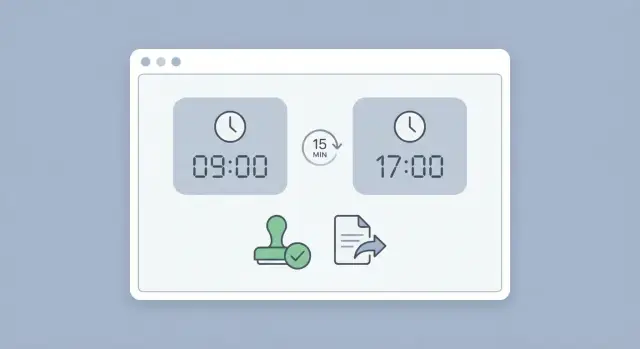
Pick one approach and write it as a single sentence. Common choices are exact minutes (no rounding) or rounding to 5, 6, 10, or 15 minutes. Smaller intervals feel fairer but create more tiny corrections. Larger intervals are simpler but can spark complaints.
Next, decide exactly when rounding happens. Some teams round both clock-in and clock-out. Others round only the start or only the end. Whatever you choose, keep it consistent across the company unless you have a clear legal or union reason.
Lock these decisions before you build:
- The rounding interval (or none)
- Whether rounding applies to start, end, or both
- Any grace period for early or late punches
- What counts as a valid punch versus an exception
- How manual entries are handled
Grace periods matter because real life is messy. If someone clocks in 2 minutes late because their laptop froze, decide whether that's tardy or forgiven. Put it in plain words and make sure managers know when they should approve an exception.
Manual entries need tighter rules because they're the easiest place to inflate hours. A simple policy is: manual time requires a reason and manager approval, and it is never auto-rounded.
Use concrete examples your team can test:
- Clock in 8:02, clock out 17:01, round to nearest 5 minutes -> 8:00 to 17:00
- Clock in 8:06 with a 5-minute grace period -> treated as 8:00
- Manual entry for a site visit -> exact minutes, manager must approve
Pay periods, cutoffs, and time zones
Payroll problems often start when your app's "week" isn't the same as payroll's week. Write down the pay period type and the exact cutoff rule in plain words so managers and payroll can repeat it.
Most teams use one of these patterns, each with a clear start and end timestamp:
- Weekly
- Biweekly (anchored to a fixed start date)
- Semi-monthly (1st-15th and 16th-end of month)
- Monthly
Time zones are the next quiet source of fights. Pick one rule and stick to it: either everything is stored and calculated in a single company time zone, or shifts are recorded in the worker's local time but converted to a payroll time zone for totals. If you take the second approach, show both the local timestamp and the payroll timestamp during reviews so people don't feel the app "moved their hours."
Locking matters as much as calculating. After payroll is processed, lock the period so edits don't silently change totals. If you must allow changes, require a reason and create a separate retro adjustment that lands in the next payroll run.
Late submissions need a predictable path. A practical default is to allow submission after cutoff, flag it as late, route it to manager and payroll approval, and apply it as an adjustment rather than rewriting history.
One more edge case: someone changes teams or hourly rates mid-period. Store the rate and cost center on each entry (or daily segment) so the export can split totals correctly.
Approvals that match how managers actually work
An approval flow should feel like a simple yes-or-no moment, not a mini accounting job. This is a common weak spot in AI-generated prototypes: edge cases like edits after approval get skipped, or the manager view hides the details needed to trust the numbers.
Start by naming a small set of stable states. For example: Draft, Submitted, Approved, Rejected, and Paid.
Define who can approve based on real roles, not org charts. Many teams need a primary approver (direct manager), a backup (project lead) when the manager is out, and an override role (HR or payroll) for corrections. Be specific about when each role can act.
Make the review view obvious: totals first, then the few details that explain surprises. Notes on unusual days, project or cost code, and a clear breakdown by day usually covers most approvals.
Edits after approval are where disputes start. A clean rule: if an edit changes paid time (start, end, break length, project allocation), the timesheet goes back to Submitted and needs re-approval. If the edit is note-only, it can stay Approved but should still be logged.
Keep notifications boring and predictable: one message on submit, one reminder before cutoff, and one message if rejected.
Edits, audit trails, and permissions
Payroll problems often start with a "small" edit: fixing a start time, changing a project code, or adding a note after the fact. Your app should treat any change that affects payroll, billing, or reporting as an edit.
Decide what can be edited (times, break length, job or project, location, pay code, and notes). If an edit changes pay, treat it as higher risk.
Require a reason for any edit and any rejection. Keep the prompt short and consistent, like "Forgot to clock out" or "Moved hours to correct client." When people must choose or type a reason, you get fewer careless changes and less back-and-forth.
An audit trail should be automatic and impossible to bypass. At minimum, capture who made the change, what changed (old value and new value), when it changed (with time zone), why it changed, and what it did to status (resubmitted, re-approved, sent back).
Permissions should match real life, not best-case behavior:
- Employee: create entries, edit before submission, request changes after approval
- Manager: approve/reject, edit within a defined window (with reason)
- Admin/Payroll: override rules, reopen/lock pay periods, export
Avoid delete buttons for time entries. Deleting erases evidence and invites disputes. Prefer voiding or marking as duplicate so the record stays visible with a clear explanation.
Example: an employee moves 2 hours from Support to Project A after approval. The system should force a reason, route the change back for re-approval, and log both approvals.
Breaks, overtime, and time off without overcomplicating
Most payroll headaches aren't about the clock-in button. They happen when people ask, "Was that break paid?" or "Why did overtime show up differently than last week?" Decide these rules early so the app doesn't quietly invent its own logic.
Breaks: paid vs unpaid, automatic vs manual
Start with a clear default: are breaks paid, unpaid, or mixed (for example, a paid 10-minute rest break and an unpaid 30-minute meal)? Then decide whether breaks are entered by the worker or deducted automatically.
A simple setup many teams can live with: unpaid meal breaks are manual, paid rest breaks aren't tracked minute-by-minute, and missing breaks trigger a note and review instead of an automatic deduction.
Overtime: where totals come from
Overtime rules vary, but your app should always be able to explain how a number was calculated. Decide whether overtime is daily, weekly, or both, and which hours count toward the total.
Example: a worker logs 9 hours on Tuesday with a 30-minute unpaid meal break. Do you calculate overtime from gross time (9:00) or work time (8:30)? Payroll usually expects work time, but your exports must match your chosen rule.
Time off is another common trap. Treat PTO and sick time as non-work hours that can still be approved and exported, but don't mix them into overtime unless your policy says so. Holidays are similar: export as a separate earning type, not as worked time.
Keep it simple if you don't need complex policy logic. One or two break types, one overtime rule, and a few earning codes (worked, PTO, holiday) is often enough to ship.
Exports that payroll can actually use
Payroll problems often start at the export. Your app can track time perfectly, then fail because the file is missing a field, totals are calculated differently, or a manager-approved change isn't reflected.
Start with what payroll will import (often a CSV) and what other teams need (a manager summary, and sometimes a finance breakdown). Format matters, but field mapping matters more. If payroll uses employee ID, don't export only names. If you track work by project, export job code and cost center as separate columns.
Make totals explicit. Export regular hours, overtime hours, and unpaid breaks as separate numbers, not a single total. If your rules calculate daily overtime, don't export only a weekly overtime figure unless payroll expects it.
Decide what to do with rejected or incomplete timesheets before the first pay run. A common rule is to export only Approved timesheets and produce a separate exception report for the rest.
A preview export screen saves pain. It should show the exact columns payroll will receive, highlight gaps (missing employee ID, missing job code, negative break time), and display computed totals.
Define the rules before you build with AI
If you start by prompting an AI to build screens, you often get something that looks right but pays wrong. A time tracking app with AI tools works best when rules come first, then the UI and code follow.
Write a one-page rules doc for humans, not developers. Use plain sentences like: "Round to the nearest 15 minutes at clock-out only," "Managers can edit time, but employees can't after approval," and "Payroll uses the employee's local time zone." If payroll can't agree with it, don't build it.
Next, invent a few realistic timesheets and write the totals you expect. Include the annoying cases: late-night shifts, lunch breaks, and a manager edit. Write the expected paid time before a single line of code exists.
Then design the data model around the rules: users (and time zones), time entries (raw and rounded values), approval states, and export batches. Store both original punches and computed results so you can explain any number later.
Test exports against your examples before launch. A lightweight checklist:
- One-page rules doc approved by payroll and managers
- 3 to 5 example timesheets with expected totals
- Fields defined for raw, rounded, and approved values
- Approval steps match who actually approves today
- Export matches what payroll imports (columns and rounding)
Example: one week that usually causes payroll disputes
Disputes happen when real life looks messy but payroll needs clean numbers.
Sam (hourly) uses a system with 15-minute rounding, a Sunday 11:59 pm cutoff, and manager approval.
Mon: Sam clocks in at 7:53 am for an 8:00 shift (early to set up). The rule rounds to the nearest 15 minutes per punch, so 7:53 rounds to 8:00. Sam clocks out for lunch at 12:07 pm, returns at 12:44 pm, and clocks out at 4:58 pm.
Thu: Sam forgets to clock out for lunch. The app flags "no break recorded." Sam edits the entry later that night, adding a break from 1:05 to 1:35, with a reason.
What the manager sees should be simple: a weekly total, a clear view of rounded hours by day (with raw punches available), and a visible flag that the entry was edited after the fact with Sam's reason. Approval should be one click, or rejection with a note back to Sam.
After approval, generate the export the way payroll expects it (for example, one row per employee per day or per earning code), with regular and overtime separated.
Where many apps get this wrong is predictable: rounding the total day instead of each punch, rounding again during export, allowing edits to change totals after approval without an audit trail, or using unclear cutoff/time zone logic so late Sunday punches land in the wrong pay period.
Quick checklist before you roll it out
Before anyone logs a real hour, do a dry run end to end: clock in, edit a punch, submit, approve, export, and import into payroll. The screen can look correct and still fail at paycheck time.
Focus on a few non-negotiables:
- Payroll rounding rules match your written policy and your example math (including edge cases like 7:53, 7:58, 8:02).
- If approval is required, a timesheet can't be marked payable until it's approved.
- Any edit after submission forces re-approval and leaves an audit trail showing who changed what and when.
- Exports line up with pay period boundaries and the time zone used for payroll (not just the user's device time).
- Incomplete timesheets are blocked from export with a clear status.
Run one "payroll reality" test that usually exposes problems: pick an employee who works around midnight or travels. Example: a shift starts at 11:55 pm Sunday and ends at 12:20 am Monday. Confirm it lands in the right pay period, rounds correctly, and shows clearly in the approval view. Then edit the end time by 5 minutes and confirm re-approval is required and the original value remains visible in the audit trail.
Common traps in AI-built time trackers and next steps
AI tools can get you a working tracker fast, but failures usually show up when payroll closes a period. The risky part is that the app looks fine on normal days, then breaks on edge cases.
Common traps include hardcoded rounding that doesn't match policy, unclear time zone storage that shifts hours on late-night shifts or daylight saving changes, and approval flows that can't answer "who approved what, and when" after edits.
Exports are another frequent failure point. Before launch, test against payroll's real import template and look for missing identifiers (employee ID, job code, cost center), totals that change based on rounding order or unpaid breaks, duplicate or negative entries after re-exports, and gaps in the audit trail for changes.
Security is the quiet trap. Many prototypes ship with weak authentication or unsafe data access that lets one employee see another employee's hours. That's a trust problem and a compliance problem.
If you're already holding an AI-generated time tracking app that doesn't behave consistently at payroll, FixMyMess can diagnose and repair the rounding, approval workflow, audit trail for time edits, and timesheet export to payroll so the numbers match your policy and the system is safer to run in production.
FAQ
What should I define before I build a time tracking app with AI tools?
Start by writing a one-page “payroll reality” rules doc in plain language, then test it with a few messy example weeks before building UI. If the rules aren’t explicit, the app will make hidden choices about rounding, cutoffs, and edits that payroll will later undo by hand.
Why does rounding cause so many payroll disputes?
It’s usually rounding plus when rounding happens. The same day can pay differently if you round each punch versus rounding the daily total, or if you round again during export. Pick one rounding method, document it as one sentence, and make sure payroll agrees.
Should rounding be per punch or per day?
Default to rounding per punch (clock-in and clock-out) because it’s easiest to explain and audit, then stick to it everywhere: on-screen totals, approvals, and exports. If you must round daily totals instead, make that explicit and never mix the two in different parts of the system.
How do I handle time zones so hours don’t “move” between days?
Use one pay-period definition with an exact end timestamp and a single time zone rule. A common approach is to store punches in the worker’s local time for display, but compute payroll totals in a designated payroll time zone, while showing both during review so people can verify what happened.
What’s the best way to handle edits after a pay period is closed?
Lock the period after payroll is processed so totals can’t silently change. If a correction is required, record it as a retro adjustment that appears in the next payroll run with a reason, instead of rewriting the already-paid timesheet.
When should an edit force re-approval?
Default rule: if an edit changes paid time or allocation (start/end, break length, project/job code), the timesheet must return to Submitted and require re-approval. Note-only edits can stay Approved, but they still need an audit entry so payroll can see what changed.
What should an audit trail include for time edits?
At minimum, store who changed it, what the old and new values were, when it changed (with time zone), why it changed, and what status changed as a result. If you can’t answer “who changed what and why” in one screen, disputes get personal fast.
How should my app handle missed meal breaks?
Don’t auto-deduct by default unless your policy is crystal clear and you have an exception flow. A safer default is to flag missing breaks, require a note, and route it for manager review, because surprise deductions create compliance risk and immediate mistrust.
What makes a payroll export “actually usable”?
Start from payroll’s import needs and match fields exactly, especially employee ID and earning codes. Export explicit numbers for regular hours, overtime hours, and unpaid breaks, and ensure you’re not rounding again during export or combining totals in a way payroll can’t reconcile.
My AI-built time tracker works on screen but breaks at payroll—what now?
If approvals, rounding, or exports don’t match policy, you’ll see recurring manual fixes, inconsistent totals, and missing audit history. FixMyMess can do a free code audit of an AI-built prototype and pinpoint where the written rules and the implementation disagree, then repair the logic so payroll results are predictable.