Backup and recovery plan for small apps founders can keep
A lightweight backup and recovery plan for small apps: what to back up, how often, restore drills, and rollbacks founders can keep up with.
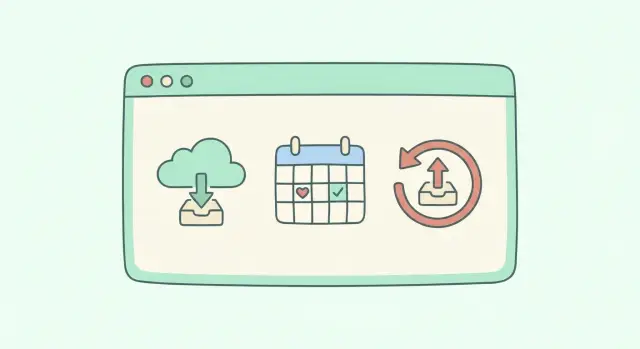
What accidental data loss looks like in small apps
Accidental data loss in a small app rarely looks dramatic at first. It often starts as a normal change, a rushed fix, or a “quick cleanup” that quietly removes or corrupts real customer data.
A few common ways it happens:
- A bad deploy runs a migration that drops or rewrites the wrong table
- Someone deletes records in production while testing an admin screen
- Credentials leak and an attacker wipes a database or object storage bucket
- Your hosting provider has an outage, and your app comes back without the latest data
- A “temporary” script is run twice and overwrites good data with defaults
The painful part is that many teams will say “we have backups” and still lose a week. Backups only help if you can restore quickly, to the right point in time, and without making things worse. If the only person who knows how to restore is asleep, on a plane, or has left the project, your backup is more like a hopeful idea than a safety net.
“Good enough” for a small team means you can answer two questions in plain language: how much data can we afford to lose, and how long can the app be down? Those targets are usually called:
- RPO (Recovery Point Objective): how far back you are willing to go (for example, lose up to 1 hour of signups)
- RTO (Recovery Time Objective): how long you can be offline (for example, back up within 2 hours)
If you built your app with an AI tool and inherited messy code or unclear hosting setup, those targets matter even more. When FixMyMess audits broken AI-generated apps, “backups exist but nobody tested restore” is one of the most common surprises, right next to exposed secrets and fragile migrations.
What you should back up (and what you can recreate)
If you only back up one thing, make it your database. For most small apps, it is the only place where unique customer value lives: accounts, billing state, content, and relationships between records. A clean codebase can be rebuilt. Lost data usually cannot.
File uploads are the next most common “surprise loss.” User photos, PDFs, audio, and any generated exports often sit outside the database. If they are stored on a server disk, they are easy to wipe during a redeploy. If they are stored in object storage, you still need versioning or copies, plus a way to restore quickly.
Secrets and config deserve the same seriousness as data. Environment variables, API keys, and especially encryption keys are the difference between “we can restore” and “we restored a database we can no longer decrypt.” Keep a secure, access-controlled copy of critical secrets, and document where they live.
Some app state is safe to rebuild. Caches can be repopulated. Most job queues can be replayed if you store the source events in the database. The risky middle ground is “state you forgot existed,” like a queue that contains unpaid invoices to process or emails to send.
Third-party vendors are a special case. Many SaaS tools do not let you export everything, and some data is not yours to copy. Focus on backing up the source of truth you control (your database and files), and regularly exporting what the vendor allows (like customer lists or invoices).
A simple backup and recovery plan for small apps often boils down to:
- Database snapshots + point-in-time recovery if available
- User uploads and generated files (with versioning)
- Secrets, encryption keys, and config notes
- A record of vendor exports and their limits
Example: a founder runs a small SaaS built with an AI-generated codebase. A “quick fix” deploy resets the server and deletes local uploads. The database backup saves accounts, but without file backups, customer documents are gone. Back up both, and the same incident becomes a 30-minute restore instead of a week of apologies.
A backup schedule you can actually maintain
A good backup schedule is boring on purpose. If it needs a spreadsheet and a weekly meeting, it will fail the first time you ship fast.
For a practical backup and recovery plan for small apps, start with two triggers: one automatic backup every day, plus a manual (or scripted) backup right before every deployment. That second one is the difference between a small rollback and a long weekend.
A simple rhythm that covers most risks
Daily backups protect you from accidental deletes, bad migrations, or a bug that quietly corrupts data. Pre-deploy backups protect you from changes you chose to make.
Retention does not need to be fancy. A common pattern is:
- Keep 7 daily backups
- Keep 4 weekly backups
- Keep 3 monthly backups
- Keep 1 "pre-deploy" backup for the last 5 releases
Adjust if your app changes rarely (keep fewer) or you have compliance needs (keep more). The key is: delete old backups on purpose, not by accident.
Keep more than one copy, and lock it down
Store backups in at least two places so a single account mistake does not wipe you out. One copy can be in your cloud storage, another in a separate offsite location with a different login. If a teammate has access to production, they should not automatically have access to delete backups.
Name backups like someone will search under stress. A simple format helps: app name, environment, date, and why it exists.
- myapp-prod-2026-01-14-daily
- myapp-prod-2026-01-14-predeploy-auth-fix
- myapp-staging-2026-01-14-daily
Encrypt backups and keep the decryption key somewhere separate from the backup file. If you ever bring in outside help (for example, when FixMyMess is repairing an AI-generated codebase), you can grant limited, time-boxed access without exposing everything.
Lightweight tools and setups that work for tiny teams
You do not need an enterprise setup to have a backup and recovery plan for small apps. You need a few boring pieces that are easy to run and even easier to restore.
Database backups: snapshots vs dumps (plain terms)
A snapshot is a full copy of the database disk at a point in time. It is usually fast to create and fast to restore, but it can bring back everything, including problems like corrupted data or a bad migration.
A logical dump is an export of the data (tables and rows). It is slower, but it is portable and lets you restore into a clean database. For many small apps, a good default is: daily snapshots for speed, plus a daily logical dump for safety.
Managed database providers often include backups, but you still need to verify the settings. Check that backups are enabled, how long they are kept, and whether you can restore to a specific time (point-in-time recovery). Also confirm where restores go: do you overwrite production, or can you restore to a new instance first?
For user uploads and generated files, turn on object storage versioning if you can. Versioning keeps older copies when someone deletes or overwrites a file, which is exactly what you want after an accidental delete.
Automation should use a tool you already touch. A nightly cron job, your host scheduler, or a simple CI workflow is enough, as long as it runs even when you forget.
Before you call it done, confirm the basics:
- Backups are stored outside the main account/project when possible
- You get an alert when a backup fails
- One person can restore without chasing passwords
- Access is limited to a small set of owners
- The restore steps are written down
Store backup encryption keys and provider admin access in a shared password manager, and name two people who can access them. If you inherited an AI-generated codebase (common with Lovable, Bolt, v0, Cursor, or Replit), this is especially important because secrets are often exposed or scattered. Fixing that early makes every backup safer.
Step by step: create a simple backup plan in one afternoon
A backup and recovery plan for small apps only works if you can keep it boring and repeatable. Set a 2 hour block, open a doc, and aim for “good enough today” rather than perfect.
1) Inventory what you actually need to recover
Start by listing every place your app stores important data, plus who “owns” it (the person who can log in and fix it). Common sources are your database, file storage (uploads), environment variables and secrets, and critical third party systems (billing, email lists, CRM). If a source has no clear owner, it will be forgotten.
2) Pick a frequency, retention, and a safe location
Match backup frequency to how painful data loss would be. A busy app database might need hourly backups; file storage might be daily; configuration exports might be weekly.
Write down, for each source:
- How often to back up (hourly, daily, weekly)
- How long to keep backups (for example 14 or 30 days)
- Where backups live (separate account or separate bucket, not “next to production”)
- How to access them (credentials, MFA, who has permission)
3) Draft a 10 minute restore runbook
Keep it short: who decides to restore, where the backup is, the exact command or console steps, and how you verify success (login works, recent records exist, uploads open).
4) Automate, then add one loud failure alert
Turn manual steps into scheduled jobs, and set a single alert if a backup fails or stops updating. No alert means you will only discover the problem during an outage.
If you inherited AI generated code and you are not sure what data is critical, teams like FixMyMess often start with a quick audit to map data sources before locks and backups get complicated.
Restore drills: prove you can get your app back
Backups only help if you can restore them under pressure. Many teams have “green” backup jobs, then discover during an outage that the files are incomplete, the database won’t start, or logins break because a key is missing. A restore drill is the fastest way to turn a backup and recovery plan for small apps into something real.
Run a drill without risking production
Do the drill in a separate environment that cannot touch real users. The goal is to practice the full path: get the backup, restore it, boot the app, and verify key flows.
A simple drill you can repeat:
- Pick a recent backup (ideally from last night) and note its timestamp.
- Restore the database into a new, isolated database instance.
- Restore file uploads (or object storage) into a separate bucket or folder.
- Set required secrets and config (auth keys, email provider, storage creds) for the test environment.
- Start the app and run a short “smoke test” as a normal user.
After the app boots, measure what matters. Time is one part, but “it runs” is not enough.
Here’s what to check and record:
- Time to restore (from “start” to “a user can log in”).
- Missing or stale data (orders, profiles, recent records).
- Broken logins (wrong auth settings, missing keys, callback URLs).
- Broken uploads (images missing, 404s, wrong permissions).
- Any manual steps you had to guess.
How often to run drills
Monthly is a good default for small apps. Also run one right after major schema changes, auth changes, or a storage migration. Those are the moments when restores tend to fail.
Finally, write down what tripped you up and fix the runbook. If a step depends on one person’s memory, it will fail at 2 a.m. If you inherited AI-generated code and the restore path is messy (missing env vars, unclear storage paths, fragile migrations), teams like FixMyMess can help untangle it so drills become boring and repeatable.
Rollbacks that do not make things worse
A rollback is for bad code. A restore is for bad data.
If a deploy breaks login, crashes a page, or spikes errors, roll back the app to the last known good release. Your database is probably fine. If someone ran a destructive script, deleted rows, or you got corrupted data, you need a restore from backup (often to a new database, then swap).
A small rollback plan you can trust
The safest rollback strategy for startups is boring: always keep the last good build ready to re-deploy, and practice using it. That means your deploy process should allow you to pick an earlier release without rebuilding everything.
A simple habit that works:
- Tag each release (date + short note) and keep the previous one available.
- Record the one command or button that rolls back, and who is allowed to run it.
- Watch one or two signals (error rate, signup completion) for 10 minutes after deploy.
- If signals go bad, roll back first, investigate second.
This is also where a backup and recovery plan for small apps stays practical: you reduce how often you need to touch backups by rolling back quickly when the problem is just code.
Database migrations: avoid the "no way back" moment
Most rollback disasters happen when app code and database changes are out of sync. A code rollback might expect an old column, but the migration already dropped it.
Keep migrations reversible, or at least safe to pause:
- Prefer additive changes first (new columns/tables) before removing old ones.
- Never drop or rename in the same deploy as the code switch.
- Backfill data in a separate job, not in a request path.
- Keep a short "undo" note for each migration (what to do if it fails).
- Take a pre-migration snapshot before risky changes.
Feature flags can buy you time. If a new checkout flow breaks, flip it off to stop the bleeding while you fix forward, without touching the database.
If you inherited an AI-generated app where rollbacks are scary (spaghetti deploys, risky migrations, exposed secrets), FixMyMess can audit what you have and help set up a safer release and rollback path before the next incident.
Common mistakes and traps to avoid
Most data-loss stories in small apps are not caused by a “no backups” situation. They happen because backups were incomplete, impossible to restore quickly, or stored in a way that failed at the same time as production.
A classic trap is backing up only the database and forgetting file uploads. If your app lets users upload invoices, profile photos, PDFs, or audio, those files are part of your product. A database restore without the uploads folder or object storage is still a partial outage, and the fix turns into a painful manual rebuild.
Another trap is never testing restores. The first time you try to restore should not be during an incident. Backups can be corrupted, incomplete, or missing the exact steps needed to bring the app back online (migrations, environment variables, storage permissions). A backup and recovery plan for small apps is only real if you have proven you can restore.
Also watch for a single point of failure. If backups live in the same cloud account, same region, and same credentials as production, one mistake or compromise can wipe everything. You want separation, not convenience.
Here are a few failure patterns worth checking today:
- Backups exist, but nobody knows where they are, who owns access, or how to use them.
- Backups are unencrypted, or the encryption keys are stored next to the backups.
- Secrets leak into backups (API keys, database passwords, session tokens) and are shared in a folder or chat.
- Backups rely on one person’s laptop or a manual process nobody repeats.
- “Automatic backups” are enabled, but retention is too short to recover from slow, unnoticed damage.
If you inherited an AI-generated codebase, be extra careful with secrets. We regularly see exposed keys and sloppy config in prototypes. FixMyMess can help you identify what is being backed up, what should not be, and how to make recovery safer without turning it into a big project.
Quick checklist: are you actually protected?
A backup and recovery plan for small apps is only real if it works on a boring Tuesday, not just in your head. Use this quick check to spot gaps you can fix in under an hour.
Here are five signs you are genuinely covered:
- Backups run automatically on a clear schedule, and someone gets an alert when a job fails (not a silent log line).
- You have at least two separate places where backups live, and one is outside your main provider account so one mistake cannot wipe everything.
- A restore runbook exists in plain language and is stored somewhere the team will actually find during an outage (including access details and who can approve a restore).
- You can point to the last restore drill date, plus how long it took to get back online and whether any data was missing.
- You have a rollback plan for both code and database changes, including what to do if the database cannot be safely rolled back.
If you cannot confidently check one of these, pick the easiest fix and do it today. For many tiny teams, the fastest wins are: turning on failure notifications, copying backups to an offsite location, and writing a one page restore runbook.
A simple reality check: if your lead dev is asleep and a non-technical founder has to coordinate recovery, could they find the runbook, know who has credentials, and get a restore started within 15 minutes?
If your app was generated by tools like Lovable, Bolt, v0, Cursor, or Replit, also watch for hidden risks like exposed secrets and fragile migrations. Teams like FixMyMess often see backups configured but restores failing because the codebase is inconsistent or unsafe to deploy.
Example scenario: one bad deploy and a fast recovery
You push a small change on Friday afternoon. Ten minutes later, support messages come in: “My orders are gone” and “My account looks empty.” You check the admin panel and see the latest records are missing for a chunk of users.
Your goal is not to be a hero. Your goal is to stop the bleeding, confirm what happened, and pick the fastest safe path: rollback or restore.
In the first 10 minutes:
- Freeze writes: put the app in maintenance mode or disable the actions that create or delete data.
- Confirm scope: which tables, which time window, which users, and whether reads are also wrong.
- Check logs and deploy notes: did a migration run, a background job start, or a script touch production data?
- Decide rollback vs restore: if the code is wrong but data is intact, rollback. If data was changed or deleted, plan a restore.
- Capture a snapshot now: even “broken” production is evidence you might need.
Instead of restoring straight into production, restore into a safe place first (a new database instance or a temporary schema). Then verify basics: record counts, a few spot checks, and the key flows your users are complaining about. If the restored data looks right, you can restore to production or copy the specific missing rows back.
Communicate early with a realistic timeline based on your RTO (recovery time objective). For example: “We paused changes to prevent more loss. We are restoring the database to a clean point and will update you in 30 minutes.” People handle bad news better than silence.
After the app is back, write down what happened while it is fresh. Fix the root cause (often a migration, a destructive script, or an unsafe admin action) and update the runbook so the next recovery is faster. If the codebase was generated by an AI tool and you are seeing repeated “surprise” failures, a quick outside audit (like FixMyMess’s free code audit) can spot risky patterns before the next deploy.
Next steps: keep it simple and get help when needed
If you do nothing else after reading this, choose one small improvement to ship this week. Not five. One. The best backup plan is the one you actually keep doing.
A practical way to pick is to ask: what would hurt most if it broke today - losing data, being unable to restore, or a bad deploy you cannot undo? Then fix that first.
Here are three “next steps” that usually pay off fast:
- Put a simple backup schedule in place (even if it’s just daily database backups plus weekly snapshots).
- Write a one page runbook: where backups live, who can access them, and the exact steps to restore.
- Do your first restore drill in a safe place (a staging database or a local copy) and time it.
Once you have one drill done, make it repeatable. Add a recurring calendar reminder so restore drills happen without willpower. Monthly is a good start for small apps. If you change database schemas often, do it more often.
If your app was built with AI tools (Lovable, Bolt, v0, Cursor, Replit), assume there may be hidden risks that sabotage recovery: exposed secrets in repos, migrations that are not reversible, “helpful” scripts that wipe tables, or auth flows that break after rollback. These issues often stay invisible until you are under pressure.
When you feel unsure, get a second set of eyes on your codebase and deployment setup. A quick review can spot the one missing piece that turns “we have backups” into “we can recover.” If you’re inheriting an AI-generated prototype that’s shaky in production, FixMyMess can run a free code audit and then repair the parts that make backups, restores, and rollbacks unreliable.