Build a client portal with AI tools by planning the basics
Build a client portal with AI tools by defining roles, documents, and notifications up front so you avoid rework and ship a portal clients can trust.
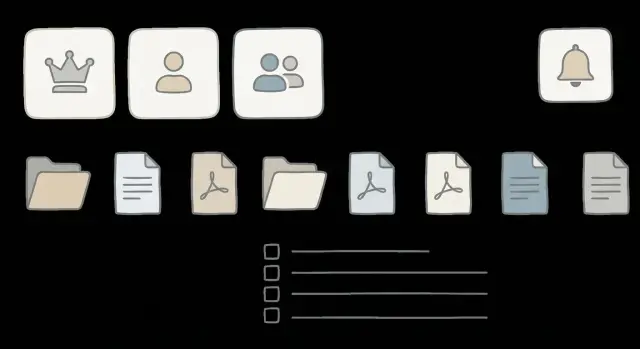
Start with the real problem you’re solving
Before you use AI tools to build a client portal, get clear on the one problem it must solve every day. “A portal” isn’t a problem. Problems look like this: clients keep asking where the latest file is, approvals get buried in email, or nobody trusts the current project status.
Most portals end up needing the same building blocks: login, file sharing, messages or comments, and a simple status view (what’s pending, what’s approved, what’s next). The trap is letting an AI generate polished screens before you’ve decided which of those blocks matter most for how you actually work.
When the basics are fuzzy, AI-built portals tend to fail in predictable ways: people see the wrong files, notifications go to the wrong users, or “status” exists in three places with no single source of truth. You often don’t notice until a real client asks something simple like, “Where do I upload the signed agreement?”
Rebuilding the basics usually means:
- Redoing authentication because you picked the wrong kind of access (client vs internal)
- Migrating files because the original structure doesn’t match real folders and naming
- Rewriting notifications because they spam users or miss critical events
- Reworking the status page because nobody agreed on what “in review” means
A quick reality check: imagine a client uploads a revised PDF, comments “please use this one,” and your team marks it approved. If you can’t describe where that file lives, who can see it, and who gets notified, you’re not ready to generate UI.
Define roles first (before screens)
The fastest way to avoid a rebuild is to define roles before you design pages. Screens change. Permissions are the foundation.
Start by naming your real user types. Most portals only need three at first:
- Admin (owns settings and billing)
- Internal team (does day-to-day work)
- Client (sees their own items)
Then decide what each role can see, do, and edit. “See” isn’t one thing. A client who can view a document shouldn’t automatically be able to download it. Download shouldn’t imply they can upload a new version.
Write down a simple permission set early:
- View (open and read)
- Download (save a copy)
- Upload (add files)
- Edit (change details, rename, replace)
- Approve (sign off, submit, finalize)
Portals usually break on edge cases, so plan a few up front, even if you handle them manually in v1:
- What happens to an ex-client after the contract ends?
- Can an auditor get read-only access to one folder?
- Should a contractor see only one project and never your full client list?
A quick scenario helps: an agency adds a freelance designer. They can upload drafts to one project, but they can’t download sensitive contracts or invite new users. Writing that rule takes minutes. Fixing it after launch can take days, especially if your AI-generated code mixed permissions into the UI.
Turn roles into a simple workflow
It’s tempting to start by generating screens. You’ll move faster if you write the workflow first, in plain language.
List the actions people must complete to get value from the portal. Keep it small and specific:
- Request access or reset a password
- Upload a document
- Review and approve a deliverable
- Ask a question and get an answer
- Pay an invoice or confirm receipt
Now attach roles to each action. For every step, decide who starts it, who can see it, and who can approve it. Example: a client can upload files, but only an account manager can mark them “accepted,” and only an admin can delete them.
Add an audit trail anywhere a disagreement could happen later. If someone can approve work, change a status, or download sensitive files, you want a simple record of who did what and when.
Finally, decide where you want manual review. Common review gates are new user invites, document approvals, refunds, and anything security-related. These gates catch small issues before they become production incidents.
Plan your documents like a filing cabinet
Documents are what turn a “nice demo” into something people use every week. Treat your portal like a filing cabinet: clear drawers, clear labels, and one obvious rule for where each file goes.
Start by naming the document types you’ll support. Keep it short, but match what people actually exchange:
- Contracts and agreements
- Invoices and receipts
- Deliverables (reports, designs, exports)
- Client ID or verification files (only if truly needed)
- Intake forms and questionnaires
Next, decide who uploads what. A common split is: clients upload IDs and completed forms, staff upload contracts, invoices, and final deliverables. This one decision prevents endless “why can’t I see this?” threads and avoids messy workarounds like emailing files.
Then define the labels (metadata) every file needs so it can be found later. If you do nothing else, require:
- Client (or company)
- Project (or engagement)
- Document type
- Status (draft, sent, approved)
- Due date (only for time-sensitive items)
Agree on the boring limits now: accepted formats (PDF, PNG, DOCX) and a file size cap that matches real use. If you expect design files or videos, set different limits by document type.
Small scenario: an agency shares a “Final report,” but the client sees three versions with similar names. If versioning is a rule (v1, v2, final) and only approved files appear in the client view, the portal stays calm.
Set rules for storage, versions, and retention
A portal gets messy fast when files can live in three places, get renamed five times, and never go away. Write down simple rules your portal will enforce.
Start by picking a source of truth for each item. For example, the signed contract might live as one record in the portal, with the latest PDF attached. Email attachments and chat uploads are copies, not the real contract.
Keep organization simple. If you design a perfect folder tree, you’ll rebuild it later. If you require too many tags, people will stop tagging.
A clean default set of rules
- One home for each document type (contracts, invoices, deliverables, IDs)
- Choose either folders or tags as the primary organizer; use the other sparingly
- Clear retention: what gets archived after 30/90/365 days, and what gets deleted
- Versioning: when to replace a file vs keep history, and who can do it
Versioning is the usual hidden trap. For deliverables, history is helpful (v1, v2, final). For proof documents like a W-9 or passport scan, history can create risk and confusion, so replacement may be the better rule.
Retention is about cost and clarity. If a client churns, do you keep everything forever, or archive it and purge sensitive files after a set time? Decide now, then build the portal around it.
Design notifications so they help, not annoy
Notifications can make your portal feel alive, but too many will train people to ignore everything. Decide what deserves a ping and what should stay quiet.
Start by naming the few events that truly need attention:
- A document upload or replacement
- A comment or question that needs a reply
- An approval request (or approval granted)
- A payment status change (failed, paid, overdue)
- A deadline change or upcoming due date
Pick channels based on urgency. In-app is best for low-urgency updates. Email works for things people shouldn’t miss. SMS is only for truly urgent cases.
Frequency matters more than most teams expect. Give people three choices per event: instant, daily digest, or never. Digests reduce noise without hiding important info.
Example: an agency uploads a draft contract. The client gets one email: “Draft ready for review.” If the client adds five comments, the agency shouldn’t get five emails. Put comments into a digest, but keep “Approval requested” as instant.
Add preferences from day one. Even an MVP should have a small settings screen that answers:
- Which events do you want alerts for?
- Which channel should we use?
- Instant or digest?
- Who on your team should receive them?
Also include an unsubscribe option for non-critical emails. If you skip it, you’ll end up rebuilding later.
Decide what data you store and how to keep it safe
Write a one-page data list: what you collect, where it shows up, who can see it, and why you need it. This prevents a portal from quietly turning into a storage bin for everything.
A practical rule: if you don’t need it to deliver the service, don’t store it. Many portals can avoid holding highly sensitive data (full payment details, government IDs, raw passwords) by using trusted providers and saving only references like a customer ID or the last 4 digits.
Decisions that prevent panic later
Decide early who can export data (download all documents, export a client list, pull invoices) and what happens when access is removed. Revoking access should mean more than hiding a menu item. It should cut off API access, cancel active sessions, and remove shared links if you use them.
Use a short checklist for your one-page data list:
- Client profile data (name, email, company) and the exact purpose
- Documents stored (contracts, briefs, reports) and who can access each type
- Messages and notes (what is logged, what is editable, what is permanent)
- Audit data (who changed what, and when) and how long you keep it
- Exports and admin tools (who can download, and how revocation works)
Basic security needs (even for an MVP)
Treat secrets like toxic waste: keep API keys out of the code and out of any database fields users can read. Add rate limits on login and file uploads to reduce brute force attempts and spam. Validate input on every form and upload (type, size, and content) so a simple text box doesn’t become a security hole.
Sketch an MVP that’s hard to break
The safest v1 is small and testable. Start with a few screens that cover the daily job, not every nice-to-have.
A practical MVP usually fits into 3 to 5 screens:
- Login
- Dashboard (what changed, what needs action)
- Files (upload, download, simple organization)
- Messages (one thread per project)
- Settings (profile, password, notification toggles)
For each screen, write acceptance criteria in plain language. Make it something a non-technical person can verify.
Example for Files: “A client can upload a PDF up to 25MB, sees a success message, and the file appears in the list within 5 seconds.”
Example for Dashboard: “If there are no new items, show a clear ‘Nothing new’ message and one next step.”
Don’t skip empty and error states. They’re where portals fail in real life: upload failed, permission denied, session expired, file too large, message send error. If you only test the happy path, you’re shipping surprises.
Decide what you won’t build in v1, and say it out loud:
- Custom roles per client
- Advanced search and filters
- Automatic reminders and schedules
- Version history beyond “latest file”
- Deep integrations (billing, CRM)
A realistic example: agency and client portal flow
Picture a small agency running a website redesign for one client. You want one place where files, feedback, and approvals live, so nobody is hunting through email threads.
Start with three roles:
- Owner: controls billing, adds users, and can approve anything
- Account manager: posts updates, uploads files, and assigns reviews
- Client reviewer: can view deliverables, comment, and approve or request changes
Now map a document flow that matches how work happens.
The account manager uploads a draft design file and sets it to “Needs review.” The client reviewer opens it, leaves comments, and clicks “Request changes.” That moves the item back to “In progress” with the comments attached. After revisions, the account manager uploads a new version and marks it “Ready for approval.” The owner (or the client reviewer, if you allow it) clicks “Approved,” which locks the final file and records the date.
Notifications should be few, clear, and tied to actions. Two messages often cover most of the value: a review request when a draft is ready, and an approval confirmation when something is finalized.
How to use AI tools without creating a mess
AI can help you move fast, but only if you feed it a clear plan. Keep one written spec that doesn’t change names mid-build: roles, what each role can do, what document types exist, what metadata is required, and when notifications go out.
When you prompt, be specific about actions and rules. Instead of “make a portal,” describe what happens, who clicks what, and what must be blocked.
Keep your spec tight:
- Roles: Client, Account Manager, Admin (who can view, upload, approve, delete)
- Documents: types, required fields, allowed sizes, versioning rule
- Notifications: triggers (upload, comment, approval), opt-out, and digest rules
- Permissions rules: “Client can only see their own projects” (state it explicitly)
- Edge cases: “If a doc is rejected, keep the prior approved version visible”
Treat the spec as the single source of truth. If the AI generates a screen or endpoint that conflicts with the spec, fix the spec first (if it was wrong), then regenerate only the affected parts. Avoid “quick tweaks” in random files without writing down what changed.
Stop generating and start testing as soon as the basics exist: login, one upload, one approval, one notification. Test real failure cases too: a client trying to access another client’s document, or uploading a second version and checking which one is shown.
If the code starts to feel tangled (common with AI-generated prototypes from tools like Bolt, v0, Cursor, or Replit), pause and refactor before you pile on features.
Common mistakes that cause rebuilds later
The fastest way to waste time is to let the AI generate screens first, then “figure out permissions later.” You end up with pages that assume everyone can see everything, and you spend weeks patching holes: hiding buttons, adding checks in random places, and still missing edge cases.
Another rebuild trigger is skipping an audit log. It feels optional until a client says, “We never approved that file,” or “You changed our billing address.” Without a record of who did what and when, you’ll end up bolting on logging after the fact.
Secrets are the silent killer. AI-generated prototypes often leave API keys in the repo, in environment files that get committed, or even in client-side code. Once a key is exposed, you’re forced into urgent cleanup: rotate keys, hunt for leaks, and re-check every integration.
Notifications can also cause churn. Early portals either spam every minor update or miss the one event that matters (like an approval). Decide which events are “action needed” vs “FYI,” and keep defaults quiet.
Before you ship, sanity-check these basics:
- Permissions enforced on the server, not just the UI
- Audit log for logins, uploads, approvals, and admin changes
- Secrets stored only in secure server settings and easy to rotate
- Notification rules that are predictable and easy to change
Quick checklist before you build
Lock the basics before you generate screens. These decisions are boring, but they prevent the most common rebuilds: people seeing the wrong files, missing approvals, and notification chaos.
Use this checklist and don’t move on until each item has an owner and a written decision:
- Roles and permissions are agreed (who can view, upload, approve, edit, invite, export). Include edge cases like ex-clients, contractors, and read-only finance users.
- Your document list is defined like a filing cabinet: what types exist, who owns each type, required metadata (client, project, status), and retention (what gets deleted, when).
- Notification events are chosen and limited: what triggers an alert, who gets it, and whether it’s email, in-app, or both. Add preferences so users can mute non-critical updates.
- MVP screens are named and kept small (login, dashboard, documents, messages, settings). Each screen has acceptance criteria written in plain language.
- A simple test script exists: 5 to 10 steps that prove the portal works end to end (invite a client, upload a file, request approval, approve, audit trail shows it).
Concrete example: if you can’t answer “Can a client download someone else’s contract?” or “What happens when a file is replaced?” you’re not ready to build.
Next steps: build, test, and get help if it breaks
Build the smallest working slice and test it before adding more screens. Your goal is simple: prove the portal can handle real use without surprises.
Start by testing the “break me first” areas:
- Login and logout (including password reset)
- Roles and permissions (what each role can see and do)
- File access (upload, download, who can open what)
- Notifications (right person, right time, no duplicates)
- A full workflow from start to finish (one real request, one real response)
Then run a walkthrough with a non-technical person who’s never seen the portal. Give them a task like “find the latest contract, upload a signed copy, and message the team.” Watch where they hesitate or get confused. That’s your real backlog.
If you already have an AI-generated portal that’s close but failing in production, FixMyMess (fixmymess.ai) can help with a codebase diagnosis and targeted repairs, especially around authentication, permissions, security hardening, and deployment prep. A quick audit can be the difference between a short fix and a full rebuild.