Build a donation page with AI tools that works end-to-end
Build a donation page with AI tools with clear receipts, recurring options, and thank-you emails that reliably send. A practical setup and testing plan.
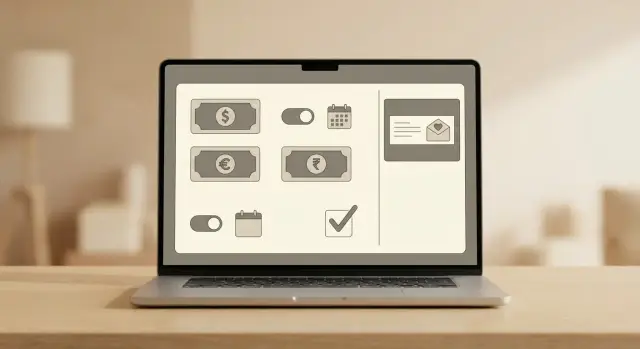
What “working” means for a donation page
A donation page is only working if the whole chain works, not just the screen that collects a card number. With AI-built pages, it’s common to get something that looks polished but fails in the parts donors actually notice.
Most failures are unglamorous and expensive: receipts don’t send, thank-you emails land in spam, recurring gifts charge on the wrong schedule, or the “success” page shows even when the payment failed. Sometimes the page collects donor details but doesn’t store them in a usable way, so you can’t reconcile donations later.
Right after someone donates, they expect three things:
- A clear on-page confirmation that the payment succeeded
- A receipt email with the right details (and an obvious subject line)
- A thank-you message that feels human, not automated noise
If any of those are missing, donors worry their money didn’t go through, or they feel ignored. The classic scenario: someone gives $50, sees a spinner, gets redirected somewhere generic, and emails asking if it worked. You end up digging through a payment dashboard to reassure them.
Before you design anything, gather the basics so you don’t rebuild later: your organization’s legal name and address (for receipts), a payment account that supports one-time and recurring donations, and an email sending setup that won’t break (a consistent “from” name and address, plus a domain you control).
If you already have an AI-generated prototype and the flow is flaky (broken confirmation, exposed secrets, or recurring logic that behaves oddly), FixMyMess (fixmymess.ai) can audit the code and repair the end-to-end donation flow before you launch.
Decide the basics: amounts, frequency, and donor details
A donation page can look perfect and still fail if the basics are unclear. Donors should understand what you’re asking them to do in under a minute.
Support both one-time and recurring donations. Some people want to give once. Others want to set up a monthly gift and forget about it. If you force only one option, you lose the other group. A simple default is one-time selected first, with a clear monthly toggle.
Suggested amounts matter. Give donors a short set of choices that match real budgets, and always include a custom amount field so no one feels boxed in. If you’re unsure what to pick, choose a low, medium, and high option that make sense for your cause.
A common setup:
- One-time: $10, $25, $50, $100, Custom
- Monthly: $5, $10, $20, $50, Custom
Keep donor details short, especially on mobile. Every extra field increases abandonment. Start with what you truly need to process the donation and send a receipt: usually email, name (if your receipt rules require it), and payment details. Everything else (phone, address, company, dedication message, newsletter opt-in) should be optional.
Set privacy expectations in plain language near the form. One sentence is often enough: what you’ll use the email for, and whether you share it.
Also check what your AI builder auto-adds. Many tools quietly include extra fields, extra consent checkboxes, or vague privacy text. Simpler inputs now make receipts, recurring billing, and thank-you emails easier later.
Choose payments that can handle recurring and receipts
A donation page is only as real as its payments. It’s easy to end up with a nice-looking form that can’t reliably create receipts, renew monthly gifts, or notify you when something fails.
Pick a payment processor that supports recurring donations and donor-ready receipts (not just internal transaction logs). Receipts should clearly show the organization name, date, amount, currency, and a unique reference. Donors often need this for reimbursements, expense reports, or tax records.
Then look at failure handling. Can you issue full and partial refunds without waiting on support? Can you see failed recurring payments (expired card, insufficient funds), and does the system retry and notify the donor?
Checkout style matters too. An embedded form keeps donors on your page, but it can be harder to secure and easier to break when an AI builder rewrites markup. Redirect checkout usually reduces risk because sensitive fields stay with the processor. Pick the approach you can maintain.
One non-negotiable: webhooks (payment events). Even if you’re not technical, you should confirm you can reliably receive events like successful payment, failed payment, refund, and subscription renewal.
A quick selection checklist:
- Supports recurring gifts and donor receipts out of the box
- Clear refund tools and a visible log of failed recurring payments
- Checkout option you can keep stable (embedded or redirect)
- Reliable event/webhook history with retries
- Simple exports for reconciliation
Example: a donor signs up for $20/month. If a renewal fails, you should get an event, the donor should get a polite retry message, and your system should not send a “thank you” for money you didn’t receive.
Step-by-step: build the page with an AI website builder
Start by telling the builder what the page must do, not just how it should look. A donation page is a mini checkout, so write the happy path first: a donor picks an amount, chooses one-time or monthly, pays, sees a confirmation, and gets a receipt email.
A build sequence that holds up:
- Write the top section copy: one clear headline, one sentence on impact, one primary button (Donate).
- Add a couple of trust signals near the button (brief numbers, a short note on how funds are used, and a contact email).
- Insert the donation form: preset amounts plus “Other,” a one-time/monthly toggle, and only the fields you truly need.
- Connect your payment provider in test mode and run a few test donations end-to-end.
- Design the confirmation screen: a clear “thank you,” what happens next (receipt email, monthly charge date), and an optional share action.
Keep the form tight. Name and email is a good default, with truly optional extras like company or a dedication message.
Example prompt for a builder: “Create a donation page for a local animal rescue. Use a calm layout. Include $25, $50, $100, and Other. Add a monthly option. Collect name and email. After payment, show a confirmation message and remind them they’ll receive a receipt by email.”
Before you publish, do quick accessibility checks: visible labels for inputs, logical tab order, enough contrast, and a smooth mobile experience.
Set up receipts that donors can actually use
A receipt isn’t a nice extra. Many donors need it for reimbursement, taxes, or personal records. Treat receipts as part of the payment flow, not an afterthought.
At minimum, a useful receipt includes the organization name (exactly how you want it shown), donation amount and currency, date/time of the successful charge, a transaction ID from your payment provider, and a donor name or “Anonymous” when applicable.
Timing is everything. Send a receipt only after the payment provider confirms success. If you send it right after form submit, you’ll eventually email receipts for failed cards, abandoned checkouts, or duplicate attempts.
Be clear about anonymous donations. “Anonymous” usually means hidden from public lists, not “no receipt.” If the donor provides an email, you can still send a receipt addressed to “Anonymous donor.” If they don’t provide an email, show an on-screen confirmation with a transaction reference and a note that no email receipt can be sent.
For recurring donations, choose one approach and say it plainly:
- Per-charge receipts (a receipt after each monthly charge)
- Monthly summary receipts (one receipt covering all charges that month)
Per-charge is simplest for donors and support. Monthly summaries can work, but only if your payment tool truly supports them.
Recurring donations: the rules you need to decide
Recurring donations sound simple, but donors judge you on the details: how often they’re charged, how easy it is to change, and how easy it is to stop.
Define what “recurring” means right on the page. Be specific near the toggle so there are no surprises. A clear monthly default usually works.
Decide the rules up front: which billing options you offer (monthly, yearly, or both), how cancellation works and where donors go to do it, what changes donors can make (amount, frequency, pause), how upgrades work mid-cycle (charge now vs next renewal), and what emails go out after sign-up, changes, and cancellation.
Plan for plan changes. Many donors start at $10/month and later want to move to $25/month or switch to yearly. If they have to cancel and re-donate, you’ll lose some of them. If your payment tool supports updating subscriptions, use it, and make sure the confirmation email states the new amount and next charge date.
Failed payments are normal. Cards expire, banks block charges, and limits get hit. Decide your retry rules (for example, a few retries over a week) and send a calm message: what happened, how to update the card, and when you’ll try again.
Make cancellation fast. A donor should be able to cancel in under a minute and receive an email confirming it, including the date recurring charges will stop.
Reliable thank-you emails: make deliverability boring
Emails are often the first thing that breaks quietly. The donor pays, but the message lands in spam or never arrives. Treat email like part of the payment flow.
A simple pattern works well: send two emails with different jobs. The first is the payment confirmation/receipt email. Keep it factual so it looks like a standard transaction. The second is the real thank-you note, sent separately, where you can add warmth and a short story without risking the receipt.
Use a domain you control for the sender address (for example, [email protected]), not a free mailbox. Free addresses can work for one-off messages, but they’re a weak foundation for automated receipts and recurring donations.
Keep the thank-you email boring in the right ways:
- Use a simple subject line like “Thank you for your donation” or “Donation receipt”.
- Keep the sender name consistent.
- Avoid heavy images and overly designed templates.
- Include a plain-text version, not just HTML.
- Set a Reply-To address someone actually reads, and test that replies land.
A quick example: if Sam donates $25, they should get a receipt email within a minute with the amount, date, and reference. Then they get a second email that thanks them and says what the donation supports.
Test the full flow before you launch
A donation page can look perfect and still fail at the parts that matter: charging the card, sending proof, and making donors feel confident. Before you publish, run end-to-end tests that cover payments, receipts, and emails as one flow.
Start with a one-time donation and follow it like a donor would. Use a real card (small amount) when possible. Confirm the on-page message, the payment record in your dashboard, the receipt generation, and delivery into a normal inbox (not spam).
For recurring donations, don’t stop at signup. Many problems show up on the second charge: wrong amount, wrong schedule, missing receipt, or missing email. If your payment tool supports test clocks or fast-forwarding, use it. If it doesn’t, use the shortest safe test interval available in test mode.
Scenarios worth testing:
- One-time donation: charge, confirmation page, receipt, thank-you email
- Recurring signup: first charge, donor confirmation, receipt
- Recurring second charge: timing, amount, new receipt, donor email behavior
- Failed payment: declined card and the message you show
- Cancellation and refund: what the donor receives and what your team sees
Keep a simple test log: date/time (and time zone), amount and frequency, donor email and where messages landed, screenshots of confirmation and payment record, and notes on anything confusing.
Common mistakes (and how to spot them early)
Most problems aren’t on the page itself. They happen around it: payment confirmation, receipts, emails, and admin access.
A classic mistake is generating a receipt before the payment is confirmed. It looks fine in a demo, then real donors get “paid” receipts for failed cards or canceled bank transfers. Catch it by making one successful donation and one intentionally failed one, then comparing what (if anything) is issued.
Thank-you emails often fail in a more subtle way: they send twice. Many payment systems retry webhooks when your server is slow or returns an error. If your “send email” action isn’t idempotent (only runs once per donation), donors get duplicates. The early warning sign is two email events for the same donation ID in your logs.
Security issues are easy for AI-generated code to introduce. Watch for API keys or “secret” tokens placed in frontend code, and for admin pages that rely on hidden URLs instead of real sign-in.
Fast red flags before launch:
- A receipt exists for a donation that failed or is still pending.
- Two thank-you emails arrive for one test donation.
- You can view donor details in an incognito window.
- The page contains a hard-coded key, token, or database connection string.
- Currency or amounts look right on-screen but differ on the charge (for example, cents vs dollars).
Example: if you set a $25 option and your test charge is $0.25, the code likely sent “25” as cents.
A simple real-world example to copy
A local animal rescue wants to accept both one-time gifts and monthly support. They use an AI tool to build the page, but keep the plan simple so it doesn’t fall apart under real usage.
Above the fold, they keep only essentials:
- One line on impact: “Help us cover food and vet bills for rescued cats and dogs.”
- Three suggested amounts: $25, $50, $100
- A monthly toggle with the same amounts (default stays on one-time)
- A short “Where your money goes” note (1-2 sentences)
- A small form: name, email, optional address
For receipts, they avoid confusion by using one source of truth: the payment provider sends the official receipt, and the rescue sends a separate thank-you message. The receipt email uses a clear subject like “Receipt for your donation” and includes the amount, date, and transaction reference. The thank-you email is warmer and doesn’t pretend to be a tax receipt.
For recurring gifts, they add one sentence near the toggle: “Monthly gifts renew automatically until you cancel.” They also include “Need to change or cancel?” in the thank-you email, asking donors to reply so a human can help.
On launch day, they run a quick full-flow test:
- Make a $1 one-time donation and confirm the receipt arrives
- Make a $1 monthly donation and confirm the confirmation looks different
- Check spam and “Promotions” tabs
- Reply to the thank-you email to confirm replies reach a real inbox
- Verify the donation shows up in the dashboard with the right frequency
It takes about 15 minutes and prevents the most painful failure: someone gives money and hears nothing back.
Launch checklist and next steps
Before you publish, do one pass focused on the boring parts. Those are the parts that earn trust and keep your team from scrambling later.
A tight launch checklist:
- Payments succeed with a real test donation, and your payout account is verified.
- Recurring donations are enabled, and you can see, cancel, and refund from the admin dashboard.
- Receipts include the right org name, support email, and a transaction reference donors can quote.
- Thank-you emails land in inboxes (not spam) for at least two email providers.
- Admin access and basic security hygiene are set (no shared passwords, no secrets in page code).
After you go live, treat the first week as quiet monitoring. Check failed payments (especially on renewals), email bounces and complaints, any duplicate charges or duplicate receipts, gaps between successful charges and what shows up in your donor list or CRM, and support emails like “I donated but didn’t get a receipt.”
If something looks off, avoid guessing. Webhooks firing twice, renewals not recording, broken admin access, exposed secrets, or a codebase that’s too messy to safely change are all signs you should get help. If you inherited a broken AI-generated setup, FixMyMess (fixmymess.ai) offers a free code audit and can repair the payment, receipt, and email flow so it behaves reliably in production.
FAQ
What does it mean for a donation page to be “working,” not just “looking finished”?
A donation page is “working” only if the entire chain works: the payment is actually captured, the donor sees a clear success confirmation, and the right receipt and thank-you emails are sent based on the real payment status. A page that looks good but misfires on confirmations, receipts, or recurring charges will create donor doubt and support tickets.
What should donors get immediately after they donate?
A reliable minimum is: on-page confirmation after a successful charge, a receipt email with correct details, and a separate human-sounding thank-you message. If you can’t do three, prioritize accurate confirmation and a usable receipt first, then add the warmer thank-you email as a second step.
Should the page default to one-time or monthly donations?
Start with one-time selected by default and add a clear monthly toggle. That setup captures donors who want to give once without friction while still making recurring easy to find for supporters who prefer “set it and forget it.”
How many suggested donation amounts should I show?
Use a short set of suggested amounts plus a custom field. A practical baseline is three to four presets (low, medium, high, and maybe one stretch option) and “Other,” so donors aren’t forced into a number that doesn’t fit their budget.
What donor details should be required vs optional?
Collect only what you need to process the donation and deliver the receipt: usually email and name, plus payment details handled by the processor. Everything else should be optional because extra fields increase drop-offs, especially on mobile.
Can my donation page accidentally send a receipt for a failed payment?
Yes. If your system triggers emails when the form is submitted instead of when the payment is confirmed, you will eventually send receipts for failed cards or abandoned checkouts. Trigger receipts only from a confirmed payment event so the email always matches reality.
What payment features matter most for recurring donations and receipts?
Use a processor that supports recurring donations, donor-friendly receipts, refunds, and clear visibility into failed renewals. Also confirm it has reliable payment events (webhooks) so your site can update confirmations and emails based on real success, failure, refund, and renewal states.
Is an embedded checkout or a redirect checkout safer with AI-built pages?
Redirect checkout is often easier to keep stable because sensitive payment fields stay with the processor, which reduces breakage when an AI builder rewrites your page. Embedded forms can work, but they’re easier to accidentally misconfigure, especially when code changes are generated automatically.
Why do thank-you emails sometimes send twice, and how do I prevent it?
Make your “send email” action run only once per payment, even if the payment event is delivered twice. Duplicate messages usually happen when webhooks retry after a timeout or error, so you need a simple safeguard that recognizes the same payment/donation ID and doesn’t re-send.
When should I get help fixing an AI-generated donation page instead of tweaking it myself?
If you already have an AI-generated prototype and the flow is flaky—like broken confirmations, recurring logic behaving oddly, exposed secrets, or receipts/emails not matching payment status—get a code audit before launch. FixMyMess can diagnose the codebase and repair the end-to-end payment, receipt, and email flow so it behaves reliably in production, typically within 48–72 hours.