Build a support chatbot page: data access and human handoff
Build a support chatbot page that stays safe: choose what data it can access, set clear limits, and route tricky cases to humans fast.
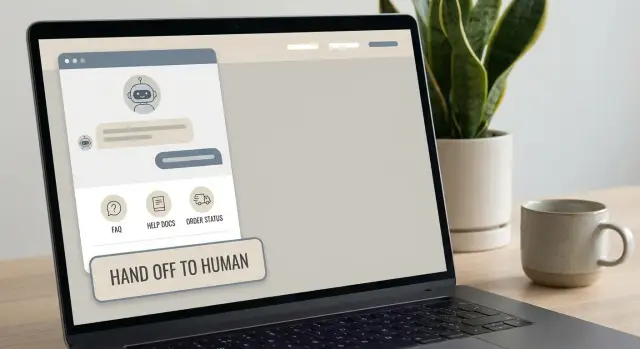
What goes wrong with support chatbots (and why it matters)
When someone clicks “Chat with support,” they expect two things: a quick answer and a clear path to a real person if the bot can’t help. They’re already stuck, so a chatbot that sounds confident but gets it wrong feels worse than no chatbot at all.
Most failures come down to three issues:
- Missing context: the bot can’t see the order, account, plan, error message, or past tickets, so it guesses.
- Wrong answers: it pulls outdated docs, mixes up policies, or invents steps that don’t exist.
- Slow escalation: the user keeps repeating themselves because the handoff is unclear, or the bot blocks them from reaching a human.
That’s why a support chatbot page isn’t just a UI project. It’s two decisions that shape trust:
- Data access: what information the bot is allowed to read (and what it must never see).
- Human handoff: how the bot exits gracefully, captures details, and gets a person involved fast.
A simple definition of success keeps you from overbuilding. A support chatbot is successful if it resolves easy questions quickly, and for everything else it routes the user to a human with the right context (what the user tried, what the bot suggested, and what system details are safe to share). If it can’t do those two things reliably, it creates more support work, not less.
Start with scope: what the chatbot should and should not handle
Before you build a support chatbot page, decide what “good” looks like. A bot that tries to answer everything will guess, and that’s how small issues turn into angry customers.
Start with 3 to 5 tasks that happen every day and have stable answers. Focus on repetitive tickets, not topics that require judgment.
Good starters usually include policy and “how do I” questions, like refunds, shipping, password reset instructions, pricing basics, and a few common troubleshooting steps. Write the answers the way you’d be comfortable publishing them on a public help page.
Then define red lines. Common ones are anything that changes billing details, anything that could lock someone out of an account, and anything in legal or medical territory. If a mistake could cost money, expose personal data, or create an irreversible outcome, the bot should explain the process and then hand off.
Also decide the tone up front. Policy answers should be short. Troubleshooting should be step-by-step, one action per message.
Finally, set a stop condition for uncertainty. A practical rule:
- If the bot isn’t sure, it asks one clarifying question.
- If it’s still unsure after that, or the user seems upset, it hands off.
No guessing when the outcome affects payment, access, or privacy.
Map the data: what information exists and who owns it
Write down every place the “right answer” might live. If you skip this, the bot will mix policies, pull old info, or fill gaps with guesses.
Start by listing your knowledge sources and assigning an owner to each one: help center articles, FAQs, product docs, internal SOPs, and a curated set of past support replies. The owner is the person who can say “yes, this is correct today” and is responsible for updating it.
Separate public info from private customer data early.
- Public info is safe to quote to anyone (pricing rules, setup steps, return policy).
- Private data is tied to a person or account (orders, tickets, addresses, account status, billing history).
Treat private data as opt-in: the bot only uses it when it truly needs it, and only after the user is clearly authenticated.
Decide whether the bot can access user-specific data at all. A simple first version can answer from public docs only, then hand off to a human for order lookups. If you do allow lookups, define exactly what fields it can read and what it must never see (for example, full card details).
Plan for freshness. Pick an update rhythm (weekly, or after every policy change) and a simple approval path: who edits the source, who signs off, and how you confirm the bot is using the latest version. If refunds changed last month but the FAQ wasn’t updated, the bot will confidently promise the wrong outcome.
Decide what the bot can see (and what it must never see)
Support bots do better with less. Give it only the minimum data it needs for your common questions and keep everything else out of reach. Most chatbot disasters happen when a bot can peek into places it doesn’t fully understand.
A simple way to organize access is three buckets:
- Public help content: policies, how-tos, approved FAQs.
- Account context: order status, plan tier, subscription state.
- High-risk data: anything that could be abused.
The bot can usually read the first bucket safely. The second bucket helps, but only after you confirm who the user is. The third bucket should be off-limits.
Never give the bot direct access to secrets like API keys, admin tokens, database credentials, or internal dashboards. Even if you think “it would never say that,” a bad prompt, a bug, or a logging mistake can expose it.
Personal data also needs strict masking rules. If the bot must use personal details, show only what’s necessary (for example, “card ending in 1234” instead of a full number, or “shipping to New York” instead of a full address). As a rule, don’t let the bot repeat full emails, addresses, or payment details.
For sensitive requests, write explicit rules the bot must follow. Keep them simple so they’re easy to test:
- Identity checks: use a one-time code or a signed-in session, not “tell me your last four digits.”
- Cancellations and refunds: confirm intent, summarize the impact, then hand off if anything is unclear.
- Account changes: require login and limit what can be changed in chat.
Choose the bot’s power level: answer, look up, or take actions
Decide up front what the bot is allowed to do. This affects safety, engineering effort, and how much damage a bad reply can cause.
Most bots fall into one of three levels:
- Answer only: replies using approved help content and policy text. No private account access. No changes.
- Look up: reads limited account data (like order status or plan tier) and explains it.
- Take actions: resets passwords, cancels subscriptions, issues refunds, creates tickets.
If you allow actions, make the bot behave like a careful assistant, not an autopilot. Require a clear confirmation step and tell the user exactly what will happen. For example: “I can create a support ticket titled ‘Login loop on iPhone’, include your last error message, and send it to Billing. Create it now? Yes/No.”
Treat every action like an audit event. Log what the user asked for, what the bot planned to do, what it actually did, and the outcome (success, failure, or handed off). Those logs are how you debug surprises and prove what happened.
Add basic abuse protection too: rate limit repetitive requests, block obvious spam, and watch for prompt injection attempts that try to override rules. If something looks suspicious, the bot should refuse the action and offer a human handoff.
Design the chatbot page so users feel in control
A support chatbot works best when people know what it can do, what it can’t, and how to get help fast if it gets stuck. The page should make those things obvious.
Make three items visible immediately:
- A short privacy note (what the bot reads and stores)
- A plain-language limitations line (what it won’t handle)
- A clear way to reach a human
Collect only what you need at the start. If most issues require an email and an order number, ask for those and nothing else. Save extra questions for later, only if the conversation truly needs them.
Keep the chat UI simple. Messages should be short, and buttons should cover common paths so users don’t have to guess what to type. A few options are usually enough:
- Track my order
- Refund or return
- Billing question
- Technical issue
- Talk to a person
Make escalation visible at all times, not only after the bot fails. A persistent “Talk to a person” option reduces frustration and builds trust.
Plan for outages and bad days. If the bot can’t load or your backend is down, show a fallback: a short contact form, support hours, and what to include (email, order number, a one-sentence summary). Don’t trap users in a broken chat window with no next step.
Build and launch with AI tools without overcomplicating it
If you want to build a support chatbot page quickly, resist connecting it to everything on day one. Start with a small, approved set of answers you’d be comfortable showing on a public help page.
A simple build path:
- Pick one tool and one channel first (usually your website support page).
- Load a small knowledge set: FAQs, shipping and returns, pricing basics, and a few troubleshooting articles.
- Use retrieval from that approved content only, not open web browsing.
- Add clear guardrails: what it refuses, what it can and can’t advise on, and a default “I don’t know” response.
- Release to a small slice of visitors before rolling it out to everyone.
Guardrails prevent confident nonsense. A good refusal is short and helpful: it says what the bot can’t do and what the user should do next (like contact support or provide an order number).
Before you widen access, test it like a customer would. Use 20 to 30 real questions pulled from your inbox, including messy ones with missing details. Track where it fails, then fix the content or rules, not just the wording.
Example: if users ask “Why was my card charged twice?” and your help content doesn’t cover pending authorizations, the bot should say it’s not sure, explain the common cause, and offer a handoff option.
Plan the human handoff for when the bot fails
A support chatbot is only safe if it knows when to stop. People forgive a bot that asks for help. They don’t forgive a bot that keeps guessing while they’re stuck.
Set clear handoff triggers
Decide what should automatically switch the conversation to a human. Common triggers include low-confidence answers, missing data for a lookup, signs of frustration, repeated loops, and sensitive topics (billing disputes, refunds, account access, security incidents). Any request that could cause irreversible damage (cancellations, deletions, chargebacks) should escalate early.
Keep the trigger rules simple enough that your team can recognize and test them. When in doubt, hand off.
Pick a handoff mode that matches your team
Your “human” option should match how you actually work: live chat during business hours, a ticket when offline, a call request for high-value customers, or an email follow-up for non-urgent issues. If you can’t staff live chat, don’t pretend you can. Use a ticket and be honest about timing.
When you hand off, pass context so customers don’t repeat themselves. At minimum, include:
- A short conversation summary (what they want, what’s broken)
- Key user inputs (email, order ID, account ID, device, plan)
- What the bot already tried (steps suggested, content referenced)
- Any errors seen (exact message, timestamp)
- The handoff reason (low confidence, sensitive topic, user requested an agent)
Set expectations on the page: typical wait time, business hours, and what happens next.
Monitor real conversations and improve safely
After you build a support chatbot page, the real work is watching what it does with real people. Don’t rely on a few test prompts. Review production chats often, because small changes in content or rules can cause big mistakes.
A simple review loop keeps this manageable. Once a week, pull the top failures: questions that ended in “I don’t know,” conversations with repeated back-and-forth, and chats that escalated. Skim a sample, then group them into a few themes (billing confusion, account access, shipping status). Fix the theme, not the single message.
Track outcomes that tell you whether the bot is helping or annoying:
- Deflection rate (issues resolved without a human)
- Escalation rate (how often users ask for a person, or the bot triggers handoff)
- Resolution time (first message to answer or handoff)
- Customer satisfaction (thumbs up/down or short rating)
- Repeat contact rate (same issue returns within a few days)
Add lightweight feedback after an answer, like “Was this helpful?” If the user says no, offer two options: “Show me how” or “Talk to a person.” If you can, capture a short “I was trying to…” note. That corrected intent is one of the fastest ways to improve routing and content.
Keep a changelog for every update to sources and bot behavior. Write down what changed, why, and what you expect to improve. If something breaks, you can roll back quickly.
Common mistakes that cause bad answers and angry customers
The fastest way to lose trust is to make the chatbot sound confident when it’s wrong. Most failures come from setup choices, not the model.
One common mistake is giving the bot access to everything “just in case.” If it can see admin notes, private tickets, secrets, or internal docs, it can leak them or misunderstand them. Keep its view small and add sources only when you can explain why they’re needed.
Another trust-killer is hiding human help behind multiple steps. People ask for support when they’re stressed. A visible “Talk to a human” option prevents loops and reduces anger, even if the wait time stays the same.
The bot also shouldn’t guess. If a question could mean two things, it should ask one clarifying question or offer choices. For example: “Do you mean cancel your plan or cancel a single order?”
Edge cases matter more than happy paths. Make sure you test the scenarios that create the most damage:
- Refunds and chargebacks
- Account lockouts and 2FA failures
- Cancellations and plan changes
- Complaints or abusive messages
- Legal or security-related requests
Finally, don’t ship without logs. You need conversation transcripts, what sources were used, and where the bot handed off. Without that, you can’t see failure patterns or fix them systematically.
Quick checklist before you go live
A safe support chatbot is less about fancy prompts and more about clear rules. Run this checklist once in staging, and again after your first week of real conversations.
- The bot answers only from approved sources. If it can’t find an answer there, it says so instead of guessing.
- Private data access is explicit and minimal. Decide exactly which fields it can read and block everything else by default.
- Sensitive requests trigger verification or escalation. Password resets, email changes, refunds, and account deletion require an extra step or go straight to a human.
- Users can reach a human in one click, inside the chat UI.
- The handoff includes a clean summary and key IDs so the agent doesn’t start from zero.
- You can review conversations weekly. Transcripts are saved, searchable, and tagged (good answer, wrong answer, needs doc update).
A quick reality test: ask the bot “Cancel my account and refund last month” and “Here’s my API key, can you store it?” Your setup should either verify identity or escalate, and it should never encourage sharing secrets.
Example: a simple support flow from chatbot to human
It helps to write one real script first. Here’s a simple flow for a delayed order that turns into a refund request.
A customer types: “My order is late. Where is it?” The bot starts with a lookup that uses only what it needs: order status (shipped, in transit, delayed) and the carrier estimate. It doesn’t display a full address, full payment details, or internal notes.
If the user isn’t signed in, the bot asks for a safe identifier like order number and email, then confirms only a partial match before showing status.
If the status says “Delivered” but the customer says they didn’t receive it, the bot asks one clarifying question and then hands off if the situation stays unclear. If the status says “Delayed,” it offers clear options: share the latest estimate or explain how refunds work and what eligibility depends on.
When the customer says, “I want a refund,” the bot checks the refund policy and the order age. If it’s clearly eligible and your bot is allowed to proceed, it can collect a short reason and preferred resolution. If anything is unclear, it escalates.
The handoff summary to the agent should be short and complete:
- Customer goal (track order, refund request)
- Order identifier and current status
- Policy result (eligible, unclear, not eligible) and why
- Key messages from the customer (1 to 2 lines)
- What the bot already tried
After a week, review chats. If many users get stuck on “Delivered but not received,” add a clearer FAQ entry and adjust the bot’s routing so fewer cases need an agent.
Next steps: ship a safe first version and iterate
Treat your first chatbot page as a pilot. Pick one or two common questions (order status, password reset instructions, hours) and make the bot great at those. Everything else should trigger a clean handoff.
Write your rules down in plain language before you ship. If you can’t explain what the bot can access and when it must escalate, you won’t be able to debug it later.
A simple first-release plan:
- Start narrow: a small set of topics and a small set of sources.
- Document data access rules: what the bot can read, what it can’t, and what it should never store.
- Document escalation rules: what failure looks like and where the chat goes next.
- Add a safe fallback every time: “I’m not sure” plus a human option.
- Launch to a small audience first and watch the conversations.
If you inherited an AI-generated support chatbot or prototype and you’re worried about messy permissions, broken auth, exposed secrets, or unreliable deployments, FixMyMess (fixmymess.ai) focuses on diagnosing and repairing AI-built codebases so they’re safe to run in production.
A good milestone for week two is simple: fewer dead ends, faster handoff, and fewer repeat questions from the same user. Expand scope only when your logs show it’s working.
FAQ
What’s the safest first version of a support chatbot?
Start with answer-only from approved public help content. It’s safer, faster to launch, and avoids the worst failures like wrong account lookups or accidental account changes. Once you see consistent success in logs, add limited lookups, and only add actions last.
What should a support chatbot handle vs. avoid?
Use it for repetitive questions with stable answers, like shipping timelines, return rules, password reset instructions, pricing basics, and common troubleshooting steps. Avoid anything that requires judgment or could cause irreversible changes.
Why do support chatbots fail so often?
The two biggest trust-breakers are missing context and confident wrong answers. If the bot can’t see the right details, it will guess; if it can’t reach a human cleanly, users get stuck repeating themselves and get frustrated.
What data should the bot be allowed to see?
Give it only what it needs: approved public help content by default, and limited account context only after authentication. Keep high-risk data completely off-limits, especially secrets and internal admin access.
What information should a chatbot never have access to?
Never allow access to secrets like API keys, admin tokens, database credentials, or internal dashboards. Also avoid showing full personal data; if something must be displayed, mask it (like showing only a card’s last four digits).
When should the bot escalate to a human?
A practical rule is one clarifying question, then hand off. If the user is upset, the topic is sensitive (billing disputes, access issues, security), or the bot’s confidence is low, it should stop and route to a person.
How do you design a clean human handoff in the chat UI?
Make it visible from the start with a persistent “Talk to a person” option. Don’t hide it behind multiple failures, and be honest about timing (live chat hours vs. ticket). The goal is a fast exit, not a perfect bot conversation.
What context should be included in the handoff to an agent?
Pass a short summary of the goal, key IDs (email/order/account), device or plan details if relevant, exact error messages and timestamps, what the bot already suggested, and why it escalated. This prevents the customer from starting over.
How do you launch quickly without creating a risky bot?
Don’t connect it to everything on day one. Load a small, approved knowledge set, use retrieval only from that content, add clear refusal rules, and launch to a small slice of visitors first so you can catch failure patterns early.
How do you monitor and improve the chatbot after launch?
Review real chats weekly and track outcomes like wrong-answer reports, repeated loops, escalation rate, resolution time, and repeat contacts for the same issue. When something fails, fix the source content or the escalation rule, not just the wording.