Check who can access admin pages with incognito tests
Learn how to check who can access admin pages using incognito mode and a second test user, plus quick checks to confirm routes are truly private.
What it means for an admin page to be private
An admin page is any screen meant for staff or owners only. It might show user lists, billing details, orders, content settings, feature flags, or anything that can change how the app works. These pages are often reached through an admin URL (like a settings area), and they usually trigger powerful actions.
A private route is the path to that page plus the data behind it. It should only work for approved users. “Private” means more than “most people won’t find it.” It means the app checks who you are and what you’re allowed to do every time you try to load the page or call its API.
Hiding an “Admin” button is not protection. If the page still loads when someone types the URL directly, bookmarks it, or pastes it from a chat, the route is not private. The same is true if the page loads but some parts are blurred or disabled. That can still leak sensitive data.
When private routes aren’t actually private, a few bad things happen fast: regular users stumble onto staff screens and lose trust, sensitive data can leak (emails, addresses, payment status, internal notes), and the worst case is unauthorized edits or deletes. Attackers also look for admin endpoints they can script, scrape, or abuse.
When you check who can access admin pages, focus on access control, not design. You’re answering three simple questions: does the page load, does it show data, and can it perform actions for the wrong person. If the app was generated quickly by an AI tool and then patched over time, this is one of the easiest places for gaps to hide.
What you need before you start testing
A little prep prevents “false passes” where something looks protected but really isn’t.
You don’t need special software for a first round. You mainly need a clean browsing session, a couple of test accounts, and a place to record what you see.
- A browser with an incognito/private window mode
- Two test accounts with different roles (for example: Admin and Regular User)
- Notes (a doc or spreadsheet)
- A short list of admin URLs to verify
- Access to the same environment your users use (staging or production)
Pick roles that match how the app is actually used. “Admin vs non-admin” is a start, but many apps have staff, editors, billing managers, viewers, or support roles. If you have those roles, create at least one test user for each important one. Keep accounts separate (different emails) so you don’t mix sessions.
Before running tests, write down what each role should be allowed to do. Be specific. “Access” can mean view-only access, access to export data, or permission to change settings. For example, a staff member might be allowed to view a dashboard but not change billing settings or export customer data.
Finally, make a focused list of pages to test. Include both obvious admin screens (user management) and easy-to-forget ones (exports, logs, feature flags, billing settings). If your app was generated quickly with AI tools, include any “hidden” routes you saw in code or navigation. Those are often left half-protected.
Why use incognito and a second test user
Incognito is the fastest way to remove “hidden help” from your browser. Normal tabs carry cookies, saved sessions, cached pages, and remembered redirects. Any of those can make a private page look protected when it’s not, or make broken protection look fine because the browser is quietly reusing an old login.
A second test user matters because most access bugs are not about being logged in or logged out. They’re about being the wrong person. If you only test as admin, you’re always testing the best case. A non-admin account forces the app to prove it can say “no” to a real, logged-in user.
What incognito catches that normal browsing hides
Incognito starts with a clean slate. That helps you spot problems like:
- An admin page loading because an old session cookie is still valid
- A redirect loop that only happens for new visitors
- A route that briefly shows admin data before the app “realizes” you’re not logged in
- A page that seems blocked only because the UI hides the link, not because access is denied
Why keep two windows open at the same time
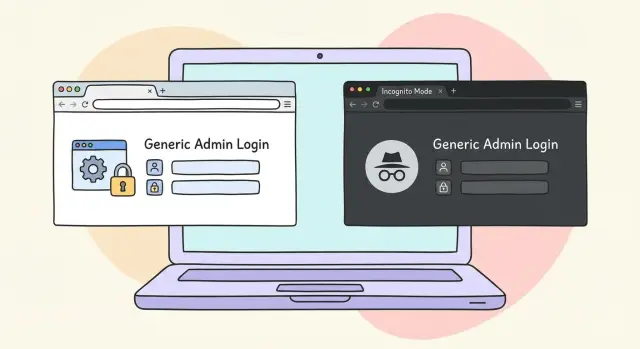
Side-by-side testing reduces guesswork. Keep a normal window logged in as admin. Open an incognito window fully logged out. Paste the same admin URL into both and compare what happens.
Then, still in incognito, log in as a non-admin user and try again. Keeping both windows open makes differences obvious: does the admin see a dashboard while the non-admin gets a clear “403 Forbidden” or a login prompt? Or do both see the same page, which is a big red flag?
A simple habit helps: test one route in three states:
- Logged out (incognito)
- Logged in as non-admin (incognito)
- Logged in as admin (normal window)
If you’re dealing with an AI-generated prototype (from tools like Lovable, Bolt, v0, Cursor, or Replit), this quick comparison often reveals routes that look protected in the UI but aren’t protected on the server.
Step by step: confirm private routes are actually private
To check who can access admin pages, test the same URL under three states: logged out, logged in as a regular user, and logged in as an admin. Do it in an incognito window so cookies and cached sessions don’t hide problems.
Before you start, pick one or two admin URLs you already know (an admin dashboard, a user management page, an orders page). If you don’t know the URLs, open the admin UI as an admin once and copy the address bar path for each page you care about.
The 5-step route test
-
Logged out (incognito): Paste the admin URL into the address bar and load it.
-
Check the result: A safe result is a login screen, a clear “403 Forbidden” message, or a redirect to a non-admin page (like home) that does not leak admin data. A bad sign is seeing any admin content, even briefly.
-
Regular user: Still in incognito, log in as a normal user (your second test account). Paste the same admin URL and load it again.
-
Admin user: In a separate normal window (or another isolated profile), log in as admin and confirm the page works normally. This confirms you’re not accidentally blocking everyone.
-
Repeat for every admin page and deep link: Don’t stop at the dashboard. Test pages you can reach inside admin (settings, exports, edit screens), and test deep links that include an ID (for example, an edit page for a specific user).
As you go, write down what happened for each state (logged out, regular user, admin). Record the exact URL tested, what you saw (login, 403, redirect, or content), and whether any data was visible in the HTML, page title, or snippets of loaded content.
If you’re testing an AI-generated app, be extra strict on step 3. Many prototypes hide admin buttons in the UI but still allow direct URL access when you paste the path manually.
Quick browser checks that catch common gaps
A lot of “protected” admin pages only look protected when you click around in the app. The menu hides the link, or the button is disabled, but the page itself still loads if someone knows the URL. These quick checks help you catch that early.
Start with a real admin URL, like the exact page where you can change settings or view users. Run the checks with your admin session and with a non-admin test user (often in incognito).
Checks you can do in under 2 minutes
- Refresh on the admin page. If a refresh shows the page again (even briefly) before redirecting, the route might not be truly protected.
- Paste the admin URL into a brand-new tab. Don’t navigate there through the menu. If it loads directly, someone can bookmark it and come back later.
- Try the back button after you get redirected away. If you’re bounced to a login page or “not allowed” page, hit back. If admin content appears from history, you may be seeing cached private content.
- Watch for a “flash” of content. Seeing admin data for a split second usually means the browser got real data first, then the app tried to hide it.
- Hard reload once (often Shift + Refresh). This helps reveal whether protection relies on cached files.
If you notice any of these, you can’t trust UI behavior alone. The page might be “protected after the fact,” which is not good enough.
What “good” looks like
When a non-admin hits an admin URL directly, the page should never show admin data, not even for a moment. Ideally they see a clear “Not authorized” message or an immediate redirect that happens consistently on refresh, in new tabs, and after using the back button.
This matters a lot for AI-generated prototypes (from tools like Bolt or Replit). They often add a client-side redirect but forget to lock down the underlying request.
Make sure the server blocks access, not just the UI
A page can look locked down while the server still gives out the data. Hiding a menu item, disabling buttons, or showing a “Not allowed” banner is only a UI choice. Real protection means the server refuses the request every time, no matter what the browser shows.
Start by watching what happens when the page loads as a non-admin. If the layout appears, that doesn’t automatically mean it’s safe. The key question is whether it loads real admin data or just an empty shell. If you see user lists, orders, invoices, settings, or internal notes populated, the server is sending sensitive data to the wrong person.
Don’t stop at viewing. Try actions. Many apps block screens but forget to block write operations. As you check who can access admin pages, focus on the simplest signal: does the action succeed, or does it fail with a clear error?
High-value attempts:
- Create something (new user, new discount, new post)
- Edit something (change an email, flip a role, update a price)
- Delete something (remove a user, delete an order)
- Export or download data (CSV export, “download all”)
- Trigger a privileged workflow (reset passwords, resend invites)
If the UI blocks you, confirm the API blocks you too. Open the browser’s Network panel, repeat the action, and look for requests like GET /admin/* or POST /api/* that return 200 even when the screen says “forbidden.” A proper setup typically returns 401 (not logged in) or 403 (logged in but not allowed), and it should not leak real data in the response.
A quick reality check: if your non-admin user can copy a request (same endpoint, same payload) and replay it successfully, your protection is only skin-deep.
Test roles and permissions, not just admin vs non-admin
If you only test “admin” and “not admin,” you can miss the bugs that cause real damage. Many apps have more than two roles in practice: staff who handle support, editors who publish content, and admins who change settings. Each role needs a clear boundary, and your tests should match those boundaries.
Start by writing down what each role is allowed to do in plain language. Then test those promises one by one. The goal is to confirm a user can do only what they need, not whatever the UI happens to show.
A simple structure (adjust to your app):
- Staff can view support tools, but can’t change billing, roles, or security settings.
- Editors can create and edit content, but can’t export user data or view admin-only dashboards.
- Admins can manage users and settings. If you have a “super admin” concept, admins should still be blocked from those extra-sensitive actions.
- Suspended users can’t access anything beyond a suspension screen.
- Invited users (not accepted yet) can’t access private pages even if they have the URL.
Edge cases are where permissions often break. Test users who are “half set up,” like someone without a completed profile, a user removed from an organization, or a role that changed while they were logged in. These accounts can accidentally keep old access if your system only checks permissions at login.
A realistic scenario: an editor copies a URL from an admin’s screen share, like /admin/users/export. They should hit a hard forbidden response, not a page that loads and hides buttons. This is exactly the kind of role leak that incognito tests and a second account will catch.
If you find a page where “who should see this?” is unclear, treat it as a product decision. Write down the question, pick an owner to decide, then turn the decision into a rule you can test.
Common mistakes that make private routes look protected
A page can look locked down and still be wide open. The most common trap is assuming that hiding an “Admin” link means the route is protected. If someone can type the URL directly, a hidden link does nothing.
Another frequent mistake is relying on front-end guards only. A React route check, a disabled button, or a “You don’t have access” screen can be bypassed if the server still returns admin data. The real question is always: what does the server do when an unauthorized request hits an admin endpoint?
Testing with only one account also hides bugs. Cached user info, stored tokens, or a stale session can make access control look correct when it isn’t. Some apps read “isAdmin” from client storage to decide what to show, while the API never verifies the role.
Deep links are another blind spot. Teams often protect /admin but forget routes like /admin/users/123, bulk export endpoints, or JSON APIs used by the admin UI. Attackers don’t click around politely. They guess URLs, follow network calls, and retry the same request with a different account.
Redirects can also create a false sense of safety. A redirect to /login looks safe, but sensitive data may load in the background before the redirect happens, or an API call may succeed even though the UI navigates away.
Warning signs:
- The admin page flashes real data before redirecting.
- A non-admin gets a
200response from an admin API call in the Network tab. - You can open an admin deep link directly and only the menu is hidden.
- Export/download endpoints work even when the UI says “no access.”
- Role checks live only in the browser (local storage, client state), not on the server.
Example: a customer support agent is not an admin, but they receive a shared URL like /admin/users/123. The page redirects to the dashboard, so everyone assumes it’s fine. Later you discover the user record was still returned by an API call, and the browser cached it. That’s a real authorization failure.
If your tests only confirm what the UI shows, you’re testing design, not access control. Always verify the server response for the route and the data behind it.
Example scenario: a customer stumbles onto an admin URL
A founder is demoing a new app to a potential customer. The app looks polished, and the founder shares a regular user login for the demo. During the call, the customer types a guess into the address bar: /admin. They’re not trying to hack anything. They’re curious.
That’s exactly why you should regularly check who can access admin pages. If the route is truly private, guessing a URL shouldn’t get anyone closer to real admin data or actions.
Right after the call, the founder runs three tests using an incognito window and a second test account:
- Logged out (incognito): go straight to
/admin - Regular user: log in as a normal account, then visit
/admin - Admin user: log in as an admin account, then visit
/admin
Good results look boring and consistent. Logged out users get blocked (often a login screen or an access denied page). Regular users get blocked the same way. Most importantly, no admin data is visible and no admin actions can be triggered, even if someone tries to call an endpoint directly through the browser.
Bad results can look subtle at first. The page might load but hide buttons, or it might briefly show admin data before redirecting. Worse, a regular user can load the admin list, change a setting, or delete something. Even if the UI tries to cover it up, any data shown or action that succeeds is a real authorization bug.
To capture proof you can share with a teammate (or hand off to someone fixing it), document each test as you run it:
- Screenshot the full page including the address bar and the result
- Write down the exact URL you visited and the account used
- Note what data was visible (names, emails, orders, settings)
- Try one safe action (like opening a details page) and record whether it worked
- Save timestamps so others can match your notes to server logs
This turns a vague concern into a clear bug report.
Quick checklist and practical next steps
Use this as a fast pass to check who can access admin pages without overthinking it. Run the checks in a normal window, an incognito window, and with a second non-admin test user. Keep notes as you go.
Start with the basics: can someone see the page at all, and can they do anything once they’re there?
- Logged out: admin URL is blocked (redirect to sign-in or a clear 401/403)
- Regular user: blocked from admin URL (not just hidden from the menu)
- Admin: allowed to view the page and load data
- Admin: can complete key actions (create, edit, delete, export)
- Non-admin: cannot complete those actions, even via direct requests
Then hit the easy-to-miss navigation paths:
- Deep link: paste the admin URL directly into the address bar
- Refresh: reload after the page appears
- New tab: open the admin URL in a fresh tab/window
- Back/forward: after sign-out or redirect, confirm cached pages don’t reveal data
- Error clarity: blocked access shows a clear message (not a blank screen)
If anything fails, write down the exact route and what happened in each state (logged out, regular user, admin). Then decide the correct rule. “Only admins can view /admin/users” is different from “Support can view but not edit,” and both are different from “Anyone can view the page but actions require admin.”
One practical tip: don’t stop at page view. If a non-admin can trigger an admin-only action by calling the endpoint directly, the page is not actually private. The UI can hide buttons, but only the server can truly block access.
If your app was generated by tools like Lovable, Bolt, v0, Cursor, or Replit, shaky auth is common, especially missing server checks and mixed-up roles. If you want a second set of eyes, FixMyMess (fixmymess.ai) does free code audits to identify broken private routes and exposed admin endpoints, then helps turn AI-generated prototypes into production-ready software.
FAQ
What counts as an “admin page,” and what does “private route” really mean?
An admin page is any screen meant for staff only that can view sensitive data or perform powerful actions. A route is only “private” when the app checks your identity and permissions every time the page loads and every time its underlying API is called.
Why isn’t hiding the Admin button enough?
Because hiding a button only changes what people see, not what the server allows. If someone can paste the admin URL into the address bar and the page or data still loads, the route isn’t private.
Why should I test in an incognito/private window?
Incognito starts with no cookies, no cached pages, and no saved sessions, so it shows what a fresh visitor actually experiences. It helps you catch cases where an old login or cached content makes an admin page look protected when it isn’t.
Why do I need a second test user instead of just testing as admin?
Most access-control bugs happen to logged-in users who are simply the wrong role, not to logged-out visitors. A non-admin account forces the app to prove it can say “no” to a real user with a valid session.
What’s the simplest way to test an admin URL step by step?
Test each admin URL in three states: logged out in incognito, logged in as a regular user in incognito, and logged in as admin in a separate normal window or profile. You want the result to be consistent and boring, with no data shown to the wrong person.
What should I see when a non-admin visits an admin URL?
A safe result is an immediate login prompt or a clear authorization failure, and it should happen before any admin data appears. A bad sign is any “flash” of real admin content, even if the app redirects a moment later.
What quick browser checks catch common admin-page leaks?
Check refresh behavior, opening the URL in a new tab, and using the back button after a redirect or logout. If admin content shows up from history or cache, you may be leaking private data even if the server eventually blocks new requests.
How do I know the server is blocking access, not just the UI?
Because the UI can pretend to block access while the server still returns data or allows actions. If the server responds with real data or a successful action for a non-admin request, the app is not protected no matter what the page displays.
Do I really need to test roles beyond “admin vs non-admin”?
Many apps have staff, editors, billing roles, invited users, and suspended users, and each needs different boundaries. Test what each role can view and what each role can change, especially on deep links and exports, because those are often forgotten.
What should I do if I find an admin route that isn’t truly private?
Write down the exact URL, the account used, and what you saw in each state, then try one safe action to see if it succeeds. If your app was built quickly with AI tools and you’re seeing confusing role behavior, FixMyMess can run a free code audit to find exposed admin routes and fix the underlying authorization checks.