Collect Error Details Without Coding: Screenshots, URL, Time
Learn how to collect error details without coding using screenshots, the URL, and a timestamp so a developer can reproduce and fix the issue fast.
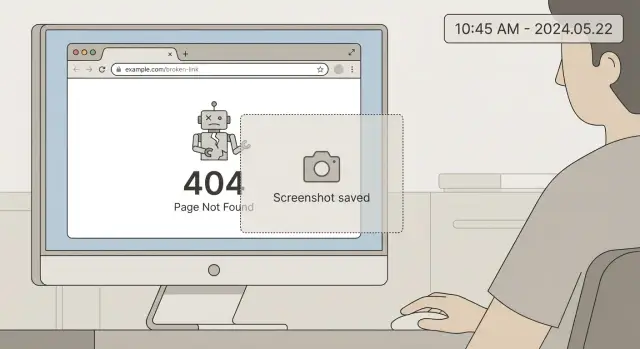
Why most bug reports don’t get fixed quickly
Most bug reports don’t get fixed fast for one simple reason: the developer can’t reliably reproduce what you saw.
A report like “it broke” describes the feeling, not the failure. Without a clear way to trigger the issue, the developer has to guess. That leads to follow-up questions, waiting for replies, and testing random paths until something breaks.
Small missing details turn into hours because modern apps behave differently depending on the page, your account, your role, your browser, and sometimes even the time. “Checkout failed” could mean a button did nothing, a payment popup was blocked, a server returned an error, or a login token expired. Each cause lives in a different part of the system, so guessing sends people in the wrong direction.
Even if you can’t code, you can still send the most useful clues. You’re aiming to capture:
- where you were (page)
- what you did (steps)
- what you expected
- what happened instead
- enough context that someone else can replay it
The 5 pieces of info that help most
You don’t need logs or special tools. You just need a few facts that let someone else see what you saw on the same page, at the same moment.
- A full-window screenshot
Capture the whole browser window, including the address bar and anything on the page (banners, popups, side panels). Tight crops often hide the real clue, like the logged-in state, form values, or a warning at the top.
- The exact page address
Copy the URL from the address bar and paste it as text. Don’t retype it. One missing character or a different query value can send someone to a different screen.
- When it happened (with timezone)
Write the time and your timezone. Example: “Jan 21, 3:42 pm PST.” This helps match what you saw with server events, background jobs, and third-party outages.
- What you did right before the error
One or two steps are enough. The last action is often the trigger: “Clicked Save,” “Selected Plan B,” “Refreshed,” “Logged in with Google.”
- Expected vs. actual result
A simple contrast removes guesswork: “I expected a receipt page. Instead I got a blank page.” It tells the developer what “correct” looks like.
A quick example: you submit a signup form and get a red error banner. If your screenshot shows you were already signed in, the URL includes a referral parameter, and you note “3:42 pm PST after clicking Create Account,” someone can replay the exact path.
How to take a screenshot that tells the full story
A good screenshot isn’t “pretty.” It’s evidence.
- Don’t crop too tightly. Include the full browser frame so the tab title and address bar are visible.
- Capture what’s blocking the flow. Modals, login prompts, cookie notices, permission popups, and payment walls all matter.
- Show the page state, not just the error text. If possible, keep the button you pressed and the relevant fields in view.
If the page is long, take a short sequence as you scroll. Two or three screenshots is usually enough:
- one showing the top navigation (proves where you are)
- one showing what you interacted with
- one showing the result (error or broken state)
If the page looks “stuck,” wait a few seconds and take a second screenshot to show whether anything changes.
Protect sensitive info. If a screenshot includes passwords, API keys, or personal data, blur it before sending. A redacted screenshot can still be useful as long as the page state and message are visible.
How to capture the URL correctly
A screenshot shows what you saw. The URL tells someone exactly where you were.
- Copy the URL from the browser address bar.
- Make sure you include everything, especially anything after a
?(filters, IDs, state). - If clicking a button triggers a redirect, capture the URL where you started and the final URL where it failed.
- Note whether this happened on a live site or a staging/test site.
If you can’t share the URL, say so up front and why. If the URL contains sensitive data (tokens, invite codes, email addresses), share it privately or redact the sensitive part, like token=REDACTED.
Why the timestamp matters (and what to write)
A screenshot shows what you saw. The timestamp tells a developer where to look.
Most apps record a lot in the background (server logs, database errors, security blocks, monitoring alerts). Without a time, someone has to guess which event matches your issue.
How timestamps help pinpoint the cause
A precise time lets a developer line up your report with what the system recorded. That matters for problems like:
- a deploy that introduced a failure
- a session expiring
- a security rule or rate limit blocking a request
- a background job changing data
- a short outage or slowdown
What to write
Write the time as soon as the issue happens, and include your timezone. If it happened more than once, list each time. If you only know roughly, say that clearly.
Examples:
- 10:42 AM PST (happened once)
- 2:10 PM to 2:15 PM EST (happened repeatedly)
- About 9 PM GMT, within a 5 minute window (not sure of exact minute)
- First seen 11:03 AM CST, again at 11:07 AM CST after refresh
Add one short detail next to the time if it helps match it to logs, like “right after clicking Pay” or “after returning to the tab after 10 minutes.”
Quick checks before you send the report
Two minutes of quick checks can turn a vague message into something reproducible.
- Refresh and repeat the steps. If the error disappears after refresh, say so.
- Try a private/incognito window. This helps rule out stale sessions, extensions, and cached files.
- Try one other browser. One comparison is enough to show whether it’s browser-specific.
- Note where it happens. Mobile only, desktop only, or both. Include device/browser (for example, “iPhone Safari” or “Windows Chrome”).
- Say how often it happens. “Always,” “sometimes,” or “once.”
This is often the difference between “we can’t see it” and “we reproduced it in five minutes.”
Step-by-step: Write a reproducible report in 2 minutes
A good bug report is a replay someone else can follow.
Start by noting whether you were logged out or logged in (and if logged in, which account type or role).
Use this 5-part format and stop once the error happens:
- Setup: device + browser, and whether you were logged in or logged out.
- Steps: 3 to 8 short steps, one action per line, using the exact button names.
- Inputs: anything you entered that might matter (search term, coupon code, file name/size).
- Expected vs actual: quote the error text if you can. If it’s a blank page, infinite spinner, redirect loop, or dead button, say that plainly.
- Proof: screenshots, plus URL and timestamp (with timezone).
A tiny example:
"Logged in as test account. Chrome on Mac.
- Go to Settings
- Click Billing
- Click Update card
- Upload a 120 KB PNG as proof of address Result: page turns white, no message. Expected: upload success message. URL: (paste from address bar) Time: 2026-01-21 14:07 EST"
Common mistakes that slow down debugging
Most bugs are fixable. The slow part is figuring out what actually happened.
- Hiding the address bar. Cropped screenshots remove the single most important clue: the exact page.
- Leaving out when it happened. “Just now” is hard to match to logs. Include a timestamp and timezone.
- Sending only a video. Videos help, but they’re slow to scan. A short summary plus 2-3 screenshots is usually faster.
- Rewriting the error message. Small differences matter. Copy it exactly or capture it clearly in a screenshot.
- Combining separate problems. Split login issues, broken buttons, and layout glitches into separate reports.
Example: A report a developer can act on
Subject: Checkout button does nothing after applying discount code
What I saw (with screenshot): Attached a full-window screenshot of the checkout page after entering a discount code. It shows the cart state, the discount applied, the error banner at the top, and the address bar.
Where it happened (URL): Paste the URL exactly as shown in the address bar.
When it happened (timestamp):
2026-01-21 at 14:37 (US Eastern, local time). Right before it failed, I applied code SAVE10 and saw the total update.
How to reproduce (steps):
- Go to checkout.
- Add any in-stock item to the cart.
- Enter
SAVE10and click Apply. - Confirm the total updates.
- Click Checkout.
What happens: Checkout shows a quick spinner, then nothing. No redirect, no confirmation, and the cart stays on the same page.
What I expected: It should move to payment (or show a clear message if something is missing).
Checklist, template, and next steps
Quick checklist before you hit send
- The URL is visible (address bar or pasted into the report)
- The time is written down (include timezone)
- Steps are numbered and short (one action per step)
- The exact error text is copied (not paraphrased)
- Screenshots show full context (not just the popup)
Copy/paste template (2 minutes)
Title:

Steps to reproduce:
1.
2.
3.

Expected result:

Actual result:

URL:

Time:
(Include time zone. Example: 2026-01-21 14:32 PST)

Screenshot(s):
(Attach. If there’s an error code or message, paste it here too.)

Notes:
(Browser + version, device, whether you were on Wi-Fi/mobile data)
Before you attach anything, remove risky info:
- Blur or cover passwords, one-time codes, and private emails
- Remove API keys, tokens, or anything that looks like a long secret string
- Hide customer data, payment info, and internal dashboards
- If the URL contains sensitive query text, paste it but redact the sensitive part
If the app was built with an AI tool and it keeps breaking in new places, that’s usually a sign the code needs a real diagnosis, not another patch.
If you’ve inherited an AI-generated prototype that won’t behave in production, FixMyMess (fixmymess.ai) can run a free code audit, then repair the codebase (logic, authentication, security hardening, refactoring, and deployment prep). Most projects are completed within 48-72 hours, with AI-assisted tooling backed by expert human verification.
FAQ
Why do bug reports take so long to get fixed?
Because the developer can’t reliably reproduce it. If they can’t trigger the same failure on the same page with the same context, they have to guess, ask follow-up questions, and test lots of paths until something breaks.
What are the most important details to include in a bug report?
Send a full-window screenshot, the exact URL (copied, not retyped), the time it happened with your timezone, what you did right before it failed, and what you expected versus what actually happened. Those five details usually let someone replay the issue quickly.
Why does the screenshot need to include the address bar?
A full-window screenshot shows the whole state: the address bar, whether you’re logged in, banners or popups, and the exact screen you’re on. Tight crops often hide the clue that explains the bug.
How do I capture the URL correctly for a bug report?
Copy it directly from the browser’s address bar and paste it as text. If there was a redirect, capture the starting URL and the URL where it failed, because the bug may depend on the exact route or query parameters.
What timestamp should I provide, and why does timezone matter?
Write the time as precisely as you can and include your timezone, like “2026-01-21 14:07 EST.” That lets a developer match your report to server logs, deploys, background jobs, or third-party hiccups that happened at the same moment.
How many steps should I describe, and how detailed should they be?
Write the last action that directly preceded the failure, using the exact button name if possible. That “final click” is often the trigger and it narrows the search to a specific part of the app.
How do I write “expected vs actual” without overexplaining?
State what you expected to happen and what actually happened, using the app’s exact wording when there’s an error message. This removes guesswork about what “broken” means and clarifies what “correct” looks like.
How do I share evidence without leaking sensitive info?
Keep the page context visible while hiding sensitive values. Blur or cover passwords, one-time codes, personal details, payment info, and anything that looks like an API key or long token, and if the URL contains a secret, redact only the sensitive part.
What quick checks should I try before I send the report?
Do a quick refresh and try the same steps once more, then try an incognito/private window to rule out cookies, extensions, and stale sessions. If you can, test one other browser and mention whether it happens always, sometimes, or only once.
What if my app was built with an AI tool and it keeps breaking in production?
FixMyMess helps when AI-generated apps keep breaking or behave differently in production than in a prototype. We can run a free code audit, then repair logic, authentication, and security issues, refactor messy code, and prep deployment, with most projects finished in 48–72 hours and human-verified fixes.