Deploy AI-generated app with Docker - safe, repeatable builds
Deploy AI-generated app with Docker safely: repeatable builds, pinned versions, secret handling, and checks to avoid images that only work on the builder.
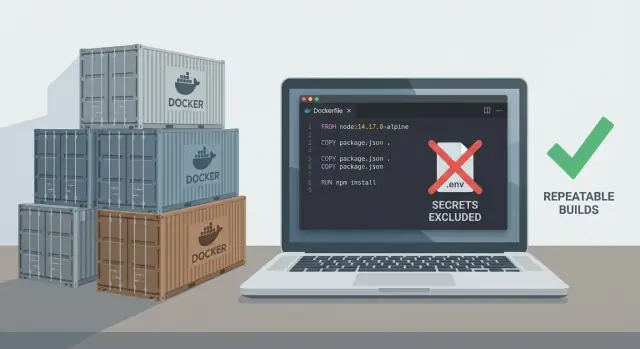
Why AI-generated apps often fail at deployment
"Works only on the builder" means the app runs on the machine that built the image, then breaks as soon as you run that same image in CI, staging, or production. The build looks fine, but the container depends on something that isn't actually inside the image.
AI-generated apps hit this more often because the code is assembled from patterns that assume a friendly environment. It might rely on tools installed globally on the author's computer, a local database running on the host, or a file that never got committed. Sometimes the Dockerfile "passes" by copying too much from the workspace, so it accidentally includes caches, compiled artifacts, or even secrets.
You usually see the symptoms as soon as you try to deploy in a clean environment:
- Builds succeed locally but fail in CI with "command not found" or missing system libraries
- The app starts, then crashes because an env var is missing (or a secret was baked into the image)
- Authentication works on localhost but fails in staging because of callback URLs or cookie settings
- Static assets or migrations are missing because the build step never ran in the container
- Random "works sometimes" behavior caused by unpinned versions and shifting dependencies
The goal is simple: one image, same behavior, anywhere. If the container needs it to run, it must be declared, installed, and configured inside the build and runtime steps, not borrowed from the builder's machine.
Choose base images and pin versions first
Start by locking down what your container is built on. Most "it worked on my laptop" failures happen because the base image or runtime changed underneath you.
The biggest risk is using :latest. It's convenient, but it's a moving target. A small base image update can change OpenSSL, libc, Python, Node, or even default shell behavior. Your build might pass today and fail next week, or worse, behave differently in production.
Pick a stable base image (and avoid hidden changes)
Choose a base image you can keep stable for months. Pin it to a specific version, and when possible, to a digest. Digest pins give you the exact same image bytes every time, not just "Node 20" as of today.
Also pin your language runtime version. "Node 20" is not the same as "Node 20.11.1". Even minor bumps can break native modules, cryptography, or build scripts.
Decide your target platform early (amd64 vs arm64)
Be explicit about where the image will run. Many builders use Apple Silicon (arm64), while many servers run amd64. Native dependencies can compile differently, and some packages don't ship arm64 binaries.
Example: a Node app installs an image-processing library. On arm64 it compiles from source and passes. On amd64 it downloads a prebuilt binary with a different version and crashes at runtime.
Before you write the rest of the Dockerfile, lock these in:
- Base image version (and digest if you can)
- Runtime version (Node, Python, Java)
- Target platform (amd64 or arm64)
If you inherited an AI-generated repo and versions are drifting, start by pinning the base image and runtime. It removes a whole category of "mystery" deployment failures.
Step by step: a Dockerfile that builds the same every time
Repeatable images come from boring choices: pin the base image tag, rely on a lockfile, and keep build steps predictable.
Here's a simple Dockerfile skeleton for a typical Node app (API or full-stack) that keeps caching effective and installs deterministic:
# Pin the exact base image version
FROM node:20.11.1-alpine3.19

WORKDIR /app

# Copy only dependency files first (better caching)
COPY package.json package-lock.json ./

# Deterministic install based on the lockfile
RUN npm ci --omit=dev

# Now copy the rest of the source
COPY . .

# Build only if your app has a build step
RUN npm run build

EXPOSE 3000

# Clear, explicit start command
CMD ["node", "server.js"]

# Add a simple healthcheck only if you can keep it stable
# HEALTHCHECK --interval=30s --timeout=3s CMD node -e "fetch('http://localhost:3000/health').then(r=>process.exit(r.ok?0:1)).catch(()=>process.exit(1))"
Three details matter more than people expect:
- Copy dependency files first, install, then copy the rest. You avoid reinstalling packages every time you change one source file.
- Use the lockfile install command (like
npm ci) so you get the same dependency versions on every build. - Keep the start command direct. Avoid "magic" scripts that behave differently across environments.
A common failure case is an app that runs locally because it silently reads a .env file and relies on globally installed tools. In Docker, both are missing, so the build fails or the container starts and immediately crashes. This pattern forces you to declare what you need, which is the whole point.
Use multi-stage builds to avoid bloated runtime images
Multi-stage builds separate "build" from "run". You compile the app in one image (with heavy tools), then copy only the finished output into a second, cleaner image that you actually run.
This matters with AI-generated apps because they often pull in extra compilers, CLIs, and caches without you noticing. If those end up in production, the image gets huge, slower to ship, and harder to reason about.
Build stage vs runtime stage (plain English)
In the build stage you install build tools and dev dependencies: TypeScript compilers, bundlers, and anything that exists just to create the final app.
In the runtime stage you keep only what the app needs to run. That makes the final image smaller and more predictable. It also prevents a dependency from "working" only because a build tool was accidentally present.
A useful question is: if the app is already built, do I still need this package? If not, it belongs in the build stage.
The most common gotcha
People build successfully, then forget to copy something into the runtime stage. The missing pieces are usually built assets (like dist/), runtime templates/config files, or installed modules. Permissions can bite too: the app runs locally, then fails in the container because it can't read or write a directory.
After the image is built, run it as if it were production. Confirm it can start with only environment variables and a real database connection. If it needs anything else, it probably got left behind in the build stage.
Make dependency installs deterministic
Dependency installs are where builds drift first. AI-generated projects often work on the creator's machine because they accidentally installed newer packages, reused cached builds, or pulled a moving Git branch.
Lockfiles are your safety net. Commit them, and make your Docker build use them on purpose. For Node, that typically means package-lock.json with npm ci, or pnpm-lock.yaml with a frozen install. For Python, use poetry.lock (Poetry) or fully pinned requirements and avoid "latest".
One rule saves a lot of pain: never install from floating references like main, master, or an unpinned tag. If you must pull from Git, pin to a specific commit SHA.
Private packages are another trap. Don't bake tokens into the image. Use build-time secrets so the build can access private registries without leaving credentials behind in layers. After the install step, the final image should not contain .npmrc, pip config, or any auth files.
Also make build scripts explicit. Some generated projects rely on hidden postinstall behavior that downloads binaries or runs code generation. If something must run, run it as a clear build step and fail loudly.
Handle secrets safely (without breaking local dev)
If an app works locally but fails, or gets exposed, secrets are often the reason. A Docker image is meant to be shared, cached, and stored in registries. Anything inside it can leak.
Never bake sensitive values into the image, even "just for testing". That includes API keys, OAuth client secrets, database passwords, JWT signing keys, and private certificates.
A simple rule: pass secrets at runtime, not during docker build. Build-time values can get stuck in image layers and logs, especially if a generated Dockerfile uses ARG and then echoes it, writes it into a config file, or embeds it into bundled frontend code.
Instead, let your deploy platform inject secrets when the container starts (its secret manager, env var settings, or an encrypted secret store). Keep the Dockerfile focused on installing dependencies and copying code, not wiring credentials.
For local dev, keep it convenient without committing secrets:
- Use a local
.envfile and add it to.gitignore - Commit a
.env.examplewith placeholder names (no real values) - Fail fast with a clear error when a required env var is missing
Example: locally you use DATABASE_URL from .env. In production, you set the same DATABASE_URL in your host's secret settings. Same code path, different values, nothing sensitive inside the image.
Repeatable builds: tagging and tracking what changed
Treat each image build like a dated receipt. The biggest mistake is reusing a tag like latest (or even v1) for different contents. That's how you get "it worked yesterday" deployments.
One tag should mean one exact set of bits. Use tags that tell you what code you shipped and make them hard to change quietly.
A practical pattern is a release version for humans (like v1.4.2) plus a commit SHA for precision (like sha-3f2c1a9). If you use an environment tag like prod, make it a pointer to an immutable version.
To make builds auditable, record the inputs that affect the final image. Keep it somewhere your team will actually read (a short BUILDINFO file, release notes, or image labels):
- Base image digest (not just
node:20, the exact digest) - Lockfile hash (
package-lock.json,yarn.lock,poetry.lock, and so on) - Build command and key build args (for example
NODE_ENV=production) - Migration version (if your app changes the database)
A helpful guide for deciding when to rebuild:
- Code change only: rebuild app layer, deps unchanged if the lockfile didn't change
- Lockfile change: rebuild deps and app, run tests again
- Base image digest change: rebuild everything and retest
- Secret change: rotate at deploy time (don't rebuild the image)
Basic container hardening for non-security experts
If you can package an app into a container, you can also make it harder to break. You don't need advanced security skills. A few defaults cover most of the real-world problems in rushed images.
Start by avoiding root when you can. Many generated Dockerfiles run everything as root because it "just works". In production, that turns a small bug into a bigger incident. Create a user, own the app folder, and run the process as that user.
Permissions matter too. When a container fails to write a file, the common quick fix is chmod -R 777. That usually creates a bigger mess. Decide which folders must be writable (logs, uploads, temp files), and give only those folders write access.
If you keep build tools in the final image, you're also giving attackers more tools to work with. Multi-stage builds help because compilers and package managers stay in the build stage.
Common traps that cause builder-only images
A builder-only image runs fine for whoever built it, then breaks in CI or production. It usually happens because the Dockerfile depends on your laptop setup.
The usual culprits:
- A
.dockerignorethat hides something you actually need. People sometimes ignoredist/,prisma/,migrations/, or even a lockfile. - Global tools accidentally required. If the build assumes
tsc,vite,pnpm, or Poetry is installed globally, it can "accidentally work" on one computer and fail everywhere else. - Native modules behaving differently across platforms. Anything that builds native code can break when the builder is macOS/Windows but production is Linux.
- Build-time env vars used as runtime config. Baking
API_URL, auth settings, or feature flags into the build can make the image look fine in one environment and broken in another.
A quick reality check: rebuild with no cache and a clean context, then run the container with only the env vars you plan to set in production.
Quick pre-deploy checks you can do in 10 minutes
Before you ship, do one pass that mimics production. These checks catch the most common surprises.
- Rebuild from scratch once (cache disabled) so you're not relying on old layers.
- Start the container with only the required env vars and confirm missing config fails clearly.
- Run without bind mounts. The image should contain everything it needs.
- Verify startup order: migrations before the web process, and seed scripts (if any) are safe.
- Scan logs for missing config, permission errors, and database connection errors.
A typical failure: locally the app looks fine because you had extra keys in .env, plus a bind mount that hid missing build artifacts. In production, it starts, tries to write uploads to a folder that doesn't exist, migrations never run, and you only see a vague "500". A no-cache build plus a run with minimal env vars usually exposes that in minutes.
Example: from local success to production-safe Docker image
A common story is generating a small web app with an AI tool, running it fine on your laptop, then watching it fail on a VPS or a managed service. Locally you have the right Node version, a filled-out .env, and a warm cache. In production, the container starts cold, with no hidden files and no interactive setup.
To diagnose quickly, compare runtime versions first. If your image uses node:latest or python:3, you're accepting silent changes. Next, check missing environment variables: auth keys, database URLs, and OAuth callbacks often exist on your machine but not in the deploy environment. Finally, confirm build output exists. Many projects rely on a local build step, but the Docker image only copies source, so there's nothing to serve.
A practical fix path is usually:
- Pin the base image and runtime versions.
- Commit and enforce a lockfile install.
- Move secrets to runtime env vars (not baked into the image, not copied from
.env). - Use multi-stage builds so the runtime image contains only production output and dependencies.
Success looks like the same image tag running locally, in CI, and in production without "just set this one file" steps.
Next steps if your AI-generated app still will not deploy
If you've tried the basics and it still fails, stop guessing and write a simple deployment definition of done. Keep it short:
- Exact runtime versions (base image, language runtime, package manager)
- How secrets are provided at runtime (and what must never be baked into the image)
- One smoke test and a health check you can run after deploy
- Release tagging rules (one tag per build, tied to a commit)
- Where you check logs first
Then decide whether to fix what you have or rebuild cleanly. Fix the current codebase when the core flow works and failures are mostly packaging and config. Rebuild when basic flows keep breaking, data models are unclear, or every change causes new errors.
If you're seeing production-only failures like broken authentication, exposed secrets, spaghetti architecture, or obvious security issues (including SQL injection risks), it's usually faster to get a second set of eyes early. FixMyMess (fixmymess.ai) focuses on diagnosing and repairing AI-generated codebases so they behave consistently in production, starting with a free code audit to pinpoint what's actually breaking.