Fix broken database migrations in AI generated apps safely
Fix broken database migrations with a safe recovery plan: audit migration history, detect environment drift, rebuild a clean chain, and protect data during rollout.
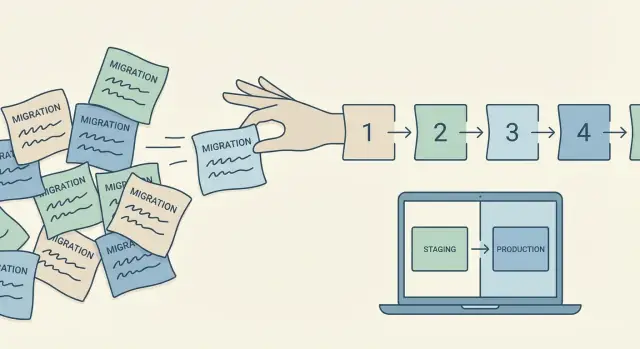
Why AI generated apps end up with broken migrations
A database migration is a small script that changes your database in a controlled way. Think of it like a “recipe step” for your tables: create a column, rename a field, add an index. Migrations are meant to run in order so every environment ends up with the same schema.
AI generated apps often break this chain because the code is produced fast, without the careful habits humans use to keep history clean. Tools may generate migrations automatically, regenerate them after a prompt, or copy patterns from another project. That can create files that look valid but don’t agree with each other.
Common causes include:
- Two migrations that try to change the same table in different ways
- A migration file edited after it was already run somewhere
- Duplicate migration names or timestamps that sort differently across machines
- Migrations generated against a local database that doesn’t match staging or prod
“It works on my machine” happens when your laptop database has extra manual changes, missing steps, or a different migration order. Your app code matches your local schema, so everything seems fine, until production runs the real migration chain and hits a missing table, a duplicate column, or a foreign key that can’t be created.
This problem usually shows up at the worst moment: the first deploy, when a new teammate runs setup from scratch, or when CI builds a clean database and runs migrations in a strict order.
If you inherited an AI-built prototype from tools like Lovable, Bolt, v0, Cursor, or Replit, this is one of the first things FixMyMess checks during a codebase diagnosis, because migration issues can hide until launch day.
Symptoms and risks to watch for before you touch anything
Broken migrations usually show up right when you try to deploy, but the real problem often started earlier. AI-generated apps can create migrations quickly, then keep editing models and schema in ways that don’t match what already ran in other environments.
The obvious signs are hard to miss: deploys fail with “table not found” or “column already exists,” pages crash because a query expects a field that isn’t there, or you see missing tables that the app code assumes exist. Another common pattern is duplicate columns (like user_id and userid) or indexes that were created twice under different names.
The more dangerous signs are quiet. Your app may still run, but local, staging, and production no longer agree. One environment might have a newer column type, a default value, or a constraint (like NOT NULL) that the others don’t. That creates “works on my machine” bugs: a feature passes tests locally but breaks in production, or worse, writes bad data that only becomes a problem later.
Before you try to fix broken database migrations, watch for these risks:
- Data loss from running destructive migrations on the wrong schema
- Long downtime if a migration locks large tables or triggers slow backfills
- Partial rollbacks where the code rolls back but the database can’t cleanly undo changes
- Hidden app bugs when code assumes a schema that only exists in one environment
A good rule: if you can’t clearly answer “what migrations ran in prod, and in what order?”, stop. Don’t run more migrations blindly to “see if it works.” That often makes the split between environments wider and the recovery harder. If you inherited an AI-built prototype and the errors are piling up, teams like FixMyMess often start with a read-only audit first to map what’s safe to run and what needs a controlled rebuild.
Start with a quick inventory: what exists and where
Before you try to fix broken database migrations, get a clear picture of what you actually have. Most migration disasters happen because people assume local, staging, and production are the same when they are not.
First, name every environment that exists today. That usually includes at least local (your laptop), staging (a test server), and production (real users). If you have preview apps, old staging databases, or a second production region, include those too.
Next, capture the current schema in each environment as it is right now, not as you wish it was. Use whatever your stack supports: a schema dump, an introspection command, or a read-only export of tables, columns, indexes, and constraints. Save these outputs with timestamps so you can compare them later.
Then gather the migration sources and the migration state:
- The full migrations folder from the repo (including old files)
- The migration tracking table in the database (for example, a table that records which migrations ran)
- Any manual notes or scripts that were used to change the database outside migrations
- The exact command used when it fails (and who ran it)
- The full error text, plus when it happens (fresh setup vs after pulling updates)
Finally, write down the failure story in plain words. Example: "Local runs fine, staging fails on migration 0042, production has an extra column added manually." This short narrative prevents guesswork and makes the next steps faster, especially if you bring in help like FixMyMess for an audit.
Audit the migration history for conflicts and edits
Before you try to fix broken database migrations, get clear on whether your migration chain is trustworthy. AI-generated apps often create migrations quickly, then later overwrite files or generate new ones without respecting what already ran in production.
Start by reading the migration list from oldest to newest and checking if the ordering is clean. Gaps are not always fatal, but they are a clue that files were renamed, deleted, or regenerated. Also watch for duplicated IDs or timestamps that could cause two different migrations to claim the same “slot” in history.
Next, look for edits to old migrations. If a migration was applied anywhere (staging or prod) and then its file changed later, you now have two truths: the database has one version, and your repo has another. A quick check is to compare file modified dates, commit history, or even just scan for comments like “fix” added to an older migration.
Branch merges are another common source of conflict. Two branches may each add a “next migration,” so when they merge you end up with competing migrations that both assume they are next. This often shows up as two new migration files created within minutes of each other but with different contents.
Finally, assume some changes happened manually in at least one environment. If someone added an index in production, hotfixed a column type, or ran a SQL snippet, your migrations will not reflect it.
A fast audit checklist:
- Confirm migration IDs are unique and strictly increasing
- Flag any old migration files that were edited after creation
- Identify “parallel” migrations created on separate branches
- Note any schema changes that exist in the DB but not in migrations
- Write down which environments likely differ (local, staging, prod)
If this feels messy, that is normal for prototypes from tools like Cursor or Replit. Teams like FixMyMess often start with this exact audit before deciding whether to repair or rebuild the chain.
Detect drift between environments without guessing
Migration drift is when two environments (local, staging, prod) have different schemas even though they are supposed to be the same. In AI-generated apps, this often happens after “quick fixes” done directly in a database, or after migrations were edited and re-run.
Start by comparing the schema itself, not the migration files. You want a clear, written diff of what exists in each environment: tables, columns, data types, indexes, and constraints (especially foreign keys and unique constraints). These are the differences that usually explain why an endpoint works locally but fails in prod.
A fast, practical way to do this is to export a schema snapshot from each environment (a schema-only dump or an introspection output from your ORM) and compare them side by side. When you review the diff, focus on objects that change behavior:
- Missing or extra columns that code reads/writes
- Different nullability or default values
- Missing unique constraints (duplicate rows suddenly allowed)
- Missing foreign keys (or different cascade rules)
- Index differences that cause timeouts under real traffic
Separate “expected differences” from real drift. Seed data, admin test users, and dev-only feature flags can differ without being a problem. Schema differences are rarely “expected.” If the schema differs, assume something will eventually break.
Then pick a source of truth. This is a decision, not a guess. Usually production should win if it’s serving real users, but sometimes prod is the messy one (for example, hotfixed columns added manually during a panic). If you’re trying to fix broken database migrations, choose the environment with the most correct and complete schema, and document why.
Example: a prototype built in Replit works locally, but signup fails in prod. The diff shows prod is missing a unique index on users.email, so duplicate accounts were created and auth became inconsistent. That single schema drift explains the “random” login bugs and tells you exactly what to repair first.
Step by step: a safe recovery plan you can follow
Broken migrations feel urgent, but rushing is how you turn a schema problem into lost data. The safest plan is boring on purpose: pause changes, make a restore point you trust, and practice the fix before you touch production.
First, freeze deployments. Stop auto-deploys, background jobs that apply migrations on boot, and any “just push it” releases. If the app is customer-facing, pick a maintenance window and tell your team what is locked: database schema, ORM models, and any code that writes to the affected tables.
Next, take a backup you have actually tested. Don’t settle for “backup succeeded” logs. Do a small restore into a separate database, run a simple query to confirm key tables and recent rows exist, and verify the app can connect. If you can’t restore, you don’t have a backup.
Now reproduce the failure in a safe place using a copy of production data (or a scrubbed snapshot). Run the full migration command exactly as production runs it. Capture the first error and the migration file name, because the first failure is usually the real clue.
Then choose your recovery approach. If the problem is small (a missing column, an edited migration, or a partial run), reconcile: write a corrective migration that moves the schema from current state to the expected state. If the history is tangled (conflicting edits, duplicate IDs, drift across environments), rebuild: create a clean baseline from the current schema and restart the chain.
Before shipping, do one full end-to-end run: start from an empty database, apply all migrations, seed minimal data, and run a smoke test. This is the moment you catch “it works on my laptop” drift.
If you’re trying to fix broken database migrations in an AI-generated codebase (Lovable, Bolt, v0, Cursor, Replit), teams like FixMyMess often start with this exact rehearsal flow so the production change is predictable, not heroic.
Rebuild a clean migration chain (baseline, squash, and reset)
A clean migration chain is what makes deploys boring again. If you need to fix broken database migrations, don’t start by deleting files. Start by deciding whether you are stabilizing what exists, or creating a fresh, well-documented baseline.
Baseline: when to create it (and when not to)
Create a new baseline migration when the database schema in production is correct, but the migration history is messy, edited, or out of order. The goal is to capture the current schema as the new starting point.
Do not baseline if production is not trustworthy (unknown manual changes, missing tables, or data problems). In that case, you need to repair the schema first, then baseline.
Squash and reset: keep history safe
If migrations are already applied in production, avoid rewriting history in place. Instead, treat the old chain as “legacy” and add a clear cutoff point.
A safe pattern is:
- Freeze the current state: back up data and record the schema version in each environment.
- Generate one “squashed” migration that matches the current schema exactly.
- Mark it as the new baseline (for example, with a note in your repo and deployment docs).
- Keep old migrations in a separate folder or clearly labeled section, but stop applying them.
- For new environments only, run baseline + new migrations going forward.
Imagine a prototype where local has 42 migrations, staging has 39, and prod has hotfix tables added by hand. Squashing local blindly will not match prod. The right move is to baseline from the schema you choose as source of truth (usually prod), then apply forward changes as new migrations.
Document the baseline in plain words: the date, the source environment, the exact schema snapshot, and the rule for new setups. Teams like FixMyMess often add this documentation as part of AI generated app remediation, because future deploys depend on it.
Test and roll out the fix without risking real data
Treat your migration fix like a release, not a quick patch. The safest place to prove it works is a staging environment that matches production: same database engine and version, similar extensions, same environment variables, and a copy of production schema (and ideally a small, anonymized slice of data).
Before you test anything, take a fresh backup you can actually restore. Rollback plans often fail because they assume down-migrations will neatly undo changes. In real incidents, the most realistic rollback is restoring a snapshot.
Make sure migrations are repeatable
A migration that “works once” can still be dangerous. Run the full migration chain on staging, then reset that staging database and run it again. You want the same result both times.
Watch for red flags like timestamps used as default values, non-deterministic data backfills, or migrations that depend on current table contents.
Validate the app, not just the schema
After migrations, start the app and test the flows that matter: sign-up/login, creating and editing core records, search/filter, and any admin screens. Then trigger background jobs and scheduled tasks, because they often touch columns that were renamed or made non-null.
Keep the rollout small and controlled:
- Announce a short maintenance window (even if you hope for zero downtime)
- Apply migrations first, then deploy app code that expects the new schema
- Monitor errors and slow queries right after release
- Be ready to restore the database if anything looks off
If the app is AI-generated, double-check for hidden schema assumptions in code. FixMyMess often sees prototypes where the UI works locally but production fails due to missing migrations, edited migration files, or secrets that change behavior between environments.
Common mistakes that make migration problems worse
The fastest way to turn a migration mess into a real outage is to “patch until it works” without knowing what ran where. When you’re trying to fix broken database migrations, the goal is not just to get the app booting. It’s to get every environment back to the same, explainable history.
One common trap is editing an old migration that has already run in production. Your code now says one thing, but prod already did another. A teammate runs fresh setup, staging runs a different chain, and you’ve created two timelines that can never match again.
Another mistake is “fixing drift” by manually changing the database first. For example, someone adds a missing column directly in prod to stop errors, but the migration files still don’t match. The app seems fine for a day, then the next deploy tries to add the column again, fails, and blocks all further migrations.
Here are mistakes that show up again and again in AI-generated apps:
- Treating down-migrations as a safety net, even though nobody tested rollback on real data
- Skipping constraints and indexes because the app “works” without them, then hitting slow queries and bad data later
- Applying quick fixes like deleting a migration row from the migrations table to silence errors
- Renaming tables or columns outside migrations, then wondering why ORM models drift
- Mixing schema changes and data backfills in one migration, making failures harder to recover
Quick fixes often hide the symptom but keep the drift. You might get past the immediate error, but the next environment (or the next developer laptop) breaks in a new way.
If you inherited a prototype from tools like Lovable, Bolt, or Replit, assume migrations were generated in a hurry. Teams like FixMyMess often start by confirming what ran in production, then rebuilding a clean path forward without rewriting history in place.
Quick checklist before you press deploy
If your migrations were generated by an AI tool, assume there are gaps. A calm checklist helps you avoid the one mistake that hurts most: finding out in production.
Before you touch production
Make a backup, then prove it works. “Backup taken” is not the same as “restore tested.” Do a restore to a fresh database, open the app, and confirm the key tables and recent records show up.
Next, do a schema diff across every environment that matters (local, staging, production). You want to know what is different before you run anything. If production has an extra column or a missing index, write it down.
Pick a single source of truth and be explicit. Decide whether production schema, a specific migration branch, or a known-good environment is the reference. Put that choice in your notes so nobody “fixes” the wrong side mid-deploy.
Prove the migration chain is safe
Run the full migration sequence on a production-like copy. That means a copy of prod data (or sanitized data with the same shape), the same database engine version, and the same migration command you will use during deploy. Watch for long locks, failing constraints, and “works on my machine” differences.
Before you deploy, make sure your plan includes both validation and rollback steps:
- Validate: basic login, a few key reads/writes, and a quick check of critical tables/row counts
- Rollback: clear steps for reverting the app version and restoring the database if needed
Example: if staging is “ahead” of prod because an AI tool created an extra migration locally, pause and reconcile that difference first. Shipping with that drift usually turns into a failed deploy or, worse, silent data mismatches.
If you inherited a messy AI-generated codebase, FixMyMess often starts here: a free audit that confirms the source of truth, maps the drift, and checks the recovery plan before any changes go live.
Example: recovering a prototype that drifted across local and prod
A founder ships an AI-built prototype that works fine on their laptop. Then production deploy fails on migration 012 with a “column already exists” error. The app won’t start, and every re-deploy repeats the failure.
After a quick look, the problem is not “one bad file”. Two branches each introduced a slightly different change to the same table (for example, both added a status field to users, but one made it nullable and the other set a default). Locally, the developer applied one branch’s migrations. In production, an earlier deploy applied the other. Now the migration history and the real schema disagree.
The safest way out is to treat production as the source of truth, baseline from the production schema, and only move forward.
Here’s what that looks like in practice:
- Freeze deploys and take a full backup (and confirm you can restore it).
- Inspect production schema and the migrations table to see what actually ran.
- Create a baseline migration that matches production as it is today (no changes, just alignment).
- Write a new clean forward chain that applies the missing changes in small, explicit steps.
Then you validate the app using real flows, not just “migrations ran”. In this example, you would test login (sessions, password reset), billing (webhooks, invoices), and the dashboards that depend on the changed table.
This is a common pattern when you need to fix broken database migrations in AI generated apps: don’t try to force production to match a messy local history. Make history match production, then add safe, forward-only migrations. If you’re not sure which schema is correct, FixMyMess can audit the codebase and migration trail first so you don’t learn the hard way in prod.
Next steps: keep migrations stable and know when to get help
After you get migrations working again, the goal is boring consistency. Start by deciding if you need a small fix (one bad migration, a missing file, a wrong order) or a full rebuild (history is edited, environments disagree, and you cannot trust what "latest" means). If you are still seeing surprises after a clean test run on a fresh database, lean toward a rebuild.
A simple way to prevent repeat problems is to write a short "schema contract" that everyone follows. Keep it in your repo as a plain note. It does not have to be fancy, but it should be clear.
- Only create new migrations, never edit old ones after they have shipped
- Every migration must be reversible (or explain why it cannot be)
- One person owns the final merge when multiple branches touch the database
- Production schema changes happen only through migrations, not manual console edits
- A fresh install (empty DB -> latest) must work in CI before you deploy
If your app was generated by tools like Lovable, Bolt, v0, Cursor, or Replit, expect more hidden drift than usual. The code may create tables on startup, seed data in unexpected places, or silently diverge between SQLite in local and Postgres in production. Treat the database as a first-class part of the app, not an afterthought.
Know when to bring in a second set of eyes. If you have real customer data, multiple environments that disagree, or you are unsure whether a "fix" could drop columns or rewrite constraints, pause. FixMyMess can run a free code audit to pinpoint migration issues and propose safe fixes before any commitment, which is often faster than guessing under deadline pressure.