Fix Email Sending Problems in Production: SMTP, DNS, Retries
Fix email sending problems in production by checking SMTP or API settings, DNS (SPF/DKIM/DMARC), spam triggers, bounces, and retry logic.
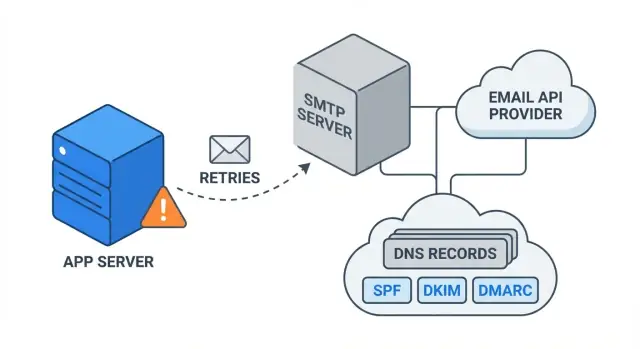
What “email not sending” looks like in production
When people say email “works locally but not in production,” it usually means the app code is fine, but the real world setup is different. Production often runs behind stricter networks, uses different environment variables, and depends on DNS and a provider account that can block or throttle you.
The most common symptoms are easy to spot once you name them:
- Requests time out (the app waits, then gives up)
- 401/403 errors (bad API key, wrong SMTP password, or blocked account)
- Messages show as “queued” forever (provider is holding them, or your worker is stuck)
- Emails arrive, but land in spam (deliverability, not sending)
A lot of “fix email sending problems in production” work turns out to be configuration, DNS, or provider limits, not a bug in your email template. One missing environment variable, a new sending domain without SPF/DKIM, or a provider suppression list can make a previously working flow fail overnight.
Before you change anything, collect a few details so you can trace one email end to end:
- Exact timestamp (with timezone) when you triggered the email
- The error text and any status code from your logs
- Provider response details (message ID, request ID, or SMTP reply code)
- Recipient address and the email type (reset password, invite, receipt)
- Whether the issue affects all users or only certain domains (Gmail, Outlook, company mail)
If you inherited an AI-generated app, this is where small config mistakes hide. Teams like FixMyMess often start by mapping one failed email to the exact point it breaks: app, provider, or inbox.
How sending email actually works (simple mental model)
Think of email sending as a handoff chain. Your app creates a message (to, from, subject, body). Then it hands it to a sender (either SMTP or an email API). That sender hands it to the recipient’s mail server. Only at the end does it reach the inbox.
SMTP vs an email API changes the “door” you use, not the destination. With SMTP, your app logs in and talks to the provider like a mail client would. With an email API, your app makes an HTTPS request and the provider does the SMTP part for you. Either way, you still need: a verified sending domain, permission to send, and a message that mailbox providers accept.
Failures usually happen in one of these spots:
- App layer: wrong recipient, template bug, missing from address, bad payload
- Network layer: blocked ports, TLS problems, timeouts
- Provider layer: auth error, rate limit, paused account, suppression list
- Recipient layer: spam filtering, bounces, or silent foldering
A few terms, in plain language: a bounce means delivery failed (bad address, mailbox full, or blocked). A complaint is when someone marks your email as spam. Suppression means your provider stops sending to an address after bounces or complaints. Reputation is your track record as a sender.
One confusing part: your provider can accept the message (so your app logs “sent”) but it still never shows up. Example: a password reset email is accepted, then quietly blocked by the recipient because your domain’s DNS is missing SPF/DKIM/DMARC or your reputation is low. That’s why “fix email sending problems in production” is often about delivery, not just sending.
If you inherited AI-generated code, FixMyMess often finds the break in this chain fast: missing retries, duplicate sends, or a provider rejection your app never surfaced.
Quick triage: 10 minutes to narrow it down
When you need to fix email sending problems in production fast, the goal is simple: figure out whether the failure is on your side (app/config/network) or the provider side (account/limits/suppression) before you change code.
Start with one controlled test: trigger a single email to one inbox you control (not a full batch). Keep the exact timestamp.
Do these checks in order:
- Verify the provider is up and your account is allowed to send (status page, billing, daily/hourly limits, sandbox mode).
- Confirm the sender address and domain are verified if your provider requires it (from-address mismatches are common).
- Open your production logs for the send attempt and copy the exact error text and any error code.
- Confirm production environment variables are correct (API key/SMTP password, host, port, from address, region).
- Capture the provider message ID (or request ID) from the response so you can trace the event on their side.
The error text usually tells you the lane you are in:
- Auth errors (401, 403, "Invalid login") usually mean wrong key, wrong SMTP creds, or blocked permissions.
- Timeouts usually mean network egress blocks, wrong host/port, or TLS negotiation issues.
- 400-level API errors often mean a malformed payload (bad template ID, invalid email address).
- "Suppressed" or "blocked" hints at bounces, complaints, or account-level suppression.
- "Sender not verified" points to domain or from-address setup.
If you inherited an AI-generated app, these problems often come from mismatched env vars or hardcoded test keys. FixMyMess typically starts by reproducing one send, grabbing the message ID, and mapping it to the exact failing config so you can stop guessing.
Step by step: diagnose from app to inbox
Start by making the problem easy to repeat. Use one known recipient (your own mailbox is fine) and send one specific template (like “password reset”). Change only one thing at a time so you know what fixed it.
Next, capture what your app actually sent. For an email API, log the request payload (redact secrets) and the full provider response. For SMTP, capture the SMTP conversation (the server replies matter as much as your commands). The goal is a single record you can point to and say: “This send attempt happened at this time with this data.”
Then follow the message through the provider. Look up the provider event for that attempt and note whether it was:
- Accepted/queued (provider will try to deliver)
- Deferred (temporary issue, will retry)
- Bounced (hard rejection)
- Blocked (policy or reputation)
- Dropped/suppressed (provider refused to send)
Now check your own app’s state. Confirm you stored the provider message ID and a clear status that matches the provider event. A common failure is “email sent” in your UI while the provider shows “dropped” (often due to suppression lists or missing verification).
Finally, decide if the recipient domain rejected or filtered it. If the provider says “delivered” but the email is missing, check spam and quarantine folders, then look for “rejected by recipient” or “spam content” signals.
If you’re trying to fix email sending problems in production and your logs are messy or missing, FixMyMess can audit the code path and provider events so you can see exactly where the chain breaks.
Email provider checks (account, limits, and suppression)
Before you dig into code, confirm the email provider account is actually able to send. A surprising number of “fix email sending problems in production” cases come down to an account setting, a limit, or a silent block.
Start with credentials. If your app uses an API key or SMTP password, make sure it matches the right environment (prod vs staging), the right region, and the right subaccount or workspace. Key rotation often breaks production first because the old key still works locally.
Next, verify the From address rules. Many providers only allow sending from verified domains or specific mailboxes. If a deploy changed the From address to something like [email protected], the provider may reject it or accept it but never deliver.
Rate limits and caps can look like random failures. You might see temporary errors, throttling responses, or timeouts during bursts (password resets after a marketing email, nightly reports, sign-up spikes). Check the provider dashboard for limit warnings that match your timestamps.
One of the sneakiest issues is suppression. If a recipient hard-bounced or marked you as spam once, some providers will suppress that address and silently drop future sends. Your app may say “sent” while that inbox never gets another message.
If your app relies on events, confirm webhooks are still connected. A misconfigured webhook can make your app think sending failed (or succeeded) when the provider is saying the opposite.
Here are the fastest provider-side checks to run:
- Confirm the active key/SMTP user is the one deployed to production.
- Look for From address or domain verification errors.
- Check daily caps and burst limits around the failure window.
- Search suppression lists for a test recipient.
- Verify event/webhook delivery and signature settings.
If you inherited an AI-generated app, these settings are often hard-coded or inconsistent across environments. FixMyMess typically starts by mapping the provider account setup to the exact config your production build is using, then removing the mismatch.
SMTP issues: ports, TLS, auth, and network blocks
If you can trigger an email in the app but nothing arrives, SMTP is often the weak link. The biggest trap: production networks behave differently than your laptop.
Port and host come first. Many providers still mention port 25, but in real hosting it is often blocked to stop spam. Prefer the port your provider recommends for authenticated sending (commonly 587 with STARTTLS, or 465 with implicit TLS).
TLS: STARTTLS vs implicit TLS
STARTTLS means you connect in plain text, then upgrade to TLS. Implicit TLS (often 465) starts encrypted immediately. Mixing them up causes handshake errors like “wrong version number” or “EOF”. Also check:
- Your SMTP hostname matches the certificate (using an IP can break validation)
- Your server clock is correct (bad time can fail cert checks)
Auth and network blocks
Auth failures are usually simple: wrong username, wrong password, or using a human login instead of an SMTP/API credential. Some providers require an app password, token, or IP allowlist.
Network blocks are common on cloud hosts and containers. Outbound rules, firewalls, NAT, or corporate egress gateways can silently drop SMTP traffic.
To test safely without guessing, run a connectivity check from the same environment as your app (same VM, container, or function):
nc -vz smtp.yourprovider.com 587
openssl s_client -starttls smtp -connect smtp.yourprovider.com:587
If the port test fails, it is networking. If the TLS test connects but auth fails, it is credentials or provider policy. This kind of clear split is the fastest way to fix email sending problems in production.
If you inherited an AI-generated app where SMTP settings are scattered across code and env vars, FixMyMess can audit and repair the configuration quickly so sending works reliably after deploys.
Email API issues: auth errors, payload bugs, and timeouts
When you use an email API (instead of SMTP), “email not sending” often means your app never created a send request, or the provider rejected it before it reached the queue. Start by checking the provider’s response code and message for the exact request.
Read the status code like a hint
Most failures fall into a few buckets:
- 400 Bad Request: your JSON is wrong (missing required fields, invalid template ID, bad encoding).
- 401 Unauthorized: the API key is missing, expired, or from the wrong environment.
- 403 Forbidden: the key exists, but lacks permission, or the sending domain/from address is not allowed.
- 429 Too Many Requests: you hit rate limits or burst limits; slow down and retry with backoff.
- 202/200 but no email: accepted by API, but later suppressed, bounced, or blocked by policy.
Payload bugs are common after a deploy: a renamed field, an empty “to” list, HTML with invalid characters, or a template variable that no longer matches the template. Attachments can also break sends. Many providers enforce size limits, and serverless functions can timeout while uploading large files.
If your provider uses signed requests, clock skew can cause random auth failures. Make sure your server time is correct.
To fix email sending problems in production without duplicates, use idempotency keys. Then if you retry after a timeout, the provider treats it as the same send instead of sending two copies.
If you inherited AI-generated code that makes these mistakes, FixMyMess can audit the sending path and harden retries so it behaves predictably under load.
Domain setup: SPF, DKIM, and DMARC without confusion
A lot of “email not sending” reports are really “email is sent, but never reaches the inbox”. If you need to fix email sending problems in production, start by making sure your domain proves the message is allowed to be sent.
SPF: who is allowed to send
SPF is a DNS TXT record that lists which servers can send mail for your domain. You should have exactly one SPF record per domain.
v=spf1 include:YOUR_PROVIDER.com -all
Common SPF problems are simple: multiple SPF TXT records (they conflict), a record on the wrong hostname (set on a subdomain when you send from the root domain, or the other way around), or an outdated include after you switch providers.
DKIM and DMARC: proving it is really you
DKIM adds a signature so inboxes can verify the email was not changed and really matches your domain. If DKIM is set up but “misaligned” (for example, your From address is yourdomain.com but the DKIM signature is a different domain), inbox placement can drop fast.
DMARC ties SPF and DKIM together. Start with monitoring so you do not accidentally block good mail, then tighten:
- Begin with
p=noneto collect reports and spot surprises - Move to
p=quarantineonce legitimate sources are confirmed - End at
p=rejectwhen you are confident nothing else should send
DNS mistakes are common: copying the record into the wrong subdomain, forgetting a period in a hostname, or waiting for TTL to expire. To confirm changes are live, query DNS from a second network and check a real message’s headers for “Authentication-Results” showing SPF, DKIM, and DMARC as PASS.
If you inherited an AI-generated app with messy email code and unclear sending domains, FixMyMess can audit the setup and point out exactly what is failing before you touch production again.
Spam triggers and deliverability basics
Sometimes “email not sending” is really “email delivered, but nobody sees it”. Your provider may show a success status, yet the message lands in Spam or Promotions because mailbox providers do their own filtering.
Common spam triggers are surprisingly small: shouty or misleading subject lines (“URGENT”, “RE: invoice”), link shorteners, too many links, and broken HTML (missing plain text version, huge images, or messy formatting). Even a single suspicious line can outweigh everything else.
Reputation matters as much as content. New domains and new sender identities start with little trust. If you go from 0 to thousands of emails overnight, filters get stricter. Warm up gradually and keep complaint rates low.
“No-reply” addresses often backfire. People hit reply when something looks wrong. If that reply bounces or disappears, you get more complaints. Use a real sender and set a clear Reply-To that your team monitors.
Keep transactional and marketing mail separate in practice: different sending domains or subdomains, and ideally different provider streams. That way a marketing spike does not hurt password resets.
If messages are delivered but still land in spam, try this quick pass:
- Send a plain, simple version (less HTML, fewer links) and compare results
- Remove link shorteners and tracking-heavy URLs
- Make the subject match the body and intent
- Ask a few recipients to mark “Not spam” and reply once
- Check for sudden volume jumps after a deploy or campaign
Reliable sending: retries, bounces, and avoiding duplicates
Email fails in production for reasons that have nothing to do with DNS or templates. The difference between “flaky” and “reliable” often comes down to how you retry, what you remember, and when you stop.
A simple retry policy
Retry only when the provider or network is having a temporary problem. If the address is invalid or the domain rejects mail, retrying just creates noise and can hurt your reputation.
A practical approach that works for most apps:
- Retry on timeouts, 429 rate limits, and 4xx SMTP errors (temporary).
- Do not retry on “invalid recipient”, “mailbox does not exist”, and 5xx hard failures (permanent).
- Use exponential backoff (for example: 1 min, 5 min, 20 min, 1 hr) with a bit of randomness.
- Cap attempts (3-6 total) and stop if the user cancels the action (like requesting a new password reset).
- Separate “send now” from “send later” so your web request does not hang.
Backoff matters: hammering retries every few seconds can trigger rate limits, look spammy, and make a small incident much bigger.
To avoid duplicate emails, store each send attempt with a stable message key. For example: password_reset:<user_id>:<token_id>. If the same key is seen again, treat it as idempotent and do not send twice.
Bounces, complaints, and what to watch
If you get a bounce or a complaint, stop sending to that address and surface it to the user (“We could not deliver to this email. Please update it.”). Keep basic metrics so problems show up fast:
- Delivery success rate, bounce rate, complaint rate
- Retry count and time spent “pending”
- Provider responses (status codes, error messages)
If your code was generated quickly and the queue logic is messy, FixMyMess can audit the send pipeline and make retries, idempotency, and logging reliable without changing your whole app.
Common mistakes that keep email broken
A lot of teams try to fix email sending problems in production by changing one setting at a time. The trouble is, the break is often caused by a few avoidable habits that hide the real failure.
One of the biggest is mishandling secrets. Hardcoded API keys, SMTP passwords committed to a repo, or tokens printed in logs can get rotated or blocked without you noticing. Worse, secrets sometimes leak into client-side code, so anyone can copy them and send spam from your account.
Another common trap is sender domain confusion. If you send from a domain you do not control, or you mix multiple From domains across environments (like staging and prod), your SPF/DKIM alignment can fail and messages land in spam or get rejected.
Provider dashboards can also mislead you. “Accepted” usually means the provider took the message, not that it reached the inbox. A mailbox can still drop it later due to spam rules, DMARC policy, or a suppression list.
Here are mistakes that quietly keep problems alive:
- No alerts for bounce spikes, failed webhooks, or sudden drops in send volume.
- Treating retries as “send again” without an idempotency key, causing duplicates.
- Retrying every error the same way, including permanent failures like invalid addresses.
- Ignoring suppression lists and wondering why only some users never get mail.
- Using “no-reply” or generic subjects that trigger spam filters more often.
Example: after a deploy, password reset emails “send” but never arrive. The code changed the From address to a new subdomain, but DNS records were never added. The provider accepts the message, then receivers reject it. If you inherited AI-generated email code with mixed sender domains or unsafe logging, FixMyMess can audit the flow end-to-end and point to the exact break.
Example: password reset emails failing after a deploy
You deploy a new build on Friday. Minutes later, support tickets start: “I’m not getting the password reset email.” In production, this can look like “email not sending,” but the real cause is usually one of three things: DNS, provider auth, or a code change.
First, check your app logs for the send attempt. A code regression often shows up as a new error like Missing API key, 535 Authentication failed, or ECONNREFUSED. If logs say “sent” but users still see nothing, shift to the provider.
Open your email provider’s event or activity feed. Typical clues:
- Many
401/403events: your deploy changed or cleared an environment variable (API key, SMTP user/pass). - Many
suppressed/blockedevents: you hit a bounce list or a sending limit. - Accepted by provider but no delivery: domain or spam issues are more likely.
Next, rule out DNS quickly. If you rotated domains, changed the “From” address, or moved providers, an SPF/DKIM/DMARC mismatch can turn real mail into spam or get it rejected. You may also see provider warnings like “DKIM not aligned” or “SPF softfail.”
Fixes usually look like this:
- Correct the env vars in production (and restart the app so it picks them up).
- Verify SPF/DKIM/DMARC for the exact sending domain you use in the “From” address.
- Add safe retries for timeouts (short backoff), and use an idempotency key so retries do not send duplicates.
Finally, add a simple monitor: every 5 minutes, trigger a test reset to a mailbox you control and alert if there’s no provider “delivered” event within 2 minutes. If you need help to fix email sending problems in production fast, FixMyMess can audit the code, config, and DNS together so you are not guessing.
Quick checklist before you ship again
Before you redeploy, do one clean test from production and follow the trail end to end. The goal is to prove whether the message left your app, reached your provider, and had a chance to land in the inbox.
Pre-ship checks (10 minutes)
Run through these items in order. Each one can explain most “email not sending” reports.
- Send a single test to a mailbox you control and capture the provider message ID (or SMTP queue ID). Also confirm the provider is not having an outage and your account is not paused, rate-limited, or suppressing that recipient.
- Confirm your From domain is set up correctly: SPF and DKIM exist, and DMARC is present. Make sure the From address domain matches what your provider signs for (alignment matters).
- Verify production secrets: the right API key or SMTP username/password is loaded in the production environment (not staging), and it has permission to send from your chosen domain.
- Re-skim the email content: avoid spammy subject lines, check that any links are valid, and make sure templates are not missing variables (broken HTML can hurt deliverability).
- Check reliability: retries are capped, every attempt is logged, and your send call is idempotent so a timeout does not create duplicates.
If you still can’t fix email sending problems in production after this, you likely need deeper app-level diagnosis (queue workers, network egress rules, or provider webhook events). FixMyMess can audit the code path and harden it so sends are predictable after every deploy.
Next steps if the issue keeps coming back
If you keep having to “fix email again,” treat it like a reliability problem, not a one-time bug. Start by deciding what you will check every week, even when everything seems fine. Most email failures show early as a slow rise in bounces or complaints.
A simple weekly monitor can be:
- Failed sends (API errors or SMTP rejects)
- Bounce rate (hard vs soft)
- Spam complaints
- Suppression list growth (blocked recipients)
- Average send latency and timeout count
Next, write down your “known good” setup in one place. Include the sender domain, From address format, provider name, sending region, and the exact DNS records you expect (SPF, DKIM, DMARC). When a deploy or environment change happens, you can quickly compare what changed instead of guessing.
Then pick one small improvement that reduces repeat incidents. Good options are better error logging (store provider response codes), safer retry logic (retry only on temporary errors with backoff), or webhook handling that records bounces and suppressions so you do not keep retrying dead addresses.
If you are trying to fix email sending problems in production in an app generated by an AI tool, recurring issues often come from config drift, exposed secrets, or broken auth flows around password resets and invites. FixMyMess can do a free code audit to find those root causes and repair the code and deployment setup so sending stays reliable.