Harden password change flows with recent auth and session reset
Learn how to harden password change flows: require recent login, invalidate active sessions, rotate tokens, and block old credentials from being reused.
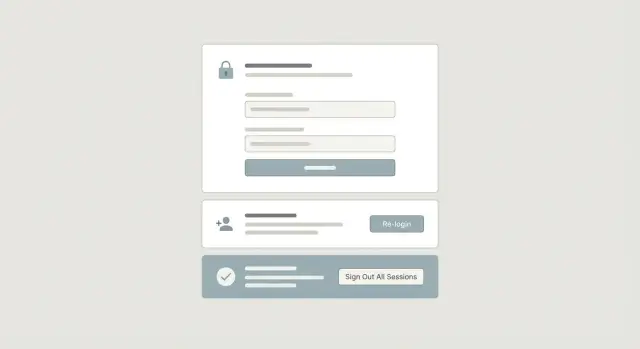
What can go wrong in a password change
A password change is one of the highest-risk actions in an app. If an attacker can trigger it, or keep access after it, a small mistake turns into a full account takeover.
The usual starting point isn’t the password form itself. It’s what an attacker already has: a stolen session cookie from a shared computer, a leaked refresh token from logs, or a reset link pulled from an inbox, browser history, or email previews. If your app treats any logged-in session as fully trusted, that attacker can change the password and lock the real user out.
A common confusion is “logged in” vs “recently verified.” Logged in just means there’s a valid session. Recently verified means the user proved it’s really them right now, usually by re-entering the current password, using a one-time code, or completing a step-up check. Without that extra gate close to the moment of change, an old session becomes a master key.
Even when the password update itself is protected, many apps fail right after the update. If old sessions and tokens stay valid, the attacker keeps access quietly.
What that turns into in practice:
- Account takeover and lockout (password or email changed)
- Silent persistence (old sessions keep working)
- Repeated reset requests that keep the user off balance
- Data theft (messages, billing info, API keys)
A realistic scenario: a founder changes their password after noticing something odd, but the attacker still has a valid refresh token from an earlier session. The founder feels safe. The attacker stays signed in and waits.
Security goals for a safe password update
A password change isn’t just updating a string in the database. You’re doing two things: confirming the real user is present, then cutting off any access that could belong to an attacker.
Four goals cover most of what matters:
- Presence: confirm the person changing the password is the real owner right now.
- Containment: once the password is updated, old access should stop quickly.
- Replay protection: prevent old tokens from being reused to mint new access.
- Clarity: users should understand what will happen (and the system should behave consistently).
Design targets that map to those goals:
- Require a fresh check right before saving the new password.
- Update credentials atomically (no partial states).
- Invalidate sessions and remembered devices based on your policy.
- Revoke or rotate tokens so old ones can’t be replayed.
- Provide clear confirmation and a recovery path if the change wasn’t expected.
Require recent authentication at the right moment
The single most useful hardening step is a recent authentication requirement. The user is already signed in, but you ask them to prove it again and only accept that proof for a short window.
Timing matters. If you ask too early, the user can get interrupted and leave a sensitive screen open. If you ask too late, teams sometimes accidentally implement the “save” path without enforcing the check. A practical pattern is:
- Let the user open the settings screen.
- Require the fresh verification right before accepting and saving the new password.
Good prompts include re-entering the current password, a passkey/biometric prompt, or a 2FA step when the account has it.
Define “recent” in minutes, not hours. For password changes, a 5-15 minute window is common.
Example: someone finds an unlocked browser session on a shared laptop and opens Account Settings. They might browse around, but when they hit “Save new password,” they have to pass a fresh check. That blocks most “session hijack then lock you out” attacks without forcing constant re-logins.
A step-by-step password change flow
Treat password change like a high-risk action, even when the user is already signed in. A forgotten shared device or a stolen cookie is enough to make this dangerous.
A simple, safe flow:
- The user opens account settings. The app identifies the account from the current session (not from a form field).
- Right before showing or enabling the final “save” action, require a fresh proof (current password, passkey, or 2FA). Record the time of this check and enforce a short window.
- The user enters a new password twice. Validate basics (length, not the same as the old one, avoid obviously weak choices) and return clear error messages.
- Save the new password using strong hashing. Then immediately rotate and revoke credentials so older ones can’t be used again.
- Show a confirmation that matches reality: which devices will be signed out, whether the current session stays active, and what to do if the user didn’t request the change.
One detail worth repeating: do the re-auth check right before the change, not when the user first opened settings. Otherwise someone can open the page, walk away, and another person can finish the job.
Invalidate sessions after the password is updated
Changing a password should cut off sessions created before the change. Otherwise an attacker who already stole a session cookie, refresh token, or “remember me” token can stay signed in after the user thinks they’re safe.
You generally choose between:
- Sign out everywhere: safest default.
- Sign out everywhere except the current session: still safe if you only allow it after a recent auth check.
What to invalidate right after saving the new password depends on your architecture, but teams often miss at least one of these:
- Server sessions and session cookies created before the change
- Refresh tokens and long-lived “remember me” tokens
- Background device sessions (mobile apps, tablets)
- Password reset tokens that were already issued
- API keys or personal access tokens, if your product supports them
“Remember me” deserves special attention. Those tokens are designed to survive restarts, which also makes them great theft targets. Treat them like refresh tokens and revoke them.
User-facing messaging should stay simple and accurate: “Your password was changed. You may need to sign in again on other devices.”
Prevent token reuse with rotation and revocation
Token reuse is when an old key still opens the door after you change the lock. A user updates their password, but an attacker with a stolen refresh token or long-lived JWT keeps calling your API.
The fix is straightforward: after credentials change, anything that proves identity should be treated as suspicious and replaced.
Rotate refresh tokens, revoke the rest
For most apps, refresh tokens are the first priority. Rotate the current token and revoke all other refresh tokens for that account. If an attacker saved an old token, it stops working immediately.
Plan for JWT cutoffs
JWT access tokens are often valid until they expire. That’s convenient, but it’s a problem during emergency cutoffs. Two common approaches:
- Keep access tokens short-lived and rely on refresh token rotation.
- Add a server-side revocation check (for example, a per-user version you compare on each request).
A clean pattern is a server-side “session version” (sometimes called a security stamp). Store it on the user record, include it in tokens, and bump it when the password changes. Any request carrying an old version fails, even if the signature is valid.
Don’t forget long-lived credentials
Password changes should trigger a review of long-lived keys that bypass login screens, like API keys and personal access tokens. If those stay valid forever, a password change won’t fully contain an incident.
Edge cases people actually hit
The happy path is easy. The bugs show up when users have multiple tabs open, use email links, or never had a password in the first place.
Email-link changes (magic link or reset link)
If a password change starts from an email link, treat the link as a way to begin, not a blank check to finish. When possible, ask for a fresh confirmation before the final update: re-enter the current password (if they have one), confirm a one-time code, or require a quick re-login if the session is old.
Users who don’t have a password yet
Social login users often set a password later. In that case, don’t ask for a current password, but still require strong confirmation (like a one-time code) and make it clear that setting a password enables email+password sign-in.
Edge cases worth testing:
- A reset flow is open in another tab while the user changes the password from settings.
- Two reset links are used out of order (the older link should fail).
- The user changes their password, then tries an old refresh token or “remember me” cookie.
- The user assumes logging out of one tab logged them out everywhere.
- Multiple failed attempts happen quickly (possible guessing or automation).
After any password update, send a notification (email or in-app) with what changed and when, plus a clear “This wasn’t me” path that leads to recovery.
Common mistakes attackers exploit
Attackers rarely attack the password change screen head-on. They look for gaps that let them keep access after the user thinks the problem is fixed.
The most common failures:
- Password changes don’t revoke other sessions across devices.
- Refresh tokens aren’t rotated and revoked on password change.
- Sensitive actions rely on CSRF protection alone, with no re-auth prompt.
- “Old password” is accepted without enforcing a recency window.
- No audit log or alerting for password changes and session resets.
Without logs, you won’t notice patterns like repeated password changes, refresh token reuse, or session invalidations that don’t actually take effect.
Quick checks before you ship
Treat password change like a security-critical feature, not a settings screen. Test it the way an attacker would: from another device, with old tokens, and with a stale login.
In a staging environment, sign into the same account on two devices (or two browsers), then:
- Change the password on Device A, then refresh protected pages on Device B. Device B should be forced to sign in again based on your policy.
- Try using an old refresh token from before the change. It should not mint a new access token.
- Wait until your “recent login” window expires, then try to change the password again without re-verifying. It should be blocked until the user proves it’s really them.
- Confirm you log the password change event with time and basic device context (session ID, user agent, and IP if you store it).
- Check the UI copy: it should clearly match what happens to other sessions.
A realistic scenario: a founder changes their password after a suspicious login email, but a tablet stays signed in. Your tests should catch that.
Example: fixing a broken AI-generated login system
A common pattern in AI-generated apps is “sticky” auth: once you log in, you stay logged in for weeks. Changing the password updates the database, but it doesn’t kick out existing sessions.
That looks like convenience, but it becomes a serious security hole. If an attacker ever steals a session token or refresh token (from leaked logs, browser storage, or exposed secrets), they can keep using it. If your system never revokes old tokens, a password change doesn’t remove their access.
A practical fix plan:
- Require recent authentication right before the password is changed.
- Invalidate active sessions for that user immediately after the update (including other devices, based on your policy).
- Rotate refresh tokens and track a server-side token ID or version so old refresh tokens can’t be reused.
- Reject tokens minted before the password change timestamp or before the new token version.
Verification matters as much as the code change:
- Sign in on two devices.
- On Device A, change the password.
- On Device B, try to load a protected page and refresh the session.
- Confirm Device B is forced to sign in again and can’t reuse old tokens.
The outcome you want is boring: after a password change, persistence is gone. Even if a token was stolen last week, it stops working today.
Next steps if you inherited an AI-generated app
Password changes and session handling are often the first places where small auth mistakes turn into real takeovers. Before you change anything, get clear on what you have:
- Which auth provider or library you’re using
- Where sessions live (cookies, server session store, JWT-only, or mixed)
- Which token types exist (access, refresh, reset, magic links)
- Whether you can revoke sessions and tokens per user
Then write down your default policy. The safest default is usually “sign out everywhere after a password change.” Some products keep the current device signed in, but only if you enforce recent authentication and rotate tokens correctly.
If you’re dealing with a codebase generated by tools like Lovable, Bolt, v0, Cursor, or Replit, it’s common for the UI to look finished while revocation and session invalidation are missing. FixMyMess (fixmymess.ai) focuses on diagnosing and repairing these auth gaps, and offers a free code audit to map session and token issues before you commit to a rebuild or a bigger set of changes.
FAQ
Why isn’t being logged in enough to change a password safely?
Require a recent authentication check right before you accept the final save. Being “logged in” only proves a session exists; it doesn’t prove the real owner is present right now.
A simple default is to ask for the current password (or passkey/2FA) within a short window like 5–15 minutes, then apply the change immediately.
When should I prompt for the current password or 2FA during a password change?
Ask for the fresh verification as close to the “Save new password” action as possible. If you verify too early (when the settings page loads), someone can leave the screen open and another person can finish the change.
Treat the re-auth check like a short-lived ticket that expires quickly.
Should a password change sign the user out of all devices?
“Sign out everywhere” is the safest default, especially after suspicious activity. If you keep the current session active, only do it after a recent-auth check and still revoke everything else.
Whatever you choose, make the UI message match reality so users aren’t misled about which devices stay signed in.
What exactly should be invalidated after the password is updated?
At minimum, invalidate any sessions created before the password change and revoke refresh tokens or “remember me” tokens tied to the account. If old sessions remain valid, an attacker who already stole one can stay signed in after the user changes their password.
Also cancel any outstanding password reset tokens so old links can’t be reused.
How do I stop a stolen refresh token from working after a password change?
Rotate the active refresh token and revoke all other refresh tokens for that user right after the password change. That prevents an attacker from reusing a previously stolen token to mint new access.
If you can, store server-side token identifiers or a per-user version so you can reliably block old tokens.
What should I do if my app uses JWTs for access tokens?
If your access tokens are JWTs, a password change won’t automatically stop already-issued JWTs until they expire. A good default is short-lived access tokens paired with strict refresh token rotation.
If you need immediate cutoffs, add a server-side check like a per-user “session version” and bump it on password change so older tokens fail even if their signature is valid.
How can I avoid partial or broken states during the password update?
Make the password update atomic: verify recent auth, validate the new password, write the new hash, and then revoke sessions/tokens as one coherent operation. Partial updates are where users get locked out or attackers keep access.
If something fails, fail closed and tell the user to try again rather than leaving mixed state behind.
What edge cases should I test for password resets and magic links?
Always ensure older reset links stop working once a new password is set, and ensure links can’t be used out of order. Treat an email link as a way to start the flow, not a blank check to finish it.
If the user didn’t previously have a password (social login), require strong confirmation such as a one-time code before setting the first password.
What should I log and notify users about when a password changes?
Log the password change event and the follow-up security actions you performed, like session revocation and token rotation. Include basic context (time and a rough device/session fingerprint) so you can spot patterns without needing sensitive data.
Also notify the user that the password changed and provide a clear “this wasn’t me” recovery path.
How do I tell if an AI-generated login system has a dangerous password change flow?
Many AI-generated apps update the password in the database but leave old sessions and refresh tokens valid, creating “sticky” access that survives a password change. The fastest way to confirm is to sign in on two devices, change the password on one, and check whether the other gets forced to re-auth.
If you inherited an AI-generated codebase from tools like Lovable, Bolt, v0, Cursor, or Replit, FixMyMess can run a free code audit to pinpoint missing revocation, broken step-up auth, and token replay risks, then fix or rebuild the flow quickly so password changes actually cut off attackers.