Hide stack traces from users with safe messages and IDs
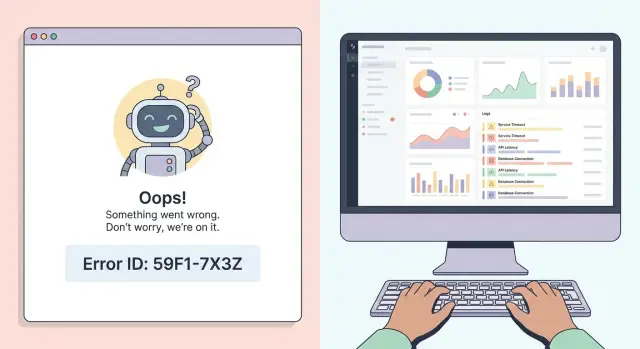
Hide stack traces from users with safe messages and an error ID. Log full details server-side so you can debug fast without exposing secrets.
Why stack traces shouldn’t appear in production
A stack trace is a technical report that shows where your app crashed and the chain of function calls that led to the error. It’s useful for developers because it can point to the exact file and line that failed.
For users, it’s just noise. They don’t need to know which function threw an exception to finish checkout, reset a password, or sign in. They need a clear next step, like trying again, checking what they typed, or contacting support.
Raw errors in production can also reveal more than you expect. A single stack trace can include server file paths, library versions, internal routes, database table names, or even parts of the request that caused the crash. If secrets ever make it into error text (tokens, keys, connection strings), you can leak them to anyone who triggers the error.
Common things that slip into stack traces and exception pages include:
- Server file paths and folder names
- SQL fragments or table names
- Framework and package versions
- User data from the failed request (emails, IDs, and more)
A safer pattern is to show a human message, include an error ID the user can share, and log the full details on the server.
What can go wrong when you show raw errors
Showing stack traces to real users is more than messy. It can expose a map of your app: file paths, libraries, function names, and the inputs that triggered the failure.
Security exposure
Raw errors often leak information you never meant to publish, especially in rushed prototypes.
That can include secrets (API keys, tokens, connection strings), internal endpoints and admin routes, database details, and precise version information that makes known vulnerabilities easier to target.
Privacy leakage
Some errors print the full request payload. If that payload includes emails, addresses, or payment-related fields, a normal bug can become a data incident.
Trust and conversion damage
A user who sees a wall of code or a scary error page assumes the product is unsafe or unfinished, even if the bug is minor. They abandon sign-up, drop a purchase, or stop coming back.
Slower support
Instead of a clear report like “I couldn’t pay,” you get screenshots of a stack trace with cut-off lines and no steps to reproduce. Your team spends time guessing what happened and which user it affected.
A simple pattern that works: safe message + error ID + logs
To hide stack traces from users without slowing down debugging, separate what users see from what you record.
- User-facing message: a short, calm explanation with a clear next step.
- Error ID: a unique reference tied to that failure.
- Server-side log: the full exception details plus enough context to investigate.
Example copy:
“Something went wrong while saving. Please try again. If it keeps happening, share this ID with support: ABC123.”
This separation pays off when someone reports “I can’t sign in, error ID 7F2K9.” You search logs for that ID and immediately see the real exception, the route, and what inputs triggered it, without exposing any of that to the user.
Dev vs production behavior
In development, detailed error pages can be fine because they speed up local work.
In production:
- show a safe message and an error ID
- keep the full stack trace in server logs
How to write safe error messages users understand
A safe error message should do two things:
- Explain what happened in plain words.
- Tell the user what to do next.
Focus on the user’s goal, not your internals. “We couldn’t save your changes” helps. “NullReferenceException in UserController” doesn’t.
A simple template
Most good error copy fits this shape:
- What happened: one short sentence, no technical terms.
- Next step: one clear action.
- Extra help: “Try again in a minute” or “Contact support with Error ID ABC123.”
Keep it neutral. Avoid blame (“You did something wrong”) and avoid vague lines (“Something went wrong”) unless you add a next step.
Examples
Instead of:
“500 Internal Server Error. Stack trace: ...”
Use:
“We couldn’t sign you in. Check your email and password and try again. If it keeps happening, contact support with Error ID Q7F2.”
For saving changes:
“Your changes weren’t saved. Refresh the page and try again. Error ID K3M9.”
One problem, one action. If you give three options at once, many users freeze.
How to generate and attach an error ID
An error ID is the bridge between a friendly message and the technical details.
What the ID should look like
Aim for an ID that’s:
- easy to copy (often 8 to 12 characters shown to the user)
- hard to guess (not incremental, not just a timestamp)
- unique enough to avoid collisions
Good options include UUIDv4 or ULID. Many teams store the full ID in logs but display a shortened form in the UI.
You can also add a prefix to help triage, like AUTH- or PAY-, as long as the rest of the ID is still random.
Where to display it
Show the ID anywhere a user might need it: an error page, a toast, or a failed-action screen. Keep placement consistent so support can say, “Look for the error ID on the message and send it to us.”
Make sure the same ID appears in your server logs
Generate the ID once per failure and carry it through the whole error path:
- include it in the response body (or error UI)
- optionally include it in a response header for API clients
- write it into server logs with the full exception details
- attach it to internal alerts so everyone references the same ID
What to log server-side (and what to never log)
Server-side error logging should make it easy to answer: what happened, where did it happen, and why?
A useful log entry usually includes:
- timestamp and environment (prod, staging)
- route and method (for example, POST /signin) and response status
- error ID
- a user or session identifier if allowed (prefer an internal user ID, not an email)
- a safe input summary (counts, types, non-sensitive fields)
Also capture the exception details server-side: the exception type, message, stack trace, and any root-cause information you have (for example, which external service timed out). For background jobs, include job name and retry attempt.
Be strict about what you never log. Don’t log passwords, one-time codes, full card numbers, auth tokens, API keys, private cookies, or secrets from environment variables. If you log user-provided text, consider truncating it and removing obvious token patterns.
Step-by-step: implement safe errors in your app
Treat production error handling like a small feature, not a last-minute toggle.
- Turn off verbose error output in production. Disable debug mode and detailed exception pages. Check hosting settings too, not just app config.
- Add one backend catch-all handler. Convert unexpected exceptions into a safe response shape.
- Generate an error ID per failure. Return it to the client and log it server-side.
- Log one structured event. Include the error ID plus the full stack trace and context.
- Force a test error. Confirm the UI shows only the safe message and the logs contain the details you need.
For the forced test, use something predictable: an endpoint with a missing required field, an expired session path, or a temporary throw in a non-critical route. Verify two things: the response never includes internal details, and the log entry is easy to find by the error ID.
Common mistakes to avoid
Deploying with debug settings
One of the easiest ways to leak details is shipping with debug mode (or verbose exception pages) enabled. It often happens after a rushed hotfix, or when an environment variable is missing in production.
Guessable “error IDs”
Avoid IDs like 12345 or 2026-01-20-15:03. Predictable IDs can leak timing and volume, and they’re easier to abuse.
Friendly messages without logging
Catching an error and returning a calm message is good only if you also record what happened. Otherwise you get support tickets with no data.
Logging too much
The opposite mistake is dumping full request bodies, cookies, and tokens into logs. That creates privacy risk and makes logs harder to use.
Quick checklist before you ship
Before a release, trigger a few common failures in staging (or production with a test account): bad password, missing record, expired session, failed API call.
- The UI shows a plain-language message and an error ID.
- You can paste that ID into your log search and find the exact event fast.
- No raw exception text appears in the page, toast, console, or network response body.
- Logs don’t contain secrets, tokens, passwords, cookies, or full payment fields.
- Error responses follow one consistent shape across web and API.
Then do a quick privacy check: read one error log entry end-to-end and ask, “If this screenshot got shared, would it expose anything we’d regret?”
Example: a sign-in error handled the right way
A user tries to sign in and it fails.
In production, the user should see something like:
“We couldn’t sign you in. Please try again in a minute. If it keeps happening, contact support with Error ID AUTH-9F3A2C1D.”
On your side, you log one detailed event tied to the same ID. That ID becomes the shared reference that connects a calm user experience to fast debugging.
Next steps: make debugging faster without exposing details
Once stack traces are hidden, make sure your team can still move quickly.
Create a simple support habit: ask for the error ID and a short replay of what the user did (page, button, time, and what they expected). That turns “it broke” into something you can act on.
Add basic alerting so repeated errors don’t pile up unnoticed. Even lightweight tracking by route and error type helps you spot spikes.
If you inherited an AI-generated prototype, this is also a good time to look for related production risks that tend to travel together: exposed secrets, inconsistent error handling, and fragile authentication flows.
If you want an outside sanity check, FixMyMess (fixmymess.ai) offers a free code audit and can pinpoint where raw errors or sensitive data still leak, then help put safer production error handling in place.
FAQ
Why is showing a stack trace in production a bad idea?
Because they confuse users and can leak sensitive details. A stack trace often includes file paths, internal routes, package versions, and sometimes parts of the request that failed, which can help attackers or expose private data.
What should users see instead of a raw error page?
Show a calm message that explains the user-facing problem and gives one clear next step, plus an error ID they can share with support. Keep the full technical details only in your server logs.
How do stack traces create security risk?
It can reveal exactly how your app is built and where it’s weak, including framework versions, internal endpoints, and database details. In rushed builds, it may even surface secrets like tokens or connection strings if they appear in error text.
Can stack traces leak user data too?
Some exception pages and logs include the full request payload or echoed input. If that contains emails, addresses, IDs, or payment-related fields, a normal crash can turn into a data exposure incident.
What’s the simplest way to generate a good error ID?
Use a random, hard-to-guess identifier and create it once per failure. UUIDs or ULIDs work well; you can display a shorter version to users while storing the full value in logs for search and correlation.
Where should the error ID appear in the UI?
Put it anywhere the user will actually notice during the failure, like an error page, inline form error, or toast. Keep the placement consistent so support can reliably ask, “What error ID do you see?”
What should I include in server-side error logs?
Log the error ID, timestamp, environment, route/method, status code, and the full exception details including the stack trace. Add safe context like an internal user ID or session ID when allowed, so you can reproduce and trace impact without exposing personal data.
What should I never log when debugging production errors?
Don’t log passwords, one-time codes, full payment numbers, auth tokens, API keys, private cookies, or raw secrets from environment variables. If you capture user-provided text, keep it minimal and consider truncating it to reduce accidental leakage.
Should error handling be different in development vs production?
In development, detailed error pages speed up local debugging. In production, disable debug output and always return a safe response shape with an error ID, while recording full details in server logs so you can still fix issues quickly.
How can I test that stack traces are truly hidden in production?
Trigger a controlled failure in a non-critical path and confirm the UI shows only the friendly message and error ID. Then search logs by that ID to ensure you captured the stack trace and context, and verify the response body and client console don’t include raw exception text.