Image and file upload size limits that keep your app fast
Set image and file upload size limits early to keep pages fast, storage predictable, and support tickets down. Practical rules, examples, and checklists.
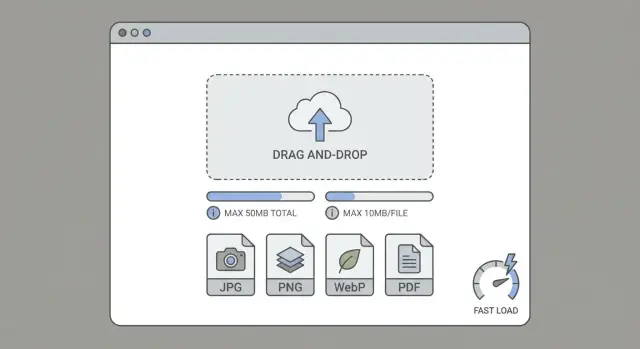
Why upload rules matter before your app grows
Uploads are easy to ignore early on. A few photos and PDFs work fine, pages feel snappy, and nobody complains. Then you get real users and real content, and every screen starts to feel heavier than it should.
Uploads do not just take up space. They shape how fast your app feels every day. If you do not set clear limits early, you end up fixing performance later under pressure.
Upload speed is not the same as page load speed
Upload speed is how long it takes one user to send a file to your server. Page load speed is how long it takes everyone else to view that file later.
Someone might wait 3 seconds to upload a 12 MB photo and think, "Fine." But now every profile page, listing page, and feed that shows that photo has to download it too. That slow feeling spreads across the whole app, including for users who never upload anything.
A simple example: a marketplace launches with 30 sellers. Everyone uploads phone photos straight from the camera. The app still feels okay. A month later there are 1,000 listings, and the homepage loads dozens of oversized images. Nothing "broke," but the app feels slow.
The hidden costs pile up quietly
Large, unplanned uploads create costs that are hard to notice until you hit a limit or get the bill:
- Storage grows faster than expected, even for small apps.
- Backups take longer and cost more.
- Metadata stores balloon if you keep too much per file.
- CDN and bandwidth costs jump because users keep re-downloading big files.
- Support time increases when uploads fail on mobile networks.
The goal is simple: decide your rules once, then enforce them everywhere. That means the same limits in the UI, the API, background jobs, and any admin tools.
If you inherited an AI-generated app where uploads were added quickly and inconsistently, this is a common cleanup. Getting consistent rules in place first makes every other performance fix easier and more predictable.
What counts as image and file rules (in plain language)
When people say "upload rules," they do not mean a long technical document. They mean a few clear limits that everyone follows so uploads stay predictable and pages do not get heavy later.
Upload rules usually include:
- Maximum file size (per file, and sometimes per upload)
- Maximum image dimensions (width and height in pixels)
- Allowed formats (what types you accept)
- File count limits (per item, per message, per user)
- Where files are stored and how they are delivered back to users
Not every file behaves the same, so the limits should not be identical.
Images show inside your app, so they affect page load time and scrolling. Documents (PDFs, spreadsheets) are often downloaded and opened elsewhere, so they can be larger without slowing every page. Video is a separate category: it can crush mobile data plans and take forever on slow connections. Many apps handle video separately, or avoid it entirely at first.
"Original" vs "display" vs "thumbnail"
These terms sound fancy, but they are simple:
- Original file: what the user uploads. You may keep it for backup or future edits.
- Display version: a resized, lighter copy that your app actually shows on screen.
- Thumbnail: a small preview used in lists, grids, and search results.
If you only store and serve the original, your app ends up pushing huge files to every user, even when they only need a small preview.
The pain usually shows up first for mobile users. A 6 MB "normal" photo can feel instant on home Wi-Fi, but it can freeze a product page on cellular, burn battery, and make your app feel broken.
Step by step: pick size limits and formats up front
The fastest way to set upload rules is to start from what the user is trying to do. "Upload" is not one thing. An avatar, a product photo, and a PDF receipt have different needs. If you treat them the same, you usually end up allowing huge files everywhere.
Write down the upload actions your app supports (or will support soon). For each one, decide what "good enough" looks like on screen. Most images are viewed smaller than people think.
A simple 5-step method
- Define the use case and where it shows up (profile, listing card, gallery, admin-only, download-only).
- Set a max file size that matches real behavior (what users actually upload, not what they could upload).
- Set max pixel dimensions for images (this stops a 6000 x 4000 original from sneaking in).
- Pick one default format and a small set of allowed formats.
- Add limits that prevent abuse (files per item and total storage per user).
Now turn those choices into specific numbers. Keep them easy to understand and easy to enforce. You can allow smaller limits for public-facing images and larger limits for "proof" documents that are rarely loaded in feeds.
Concrete starting points you can adjust:
- Avatars: max 1 to 2 MB, max 512 to 1024 px, output as WebP or JPEG
- Product photos: max 3 to 5 MB, max 1600 to 2400 px, output as WebP (keep JPEG allowed)
- Receipts (images): max 5 to 10 MB, max 2500 to 3500 px, output as JPEG or WebP
- PDFs: max 10 to 20 MB, keep as PDF (do not convert)
- Other docs: max 10 to 20 MB, allow only what you truly need
Formats are where teams overcomplicate things. A practical default is: WebP for photos, JPEG as a fallback, and PNG only when you need transparency or crisp UI-like graphics.
Finally, add "how many" limits. Example: up to 10 photos per product, up to 50 attachments per project, plus a total cap per user. These caps protect speed and costs, and they reduce the chance your storage becomes a dumping ground.
Choosing formats without overthinking it
You do not need a perfect format strategy. You need defaults that keep pages light and predictable, plus one or two exceptions.
For photos, pick one modern default. WebP is usually the easiest win because it looks good at smaller file sizes. If WebP is not an option for a specific tool or workflow, fall back to JPEG. Save PNG for cases where you truly need it, mostly transparency.
"PNG for everything" is a common mistake because PNG is built for sharp edges and transparency, not for camera photos. A PNG photo can be several times larger than a WebP or JPEG version with no visible benefit. That extra weight shows up as slower feeds, slower product pages, and higher bandwidth costs.
SVG is different. It is great for icons and simple logos because it stays crisp at any size. But SVG is also a document format that can contain scripts and unexpected content. For user uploads, only allow SVG if you sanitize it or convert it to a safe format first. Otherwise, treat SVG as "team-only assets," not "anyone can upload."
A simple mapping you can put in your spec:
- Avatars: WebP (or JPEG), square crop, no PNG unless you need transparent edges
- Gallery or product photos: WebP first, JPEG fallback, avoid PNG
- Screenshots: WebP for most, PNG only if small text looks blurry after compression
- Logos and icons: SVG for your own files, PNG fallback when you cannot use SVG
- Documents: PDF for sharing, and block executable formats by default
Keep it simple: one default for photos (WebP), one fallback (JPEG), and one exception (PNG for transparency). Everything else is a special case you decide on purpose.
Resize and compress so pages stay fast
The fastest way to slow an app is to accept huge uploads and then serve them everywhere. A phone photo can be 3 to 10 MB. If you show it in a list view at 200 px wide, you still make the browser download the full file unless you create smaller versions.
A practical approach is to resize on upload and generate a few standard sizes. Keep the original only if you truly need it (editing, printing, or high-res downloads). Otherwise, storing only "the giant original" means every page pays the price.
A simple set of sizes
Pick sizes that match how your UI actually shows images:
- Thumbnail (for lists): 200 to 300 px wide
- Card image (for grids): 600 to 800 px wide
- Detail image (for product pages): 1200 to 1600 px wide
- Optional: an original kept only for admin or download
Then make your app use thumbnails in lists and the detail size on detail pages. This one decision usually gives you the biggest improvement in load time.
Quality settings, in plain terms
Compression is a tradeoff: smaller file vs sharper image. Most people cannot see the difference between "high" and "very high" quality on a typical screen, but they will feel the slower page.
Aim for the smallest file that still looks good at the size you display. If a 1200 px product photo looks fine at 250 to 400 KB, there is rarely a reason to ship it at 2 MB.
Client-side compression (in the browser) can help because users upload less data and wait less. But it is not enough on its own. You still need server-side checks and processing because users can bypass the browser, upload from scripts, or send files that do not match what they claim.
Example: a marketplace app shows 30 items on the home page. If each "thumbnail" is actually a 4 MB original, that page can quietly become 120 MB. If you generate real thumbnails on upload, the same page might drop to a few megabytes and feel instant.
Enforce the rules in the right places
If you only enforce upload rules in one spot, users will still find a way around them. Apply the same limits in three places: the UI, the server, and your storage and delivery settings.
1) In the UI (helpful, not trusted)
Client-side checks keep people from wasting time uploading something that will be rejected anyway. Show the rules before the user picks a file, and validate immediately after selection.
Useful UI checks:
- File type (based on extension and what the browser reports)
- File size
- Image dimensions
- File count
- A clear preview of what will be uploaded
Treat UI checks as a convenience. Anyone can bypass them with custom requests.
2) On the server (the real gatekeeper)
Server-side validation is non-negotiable. Check everything again, even if you already checked it in the UI.
At minimum, validate:
- Type by inspecting the actual file content (magic bytes), not just the filename
- Size limits (hard reject over-limit uploads)
- Image dimensions (reject huge pixel sizes that can spike memory during processing)
- Count per request (to prevent abuse and slowdowns)
- Filename safety (generate your own names and strip risky characters)
Also block risky file types you do not need. A good rule is: allow only what your product truly supports.
3) In storage and delivery settings (prevent expensive mistakes)
Your storage settings should back up your rules. Make sure uploads are not publicly writable, and ensure your app serves the right versions (like resized images) instead of the original file. If you store originals, keep them separate from what you display on pages.
Make error messages specific. "Upload failed" creates support tickets. "JPEG, PNG, or WebP only, up to 5 MB, max 3000 x 3000" tells users what to fix.
Common mistakes that make uploads slow and risky
Most upload problems happen because the first version works, so nobody touches it again. Months later, pages feel heavy, storage costs climb, and you discover security gaps in the upload pipeline.
The mistakes that cause the biggest pain:
- Allowing "any file" to unblock the feature. If users can upload anything, you end up supporting everything.
- Trusting what the browser says the file is. Extensions and client-side MIME types are easy to fake.
- Checking only file size, not image dimensions. A 1 to 2 MB image can still be 8000 x 8000 pixels.
- Serving original uploads directly in the UI. The original is rarely the right thing to show in lists, grids, and detail pages.
- Putting uploads inside your main database. Databases are great for metadata, not big binary files.
These mistakes also create security risks: unsafe formats, malware in disguised files, and private data leaking through EXIF metadata. Basic validation rules (type, size, dimensions, and safe processing) keep performance predictable and reduce surprises.
Quick checklist you can copy into your spec
Write these rules down now and you avoid slow pages, huge storage bills, and confusing upload errors later. Paste this into your spec and tweak the numbers to match your app.
Baseline rules:
- Limits (by type): Images max 5 MB each. Documents (PDF, DOCX) max 15 MB each. Total per upload action max 25 MB. If you support video or audio, set separate limits instead of "anything goes."
- Images (dimensions + formats): Max 3000 x 3000 px. Allowed: JPEG, PNG, WebP. Block HEIC unless you convert it server-side.
- Delivery (sizes you will actually serve): Always generate (1) a thumbnail for lists (for example 300 px wide) and (2) a detail size for full view (for example 1200 px wide). Do not load originals in lists or grids.
- Safety (what you refuse and what you clean): Block executable and script-like uploads (EXE, JS, SH, BAT, MSI). Never trust file extensions. Validate the real file type.
- User experience (what the user sees): Show a clear error with the limit and the fix.
A simple error message that saves support time:
"File is 9.2 MB. Max for images is 5 MB. Try exporting as WebP or JPEG at 1200 px wide, then upload again."
Example: product photos that quietly slow your whole app
A common story: you launch a small marketplace with about 20 listings. Each seller uploads a few photos and everything feels fine. A few months later you have 5,000 listings, and suddenly listing pages feel heavy. Support messages start to sound the same: "The page takes forever," "It works on Wi-Fi but not on my phone," "The app freezes when I scroll."
The culprit is often simple: sellers are uploading 10 to 20 MB photos straight from their phones. One listing might have 6 photos, so a single page load can quietly turn into 60 to 120 MB of images if you are not careful.
Before: no rules (or rules that only exist in someone’s head)
Sellers upload whatever they have. Some photos are huge, some are oddly shaped, and some are the wrong format. Your app shows full-size images in places that only need small previews. Pages get slower as your inventory grows, and you end up arguing about whether "the app is slow" or "the user’s internet is slow."
After: simple rules that keep things fast
You do not need complicated policies. You need a few guardrails:
- Cap image uploads (example: 5 MB per image)
- Convert uploads to WebP (keep JPEG, PNG only when needed)
- Generate a few sizes (thumbnail, card, full) and serve the right one
- Limit photo count per listing (example: 8 to 12)
In practice, this turns a 15 MB phone photo into a smaller WebP plus a lightweight thumbnail. Listing pages feel snappy because they load many small thumbnails instead of a few massive originals.
Next steps: set rules now, then clean up what you already have
Start by seeing what you really have, not what you think you have. Pick 20 to 50 recent uploads (a mix of images and other files) and write down three things for each: file type, file size, and where it shows up in the app. Then load your slowest page on a normal phone connection and note how long it takes until it feels usable.
Look for files that are far larger than what the screen needs. A "simple" product photo might be a 6 MB PNG that is only shown as a small thumbnail. That one file can quietly add seconds to every page view.
Once you have real data, focus on the few rules that stop most problems:
- Set clear size limits (different caps for images vs documents)
- Lock down allowed formats (only what you truly support)
- Add resize and compression for images (automatic, on upload)
- Tighten validation (check type, size, and content, not just the filename)
- Define a fallback (what happens when an upload is rejected)
Roll out gently so you do not break existing users. Apply new rules to new uploads first, and log what would have been rejected so you can see the impact before enforcing it fully. Then plan cleanup for older files: identify the top 10% largest, generate web-friendly versions, and remove duplicates you do not need.
If you inherited an AI-generated codebase, uploads are often where problems pile up: inconsistent rules, missing server checks, exposed secrets, and pages that get slower as content grows. FixMyMess (fixmymess.ai) does codebase diagnosis and repair for AI-built apps, including tightening upload validation, resizing, and security hardening.
Finish by writing your rules into your spec as plain sentences. If a new teammate can follow them without asking you questions, you are done.
FAQ
What’s a reasonable max size for images in a typical app?
Start with what the image looks like on screen, not what the camera captures. For most apps, a safe default is to cap public-facing photos around 3–5 MB and 1600–2400 px on the longest side, then serve smaller resized versions in the UI so pages stay light.
Why do I need pixel dimension limits if I already limit MB?
File size alone can hide a problem because a “small” file can still be huge in pixels. Pixel limits prevent extreme dimensions that slow processing and can spike memory during resizing, even if the compressed file seems acceptable.
Which formats should I allow without overthinking it?
Default to WebP for photos because it usually keeps quality while shrinking file weight. Keep JPEG as a fallback for compatibility, and allow PNG only when you truly need transparency or super-crisp UI-style graphics.
Do I really need thumbnails and multiple image sizes?
Usually, yes for user-uploaded photos that appear in feeds or lists. If you only store and serve the original, every viewer downloads the biggest file even when they only need a small preview, which makes scrolling and page loads feel slow.
Is client-side compression enough, or do I still need server-side checks?
Client-side compression helps users upload faster, but it’s not a security control. Always re-check and process on the server because people can bypass the browser and upload files through scripts or modified requests.
What server-side validation should be non-negotiable?
Validate the real file type by inspecting the file content, then enforce size, pixel dimensions, and upload count limits. Also generate your own filenames and store metadata separately, so you avoid risky names, weird paths, and accidental overwrites.
What happens if I just serve original uploads everywhere?
Serving originals makes every page heavier than it needs to be and increases bandwidth costs as your user base grows. A better default is to serve a resized “display” version in detail views and a true thumbnail in lists, while keeping originals only when you have a clear reason.
Which file types should I block for safety?
By default, block formats that can execute or contain scripts, and only allow what your product actually supports. If you accept SVG, treat it carefully because it can carry unexpected content; many apps simply disallow user-uploaded SVG unless they sanitize or convert it.
How do I write error messages that reduce support tickets?
Use clear, specific messages that tell the user what to change. For example, say the current size and the limit, then give one practical fix like exporting as JPEG/WebP or resizing to a target width.
How do I fix messy upload rules in an AI-generated app I inherited?
Start by measuring what you already have: sample recent uploads and identify the biggest files that appear on slow pages. If your app was generated quickly by an AI tool and uploads are inconsistent, FixMyMess can audit the code, add consistent rules, and harden the upload pipeline so it behaves predictably in production.