Image resizing without timeouts: workers and safe thumbnails
Learn image resizing without timeouts by offloading work to background workers, capping dimensions, and storing originals separately for safer, faster uploads.
Why image uploads time out in the first place
When an image upload times out, users usually see a spinner that never finishes, followed by a vague “Upload failed” message. Sometimes the upload technically succeeds, but the page freezes while the server tries to finish processing the photo.
The most common reason is simple: the same request that receives the file also tries to do all the heavy work. Uploading is already slower than a normal API call because you’re moving a lot of data over the network. If you also resize the image, generate multiple thumbnails, compress it, and write everything to storage before responding, you’re depending on all of that finishing before a timeout hits.
Resizing during an upload request is unpredictable. A photo that looks normal can still be huge (high resolution, format conversion, extra metadata). Image libraries can also spike CPU and memory usage. One “bad” image can make a request run long, and under load it can slow down other requests too.
Things get worse when people upload from mobile networks, upload multiple images at once, or traffic spikes and your server has fewer free CPU cycles.
A reliable fix is the “original + derivatives” approach: save the original quickly, return success, then create resized versions later. Those resized versions (thumbnails, previews) are derivatives because you can recreate them at any time from the original.
If you want uploads to stay reliable, treat the upload endpoint like a fast intake step, not a photo lab. Anything that can be done later should be done later.
What makes resizing and thumbnails so expensive
Resizing isn’t just “saving a file.” It’s CPU work: decode a large image, hold pixels in memory, transform them, then encode a new file. If you do that during a web request, you’re competing with everything else that request must do, like auth checks, database writes, and storage operations.
Modern phone photos are big even when they look ordinary on screen. A 12 MP image is roughly 4000 x 3000 pixels. To resize it, your server often expands it into raw pixels first, which can temporarily use tens of megabytes per image. With multiple concurrent uploads, those spikes add up quickly.
The fragile setup is when one request tries to do everything: accept the upload, validate it, resize it, generate thumbnails, convert formats, and save metadata. Any small slowdown (busy CPU, slower storage, a transient network hiccup) can push the request past a timeout.
Work also multiplies when you create many sizes. One upload becomes several decode-resize-encode cycles plus multiple writes to storage. Even if each step takes a second or two, it can overwhelm a small server during real traffic.
A simple, reliable architecture: originals + background workers
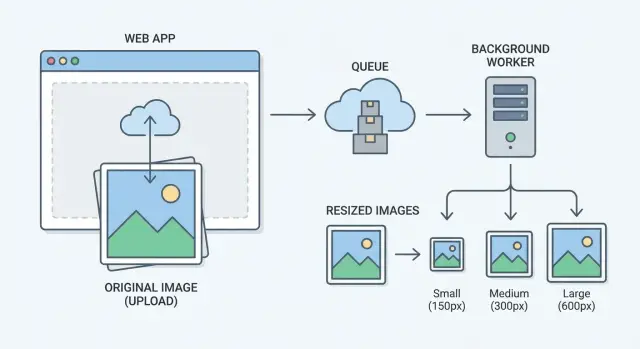
The fastest way to stop upload timeouts is to make uploads boring. Your upload endpoint should do one job: accept the file, store the original, and return quickly. Resizing, compression, and thumbnail generation should happen later.
A simple setup looks like this:
- The upload service validates the file and stores the original immediately.
- A job queue records “make thumbnails for image 123” so work isn’t lost under load.
- Background workers pull jobs and generate resized versions.
- Originals are stored separately from thumbnails and other derivatives.
- The client shows a placeholder until the thumbnail is ready.
This turns “no timeouts” from a fragile promise into a natural result. The upload request stays small and predictable, while workers handle the heavy lifting on their own schedule.
You can still keep the experience feeling fast. After upload, the API returns an image ID and a status like “processing.” The app renders the post with a temporary placeholder, then swaps in the real thumbnail once the worker finishes. On the backend, the worker updates a status flag (or writes metadata alongside the derivative) so the app knows it’s ready.
A realistic example: someone uploads a 12 MB photo from a phone on slow Wi-Fi. If the server tries to resize during the request, the connection can drop, and the user retries, creating duplicates. With a queue and workers, the upload completes, the original is safe, and the resizing can take 5 to 20 seconds without blocking the user.
Step by step: implement offloaded thumbnail generation
Separate two concerns: fast uploads for users, and slower image work for your system. The goal is to keep the upload request small and predictable.
1) Handle the upload fast
Validate the file immediately: MIME type, file size, and basic dimensions. If it fails, reject it before you store anything. Keep this strict so an oversized photo or odd format doesn’t slip through and choke later steps.
After validation, store the original image as-is. Create an image record (an ID) and mark it as “original saved” or “processing.” Don’t resize during the request.
2) Create a background job
Once the original is stored, enqueue a job with only what the worker needs: the image ID and the target sizes.
A clean flow is:
- Upload request validates and saves the original file.
- The app writes an image row with status like “processing.”
- The app enqueues a job with
{image_id, sizes}. - A worker loads the original, generates thumbnails, and stores each derivative.
- The worker updates status to “ready” (or “failed” with an error).
3) Serve the best available size
When the page loads, serve the smallest thumbnail that still looks good for that screen. If a thumbnail isn’t ready yet, show a placeholder (or, if you must, temporarily fall back to the original) and try again later.
Make sure the UI handles partial states gracefully. An upload can succeed while thumbnails are still processing. The app should show something stable instead of spinning forever.
Cap dimensions and standardize sizes to control workload
One oversized upload can cause more trouble than a hundred normal photos. A 12,000 x 9,000 image forces your server to decode a huge buffer, resize it, and re-encode it.
Set a hard maximum width and height for any derivative you generate, even for “large” views. Keep the original stored separately so you don’t lose data, but don’t let the original determine your processing cost.
Choose a few sizes and clear rules
Pick a small set of standard sizes so you can cache, reuse, and predict load. For example:
- Small: 320 px wide (feeds, lists)
- Medium: 800 px wide (detail pages)
- Large: 1600 px wide (lightbox)
Decide when to crop vs fit, then apply it everywhere. Crop is best for consistent grids (avatars, product tiles). Fit within bounds works better when the full image matters.
Quality and format settings also affect CPU time. Too-high quality can double encoding time with little visible improvement. Sane starting points:
- JPEG quality: 75 to 85 for photos
- WebP quality: 70 to 80 if you support it
- Strip metadata on thumbnails
- Use progressive encoding only if you’ve tested it
Example: if someone uploads a 10 MB, 6000 px photo, your worker keeps the original, then generates 320/800/1600 versions capped to 1600 px max. The UI stays fast, and workers remain predictable.
Store originals separately and treat thumbnails as derivatives
Keep the original upload as a read-only source file, even if your app mostly serves resized images. It gives you a clean fallback when something goes wrong, and it lets you generate new sizes later without asking users to re-upload. It also prevents quality loss from resizing an already resized image.
A good rule is to never overwrite the original during processing. Write derivatives to a different path or bucket, and only use a derivative in the UI once it’s fully generated.
Naming derivatives so they’re easy to find
Make derivative keys predictable. Use a stable image ID plus a size label, and treat the original as another variant with a special label.
For example, if the original is tied to image ID img_7F3, you might store:
img_7F3/originalimg_7F3/w_200_h_200_fillimg_7F3/w_1200_fit
This keeps lookups simple: the app can request a specific size without guessing filenames, and workers can regenerate derivatives without scanning storage.
Store metadata to keep the app honest
Track what you have and what’s still pending. In your database, store original width/height, content type, and a derivatives status.
A simple set of fields:
- Original dimensions and file size
- Processing status (pending, ready, failed)
- Which sizes exist (and when they were generated)
- Optional checksum to detect duplicates
If a derivative fails, the UI can keep showing a placeholder while the retry runs.
Keep workers stable: limits, retries, and visibility
Workers are where you win or lose reliability. If the resize queue overloads CPUs, hangs, or fails silently, users still feel it, just later.
Start with concurrency limits. Resizing is CPU and memory heavy. A burst of uploads can starve the rest of your app. Instead of running as many jobs as possible, start small (often 1 to 4 jobs per host) and scale only when you can see the impact.
Retries help, but only with backoff. Many failures are temporary: brief storage issues, restarts, short network drops. Retrying instantly can create a pile-up. Use exponential backoff with jitter and a sensible max attempt count, then mark the job failed.
Also add time limits. A resize job should never run forever. Put a hard timeout per job, and record errors with enough context to debug (file type, dimensions, and identifiers you can search).
Finally, add basic visibility so you notice issues early: queue depth, job failure rate, median and p95 processing time, and oldest job age.
Common mistakes that still cause timeouts
Timeouts often show up after you “fixed” uploads once, then traffic grows or someone uploads a huge photo.
The biggest mistake is still doing resizing during the web request because it feels simpler. It works in testing, then a few large uploads hit at the same time and your server burns its entire request budget decoding and compressing images.
Another issue is generating too much. If you create 8 to 12 sizes per upload and do them all at once, you can still overload workers. The safer move is fewer standard sizes and only the ones you truly need.
Missing guardrails on inputs is also common. A single 8000 x 8000 image can eat memory and crash workers. To users, that can look like “it never finishes” because the job doesn’t complete.
The recurring traps:
- Resizing or compressing inside the request handler, even “just for the first thumbnail”
- Creating lots of sizes per upload and processing them all in one job
- Accepting unlimited pixel dimensions or file sizes
- Accidentally serving originals in the UI instead of thumbnails
- Not handling partial states (original saved, thumbnails still pending)
Partial states are sneaky. If the page assumes thumbnails exist right away, it may keep retrying, block rendering, or trigger repeated processing. Show a placeholder until the derivative is ready, and make thumbnail generation idempotent so retries are safe.
Quick checklist before you ship
Treat the upload route like a traffic cop, not a workshop. The upload should accept the file, store it, and return quickly, even when someone sends a huge photo from a modern phone.
Before release, test with a few worst-case images (very large dimensions, high-quality JPEG, and a PNG with transparency). Watch what happens from upload to thumbnail display.
Checklist:
- The upload request finishes fast and never waits for resizing.
- The original file is stored immediately and the record is clearly marked as processing.
- A background job is created right away and workers pick it up promptly.
- Thumbnails are written to predictable locations and you verify they exist after processing.
- The UI handles the gap: it shows a placeholder and swaps in thumbnails when they arrive.
One easy test: upload a 12 MB photo on a slow connection, then refresh the page. You should see a stable result every time: the image entry exists, the app doesn’t spin forever, and thumbnails appear a little later.
Example scenario: fixing photo uploads in a real app
A small marketplace app lets sellers upload 5 to 10 phone photos per listing. Most images are 3 to 8 MB, and some are 4000+ pixels wide. Everything looks fine in testing, but during evening traffic uploads start to fail.
The root cause is that the app resizes images and generates thumbnails inside the same request that saves the listing. When several users hit “Post listing” at once, the web server is stuck decoding large JPEGs, resizing them, and writing multiple files. Requests pile up, other pages feel slow, and uploads fail.
The fix doesn’t have to change the UI much. Keep the flow, but change what happens behind it:
- Save the original image quickly (object storage or a separate bucket).
- Create a database record for each image with a status like pending.
- Push a job to a background queue to generate standard thumbnails.
- Show the listing immediately using a placeholder thumbnail until the job finishes.
If some thumbnails fail, treat it like an operational issue instead of a user-facing error. Requeue the job a few times with a short delay. After the final retry, keep the original available, keep showing the placeholder, and raise an alert so you can inspect the file that broke the resize.
Next steps: make it reliable, then make it easy to maintain
Once uploads stop timing out, the goal is to keep them that way as the app grows. The biggest win is to write down a few rules so everyone builds the same way months later.
Start with a short “image contract” that includes your thumbnail sizes, max accepted dimensions and file size, output formats and quality settings, what “ready” means, and what happens on failure.
Add just enough visibility to catch problems early. Two metrics go a long way: upload request duration (p95) and thumbnail job processing time (p95). If either creeps up, you’ll see it before users complain.
If you already have images in production, plan a safe backfill. Avoid running a huge batch that competes with real traffic. Generate thumbnails in small chunks, cap concurrency, and track progress so you can pause and resume.
If you inherited an AI-generated prototype where uploads are brittle (random hangs, confusing storage rules, missing worker limits), a remediation pass can be faster than trying to patch symptoms. FixMyMess (fixmymess.ai) focuses on diagnosing and repairing AI-built codebases, including moving image processing into background workers, adding guardrails, and hardening the pipeline for production.
FAQ
Why do image uploads time out even when the server seems fine?
It usually means your server is trying to do too much inside the same request: receive the file, resize it, encode new versions, and write multiple outputs before replying. Under load or with a large photo, that work pushes the request past your timeout.
Should I resize images during the upload request?
No. Save the original first and return success, then generate thumbnails in the background. If you must show something immediately, show a placeholder and swap in the thumbnail when it’s ready.
Why is thumbnail generation so CPU and memory expensive?
Modern images are large in pixel count even when they look normal on screen. Resizing requires decoding into raw pixels, using a lot of memory and CPU, then re-encoding, which can spike resource usage and slow other requests.
What’s the simplest architecture to stop upload timeouts?
Store the original quickly, enqueue a job with the image ID and target sizes, and let background workers generate derivatives. Your API can return an ID plus a “processing” state so the UI stays responsive while the worker finishes.
How should the client behave while thumbnails are still processing?
Make the UI treat uploads as a two-step state: “uploaded” and “ready.” After the upload succeeds, show a stable placeholder thumbnail, and poll or refresh metadata until the derivative is available, then swap it in without blocking the page.
Do I really need to cap image dimensions and file size?
Yes. A hard cap on accepted dimensions and file size prevents a single huge image from exhausting memory or crashing workers. Keep the original stored, but ensure your derivatives never exceed your maximum width/height so processing cost stays predictable.
How many thumbnail sizes should I generate?
Pick a small set of standard widths that cover your UI, like feed, detail, and large view. Fewer sizes means less compute, less storage, simpler caching, and fewer failure points, while still looking good across devices.
Why store originals separately from thumbnails?
Treat the original as the source of truth and never overwrite it. Derivatives can be regenerated anytime, which makes retries safe, lets you add new sizes later, and avoids quality loss from repeatedly resizing already-resized images.
What worker settings prevent the resize queue from becoming the new bottleneck?
Start with low concurrency so workers don’t starve the rest of your app, then scale based on real metrics. Add timeouts per job, retries with backoff, and clear error logging so failures don’t hang silently and leave images stuck in “processing.”
What if my AI-built app keeps breaking uploads and I’m not sure where to start?
If your project is an AI-generated prototype with uploads that hang, exposed secrets, or confusing storage rules, it’s often faster to do a focused remediation pass than keep patching symptoms. FixMyMess can audit the pipeline, move resizing to workers, add guardrails, and get uploads stable quickly so you can ship with confidence.