Maintenance mode with admin access: keep site safe during fixes
Set up maintenance mode with admin access so you can block risky writes, keep key pages readable, and let support fix production safely.
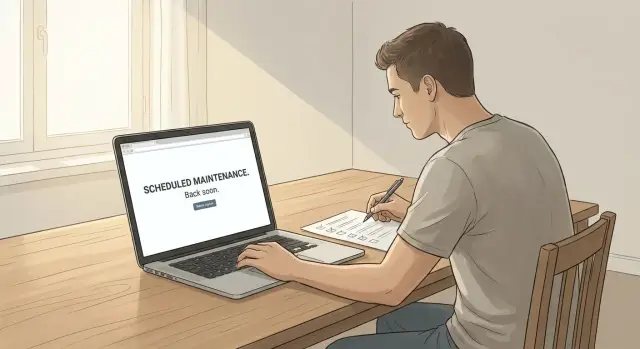
Why maintenance mode needs more than a blank page
A plain “We’re down for maintenance” page feels safe, but it often creates new problems during a live repair. Users keep retrying actions, background jobs keep running, and some parts of the app may still accept changes. That’s how you end up with data corruption: half-finished orders, duplicate records, or updates that only hit some tables.
The usual failure isn’t one big crash. It’s partial updates. A user can still submit a form, an API call still writes to the database, or a webhook keeps importing data while you’re changing logic. The site looks “down,” but the system keeps changing underneath you.
A full shutdown can also hurt real people. Customers may need receipts, booking details, or a status update. Support might need to look up an account to answer a ticket. If you block everything, you lose the ability to verify what’s happening, and you can slow down the fix because you can’t safely check production behavior.
“Read-only” maintenance mode means the app still lets people view information, but refuses anything that changes state. Pages can load, searches can run, dashboards can show data, but sign-ups, payments, profile edits, uploads, and admin edits are blocked. The key is enforcement on the server, not just hidden buttons.
The goal is simple: protect your data while keeping essentials reachable. Keep the site readable, keep logs and monitoring visible, and keep a narrow admin and support path open so repairs can happen without making things worse.
Decide what stays up vs what must be blocked
Before you turn on maintenance mode, decide what “safe” means for your app in one sentence. Example: “During maintenance, anyone can view public and read-only pages, but no one can change data unless they’re an admin on an approved list.” That sentence becomes your rule for every page, endpoint, and tool.
Start with what can stay public without creating new risk. These are usually pages that don’t write to your database and don’t expose private data: a status page, marketing pages, docs/help pages, pricing, and read-only views like a public catalog or blog. Logged-in read-only areas (like an account overview) can be fine too, as long as they don’t trigger background updates.
Next, block the actions most likely to create bad data or security issues while you fix production. Typical “risky writes” include:
- Checkout, payments, subscriptions
- Profile edits, password and email changes
- File uploads, imports, bulk actions
- Anything that creates, updates, or deletes records (including admin tools)
- Webhooks that write data (payments, email, CRM)
Then decide what support still needs during the outage. Support often needs login and read-only access to key screens to answer tickets. Keep those paths available, but restrict the parts that change data. For example, support can look up an order, but can’t refund, resend, or edit addresses until you’re stable.
A concrete way to think about read-only mode is a store: people can browse products and see their cart, but they can’t place an order or change shipping info. Admins can still sign in to diagnose, but only approved admins can perform writes.
Pick an admin and support access approach
When you enable maintenance mode with admin access, the goal is simple: regular users stay safe, while trusted people can still log in and fix the problem. Pick the smallest opening that still lets you work.
Option A: Allow admins by role after login
This is the safest default for most apps. Everyone sees maintenance mode until they sign in, then you check their role (admin, owner, engineer) and let them through.
It works well because it keeps your site private by default and leaves an audit trail (who logged in, what they did). The requirement is that your login and role checks are already reliable. If auth is part of what’s broken, you need a backup.
Option B: IP allowlist or temporary access
If login is flaky, you can use a simpler gate:
- IP allowlist (office IPs, VPN exit IP): good control, but people get locked out on mobile or at home unless they use the VPN.
- Temporary access token (one-time code) or secret path: fast, but risky if it leaks in chat logs, browser history, or screenshots.
If you use a token or secret path, time-box it (hours, not days), rotate it after use, and log every request that used it.
Support access should not equal full admin. Create a support role that can view pages and inspect user records, but can’t change billing, permissions, or configuration.
Map all the risky writes before you flip the switch
Before you enable maintenance mode with admin access, get clear on one thing: what can still change data. Miss even one write path and you can end up with partial updates, stuck payments, or “mystery changes” during the repair.
List every place your app can create, update, or delete something. Think beyond obvious forms. APIs, mobile clients, internal tools, and admin panels often hit different endpoints, and they all count.
A quick inventory is to scan routes for POST, PUT/PATCH, and DELETE, then sanity-check with logs. Focus on high-impact areas:
- Auth and accounts: signup, password reset, role changes
- Money: checkout, subscriptions, refunds, invoicing
- Content: publish/unpublish, edits, uploads
- Admin and bulk actions: mass edits, deletes, impersonation
- Integrations: “sync now” buttons and data push features
Also look for writes that happen without a user clicking anything. Background workers, queues, cron jobs, and scheduled tasks can keep modifying records even when the UI is “paused.” Jobs like “retry failed payments,” “send digests,” “recalculate stats,” and “sync from CRM” often need to be paused or forced into a no-write mode.
Third-party webhooks are another common surprise. Payment providers, email tools, and form services can call your app at any time and trigger writes. Note each inbound webhook and what it changes so you can return a safe response (or temporarily stop processing) during maintenance.
Step by step: add a maintenance gate without breaking access
Start with one simple rule: maintenance mode should be controlled by a single switch. That can be an environment variable, a config value in your database, or a feature flag. Keep it boring and obvious so you can flip it quickly.
Put the “gate” as early as possible in the request path (middleware, a global filter, or the first handler in your server). If you add checks in random pages, you’ll miss endpoints.
A practical flow that works for most apps:
- Read the maintenance switch at the start of the request.
- If maintenance is off, continue normally.
- If maintenance is on, check for an admin/support bypass.
- If there’s no bypass, allow only safe read-only requests.
- Otherwise, block and return a clear maintenance response.
For read-only access, be strict. It’s usually safer to allow only GET and HEAD requests, plus a small allowlist of truly safe endpoints (like a public status page). Treat anything that changes state as risky, even if it looks harmless.
For the bypass, don’t rely on a single weak signal. A safer setup combines at least two checks: (1) the user is authenticated and has the right role, and (2) the request comes from a trusted path (admin domain, allowlisted IP, VPN, or a one-time support token header). This lowers the chance that a leaked cookie or guessed URL gives someone write access during a fragile window.
When you block a request, return something consistent. For web pages, show a friendly message and an expected timeframe. For APIs, return 503 with a small JSON body that says maintenance is active and the request was blocked.
Step by step: stop writes safely (not just in the UI)
Disabling buttons helps, but it doesn’t stop real writes. During maintenance mode with admin access, assume someone (or something) can still hit your API directly, retry an old request, or trigger a background job. You want writes blocked in more than one place.
1) Block writes in the app and the API
Start with the user-facing layer, then enforce it on the server.
- Disable forms and primary actions (checkout, profile edits, posting, uploads).
- Add a server-side check that rejects write methods (POST, PUT, PATCH, DELETE) unless the request is explicitly allowed.
- Protect sensitive operations (password reset, role changes, refunds) with extra confirmation during maintenance.
- Return a clear error message so support can explain what happened without guessing.
Keep read-only pages working where possible: product pages, docs, status, and account views that don’t change data.
2) Stop the “invisible writes”: jobs, webhooks, and retries
Most surprise damage comes from systems that keep running after you “paused” the UI.
Pause or drain background workers that create records, send emails, charge cards, or sync to third parties. For inbound webhooks and events, pick one safe behavior: queue them for later, or reject them with a maintenance response so the sender retries later. Either way, log what you dropped or delayed.
If you can, add database-level protection too: mark tables read-only, add constraints, or wrap key updates in transactions that fail fast when maintenance is on.
User messaging that reduces tickets and confusion
A good maintenance message does two jobs: it protects your data and it tells people what to do next. If the only thing users see is a vague “down for maintenance,” they’ll keep retrying, creating tickets, and sometimes making the problem worse.
Keep the message short and specific. Say what’s unavailable (checkout, posting, profile edits), what still works (browsing, search, reading docs), and when to check back. If you don’t have an exact time, give a window and commit to updating it.
If you’re using maintenance mode with admin access, spell that out without giving away sensitive details. For regular users, show a simple blocked-action page. For admins and support, keep login available if that’s your plan, and show an obvious banner in the admin area: “Maintenance mode is ON.” That banner prevents teammates from testing changes and assuming the site is live.
Use one consistent HTTP response for blocked actions. A 503 Service Unavailable is the usual choice, and it pairs well with a Retry-After header if you can set it.
Plain wording that cuts tickets:
- What’s paused: “Payments and new signups are temporarily disabled.”
- What still works: “You can still view existing pages and download invoices.”
- When to retry: “Please check back after 3:00 PM UTC (we’ll update this message if it changes).”
- Support path: “If this blocks urgent work, contact support with your account email.”
Common mistakes that cause lockouts or data leaks
Most outages get worse because maintenance mode is treated as a single “show a banner” switch. If you need maintenance mode with admin access, the details matter. One wrong guard can lock out the only people who can fix production.
Lockouts: when the bypass can’t reach the login
A classic trap is protecting the login page (or the SSO callback) with the same maintenance gate as the rest of the site. You redirect to a blocked page, but that blocked page requires a session to view. Now admins can’t log in to create the session.
Another lockout happens when the admin bypass depends on data you can’t access during maintenance, like a database check that fails while you’re repairing migrations.
Data leaks: when “read-only” isn’t actually safe
Even if the UI disables buttons, writes can still happen through paths you forgot to guard. Common failures:
- Background jobs, cron tasks, or queue workers keep running and updating records.
- Webhooks and integrations keep hitting endpoints that still accept writes.
- A bypass cookie or query param works for everyone, not just trusted staff.
- Caching serves personalized pages to the wrong person after access rules change.
- The switch is hardcoded or deployed without a quick rollback.
Example: you set the site to “read-only,” but Stripe webhooks still mark invoices as paid, a job recalculates balances, and a cached “My Account” page is served to another user because the cache key didn’t include the user ID.
A few safer patterns reduce risk fast:
- Put the gate on the server, not just the frontend.
- Pause workers and handle webhooks explicitly during maintenance.
- Make the bypass role-based, time-limited, and logged.
- Review caching rules for any page that can contain private data.
Quick checklist before enabling maintenance mode
Before you flip the switch, do a quick dry run in a private window (or a staging copy). Regular users shouldn’t be able to change data, but admins and support should still be able to get in and diagnose.
Checklist for maintenance mode with admin access:
- Confirm the toggle works both ways. Turn maintenance on, refresh, then turn it off and refresh again.
- Test admin and support entry end-to-end. Make sure the bypass works after login and people can reach the tools they actually use.
- Block writes in the backend, not just the UI. Try signup, password reset, checkout, and profile save. Verify they fail at the server layer, even if the endpoint is called directly.
- Decide what to do with background work. Pause scheduled jobs that modify data. Make webhooks either queue safely or return a clear “temporarily unavailable” response.
- Verify the user message is accurate: what still works, what’s paused, and when to check back.
Do one last “oops test”: log out, clear cookies, and repeat a write attempt from a normal account. Many outages get worse because a single hidden write path (autosave, webhook, job) kept running.
Example: keep the site readable while you repair production
It’s 2:15 PM on a busy day and you notice a pattern: some checkouts succeed, but the order records are malformed. A few customers are being charged, yet their orders show missing line items. Leaving the site fully open risks corrupting even more data.
You enable maintenance mode with admin access, but you don’t take the whole site down. Shoppers can still browse products and read FAQs. They can also view past orders, which reduces panic and duplicate tickets. What you block is anything that creates or changes data.
What the “read-only” switch looks like in practice:
- Add to cart and checkout are blocked server-side
- Account edits (address, password changes) are blocked
- Promo code apply and gift card redemption are blocked
- Order history and order detail pages stay available
- Product pages and search stay available
Admins still log in normally. They can access logs, error dashboards, and the admin order view to spot the moment orders started going bad. While the public sees read-only pages, an admin applies a hotfix and runs a quick sanity check against a handful of new test orders.
Support also keeps access, but with narrower permissions. They can search users, confirm whether a charge went through, and view order status. They can’t edit accounts or create refunds while the system is unstable.
Once the fix is deployed, do a short verification: place test payments (or whatever your setup allows), confirm order totals and line items match, and confirm downstream events fire as expected. Only then turn writes back on.
Next steps and when to bring in help
If you need maintenance mode with admin access, keep the first rollout small. Block the highest-risk writes first: payments, password resets, account changes, admin settings, and anything that triggers emails or webhooks. Once those are safe, expand to less critical actions.
Write a short runbook before you flip the switch. It doesn’t need to be fancy, but it should be clear enough that someone sleepy at 2am can follow it:
- Who can enable and disable maintenance mode
- How to verify it works (as a normal user and as an admin)
- How to confirm writes are actually blocked (not just hidden)
- What to do if admins get locked out
- How to roll back safely
Bring in help when any of these are true: you can’t confidently list all write endpoints, you have multiple client apps (web plus mobile) hitting the same backend, or you’re seeing security issues like exposed secrets or SQL injection risks during the outage.
If you inherited an AI-generated app and the write paths or role checks are tangled, a targeted audit can save time. FixMyMess (fixmymess.ai) focuses on diagnosing and repairing broken AI-built codebases, including tracing write paths, tightening role gates, and hardening security before you reopen writes.