Monitoring basics for founders: metrics and alerts to start
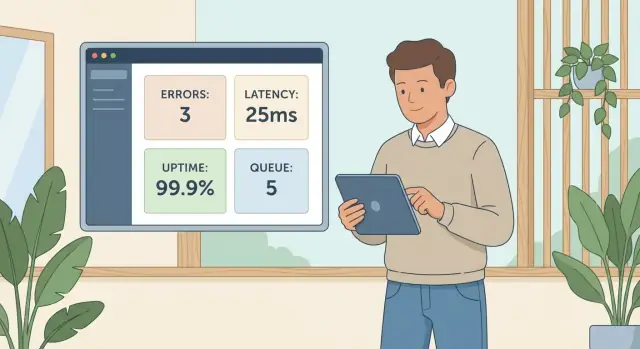
Monitoring basics for founders: start with errors, latency, uptime, and queue depth. Use simple alerts and thresholds to catch breakages early.
What monitoring is (and why founders feel blind without it)
Monitoring is how you find out your app is sick before your users tell you. It’s the signals and alerts that answer one question fast: is the product working right now for real people?
Founders feel blind because most breakages don’t look like a full outage. The site loads, but login fails. Payments time out for a slice of users. A background job stops sending emails. Without monitoring, you hear about it through angry messages, lost revenue, or a teammate saying, “Something feels slow.”
The goal isn’t a perfect dashboard. The goal is early warning. Good monitoring is quiet on good days and loud on bad ones.
At a minimum, you want to know:
- Users are failing (and how many)
- Where it’s failing (which page, endpoint, or job)
- When it started (a clear timestamp and trend)
- Who needs to act (an alert that reaches the right person)
If you only get one thing from monitoring, make it this: you can answer “Is this broken right now, and is it getting worse?” in under a minute.
Start small, then improve every week. Add one metric, one alert, or one log detail at a time. If you inherited an AI-generated codebase, this matters even more. An app can “work” in a demo while hiding issues like broken auth flows, exposed secrets, or background jobs that silently fail.
The starter set: four signals that catch most breakages
Most early production incidents show up as one of four problems: people hit errors, pages get slow, the app is unreachable, or background work stops moving.
A starter set that covers those failure modes:
- Errors (rate and top error types)
- Latency (how long key requests take)
- Uptime (is the app reachable from outside your network)
- Queue depth (are background jobs piling up)
These four cover both the front door and the back room. Errors and latency capture what users feel right now. Uptime catches total outages and obvious deploy or network failures. Queue depth catches the quiet failures that don’t show up in the UI until hours later.
Mapped to user pain:
- Errors: “I can’t log in” or “Checkout failed.”
- Latency: “It loads forever,” even though it technically works.
- Uptime: “The site is down.”
- Queue depth: “My report never arrived” or “Emails stopped sending.”
Logs and tracing are great for diagnosis, but they’re harder to alert on well when you’re starting. Metrics plus simple alerts usually get you to “something is wrong” fastest.
Errors: the quickest way to know users are blocked
If you only track one thing first, track errors. They’re the clearest signal that real people can’t finish a task.
Start with two numbers:
- Error rate: the percent of requests that fail
- Error count: how many failures happened
Rate tells you impact. Count tells you volume. A small error rate can still hurt if traffic is high.
Split errors into client vs server early:
- 4xx (client errors) often mean bad input, expired sessions, or routes that no longer exist.
- 5xx (server errors) usually mean your system failed: crashed API, broken query, bad deploy, misconfig.
You don’t need perfect labeling on day one, but this split makes triage faster.
Alerts should focus on patterns, not single events. A one-off 500 might be noise. A spike or sustained elevated rate is a fire.
A practical starter set:
- Sudden spike: error rate jumps above baseline for 5-10 minutes
- Sustained issue: error rate stays above a threshold for 15-30 minutes
- 5xx-focused: alert on server errors even if total errors are low
Add one “money path” alert for the flow that matters most: login, signup, or checkout. If login 500s rise from 0.1% to 5% after a release, you want to know before customers email you.
Latency: catch slowdowns before support tickets pile up
Latency is how long a user waits after they click, tap, or refresh. Even when your app is “up,” high latency feels broken. People abandon the page, retry, or assume their account is locked.
Two numbers tell a clear story:
- p50: the typical experience
- p95: the “worst common” experience
If p50 is fine but p95 spikes, most users are okay, but a noticeable chunk are stuck waiting. Those are the people who file tickets.
Don’t monitor every route on day one. Segment latency by the actions that matter most to the business. A slow settings page is annoying. A slow login stops growth.
Common starting points:
- Login and signup
- Checkout or payment confirmation
- Search and results pages
- Any “create” action (new order, new ticket, new post)
Alerts work best when they detect a change, not a single bad minute. A simple rule: alert when p95 jumps well above normal, or stays high long enough that users will feel it.
A useful starting set:
- p95 latency is 2x baseline for 10 minutes
- p95 exceeds a hard limit (example: 2-3 seconds) for 5-10 minutes
- p50 rises steadily for 15 minutes (often capacity or database issues)
- p95 spikes only on one endpoint (often a code path or external API issue)
Example: the homepage still loads fast, but p95 for your login endpoint climbs from 400ms to 4s after a deploy. You might not notice in a quick test, but new users will.
Uptime: confirm the app is reachable from the outside
Uptime answers one question: can a real user reach your app right now? It catches total outages, bad DNS, expired SSL, or a deploy that never came back.
Uptime doesn’t mean your product works. You can return 200 OK while login is broken, payments fail, or the page is blank because a script crashed. Treat uptime as the smoke alarm, not the investigation.
Use an external check that runs from outside your infrastructure, the same way customers connect. It can hit your homepage, a lightweight health endpoint, or a simple ping route that confirms the app server responds quickly.
To avoid noise, alert on consecutive failures, not a single blip.
A starter setup:
- Check every 1 to 5 minutes from at least 2 locations
- Trigger an alert after 2 to 3 consecutive failures
- Notify a human first (push or SMS), then escalate if unacknowledged
- Include the failing URL, status code, and response time in the alert
Plan for planned downtime too. Pause alerts or mark the window so you don’t panic over expected failures.
Example: you push a Friday hotfix and your reverse proxy config is wrong. The app is “running,” but nothing is reachable from the public internet. An external uptime check catches it within minutes.
Queue depth: spot background jobs that are quietly stuck
Some of the most painful failures don’t show up as a clean error. They show up as work piling up in the background: password reset emails, file imports, payment webhooks, processing jobs, nightly reports. The UI looks fine while customers wait hours.
Queue depth is how much work is waiting to be processed. Track job age too (how long the oldest job has been waiting). Depth tells you volume. Age tells you user impact.
What to track
Keep it small and visible:
- Queue size (pending jobs)
- Oldest job age (time since the oldest job was enqueued)
- Processing rate (jobs completed per minute), if available
Alerts that catch trouble early
Start with thresholds you can refine later:
- Queue size stays above 100 for 10 minutes
- Oldest job age exceeds 5 minutes (warning) or 15 minutes (urgent)
- Queue size rises for 15 minutes while traffic is normal
If you run multiple queues (emails vs imports), alert per queue. One stuck worker shouldn’t hide behind another queue that’s healthy.
When depth or age spikes, the cause is often one of these: a worker process is down, a retry loop is re-adding the same failing job, or a dependency is slow (email provider, database, third-party API).
Example: “emails stopped sending.” Uptime looks fine. But queue age jumps to 40 minutes because the worker crashed after a deploy. A queue-age alert would catch it before customers start asking where their reset link is.
How to set up your first alerts in 60 minutes (step by step)
You don’t need a complex setup on day one. The fastest win is a small set of alerts tied to what customers actually do.
Step 1: Write down the actions that make you money
Pick 3 to 5 core user actions. If any of these break, users get stuck fast.
- Sign up
- Log in
- Start checkout or pay
- Create the main object in your app (project, order, post)
- Export, invite, or share
Step 2: Add one metric and one alert per action
Keep it minimal: one metric that tells you the action is failing, and one alert you’ll actually see.
- For signup and login: alert on error rate (or failed requests) over a short window.
- For payments: alert on spikes in 4xx and 5xx and on latency (slow payments often fail quietly).
- For create/export: alert on background job failures or queue health if it runs async.
Step 3: Set thresholds based on normal behavior
Use the last few days of normal behavior. If login errors are usually near zero, a threshold like “more than 5 failures in 5 minutes” often catches real problems without constant noise. For latency, start with “2x slower than usual” instead of hunting for a perfect number.
Step 4: Send alerts where you will actually see them
An alert that sits in a dashboard isn’t an alert. Route it to team chat, phone notifications, or whatever you check during the day.
Step 5: Review weekly and tune
Once a week, look at what fired.
- If an alert is noisy, raise the threshold or add a duration condition (only alert if it lasts 10 minutes).
- If you missed an incident, lower the threshold or add a flow-specific alert.
Common mistakes that make monitoring useless
The fastest way to waste monitoring is to treat it like a checkbox. Monitoring is less about fancy dashboards and more about getting a few clear signals that lead to action.
Alert fatigue
If your phone buzzes for every tiny spike, you’ll start ignoring everything. Set thresholds so alerts mean “someone is likely blocked” or “this will become user-visible soon,” not “a graph moved.”
Only tracking uptime
Your app can be “up” while the most important flow is broken (login, checkout, password reset). If you only have an uptime ping, you’ll think things are fine while customers stare at a spinning button.
Alerts with no next step
Alerts should point to a next action, not just a scary number.
- Assign an owner for each alert (even if it’s “on-call this week”).
- Include context: endpoint, time window, how bad it is.
- Add deploy context: “new release 12 minutes ago” changes how you respond.
- Keep a one-line playbook: “If 500s spike, roll back and check auth logs.”
Watching queue size but ignoring queue age
A small queue can still be broken if the oldest job has been waiting for 20 minutes. Size shows volume. Age shows whether work is moving.
Example: your worker loses database access after a credential change. The queue length stays flat because jobs fail fast and retry, but queue age climbs and users see “report will be emailed soon” forever. If you alert on age (and retries), you catch it early.
Quick checklist: are you covered for the next incident?
If you do nothing else this week, make sure you can answer one question fast: “Are users blocked right now?”
Pick targets that fit your app today, then tighten them later.
- Errors: An alert for sustained 5xx and a clear “this is bad” threshold on your main flow (for example, >1% for 5 minutes).
- Latency: p95 response time for 2-3 key endpoints (login, checkout, search, or your main API), with a target users will tolerate (for example, p95 >1.5s for 10 minutes).
- Uptime: An external check that alerts only after consecutive failures (for example, 3 fails in a row).
- Queue health: Visibility into whether jobs are keeping up. Alert on oldest job age and on depth rising long enough to show you’re falling behind.
- People/process: One person is on point when an alert fires, with a simple escalation path.
A quick reality test: ask a friend to use your app from their phone and try the main action. If it fails, would your alerts tell you within 5 minutes? Would you know whether it’s errors, slowness, reachability, or stuck jobs?
Example: catching a broken login before customers report it
You ship a small change on Friday afternoon: a tweak to the signup and login screens. It looks fine in your quick test. But for some users, login fails after they enter the correct password.
Within minutes, two signals move in a way that’s hard to miss:
- Errors spike on the auth endpoint.
- Latency rises at the same time, because the backend retries a database call (or an external auth check) before failing.
If your alerts include time windows and deploy context, you can line it up with your release and decide quickly.
A clean response looks like:
- Roll back the last deploy
- Confirm errors drop back to normal
- Re-ship with a safer fix when you have time
Afterward, you add two targeted alerts for the login flow:
- Alert when the login endpoint’s error rate crosses a small threshold for 5 minutes.
- Separately alert when its latency jumps relative to baseline.
This is also where AI-generated code can slow you down. You may find a login call that touches three different auth helpers, a copied middleware, and a half-finished retry loop. The symptoms show up as both errors and slowness, while the real cause is buried in messy control flow.
Next steps: keep it small, then fix the root causes
Start with a tiny set of signals, then let real incidents tell you what to add. The goal isn’t “perfect coverage.” It’s noticing breakages early and having a clear next action.
Begin with the four signals (errors, latency, uptime, queue depth). Run them for a week or two. When something goes wrong, resist the urge to add five new alerts. Write down what happened and what would have made it obvious sooner.
A short incident note is enough:
- What users saw and when it started
- What changed before it broke (deploy, config, third-party outage)
- The fix you shipped (or rollback)
- One prevention step (test, guardrail, alert tweak, missing log)
Add a new alert only when you can answer: “If this fires, who does what in the next 10 minutes?” If the action is “investigate eventually,” it belongs in a dashboard, not a pager.
When alerts keep pointing to the same failures (login breaking after small changes, secrets leaking into logs, background jobs piling up nightly), that’s usually a codebase problem, not a monitoring problem. If you inherited an AI-generated app from tools like Lovable, Bolt, v0, Cursor, or Replit and it keeps behaving differently in production than it did in demos, a focused audit can save a lot of guessing. FixMyMess (fixmymess.ai) does codebase diagnosis and repair for exactly that situation, including security hardening and deployment prep.
FAQ
What’s the minimum monitoring I should set up first?
Start with the smallest set that tells you whether real users are blocked: error rate, latency (p95), uptime checks from outside your network, and queue health (depth and age). This combination catches most early incidents without drowning you in data.
Why do apps feel “fine” in a quick test but break for users?
Because most failures are partial. The site can load while login fails, checkout times out for only some users, or background jobs stop quietly. Monitoring gives you early warning so you don’t learn about problems from angry messages or lost revenue.
Should I watch error rate or error count?
Track both error rate (percent failing) and error count (how many failed). Rate shows impact, count shows volume. A low rate can still be painful if traffic is high, and a high rate on a low-traffic endpoint might not be urgent.
How do I quickly tell if errors are “our fault” or user behavior?
Split them into 4xx and 5xx. 4xx often points to client-side issues like bad input or expired sessions, while 5xx usually means your system failed (bad deploy, broken query, misconfig). This simple split makes triage much faster.
What’s a practical way to set error alerts without constant noise?
Alert on patterns, not single events. A one-off 500 is often noise, but a sustained elevated error rate or a sudden spike over 5–10 minutes is usually a real incident. Add a flow-specific alert for your money path like login, signup, or checkout.
Which latency numbers matter most (p50 vs p95)?
Watch p50 and p95. p50 shows the typical experience, while p95 shows the “worst common” experience that drives complaints. If p50 is fine but p95 spikes, a noticeable chunk of users are waiting a long time even though the app is technically working.
Isn’t an uptime check enough?
Treat uptime like a smoke alarm: it tells you the app is reachable from the outside, not that core flows work. You can return 200 OK while login is broken or checkout fails. Pair uptime checks with flow-level error and latency alerts so you catch partial breakages.
What’s the difference between queue depth and queue age?
Queue depth is how many jobs are waiting, and queue age is how long the oldest job has been stuck. Depth tells you volume, age tells you user impact. A small queue can still be broken if the oldest job has been waiting a long time.
How can I set up my first useful alerts in about an hour?
Pick 3–5 actions that make you money (login, signup, checkout, create/export). For each action, add one metric that shows failure (errors or queue health) and one alert that you’ll actually see. Use your recent normal behavior as a baseline, then tune weekly based on what fired.
What if I inherited an AI-generated codebase and incidents keep repeating?
AI-generated apps often behave differently in production than in demos due to messy control flow, hidden retry loops, broken auth helpers, or secrets and config issues. If you keep seeing recurring problems like broken login, stuck jobs, or security gaps, FixMyMess can run a free code audit and then repair and harden the codebase so it’s production-ready in 48–72 hours.