Next.js hydration mismatch checklist for AI-generated UIs
Use this Next.js hydration mismatch checklist to spot server vs client differences fast: dates, randomness, window access, and unstable renders.
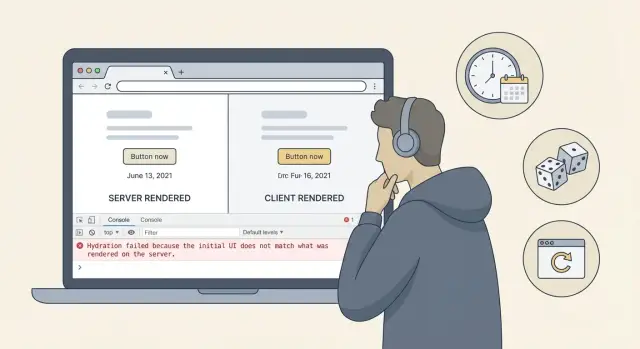
What a hydration mismatch actually is (plain English)
With server rendering, Next.js sends HTML first so the page shows up quickly. Then React runs in the browser and “hydrates” that HTML by attaching event handlers and rendering the same UI again using the same inputs.
A hydration mismatch happens when the HTML from the server doesn’t match what React produces on the first client render. React warns because it can’t safely assume the DOM is consistent.
In real life, that can look like a console warning, a quick flicker as React replaces parts of the page, buttons that don’t respond for a moment, or text that changes right after load. Sometimes it’s subtle. Sometimes it breaks forms, auth UI, and anything that relies on stable DOM.
AI-generated UI code hits this more often because it tends to mix browser-only values into rendering without guards. Typical examples include reading from window during render, formatting dates differently on server vs client, or using randomness to pick a color, ID, or default.
Simple rule: if the server and browser could produce different answers, don’t use that value directly while rendering.
What you can usually ignore vs what you should fix:
- Usually low risk: a small
classNamedifference that doesn’t affect layout or user input. - Fix quickly: anything that causes content to jump, inputs to reset, auth state to flip, or elements to disappear.
- Fix always: anything tied to identity or security (for example, showing the wrong user state).
Quick triage: reproduce and isolate the mismatch
A hydration warning is specific: the server sent HTML, then the browser tried to attach React to it, and the first client render didn’t match what was already on the page. Before you chase it, make sure you’re not actually seeing a fetch failure (empty data), a redirect, or a layout shift that only looks like hydration trouble.
Reproduce in a production build. Dev mode can add extra renders and warnings that muddy the trigger.
A fast triage flow:
- Run a production build, start the app locally, and refresh the page that warns.
- Test both a hard refresh (first load) and a client-side navigation to the same route.
- Breaks only on refresh: suspect SSR output differences.
- Breaks only after navigation: suspect client state or effects.
- Read the exact hint in the React warning (often a specific element, text node, or attribute).
- Temporarily remove chunks of the page until the warning disappears, then add them back until you find the smallest component that still fails.
- Once you have the smallest failing component, compare what it renders on the server vs the client. A single character difference is enough.
While it’s fresh, write down:
- Route and exact steps (refresh vs navigation)
- The element or text React names
- Whether the mismatch is content (text), attributes (
class,style), or structure (extra wrapper) - Whether the data is present on first paint or appears later
A common AI-widget pattern: a “Welcome, Sam” header renders on the server as “Welcome” (no user yet), then the client instantly fills the name from local storage. That’s a mismatch, and “refresh vs navigation” usually makes it obvious.
10-minute hydration mismatch quick checks
The fastest wins come from finding anything that can render differently on the server than in the browser. You’re not fixing everything yet. You’re identifying the one input that changes between server HTML and the first client render.
A quick scan that catches most AI-generated bugs
Open the component named in the warning (or the page it remembers) and search for the usual suspects:
Date, Math.random, window, document, navigator, localStorage, sessionStorage.
A simple routine:
- Reduce the page to the smallest component that still triggers the warning.
- Look for dynamic values used in JSX text, attributes, or props (time, random numbers, viewport checks).
- Check for conditional rendering based on viewport, user agent, or media queries in JavaScript (not CSS).
- Look for unstable
keyprops, generated IDs, or class names that change between runs. - Hardcode the suspicious value (like a fixed date string) to confirm the warning disappears.
Choose the safest fix
Most fixes fall into a few patterns:
- Make rendering deterministic: compute the value on the server and pass it as a prop.
- Delay the value until after mount: render a placeholder first, then set state in
useEffect. - Guard browser-only APIs: check
typeof window !== "undefined"before reading them. - Move a widget client-only when it truly depends on browser state.
Checklist: dates, time zones, and locale formatting
Dates are a top cause of hydration issues because the server and browser can disagree on “current time,” time zone, or locale defaults. If the rendered text differs even slightly, React will complain.
Quick checks
Look for UI that turns “now” into text during render:
new Date()orDate.now()inside component renderIntl.DateTimeFormat(...)without fixedtimeZoneandlocale- Relative time like “just now” computed during SSR
- Timers or countdowns that depend on the current second
- Server using UTC while the browser uses a local time zone
A common pattern is:
“Last updated: {new Date().toLocaleString()}”
That will almost always differ between server and client.
Fix patterns that keep pages stable
Pick the approach that matches what users actually need:
- Pass the timestamp in as data and render that exact value.
- Format with an explicit time zone (often
UTC) and chosen locale. - If you need relative time, render a stable placeholder on the server, then compute it after mount.
- For live clocks/countdowns, render an initial value from the server认为 and start ticking in an effect.
Checklist: randomness and non-deterministic rendering
Another common cause is simple: the server renders one version, then the browser renders another because “random” code ran again.
Check first:
Math.random()used for IDs, colors, “pick one of these cards,” avatars, or variants- Sorting or shuffling inside render (including
items.sort(...)which mutates) - Keys created on the fly (
key={Math.random()},key={Date.now()}) - Sample content generators that return different text on each run
Make the first render deterministic:
- Precompute on the server and pass as a prop.
- Use stable keys from real IDs (or indexes only for truly static lists).
- Move randomness to after mount (
useEffect) so it only affects client updates.
Example: a “Featured templates” widget shuffles templates during render and uses shuffled indexes as keys. The server renders order A, the client renders order B, and hydration fails. Pre-shuffle once (server-side) or initialize state from a server-provided list, then key by a stable template ID.
Checklist: browser-only APIs and environment checks
Hydration mismatches often happen when the server renders one version, but the browser immediately renders a different one because your code reads browser-only values too early.
What to look for
Scan for browser APIs used during render (including helpers called during render): window, document, localStorage, sessionStorage, navigator.
Also watch for UI that changes structure based on screen size. If you read window.innerWidth or matchMedia() to decide which component tree to render (not just styling), the server is guessing, and it will guess wrong for some users.
Safer fix patterns
Keep the first render deterministic, then update after mount:
- Guard browser access:
if (typeof window !== "undefined") { ... } - Move browser reads into
useEffect(oruseLayoutEffectonly when truly needed) - Render a stable placeholder on the server, then replace it on the client
- Prefer CSS for responsive changes instead of conditional rendering
- If the whole feature depends on browser state, make it client-only and keep server output minimal
Checklist: data loading and auth state mismatches
These mismatches happen when the server renders one “first view,” but the browser immediately replaces it with a different one based on cached data or auth state.
Common triggers:
- Server renders “0 items,” then the client hydrates with cached items from local storage or IndexedDB.
- Server thinks the user is logged out, but the client reads a token and shows logged-in UI.
- Feature flags evaluate differently (server defaults vs stored preferences).
Fix patterns that keep the first paint consistent:
- Use a consistent loading shell (same markup on server and first client render), then swap in real data.
- Pass initial data and auth state from the server so the client starts from the same state.
- Delay reading browser caches until after hydration and render a placeholder until then.
- Keep server and client flag defaults identical, then apply user overrides after hydration.
Checklist: styling, layout, and responsive rendering
Some hydration problems are “same data, different structure.” The server renders one DOM shape, the browser renders another after it learns screen size, fonts, or measurements.
Responsive logic that changes the DOM
If your UI renders different component trees per breakpoint (for example, “mobile menu” vs “desktop tabs”), the server has to guess.
Prefer rendering the same DOM on both sides, then switch presentation with CSS. If you must change markup, gate it so it only changes after mount.
CSS-in-JS and class name ordering
Misconfigured SSR for some styling setups can produce different class names or insertion order between server and client. If the warning calls out className differences or you see a flash of styling, confirm you’re using the documented SSR setup for your styling library and avoid generating styles from non-deterministic values.
Layout measurements and font loading
Render-time measurements like getBoundingClientRect() can’t match on the server. Measure in useEffect, render a stable placeholder first, and apply layout-dependent changes after mount.
Step-by-step: the safest ways to make pages stable
The goal is straightforward: the first HTML the server sends should match what the browser renders before any effects run.
A reliable stabilization sequence:
-
Identify what must match. Focus on the exact node React points to.
-
Make server output deterministic. Precompute values on the server and pass them as props. Avoid calling
new Date()during render. -
Defer browser-only logic. Anything that needs
window,document,localStorage, screen size, or user settings should start with stable markup and update inuseEffect, or live entirely in a Client Component. -
Isolate risky widgets. If a component truly depends on browser APIs or non-deterministic values, load it client-only so the rest of the page stays stable:
import dynamic from "next/dynamic";

const ClientOnlyWidget = dynamic(() => import("./Widget"), { ssr: false });
- Use
suppressHydrationWarningas a last resort. Limit it to small, known-safe text where a one-time mismatch is acceptable. Don’t hide mismatches on interactive UI or auth-gated content.
Common mistakes that make the mismatch come back
Hydration warnings often disappear after one patch, then return when someone adds a new badge, banner, or auth check.
The “fixes” that cause long-term pain:
- Disabling SSR for an entire page or layout when only one small widget is unstable.
- Rendering “now” directly in JSX (timestamps, “just now” labels).
- Creating keys from random values or time.
- Using
useLayoutEffectfor browser-only changes without a client-only plan. - Treating suppression as the main solution.
If the markup changes based on isLoggedIn before the client knows the session, render a neutral shell first, then swap once auth is confirmed.
Realistic example: an AI-generated widget that breaks hydration
A common dashboard card shows something like “Updated 12 seconds ago” and computes it using Date.now(), the user’s locale, and sometimes a preferred time zone from localStorage.
That’s the perfect recipe for a mismatch: the server renders one string (server time, server locale, no localStorage), then the browser renders a different string (client time, client locale, stored settings).
Here’s a safer rewrite that keeps the first render stable, then updates after hydration:
function UpdatedLabel({ updatedAt, initialNow, locale }: {
  updatedAt: number
  initialNow: number
  locale: string
}) {
  const [text, setText] = React.useState(() =>
    formatRelative(initialNow, updatedAt, locale)
  )

  React.useEffect(() => {
    const id = window.setInterval(() => {
      setText(formatRelative(Date.now(), updatedAt, locale))
    }, 1000)
    return () => window.clearInterval(id)
  }, [updatedAt, locale])

  return <span>{text}</span>
}
Key idea: the server and client share the same initialNow and locale for the first paint, so the markup matches. Only then does the client tick.
To validate, test the situations that trigger divergence:
- Production build (not dev mode)
- Hard refresh with cache disabled
- Different time zone or locale
- Incognito session (no stored settings)
Final verification and when to get help
After a change, test like you’re trying to break it:
- Hard refresh (not just client navigation)
- Incognito window (no cached data, fewer extensions)
- Slow network throttling
- Different browser language or time zone
It also helps to keep one short “SSR rules” note near UI code that tends to get re-generated: no window access during render, no Math.random() in markup, no date formatting without an explicit time zone, and no auth-dependent UI until auth state is known.
If you’re still seeing mismatches after the obvious fixes, the codebase is usually fighting you. That’s common with prototypes generated by tools like Lovable, Bolt, v0, Cursor, or Replit. Teams sometimes bring in FixMyMess (fixmymess.ai) for a quick audit to pinpoint the exact server/client divergence and repair the unstable parts without turning off SSR for everything.
FAQ
What is a hydration mismatch in Next.js, in plain English?
A hydration mismatch is when the HTML Next.js sends from the server doesn’t match what React renders on the client during the very first render. React then warns because it can’t safely attach event handlers to DOM it didn’t create.
You’ll often notice a console warning, a brief flicker, or UI that changes right after load.
How do I tell if the issue is SSR-related or client-state-related?
Start by reproducing it in a production build, not dev mode. Then compare a hard refresh versus a client-side navigation to the same route.
If it only breaks on refresh, it’s usually an SSR vs first client render difference. If it mainly breaks after navigation, it’s often client state, effects, or cached data.
What are the fastest things to search for when I see a hydration warning?
Look for anything that can produce different output on server and browser during render: new Date(), Date.now(), Math.random(), locale formatting, window, document, navigator, localStorage, and sessionStorage.
If any of those values affect text, attributes, or which elements render, you have a strong mismatch candidate.
Why do dates and time zones cause so many hydration mismatches?
Because the server and browser can disagree on “now,” time zone, and default locale. Even a single character difference in a formatted timestamp is enough to trigger a warning.
The safest default is to render a stable timestamp from data (or a known server-provided value) and only compute “relative time” after the component mounts.
Why does using Math.random() in JSX break hydration?
Because it runs twice: once on the server and again in the browser. If you call Math.random() during render to pick an ID, color, variant, or key, the server and client will likely pick different results.
Make the first render deterministic by using stable IDs from your data, or move randomness to a post-mount update.
What’s the right way to use window or localStorage without causing a mismatch?
Reading browser-only APIs during render makes the client produce different output than the server, because the server can’t read those values. A common example is showing “logged in” UI based on a token read from localStorage.
A practical fix is to render a neutral, stable shell on the server and populate browser-derived state in useEffect after hydration.
How do I avoid mismatches with auth state (logged in vs logged out UI)?
If the server renders “logged out” but the client instantly renders “logged in” after reading a token, React sees different markup. That can also cause inputs to reset or buttons to temporarily not work.
The clean approach is to make the server and first client render agree by passing initial session state from the server when possible, or by rendering a consistent loading/skeleton state until auth is confirmed.
Can responsive UI logic cause hydration mismatches?
Yes. If you use window.innerWidth or matchMedia() during render to choose between two different component trees, the server is effectively guessing the user’s screen size.
Prefer rendering the same DOM on both sides and use CSS to change the presentation. If you must change markup, do it after mount so the first render stays stable.
When is suppressHydrationWarning acceptable, and when is it risky?
Use it only for small, non-interactive text where a one-time difference is acceptable. It’s essentially telling React, “don’t warn here,” not making the UI truly consistent.
Avoid using it on form fields, auth-gated UI, or anything that affects identity, permissions, or user actions.
What if I can’t find the mismatch in an AI-generated Next.js codebase?
If you’ve removed the obvious causes and the warning keeps moving around, the codebase may have multiple sources of server/client divergence. That’s common with AI-generated prototypes where browser-only reads, random keys, and date formatting end up mixed into render paths.
FixMyMess can run a quick audit to pinpoint the exact component and value causing the mismatch, then repair it without turning off SSR for everything, usually within 48–72 hours.