Notification preferences model that avoids spam and confusion
Build a notification preferences model that unifies email and in-app alerts, sets sensible defaults, and adds unsubscribe checks to prevent spam.
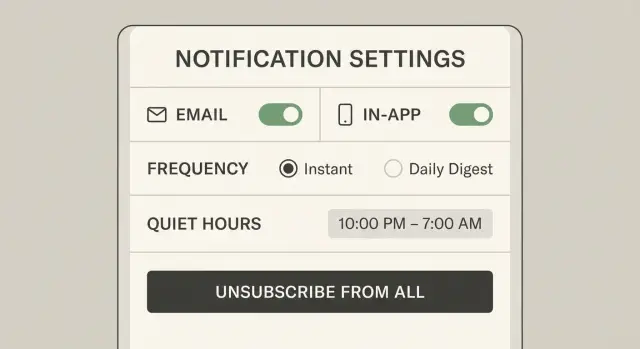
What goes wrong when notifications are not well managed
People feel spammed even when updates are genuinely useful because the system acts like it has no memory. It sends the same message in multiple places, at the wrong time, and with no clear way to say “less of this, more of that.” The result isn’t better communication. It’s noise.
The cost shows up fast. Users mute push permissions, mark emails as spam, or stop checking the app altogether. After that, even important alerts (password changes, payment issues, security warnings) get ignored. Trust is hard to win back once someone feels you’re careless with their attention.
Email and in-app notifications drift out of sync for common reasons: new event types get added without updating settings, marketing tools bypass app rules, background jobs retry and duplicate messages, or the app shows an in-app banner for something the email already covered.
A typical failure mode looks like this: a user turns off “weekly updates” in email, but the app still shows daily in-app prompts for the same content. From the user’s point of view, that setting was a lie.
The goal is simple: a notification preferences model that creates clear choices, safe defaults, and predictable behavior across every channel. That usually means users can understand what they’re opting into, defaults prioritize must-know alerts over nice-to-know chatter, every message maps to one preference rule (not five exceptions), and unsubscribe actions are honored everywhere.
If you inherited an AI-generated app, this pain is common. Notification logic often ends up scattered across files, with inconsistent naming and missing checks. Fixing it starts by making the rules explicit, then enforcing them in one place.
Start by sorting notifications into a few clear categories
Before you design a notification preferences model, sort every message your app sends into a small set of buckets. If you skip this, settings become a long, confusing list and people either mute everything or feel tricked.
A practical set of categories:
- Transactional: triggered by a user action (receipts, password reset, order status)
- Account-critical: security and billing (new login, MFA changes, failed payment)
- Product updates: changes to the app and how it works (new feature, maintenance notice)
- Marketing: promos, referrals, win-back campaigns
- Social or activity: follows, comments, mentions, messages
Next, decide which messages should be real-time alerts and which should be summaries. A shipment delay might need an instant push or email. A “5 new items you might like” message usually belongs in a daily or weekly digest. Treat digests as a delivery style, not a category.
Also separate account-level messages from optional ones. Account-critical messages should reach the user even if they opt out of most communication. Optional messages should be easy to mute without breaking the product.
Some notifications should never be fully optional because the user can’t complete the task without them. Password reset is the classic example. The same often applies to email change confirmations and alerts for suspicious logins.
A quick test helps: if you removed this notification, would the app still be safe and usable? If the answer is “no,” keep it in a must-send category and handle preferences carefully (for example, let users choose the channel, but not disable it entirely).
A simple preference model that covers most apps
A notification preferences model can stay simple if you keep three things separate: what the message is about, where it shows up, and how often you send it. “Spammy” systems usually fail because these get mixed together.
Think of every notification as:
- Topic (what): password reset, new message, weekly summary, security alert
- Channel (where): email, in-app, push (if you have it)
- Frequency (how often): instant, daily digest, weekly digest, never
Once you store those three fields, you can create clear rules without dozens of checkboxes.
Most apps need both a global unsubscribe and per-topic switches. Global unsubscribe should stop marketing and “nice to know” messages, but it must not block critical service emails like receipts, account security alerts, or password resets. Per-topic switches give users control without forcing them to opt out of everything.
User state matters because good defaults change over time. A new user may need more guidance, while an inactive user should get fewer nudges, not more. Common states to handle include new user (first week), trial user, active user, inactive user (no activity for X days), and admin or billing contact.
Quiet hours are worth adding early because they prevent complaints. Store a quiet-hours window and a time zone per user, and apply it to non-urgent topics. If you don’t know the time zone yet, ask on first use or default to the device time zone.
Finally, decide when in-app should mirror email and when it shouldn’t. Transactional items (like “your invoice is ready”) can show in both, since users expect a record. Real-time chat pings should usually be in-app first, with email as a digest or fallback, otherwise you create double noise.
If you inherited an AI-generated app where notifications fire from multiple places, this model makes cleanup easier: map every existing message to a topic, choose allowed channels, then enforce frequency in one place.
Default rules that reduce spam without hiding important info
Good defaults do most of the work because most people never open notification settings. A respectful notification preferences model follows a simple idea: only interrupt someone when it helps them right now.
For most apps, defaults should be quiet, predictable, and easy to reverse. That usually means opt-in for marketing, digests for noisy topics, and always-on for a small set of critical alerts.
Practical default rules
A solid starting point:
- Keep security and billing alerts on by default and hard to fully disable (new login, password change, payment failed, subscription canceled).
- Default to in-app for everyday activity updates, and reserve email for things that block progress or need follow-up.
- Use digests by default for noisy topics like comments, likes, and follows (daily or weekly), with a clear option to switch to real-time.
- Rate-limit bursts. If 30 events happen in 2 minutes, send one summary, not 30 messages.
- Add quiet hours by default (for example, no push at night), while still allowing urgent security notices.
A concrete example: in a marketplace app, new messages about an active order can be real-time in-app (and maybe email if unread after 30 minutes). Likes on a listing belong in a daily digest. A payout failure should be immediate by email and in-app because the user must act.
When you add a new notification later
New types should inherit from a parent category (security, billing, product activity, marketing). If it’s not clearly critical, start it as digest or in-app only. Don’t auto-enable email for existing users without asking.
For users who never touch settings, your defaults are their experience. That’s why safety checks matter: make sure unsubscribe actions actually stop the right messages, and test new-type rollouts so you don’t accidentally spam everyone. Teams working on AI-generated apps often discover flipped defaults and missing checks that turn “helpful updates” into angry replies.
How to design the preference model (step by step)
Start on paper. A good notification preferences model is less about a fancy settings page and more about decisions you can defend later.
First, write every notification event in plain language, as if you were explaining it to a friend. “Someone messaged you” is clearer than “message_created”. Keep events small and specific so you don’t mix urgent and non-urgent in one bucket.
Next, make a hard call on what the user must receive versus what they can opt out of. “Required” usually means security, billing, and account integrity. Everything else should be optional.
A build order that works for most apps:
- List events and rewrite them as user-facing sentences.
- Mark each event as required or optional (and note why).
- Map each event to channels: in-app, email, and push if you use it.
- Choose frequency options per topic: instant, daily, weekly, or never.
Then design the settings screen to match the model, not the other way around. Group by topic (Messages, Orders, Security), then let people pick channels and frequency inside each topic. If a topic is required, say so and remove the “never” option.
Finish by writing down the exact rules so support can explain them without guessing. For example: what happens if email is off but in-app is on, and which notifications ignore frequency because they’re required. This rule sheet is also the fastest way to untangle inconsistent logic before touching code.
Making the settings screen easy to understand
A settings screen only works if people can predict what will happen after they tap a toggle. Keep names consistent everywhere: the label in the UI, the key in the database, and the phrase used in the message template. When those drift apart (for example, “Product updates” in settings but “marketing_newsletter” in email headers), users lose trust and support tickets go up.
Each option should answer two questions in plain words: what is it, and when will I get it. Put the explanation right under the toggle as one short sentence. Avoid vague labels like “Alerts.” Prefer “Order status changes” with “Sent when your order is confirmed, shipped, or delayed.”
Make it obvious whether a switch controls email, in-app, or both. One simple pattern is one row per topic with channel toggles:
- Order updates - Email: On | In-app: On
- Messages - Email: Off | In-app: On
- Weekly digest - Email: On | In-app: Off
After a change, confirm it lightly: a brief “Saved” message plus a hint like “Applies to email only.” If a setting won’t affect certain messages (for example, you’ll still receive receipts), say that clearly.
Unsubscribe and resubscribe should also be predictable. If someone clicks unsubscribe from an email, show exactly what was turned off, what is still required (like password resets), and how to turn things back on. A common pitfall is “unsubscribe from everything” that accidentally disables critical account messages.
Accessibility basics aren’t optional. Make sure every toggle has a clear label that a screen reader can read, all controls work with a keyboard, status isn’t shown by color alone (use On/Off text), contrast is strong enough for small text, and focus states are visible when tabbing.
If you inherited an AI-generated settings UI that behaves inconsistently, start by auditing naming and mapping first. Clear labels and consistent keys fix more confusion than extra options.
Unsubscribe and safety checks that prevent accidental spam
A notification preferences model isn’t only about what users choose. It’s also about what your system refuses to send, even when jobs retry, queues back up, or someone flips a flag by mistake.
Unsubscribe that actually works
One click should mean no more marketing emails, starting now. Don’t “process later” and keep sending while a queue drains. Apply the unsubscribe as a hard block at send time, not only when creating jobs.
Keep marketing unsubscribe separate from required transactional email. Password resets, receipts, and security alerts shouldn’t be disabled by a marketing opt-out. Let users turn down optional product updates while still receiving critical account messages.
A suppression list is your emergency brake. If an address is suppressed (complaint, bounce, legal request, or manual support action), it should override every preference and every campaign until it’s cleared.
Checks that stop mistakes before they leave your system
Add a small set of safety checks right before every send, including queued and retried jobs:
- Verify the latest preferences and suppression status at send time (not only when enqueuing).
- Enforce channel rules (for example, marketing opt-out blocks email but can still allow in-app if the user wants it).
- Make sends idempotent with a unique key per message so retries don’t create duplicates.
- Re-check “already sent” using that key when a worker restarts or times out.
- Log the decision: what was sent, what was blocked, and why.
Unsubscribe tokens need safe handling. Use long, unguessable tokens tied to the user and purpose, and store only a hashed form if you can. Set expiry rules that keep old emails functional without leaving tokens valid forever.
Common traps that lead to spam (and angry replies)
Most notification problems aren’t about volume. They’re about surprises: the user gets a message they didn’t expect, can’t explain, and can’t stop.
One common cause is a messy notification preferences model where a single switch controls unrelated things. “Product updates” might also silence password alerts, or “marketing” might accidentally include invoice emails. Users learn the settings are unsafe, so they either turn everything off or reply angrily.
Traps that create the most complaints:
- One toggle for multiple topics.
- New notification types added without defaults or migration (suddenly everyone is opted in).
- Email and in-app settings drift apart without clear wording.
- Digests sent on top of real-time alerts for the same event.
- Time zones and quiet hours ignored (a “daily” digest arriving at 3 a.m. is unforgettable).
Another trap shows up later: unsubscribe breaks when you switch email tools, update templates, or change message IDs. Old unsubscribe links still get used by mailbox providers, but they no longer map to a real preference. Users click “unsubscribe,” keep getting mail, then report you as spam.
A small scenario: a marketplace sends “New message” as a push and also sends the same thing by email, plus a daily digest that repeats every message again. If the user turns off in-app alerts but email still fires, they feel tricked. If you offer both channels, say it plainly: “In-app alerts” and “Email copies” are separate, and the digest excludes anything already sent in real time.
When your system is already messy (common in AI-generated prototypes), you often need a migration plan and unsubscribe safety checks before you touch copy or providers.
Example: a marketplace app that balances real-time and digest
Picture a marketplace where a buyer follows 20 sellers. Every day there are new listings, price drops, and “back in stock” events. If each event triggers an email, the user will either mute you or mark you as spam.
A simple notification preferences model prevents that by separating “what happened” from “how often and where you tell me.” In this app, price drops are useful, but not urgent.
Defaults that feel polite while staying helpful:
- Price drops and new listings: in-app in real time, email as a daily digest
- Order receipts and shipping updates: email in real time (and in-app)
- Security alerts (new login, password change): email in real time, even if marketing is off
- Seller announcements and promotions: off by default for email, on in-app only
Now the user can tune it without breaking anything. For example, they keep in-app notifications for “Deals” because they like seeing price drops when they open the app, but they opt out of email for that same category because the inbox feels noisy.
The key is that opting out of promotional email shouldn’t silence important messages. If there’s a new login from a new device, that email still goes out. That rule is easy to explain in the UI: “Security emails are always sent to protect your account.”
Unsubscribe behavior should be just as clear. The unsubscribe link in a promo email should stop promotional sends immediately, but it must not block receipts, shipping notices, or security alerts. A useful safety check is to label every outgoing message before sending: promotional, transactional, or security.
If your app was quickly generated and notifications are already tangled, this is the kind of cleanup FixMyMess often helps with: separating categories, fixing logic, and adding guardrails so one toggle can’t accidentally turn into spam.
Quick checklist before you ship
Before you turn notifications on for everyone, do one last pass. This is where a notification preferences model either holds up in real traffic or quietly turns into spam.
Shipping checklist
- Every notification is assigned to a category (billing, security, product updates, social, reminders) and has a clear owner who can approve copy, frequency, and triggers.
- Your default notification rules are written down and match what the settings screen shows.
- Unsubscribe for marketing works end to end (click, confirmation, preference saved, then no more marketing sends).
- The send pipeline checks user preferences right before delivery, not just when the event is created.
- Retries don’t create duplicates.
Do a quick reality check with a human test, not just unit tests. Use a sample account and run through the most common actions (sign up, password reset, purchase, comment, weekly digest). Make sure the same event doesn’t hit both email and in-app unless you intended it.
60-second settings test
Hand the settings screen to someone who didn’t build it. If they can’t answer these questions in under a minute, simplify:
- “Where do I stop marketing emails?”
- “Where do I control important account alerts?”
- “Will I still get security and billing notifications if I turn most things off?”
If your current system is already messy (broken prefs, duplicate sends, missing unsubscribe checks), FixMyMess can audit the codebase and help repair it fast, especially when it came from AI-generated prototypes.
Next steps if your notification system is already messy
Messy notifications usually show up as duplicate messages, settings nobody trusts, and support emails that start with “please stop.” You can fix this without rewriting the whole app.
Start with a quick audit. List every notification you send (email, push, in-app), who gets it, and what triggers it. Write the purpose in plain words (security, billing, product updates, social, reminders). You’ll often find “ghost” sends from old features, or multiple paths that fire the same message.
Next, pick one preference model and migrate toward it. Avoid adding more toggles to patch complaints. A practical approach is to map each existing notification into a small set of categories, then decide which ones are always on (like password resets) versus optional. Keep old switches temporarily, but treat them as compatibility layers while you move users to the new categories.
To stop regressions, add a few tests that match real user expectations: unsubscribe must stop optional emails even if multiple services send them, digests must respect frequency, preference enforcement must work across channels, and sensitive events (security, billing) must never be blocked by marketing opt-outs.
If your app was generated by tools like Lovable, Bolt, v0, Cursor, or Replit, notification logic can end up scattered across UI code, background jobs, and third-party providers. FixMyMess (fixmymess.ai) can run a free code audit to find every send path, then refactor and harden it so your preference rules stay consistent. Most projects are completed within 48-72 hours. "}