Preview link works but live site fails: what to check
When the preview link works but live site fails, the cause is usually domains, env vars, HTTPS, cookies, or CORS. Use these checks to find it fast.
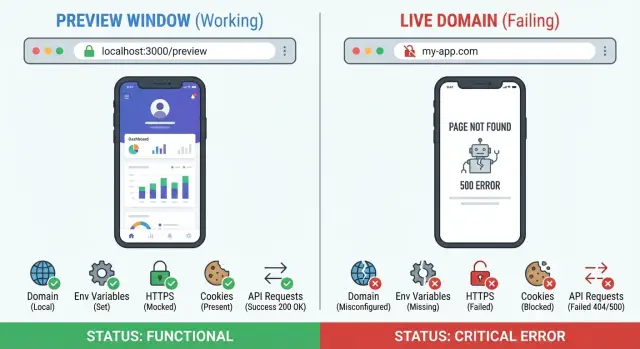
What “preview works” and “live fails” really means
A preview link is a temporary version of your app running in a controlled setup from your builder or host. It often uses a standard domain, default settings, and a “friendly” environment where fewer rules get in the way.
A live site is your real domain with real production settings. Browsers treat it differently: cookies attach to the domain, HTTPS rules apply, and your app has to talk to the right backend with the right permissions.
So when someone says “preview link works but live site fails,” it usually means the app looks fine in a demo, then breaks when it hits real domain rules.
The failure can show up in a few common ways: a blank page or endless spinner, a login loop (sign in, then get sent back to login), buttons that do nothing because API calls fail, missing data even though the UI loads, or errors that only happen on the live domain.
Also, “works” can be misleading. Many AI-built apps “work” in preview because the UI renders. The important parts fail quietly in production: API requests, authentication, uploads, payments, or database reads.
A simple example: in preview, your app calls an API using a test URL and permissive CORS, so requests succeed. On the live domain, the same calls are blocked, or the app is still pointing at localhost. The page loads, but data never appears.
That’s why the first question isn’t “does it load?” It’s “do the network calls succeed on the live domain?” If you inherited an AI-generated prototype, a fast code audit (like the kind FixMyMess does) often finds the mismatch quickly: a wrong environment variable, a cookie setting tied to the preview domain, or an HTTPS-only rule that preview didn’t enforce.
Domain differences that change app behavior
When preview works but live fails, suspect the hostname early. Browsers treat app-preview.example and example.com as different places, even if the code is identical. That changes which cookies are sent, which security rules apply, and which URLs your app is allowed to call.
A common trap is moving from a temporary preview domain to a real domain and assuming everything carries over. In reality, many settings are tied to an exact origin (scheme + host + port). One character difference can flip working features into broken ones.
Subdomain vs apex: small change, big impact
Moving from app.example.com to example.com (or the other way around) can break behavior that depends on domain scope. Cookies can be set for one host and never show up on the other. Some auth setups also expect a specific domain for callbacks and allowed origins.
The same goes for www vs non-www. If your live site redirects from www.example.com to example.com, your app may load fine but login can fail because the auth provider sees a different callback URL than the one you registered.
The domain mismatches that most often cause immediate failures are:
wwwvs non-www(redirects change the final URL)- apex domain vs subdomain (cookie scope and allowed origins differ)
- different preview hostnames per deploy (hardcoded URLs stop matching)
- staging vs production domains (auth and API settings point to the wrong place)
- trailing slash or path differences in callback URLs (some providers treat them as different)
A quick example: your preview runs on a temporary domain, and the login provider is configured with that callback. You launch on www.yourapp.com, the provider rejects the callback, and users see a blank page or a loop back to login. Nothing in the UI explains why.
This is extra common with AI-built apps because domains get hardcoded in more than one spot (frontend, backend, auth settings). FixMyMess often finds several places where a single hostname must match exactly for production to behave like preview.
Environment settings: the silent production breaker
Preview environments often “just work” because the platform quietly supplies defaults. Your live site usually does not. That gap is a top reason preview succeeds while production fails, even when the code is identical.
A common pattern is that preview injects a fallback API URL, a demo database, or a permissive auth mode. Production expects real values. When they’re missing, the app keeps running but behaves strangely: buttons do nothing, pages show empty states, or every request fails.
The most common environment problems in production look like this:
- A required variable is missing (API base URL, auth secret, database URL, payment keys).
- A value is present but wrong (dev endpoint, test key, old staging domain).
- Variables are set in one place but read from another (set in a hosting dashboard, but the build expects a
.envat build time). - Names don’t match exactly (
NEXT_PUBLIC_API_URLvsNEXT_PUBLIC_API_BASE). - The value has a subtle typo (extra slash, wrong region, wrong client ID).
Another trap is where the variable is used. Client-side variables end up in the browser, so they must be safe to expose. Server-side variables stay on the server, but only if the code truly runs server-side. AI-built apps sometimes leak secrets into frontend code. That can “work” in preview, then fail in production when keys get rotated or security rules kick in. It’s also a real security risk.
To spot an env issue quickly, check live logs and the browser console for:
- errors mentioning
undefinedornull - 401/403 responses (bad key, wrong audience, wrong issuer)
- requests going to the wrong host (dev domain showing up in production)
- build/start errors like “Missing required env var”
Example: login works in preview because it uses a preview callback URL, but production still points to the preview domain. The auth provider rejects it, and users see a 401 or a login loop.
If you inherited an AI-generated codebase and can’t tell where a value comes from, FixMyMess can run a free code audit and list what’s missing or misconfigured before you change anything.
HTTPS, redirects, and mixed content problems
A preview can work because it runs on a platform domain with a known-good setup. When you move to your own domain, the browser becomes stricter. Small misconfigurations can stop the app from loading, logging in, or calling APIs.
HTTPS is stricter than most preview setups
HTTPS isn’t just a lock icon. It changes what the browser allows. Requests can be blocked, cookies can behave differently, and redirects can create loops that never showed up in preview.
A typical example: the live site loads over https://, but the app still calls an API at http://api.example.com. In preview, you might not notice because everything is on the same platform domain or the warnings are easy to miss.
Mixed content: the silent blocker
Mixed content happens when an HTTPS page loads anything over HTTP (API calls, images, scripts). Modern browsers often block these requests, which can make the app look “broken” with no obvious on-screen error.
To confirm it fast:
- Open the live site (not the preview).
- Open the browser console and reload.
- Look for “Blocked mixed content” or similar errors.
- Check the Network panel for requests that are blocked, canceled, or stuck in redirects.
Redirects, HSTS, and loops
Redirect loops often happen when multiple layers disagree. For example:
- the app forces HTTPS, but the hosting platform already does it
- a CDN forces
www, but the app forces non-www - HSTS is enabled, so the browser refuses to try HTTP again
When this happens, the page may flash, reload endlessly, or fail before any of your code runs.
Certificates matter too. If the certificate is invalid or not issued for the custom domain yet, some browsers will block requests or prevent sign-in flows from opening correctly.
If the console is full of mixed-content warnings and redirect errors, FixMyMess typically starts by mapping every request the app makes on live, then fixing HTTPS URLs and redirect rules so production behaves like preview.
Cookies and authentication: why logins fail on live
When preview works but live fails, login is often the first thing to break. Preview feels “normal,” but the live domain changes how the browser treats cookies, redirects, and session storage.
Cookies are tied to a domain. If preview runs on a platform domain and the live site runs on your custom domain, the browser may stop sending the session cookie even though you didn’t change code.
Cookie flags that cause most surprises
Three settings decide whether your login cookie survives the move to live:
- Domain scope: a cookie set for
preview.example-host.comwon’t be sent towww.yourdomain.com. Hardcoding the cookie domain often works in preview and fails quietly on live. - SameSite: redirect-based logins (Google, GitHub, magic links) can break if
SameSite=Strictblocks the cookie on the return trip.Laxis often safer for basic flows. - Secure:
Securecookies are only sent over HTTPS. If your live site has an HTTP step (or a messy redirect chain), the cookie may never stick.
Typical symptoms:
- login “succeeds” but you land back on the login page
- you get a loop: login, redirect, login again
- it works once in an incognito window, then fails
- it works on preview but fails only on your real domain
OAuth and hosted auth: allowed origins and redirect URIs
Auth providers don’t automatically trust your custom domain. Preview environments are sometimes whitelisted by default, while your real domain is not. The provider may reject the callback, or your app may receive the callback but fail the code exchange because the origin doesn’t match.
Example: preview uses https://random-preview-host.com and the provider is configured for it. You switch to https://app.yourdomain.com, but the provider still only allows the preview origin. The redirect looks fine, then you land on a blank page, an error toast, or the login screen again.
Before changing code, run these checks in devtools:
- Confirm the live site is fully HTTPS with no HTTP step.
- Inspect the
Set-Cookieheader (Domain,SameSite,Secure, expiry). - Verify the cookie appears under the live domain’s storage and is sent on the next request.
- For OAuth, confirm the live domain is listed in allowed origins and redirect/callback settings.
Broken auth is a common FixMyMess repair. We trace the cookie and redirect path end to end and patch the mismatched settings so login works reliably on the live domain.
CORS and API calls that get blocked only on live
Sometimes the UI loads, but every data call fails because the browser refuses to let your frontend call your API. That refusal is CORS (Cross-Origin Resource Sharing). In plain terms: the browser blocks a website from sending requests to a different domain unless the server explicitly allows it.
This shows up on live more than preview because preview hosts are sometimes “special-cased.” Your API might allow requests from the preview domain, but not from your real domain.
What CORS failures look like
In the console or Network tab, you’ll see “blocked by CORS policy” or a preflight request that fails. A preflight is an automatic OPTIONS request the browser sends first to ask, “Is this allowed?”
Preflights happen more often than people expect. Sending JSON with custom headers, using methods like POST/PUT, or including credentials (cookies) can trigger them. If the server doesn’t answer OPTIONS correctly, the browser blocks the real call, even if the API works in tools like curl.
On the API (or serverless function) side, the highest-impact checks are:
- allow the live site’s exact origin (scheme + domain + port)
- if you send cookies/auth headers, allow credentials and do not use a wildcard origin
- allow the headers you actually send (often
Content-Type,Authorization) - allow the methods you use and respond properly to
OPTIONS - confirm your reverse proxy/CDN isn’t stripping CORS headers in production
A common scenario: an AI-built app calls api.myapp.com from preview.mytool.app and it works. After launch, the frontend runs on myapp.com, but the API still only allows preview.mytool.app, so login and saves fail in the browser.
If you’re stuck, FixMyMess often finds CORS issues alongside related blockers (like cookies not being sent due to credential settings) and verifies the fix with real browser tests before you relaunch.
Caching, service workers, and stale deployments
Sometimes nothing is “broken” in the code. The live domain is simply serving an older version. Preview servers often bypass the caching layers your real domain uses.
When caches serve the wrong version
A CDN or browser cache can keep old JavaScript bundles even after a redeploy. If your build outputs files like app.123.js, but the HTML still points to app.122.js, users load a mix of old and new files. The result feels random: buttons stop working, pages go blank, or you get errors you can’t reproduce locally.
Common signs it’s caching or stale assets:
- the UI looks like an older design after a deploy
- JavaScript or CSS files return 404s in the Network tab
- errors mention missing chunks or “unexpected token” in a JS file
- only some users see the issue (often mobile)
- refreshing changes the behavior
Service workers: one bad version can stick
If your app has a service worker (common with PWA templates), it can keep serving a cached shell of the site. One bad release can get installed and keep loading even after you fix production. Users may need to close all tabs, or the service worker update flow needs to be fixed.
Another easy trap is a base URL change. If you moved from a preview subdomain to your real domain, or changed the path the app is hosted under, static asset paths can break. You’ll see 404s for files that exist, just not at the path the browser is requesting.
Quick tests that avoid guessing:
- open an incognito window and test the live site
- do a hard refresh (Ctrl/Cmd + Shift + R)
- in DevTools, disable cache and reload
- look for 304/404 responses for JS and CSS files
- if a service worker exists, unregister it and reload
If the live site keeps serving the wrong build, FixMyMess can pinpoint whether it’s caching, service workers, or a deployment output issue before you spend hours chasing “phantom bugs.”
Step-by-step: diagnose the failure in 20 minutes
Start by naming the exact symptom on the live site. Is it a blank page (page load), a page that loads but data never appears (API call), or a login that works in preview but fails live (auth/cookies)? If you pick the wrong symptom, you can lose an hour chasing the wrong thing.
Open the live site in a fresh private window, then open DevTools. Keep two tabs open: Console and Network. Console shows the loud failures (red errors). Network shows the first request that actually breaks.
1) Find the first real failure
In Console, look for errors mentioning blocked requests, CORS, mixed content, redirect loops, or missing environment variables. Ignore warnings until you’ve explained the first red error.
Then go to Network, refresh, and click the first request that fails (often the first XHR/fetch call). Note the request URL, status code, and response message:
- 401/403 usually points to auth, cookies, or a key/issuer mismatch.
- 404 often means a wrong URL, missing route, or broken asset path.
- 500 points to server logic or broken config.
- Requests that never finish can be DNS, HTTPS, or a blocked browser request.
2) Compare preview vs live like-for-like
Open preview and live side by side and repeat the same action (load page, click login, fetch data). Compare the failing request details:
- URL differences (domain, path,
httpvshttps) - headers (missing
Authorization, incorrectOrigin) - cookies (not set, not sent, wrong domain)
- response body (different error message between preview and production)
If preview calls api.preview-host.com but live calls localhost, that’s usually an environment variable mismatch, not a random production bug.
Finally, verify production environment variables in your hosting provider (not just in your repo), then do a clean redeploy. Many AI-built apps hold on to old values until you rebuild and redeploy.
If you’re stuck after these checks, FixMyMess can run a free code audit and pinpoint whether it’s env vars, domain/CORS, HTTPS, or auth, then repair it with human verification.
Common mistakes that waste the most time
When someone says “preview works but live fails,” the cause is usually not a deep bug. It’s often a simple mismatch between environments that keeps getting overlooked.
The repeat offenders
Most time gets wasted by chasing symptoms (blank screen, failed login, 401s) while the root issue is basic configuration:
- Auth redirect URLs not updated for the real domain. The provider still allows only the preview hostname, so production logins bounce back or loop.
- Preview URLs hardcoded in the frontend. One leftover
https://preview-xyz...in API calls, OAuth callbacks, or websockets can break live. - Secrets shipped to the browser. AI-built apps sometimes put private keys in client-side env vars or bundle them into the build. That can break production and it’s a security problem.
- Preview and production pointing at different databases. Preview may use seeded test data while production is empty or has a different schema.
- Fix applied but not actually deployed. Build caches, wrong deploy targets, or missing env updates make it look like the fix didn’t work.
A realistic example: you fix the OAuth callback mismatch, but the live site still fails because the frontend is still calling the preview API base URL. Two small mistakes, one confusing outcome.
How to avoid the rabbit holes
Before rewriting code, run these checks:
- Confirm the production domain is listed everywhere your auth provider expects it.
- Search the codebase for the preview hostname and replace it with production-safe configuration.
- Verify which environment variables are server-only vs exposed to the browser.
- Confirm production database connection and migrations match what preview used.
- Redeploy and clear any relevant CDN/build caches so the live site serves the new bundle.
At FixMyMess, these are the first things we look for during a codebase diagnosis because they’re common in AI-generated prototypes and easy to miss.
Quick checklist and next steps
When preview works but the live site fails, treat it like a configuration mismatch until proven otherwise. You’re usually not chasing a mysterious bug. You’re chasing a difference between two environments.
Start with the basics on the live domain:
- Confirm the live domain is pointing to the intended deployment (right project, right branch, latest build).
- Compare production env vars to preview values (API base URL, auth keys, callback URLs, database URL).
- Load the live site with the console open and look for HTTPS warnings, redirect loops, and mixed content errors.
- Test auth end to end on live (sign up, log in, log out, refresh). “Works until refresh” often points to cookie or domain settings.
- Re-test in a private window and on mobile. Old cookies, cached assets, and service workers can hide the real issue.
A simple example: in preview your app calls http://api.myapp.local (fine for a dev setup), but in production the page is HTTPS and the API is HTTP. The browser blocks it. The UI looks fine until you click a button, then everything fails.
If you still can’t pin it down, stop guessing and get a focused audit. The fastest fixes usually come from reviewing three areas together: auth and cookies, exposed secrets, and overall architecture (AI-generated prototypes often ship with tangled logic that only breaks under real production settings).
If your project was generated with tools like Lovable, Bolt, v0, Cursor, or Replit and now fails on a real domain, FixMyMess (fixmymess.ai) is built for exactly this situation: diagnosing what’s different between preview and production, then repairing the codebase so it holds up in production.
FAQ
What does “preview works but live fails” usually mean?
It usually means the UI can render, but something production-specific breaks when you move to your real domain. The most common culprits are domain-bound cookies, incorrect environment variables, HTTPS and redirect rules, or API calls being blocked by CORS on the live origin.
What’s the fastest way to find what’s breaking on the live domain?
Open the live site in a private window, open DevTools, then reload. Check the Console for the first red error and the Network tab for the first failing request; that failing request usually points directly to auth, CORS, mixed content, or a wrong API URL.
Why does changing the domain (preview URL to my domain) break things?
Because the browser treats each origin as a different place, even if the code is identical. Cookies, OAuth redirect URLs, allowed origins, and security rules often match the preview hostname but not your real domain, so production requests fail even though the preview looks fine.
Why do I get a login loop only on the live site?
Most often it’s because the callback/redirect URL or allowed origin list still points to the preview hostname, or your session cookie isn’t being set or sent on the new domain. The symptom is usually a login loop where sign-in “succeeds” and then you’re sent back to the login screen.
Which cookie settings commonly break production auth?
The cookie might be scoped to the wrong host, blocked by SameSite rules during redirects, or not stored because of HTTPS/Secure behavior. On live, a www vs non-www redirect can also cause the cookie to be set on one hostname and then never used on the final one.
Can HTTPS or mixed content make the live site fail even if preview works?
If your live site is HTTPS but your app calls an HTTP API endpoint, modern browsers will block those requests as mixed content. The page can still load, but anything that needs the API (data, login, saves) silently fails until you fix the URLs to be consistently HTTPS.
What does a CORS error on live actually mean, and how do I fix it?
It means the browser is blocking your frontend from calling your API because the API isn’t allowing your live origin. Preview may be implicitly allowed, but production needs the exact origin whitelisted, and credentialed requests (cookies or Authorization) need stricter server settings to work.
Could caching or a service worker be the reason only the live site is broken?
Yes, if the live domain is serving an older build or a broken mix of old and new assets. CDN caching or a service worker can keep stale JavaScript around, which can cause blank pages, missing chunks, or behavior that changes after refresh or differs across devices.
Why is this issue so common with AI-built apps from tools like Lovable or Bolt?
AI-generated projects often hardcode preview hostnames, mix server and client environment variables, and accidentally ship secrets into the frontend bundle. That can “work” in preview but fail on a real domain, and it’s also a security problem you should fix before scaling traffic.
What should I do if I’m still stuck after basic checks?
Get a focused codebase diagnosis that checks env vars, auth/cookies, CORS, and HTTPS/redirect behavior specifically on the live domain. If you don’t want to spelunk through AI-generated code, FixMyMess can run a free audit and then repair the project end-to-end so it’s production-ready, often within 48–72 hours.