Production-only database SSL errors: fix SSL mode mismatches
Production-only database SSL errors often come from mismatched SSL modes or missing certificates. Learn the common string mistakes and how to test locally.
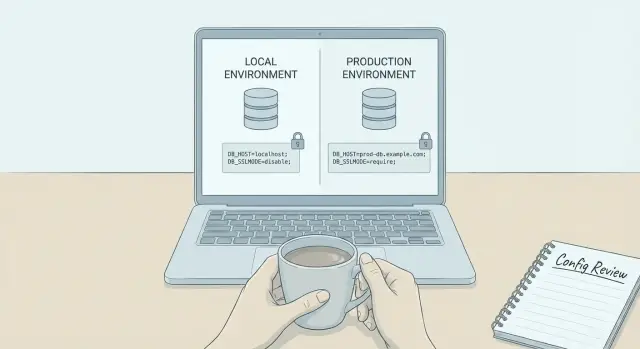
Why database SSL errors show up only in production
Database SSL errors that only appear in production usually mean your app isn’t connecting to the same kind of database setup you have locally. Your code can be identical, but production changes the rules around networking and security.
On a laptop, Postgres is often running on localhost, sometimes inside Docker, and plain TCP connections are allowed. In production, a managed Postgres service typically sits behind a load balancer, proxy, or connection pooler, enforces encryption, and expects a specific SSL mode.
When a hosted database says “SSL required,” it’s telling you it will refuse non-encrypted connections. Some providers go further and require certificate validation, not just encryption. That’s where settings like sslmode=require vs sslmode=verify-full matter: require encrypts the connection, while verify-full also checks the server certificate and confirms the hostname matches.
Even with no code changes, behavior can differ because config and defaults differ. Your local .env might not include any SSL parameters, while production environment variables include them (or your platform injects them). Some drivers default to “prefer” (try SSL, then fall back), which can quietly work locally but fail when production demands strict verification.
Network details change too. Production connections often go through a proxy, PgBouncer, or a private endpoint. That can change the hostname you connect to and the certificate that gets presented. A connection string that uses an IP address may work with require but fail with verify-full, because certificates rarely match raw IPs.
Typical symptoms include errors like:
- “SSL is required” or “no pg_hba.conf entry for host ... SSL off”
- “certificate verify failed”, “unable to get local issuer certificate”, or “self signed certificate”
- “hostname mismatch” or “certificate does not match host”
- Works locally and in preview, but fails after deploying to the production database
- Intermittent failures when a pooler or proxy is in the path
A realistic example: locally you connect to postgres://localhost:5432/app with no SSL settings. In production, your managed database provides a URL like postgres://user:[email protected]:5432/app?sslmode=verify-full. If your app drops the parameter (or uses sslmode=disable), production rejects the connection even though the same queries worked at home.
First 10 minutes: get the exact error and context
The fastest path to a fix is to stop guessing and capture the exact failure. Small details in the message, the host, and where the code runs usually point straight to the mismatch.
Copy the full error text, including any “caused by” lines, and note the exact time window. If you have centralized logs, filter around that timestamp so you can see what happened right before the failure.
Next, write down where the connection is opened. A connection created during a web request can behave differently than one created in a background worker, serverless function, or scheduled job. Also check whether it fails immediately or only after a period of time. “Works for a bit then dies” often points to pooling, timeouts, or something rotating (certs, routes, or endpoints).
Capture these basics before you change anything:
- Full error text and stack trace (the first error, not the last retry)
- Time window and request or job ID (if available)
- Runtime location (web server, serverless, cron, queue worker)
- Whether it fails immediately or after some successful queries
- The database host you are actually connecting to
That last point matters a lot. Many apps have multiple database URLs floating around (env vars, secrets managers, hardcoded defaults, preview environments). Log the resolved host at runtime (without logging credentials). If production is connecting to a different host than you think, its SSL requirements and certificates may be different too.
Also check whether it fails in all production regions or just one. A single-region failure can mean a different endpoint, a different networking path, or a different certificate chain.
SSL modes in plain language (and why they matter)
Most production-only SSL failures come down to a disagreement about how strict the connection should be. Local databases often allow non-SSL or “best effort” SSL. Managed Postgres commonly enforces SSL.
SSL does two different things, and it helps to separate them:
- Encryption: keeps traffic private so others can’t read passwords or data in transit.
- Identity verification: proves you’re talking to the real database server.
“SSL mode” controls how strict you are about those two jobs.
The common SSL modes
Across Postgres drivers and tools, you’ll usually see:
- disable: never use SSL
- prefer: try SSL first, but fall back to non-SSL if SSL fails
- require: always use SSL encryption, but don’t strictly prove server identity
- verify-ca: use SSL and confirm the certificate chains to a trusted CA
- verify-full: use SSL, validate the CA, and verify the hostname matches the certificate
If you set a strict mode like verify-full without the right certificate chain or hostname, you can still get SSL errors even though “it’s encrypted.”
Hostname validation: the usual production break
Hostname validation means the server certificate must match the host you connect to. If your connection string uses an internal address, an IP, or a different DNS name than the certificate was issued for, verify-full fails. This happens often when production routes you through a proxy or private endpoint.
Defaults differ by driver (and that matters)
Driver defaults vary. One might behave like prefer by default, another like require, and your cloud provider might reject non-SSL outright.
Before changing anything, answer these:
- Does production enforce SSL or allow non-SSL?
- Are you using
requireorverify-full? - If using
verify-full, does the host in the connection string match the certificate? - Where does the CA certificate come from in production (file, env var, system trust store)?
- Is your local setup actually testing the same mode, or quietly falling back?
Common connection string mistakes that cause failures
Production SSL issues are usually small mismatches between what your production database expects and what your app actually sends.
1) Wrong parameter name for your driver
Different drivers read different SSL settings. Some look for sslmode, others read ssl=true, and some expect an object rather than a string. If you use the wrong name, the driver may ignore it and fall back to a default.
This is especially common in AI-generated projects because code often mixes examples from different ecosystems. You might see sslMode in one place and sslmode in another. One is respected, the other is ignored.
2) Choosing the wrong strictness (require vs verify-full)
Two failure patterns show up a lot:
- You set
sslmode=require, but your provider expects certificate validation (verify-caorverify-full). - You set
sslmode=verify-full, but the host name or certificate chain doesn’t line up, so production fails while local seemed fine with weaker settings.
3) Missing CA certificate when using verify-ca or verify-full
If you verify certificates, you usually need a CA certificate (often via sslrootcert or a driver-specific option). Without it, errors look like “self signed certificate”, “unable to get local issuer certificate”, or “certificate verify failed”.
A simple example of what people intend (names vary by driver):
... sslmode=verify-full sslrootcert=/path/to/ca.pem
4) Using an IP address instead of a hostname
verify-full checks that the certificate matches the hostname. If your URL uses an IP like 10.0.0.12, but the certificate is issued for something like db.myprovider.com, verification fails.
5) Environment variables overriding what you think you set
It’s common to change code, redeploy, and still fail because the platform injects DATABASE_URL (or another variable) that overrides your new settings. The app keeps using the old URL.
6) Copy-pasting the URL and breaking the password
Passwords with special characters (@, :, #, %) must be encoded in URLs. Copy-paste through dashboards, chat tools, or .env files can mangle them and create auth errors that look like SSL issues.
If you want quick sanity checks before going deeper:
- Confirm your driver reads the SSL setting you used (name and casing).
- Match
sslmodeto what production requires, not what local tolerates. - If verifying, ensure the CA cert is present and accessible at runtime.
- Use a hostname (not an IP) when using
verify-full. - Verify no environment variable is overriding your intended connection string.
Step by step: build the production connection settings correctly
The fix starts by making the final, effective connection settings obvious and intentional.
1) List every place config can come from
Before changing anything, list all sources that can influence the database connection: runtime environment variables, platform secrets, app config files, build-time injection, and ORM settings.
Then confirm which one wins if the same setting appears twice. Many “SSL mode” bugs are really “you edited the wrong place.”
2) Create one source of truth connection string
Pick one canonical representation for production, usually a single DATABASE_URL. Keep other knobs (like separate SSL flags) removed or strictly derived from that URL.
A good production URL explicitly states SSL intent:
postgres://USER:PASSWORD@HOST:5432/DBNAME?sslmode=verify-full
If your provider requires encryption but not strict identity checks, you might use sslmode=require. If it requires full verification, use verify-full and configure certificates and hostname checks.
3) Decide the intended SSL mode from provider requirements
Don’t guess. Choose one mode based on the provider’s requirements and write down why (a short comment near the variable is enough). This prevents future drift.
4) Add CA cert and expected server name when needed
For verify-ca and verify-full, you typically need the provider’s CA certificate available at runtime (as a file path or passed directly, depending on your driver).
For verify-full, the server name must match the certificate. If you connect by IP or via an alias hostname, you can get a mismatch even with correct credentials.
5) Log a safe, redacted version of the final config
Log what the app will use after all overrides, but never log passwords, tokens, or full cert contents.
DB host=prod-db.example.com port=5432 db=app sslmode=verify-full sslrootcert=set user=app_user password=REDACTED
That single line at startup is often enough to spot a wrong host, a missing CA path, or an unexpected SSL mode.
Step by step: test the same SSL mode locally
The goal is to make your laptop behave like production. If production requires SSL and your local setup quietly connects without it, you’ll ship a failure.
1) Match production inputs, not just values
Start by running locally with the same inputs production uses: the full database URL, the SSL mode, and any cert paths. Avoid mixing “local defaults” with “prod values” in the same run.
A practical pattern is a dedicated local file, like .env.prodlike, and running the app with only that file loaded.
# Example (names vary by framework/driver)
DATABASE_URL=postgres://user:[email protected]:5432/appdb?sslmode=verify-full
PGSSLMODE=verify-full
PGSSLROOTCERT=./certs/prod-ca.pem
2) Bring in the same CA certificate chain
Export or download the CA bundle used in production and store it locally (for example ./certs/prod-ca.pem). Point your driver to that file. Without it, verify-ca and verify-full will fail even if everything else is correct.
3) Force the exact SSL mode and stop “auto fallback”
Some libraries try multiple connection options or fall back to non-SSL when SSL fails. That hides the real problem. Make SSL mode explicit and watch for logs that indicate retries with different TLS settings. If you see “retrying without TLS/SSL,” treat that as a failed test.
4) Make the hostname match what verify-full checks
If you connect locally using an IP address, localhost, or a different DNS name than production, verify-full can fail even with the right CA.
Use the same DNS hostname production uses in your connection string. If you must map it locally, update hosts/DNS so the hostname stays the same.
5) Sanity check outside your app
Before blaming your code, test the connection with a simple client using the same settings. If that fails, your app will fail too.
Prove the fix: quick tests before redeploying
After you change SSL settings, prove the connection works before you ship. Isolate the problem from app code so you’re not guessing whether the change actually fixed anything.
Start by testing connectivity outside the app, using the same host, port, user, and database name. A simple CLI or tiny script removes your framework and ORM from the equation. If the direct connection fails, you’re looking at SSL config, certificates, DNS, or networking.
A short proof pass:
- Connect from the same environment as production (same container image or same VM) using a minimal client.
- Print the final connection settings your app will use at runtime (sanitized) and confirm SSL mode is what you expect.
- Confirm the runtime can read the CA file path you configured (file exists, permissions).
- Compare driver versions between local and production (defaults change).
- If you run containers, check whether the image includes system CA bundles (a common issue with minimal images).
After you get a successful connection, break it on purpose to confirm you understand what’s being validated:
- Change the hostname to something wrong and confirm the error becomes DNS or connection related.
- Switch to a stricter mode (like
verify-full) without the right CA and confirm you get certificate validation failures. - Point the CA path to a missing file and confirm you get a file or permission error.
If these changes don’t affect the error, you may not be exercising the same code path as production. That often means the SSL settings are being ignored or overridden.
Example scenario: a managed database enforces SSL in production
A common pattern: everything works on your laptop, you deploy, and the app can’t connect. Logs show “SSL handshake failed”, “certificate verify failed”, or “server does not support SSL, but SSL was required”.
Here’s what’s usually going on with a managed Postgres service: locally you run Postgres without SSL, or your local client tolerates weak settings. In production, the managed database requires SSL and your app runs in a container that doesn’t have the right CA certificates.
The root cause is usually a mismatch between three things: the hostname you connect to, the SSL mode you chose, and whether the runtime can verify the certificate chain.
For example, you might deploy with:
DATABASE_URL=postgres://app:[email protected]:5432/prod?sslmode=verify-full
This can fail even though credentials are correct. verify-full checks that the certificate is trusted and that it matches the hostname. An IP address (or a host alias) often won’t match the certificate’s DNS name.
A minimal fix is to connect using the hostname the certificate expects and ensure the runtime can validate it:
DATABASE_URL=postgres://app:[email protected]:5432/prod?sslmode=verify-full&sslrootcert=/etc/ssl/certs/ca-certificates.crt
If you can’t provide a CA bundle path (or your image is missing it), a temporary workaround is switching to sslmode=require so traffic is encrypted without strict verification. That can unblock you, but it’s less safe than full verification.
To avoid a repeat:
- Use the same hostname format locally that you’ll use in production (DNS name, not an IP).
- Choose the SSL mode intentionally and document why.
- Ensure your runtime image includes CA certificates, and know where the CA bundle lives.
- Add a smoke test that runs inside the same container image you deploy.
Common traps in AI-generated apps (Lovable, Bolt, v0, Cursor, Replit)
Apps generated with tools like Lovable, Bolt, v0, Cursor, and Replit often fail in a specific way: the database settings look plausible, but they’re guessed. That’s why SSL errors appear after deployment.
One pattern is an invented connection string field that your driver doesn’t use. An app might set ssl=true or tls=true and assume it forces SSL, while the driver only respects sslmode=require (or a structured ssl object). Locally, your database accepts plain TCP, so you don’t notice. In production, a managed Postgres requires SSL and the connection fails.
Another pattern is hidden overrides. These projects often set database config in multiple places, then you fix only one of them. Locally, a .env file wins. In production, the platform uses a different variable name, injects its own value, or a build-time default takes over.
The simplest refactor that prevents repeat outages is boring but effective: pick one source of truth (usually DATABASE_URL), parse it once, and pass the same settings to every place that touches the database (runtime, migrations, background jobs).
Quick checklist and next steps
When an SSL error only shows up in production, it’s rarely random. It’s usually a small mismatch between what your app requests and what the database expects.
Checklist:
- Confirm host and port match the managed database endpoint (no old dev host, no missing port).
- Confirm the intended SSL mode is set (for example,
requirevsverify-full) and your driver actually reads it. - If you verify certificates, make sure the CA certificate is present inside the runtime (VM, container, serverless) and the path is correct.
- Check that the hostname in your connection string matches the certificate hostname (a common
verify-fullfailure). - Make sure there’s one source of truth for config, not multiple overrides scattered across code and dashboards.
If you keep getting “works on my machine,” compare driver versions and trust stores. A container image might not include a CA bundle, or production might be running a different client library with different SSL defaults.
A lightweight next step is a startup preflight that fails fast with a clear message:
Preflight idea: on startup, connect with the same connection string.
If it fails, log: sslmode, host, and whether a CA file was found.
Exit so the deploy fails early instead of timing out later.
If you inherited an AI-generated prototype and the SSL/config logic is scattered across the codebase, FixMyMess (fixmymess.ai) focuses on diagnosing and repairing these production-only breakages. A quick audit can identify conflicting connection strings, missing CA handling, and unsafe defaults so the app behaves predictably in production.
FAQ
Why do SSL errors show up only after I deploy to production?
It usually means production is connecting through a managed database endpoint that enforces SSL and possibly certificate checks, while your local database allows plain TCP or silently falls back to non-SSL. The code can be the same, but the environment defaults and networking path are different.
What’s the difference between sslmode=require and sslmode=verify-full?
require encrypts the connection but doesn’t strictly verify the server’s identity. verify-full encrypts and also checks the certificate chain and that the hostname you connect to matches the certificate, which often fails if you use an IP, a proxy hostname, or the wrong DNS name.
Why does it fail with “hostname mismatch” when I use an IP address?
Because verify-full expects a real hostname match, and certificates are rarely issued to raw IP addresses. Use the provider’s DNS hostname that the certificate was issued for, not a private IP or an internal alias, when you need strict verification.
What does “unable to get local issuer certificate” mean in production?
It usually means the runtime can’t verify the certificate chain. Common causes are missing CA certificates in the container/VM, a wrong sslrootcert path, or a minimal base image without system CA bundles.
What should I log to diagnose this without leaking secrets?
Log the resolved database host, port, database name, and SSL mode at startup, with credentials redacted. Also capture the first error and any “caused by” lines from logs, since retries can hide the real failure.
Why does it still fail after I “set SSL” in my config?
It’s often because the driver is ignoring your SSL settings due to a wrong option name or casing, or because an environment variable like DATABASE_URL is overriding what you changed in code. Another common cause is a proxy/pooler in production presenting a different certificate than you expect.
How can I make my local environment behave like production for SSL?
Run locally using the exact production-style connection string and SSL mode, including the same CA certificate inputs. The goal is to prevent “prefer” or other fallback behavior from masking issues until you deploy.
Could this be caused by my DATABASE_URL or a copy-paste mistake?
First confirm the database URL that the app actually uses at runtime, since platforms often inject or override it. Then verify the driver reads the parameter you’re setting and that any special characters in the password are URL-encoded, because malformed URLs can look like SSL failures.
Can PgBouncer or a proxy cause intermittent SSL failures?
Yes. If production routes traffic through PgBouncer, a load balancer, or a private endpoint, the hostname and certificate presented can differ from what you tested. This can lead to intermittent handshake failures or verification errors if the pooler rotates endpoints or uses a different cert chain.
When should I ask FixMyMess to step in?
If the project is AI-generated or has config scattered in multiple places, the fastest path is a focused audit to find the effective connection settings and fix the mismatches. FixMyMess can run a free code audit and then repair the connection logic, SSL handling, and unsafe defaults, with most fixes completed in 48–72 hours and an option to rebuild cleanly in about 24 hours when the codebase is beyond patching.