Protect customer data in app demos with safe demo setups
Learn how to protect customer data in app demos using fake records, a dedicated demo workspace, and simple checks so real names and emails never show.
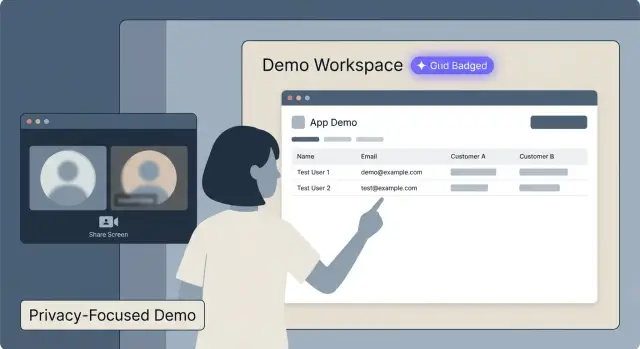
Why customer data leaks during app demos
Most customer data leaks in demos are accidents. A dashboard is preloaded with real records, someone searches a real email to "show how it works," or an autocomplete field fills in an actual customer name while you talk.
Demos also surface connections you forgot were live: analytics tools, email providers, payment systems, and support inboxes. If you demo inside your real workspace, it can pull in live activity at the worst time, like a new order, a ticket update, or a notification toast.
"Customer data" is more than a name and email. It includes anything that can identify someone or reveal what they bought and why they contacted you, including names, emails, phone numbers, addresses, invoices, payment history, plan details, support conversations, internal notes, usage logs tied to a person or company, and files customers uploaded.
When this shows up on a sales call, more than one group gets hurt. A customer may feel exposed or lose trust. Your team ends up in an awkward privacy conversation. Your reputation can take a hit fast, even if the leak lasted only a few seconds.
The goal is simple: design demos so real names, emails, and records never appear, even if you click the wrong tab.
A common example: you open "Customers" to show filtering, and the list is sorted by "last active" with real emails visible. One screenshot later, the damage is done.
Common leak points to watch for
Most demo leaks aren't hacks. They're on-screen surprises you didn't plan for.
The usual places real data shows up
The biggest mistake is demoing the live production app because it's "already set up." That puts real customer names, emails, invoices, and support threads one click away.
Other leak points are easy to miss:
- Autocomplete, recent items, and browser-saved logins can reveal real accounts with a single click.
- Email notifications, chat widgets, calendar popups, and CRM alerts can appear over your screen share.
- Logs, admin dashboards, and error pages often print full records (emails, tokens, addresses) because they were built for debugging.
- Integration screens can expose third-party data (payments, Slack channels, analytics dashboards).
- Sharing your whole screen with multiple tabs open makes it easy to flash something sensitive when you switch.
A realistic scenario: you search for "Acme" to show a customer profile, and the dropdown suggests "Acme - billing issue - [email protected]" from a prior session. You didn't type it, but everyone saw it.
Treat support and admin views as high risk. They tend to include verbose logs, loose permissions, and convenience shortcuts that are fine in development but dangerous on camera.
Two basic rules: fake data and a dedicated demo workspace
Two rules do most of the work: never show real data, and never demo from a real workspace.
A dedicated demo workspace (or tenant) is a separate copy of your app with its own database, users, and settings. It should look like the real product, but be isolated so nothing you do on a call can expose real names, emails, orders, or support tickets.
Fake data isn't random filler. Keep it small, predictable, and designed for the story you're telling. A short list of sample customers, a handful of invoices, and one or two edge cases is usually enough.
Good demo setups share a few traits: a single demo-only workspace, a tiny dataset with obvious placeholders (for example, [email protected]), a repeatable reset process, presenter accounts with minimal access, and sensitive fields hidden by default.
Make resets easy. If a demo ends with you creating records, changing settings, or uploading files, you need a quick way to return to a known state. That can be a database restore, a scripted seed, or a "factory reset" feature.
Step by step: set up a safe demo environment
A safe demo setup is mostly about separation. Your demo should behave like the real product without touching real people, real accounts, or real systems.
Create a dedicated demo workspace that's never used for real customers. Give it a name like "Demo Only" and make it hard to confuse with production.
The core setup
Keep this sequence simple:
- Use a separate demo database with separate credentials.
- Disable production integrations (payments, CRM sync, analytics exports, file storage).
- Seed fake users, companies, and activity that match your demo story.
- Turn off outbound email, SMS, push notifications, and webhooks (or route them to a safe sink).
- Use demo-only API keys and demo-only secrets for third-party services.
Then do a quick sanity check by logging in as a regular user and clicking through the exact flows you'll show.
Make production unreachable
The biggest safety win is making it technically impossible for demo code to reach production.
- Restrict network access so demo servers can only talk to demo databases.
- Remove production environment variables from demo hosts and CI.
- Block admin-only screens unless you need them.
- Confirm logs and error trackers aren't pulling real user data.
How to generate fake data that still looks believable
Believable fake data helps you tell a clear product story without exposing anyone's real info.
Replace anything that looks personal across the UI: names, emails, phone numbers, addresses, company names, and profile photos. Use realistic formats so the app feels real, but avoid anything that could match a real person by accident. A simple rule: use reserved domains like example.com and keep phone numbers in obviously fake ranges.
Build the habit of masking sensitive fields by default. For example, show card-like values as **** **** **** 1234, API keys as sk_live_...9K, and phone numbers as (***) *-12. Only reveal full values after a deliberate action (and ideally only in admin mode).
For smooth demos, seed a dataset that highlights your best features and includes a couple of edge cases. One complete account, one messy account, and one high-volume account are often enough to show lists, filters, validation, and pagination without surprises.
Don't forget exports. If your demo can generate CSV/PDF, either disable exporting in the demo workspace or automatically redact columns like email, address, notes, and any IDs that look sensitive.
Finally, automate reseeding. A reset script (or button) that wipes and re-creates the demo data keeps every call clean and predictable.
Lock down permissions inside the demo workspace
Treat your demo workspace like a public stage. Even if you trust everyone on the call, assume screenshots happen and mistakes happen.
Separate accounts. Keep one true admin account you never use on calls, and a separate presenter account with limited access.
For most demos, read-only roles are enough. You can still click through pages and answer questions without risking a stray edit or deletion. If you must show an edit flow, create a narrow role that can only edit demo records.
Start by removing access to the areas that cause the most damage when exposed: billing, user management, audit logs, API keys and integrations, and exports.
Also limit what lists and search can return. If someone types a real email by accident, your app should return nothing. Scope list pages to demo-only tenants, tags, or a fixed dataset, and cap results so the UI never loads "everything."
Add a visual reminder so you never forget where you are. A bright banner that says "DEMO" (and ideally a different theme) helps prevent the classic mistake of opening production during screen share.
Disable real-world connections and notifications
A demo is the worst time to discover your app still talks to the real world. One click on "Send," one automated workflow, or one webhook retry can email a customer, charge a card, or post to a real channel.
Turn off anything that can send or sync outside your demo workspace: email, SMS, push, payments, analytics, customer support tools, and webhook-based automations. If you must show a feature, use the vendor's sandbox or test mode and confirm test mode is actually selected in the environment you're demoing.
Also block the quiet stuff: background jobs, scheduled reports, welcome sequences, and error alerts. A demo account that triggers real notifications can leak names, emails, or internal URLs on-screen even if you never open the integration page.
A quick pre-demo sweep that catches most mistakes:
- Set outbound channels to no-op (email, SMS, push, webhooks, chat widgets).
- Confirm sandbox mode for payments and third-party APIs.
- Disable schedulers and workers that send messages.
- Replace real analytics keys with a blank or demo property.
On-call hygiene: screen share habits that prevent slips
Many demo leaks happen when the call is going well and you share the wrong thing for five seconds. Good screen-share habits reduce that risk without slowing the conversation.
Before you share, do a 60-second reset: pause notifications, use a clean browser profile (no saved passwords or autofill), close extra tabs and windows, confirm you're in the demo workspace, and plan to search using demo-only terms.
During the call, slow down whenever you type. If you need to show search, use pre-made demo terms like "Acme Demo" or "Test User 03" and keep them in a note you can copy and paste.
Have a backup plan so you don't try to recover live. A short recording of the happy path and a couple of screenshots of key screens can save the call if something looks off.
Mistakes that cause data leaks (and how to avoid them)
Most demo leaks come from small choices made to save a minute, then forgotten.
Running the demo in production is the fastest path to exposing names, emails, support tickets, and internal notes. Fix it with a dedicated demo workspace and fake data.
Cloning one real customer record "just for the demo" tends to stick around and show up in search, recent lists, and autocomplete. Fix it by generating believable fake data in bulk so you never need to copy real records.
Sharing one admin login across the whole team increases the chance someone opens the wrong workspace and makes it hard to track changes. Fix it by giving each teammate a demo-specific account with the minimum access needed.
Forgetting to disable email, SMS, push, and webhooks can trigger real messages (password resets, invoices, invites). Fix it by stubbing outbound channels and turning off automated campaigns in the demo environment.
Leaving API keys, secrets, or tokens visible in settings or logs is risky even on "internal" calls because recordings and screenshots happen. Fix it by hiding sensitive config, removing real keys from demo builds, and keeping logs from printing tokens.
Quick checklist before you start a demo call
Spend two minutes checking the basics before you share your screen.
- Confirm you're signed into the dedicated demo workspace and the header and org name clearly say it's demo.
- Spot-check the screens you'll open (lists, search results, profiles, invoices, activity logs) to make sure they show only fake data.
- Turn off anything that can send real messages (email, SMS, webhooks, invites, push notifications).
- Use a clean browser profile, close unrelated tabs, and mute desktop notifications.
- Keep an escape hatch ready (a safe dashboard screen, or a quick way to switch windows).
If your product connects to third-party tools, double-check integrations. A demo that posts to a real Slack channel or sends a real password reset email can become a privacy incident in seconds.
Example scenario and next steps
A common slip looks like this: you're giving a sales demo, someone asks, "Can you search for Acme?" You type into global search, and an old record appears with a real customer name and email from production. Now it's on the shared screen.
A dedicated demo workspace prevents this in two ways. It contains only fake test data, and it uses separate credentials and a separate database so autocomplete and recent items can't pull real records.
If something sensitive appears mid-call, keep it simple: stop typing, switch to a safe screen, say briefly that you need to move to the demo workspace, and continue from a known-safe flow. After the call, write down what happened and fix the root cause (workspace separation, data masking, permissions).
If you inherited an AI-generated app that mixes demo and production data, or you suspect secrets and integrations are wired incorrectly, FixMyMess (fixmymess.ai) can help by diagnosing the codebase, separating environments, and hardening the risky paths. They offer a free code audit to identify issues before you commit, and many fixes can be completed within 48-72 hours.
FAQ
Is it ever okay to demo from the live production app?
Default to never demoing production. Even if you intend to stay on “safe” pages, search, sorting, and recent activity can surface real emails, invoices, or support threads in seconds.
Use a dedicated demo workspace with its own database and credentials so production data is not reachable from the demo at all.
What’s the simplest safe demo setup I can implement?
Use a separate tenant/workspace plus a separate database. Give it an obvious name like “Demo Only,” a different theme or banner, and demo-only user accounts.
The key is isolation: the demo environment should look real, but it should not share users, records, or integrations with production.
How do I create fake demo data that still looks realistic?
Believable fake data is small, intentional, and repeatable. Create a handful of customers, invoices, and activity that match the story you want to tell, plus one or two edge cases.
Use clearly fake identifiers like [email protected] so nothing can be mistaken for a real person.
How do I stop my demo from sending real emails, texts, or webhooks?
Turn off anything that can send or sync: email, SMS, push, webhooks, scheduled jobs, and background workers that notify users.
If you must show a connected feature, use sandbox/test mode and verify the demo environment is using demo-only keys, not production secrets.
Which integrations are most likely to leak data during a demo?
Treat integrations as high-risk screens. In demos, disable or stub payments, analytics exports, CRM sync, support tools, and file storage connections.
Also check the “quiet” paths: error trackers, logs, and admin pages can expose real tokens or user details if they’re wired to production.
What permissions should the presenter account have in the demo workspace?
Use a presenter account with minimum permissions. In most cases, read-only access is enough to navigate and explain value without risking edits.
Keep billing, user management, audit logs, API keys, exports, and integration settings hidden unless you truly need them on the call.
How do I reset the demo so every call starts clean?
Make reset a one-step routine: a seed script, a database restore, or a “factory reset” action that returns the demo to a known clean state.
Resets prevent weird leftovers like old searches, created records, or uploaded files from appearing on the next call.
What screen-sharing habits prevent accidental data exposure?
Share a single window (not your whole desktop), mute notifications, and use a clean browser profile with no saved logins or autofill.
When you need to search, copy/paste pre-made demo terms so you don’t accidentally type a real email or trigger autocomplete suggestions.
What should I do if something sensitive appears mid-demo?
Stop typing, switch to a safe screen, and say you need to move back to the demo environment. Don’t try to “fix it live” while everyone is watching.
After the call, write down what appeared and remove the root cause, such as production access, unmasked fields, or a live integration.
Why do AI-generated apps often leak data in demos, and how can FixMyMess help?
AI-generated prototypes often mix environments, leak secrets into logs, and wire integrations directly to production because it “just works” during testing.
If you suspect that’s happening, FixMyMess can run a free code audit, separate demo and production properly, and harden the risky paths so real customer data can’t show up on calls.