Release smoke tests founders can run in 10 minutes
Release smoke tests you can run in 10 minutes to catch login, CRUD, email, and payment failures right after deploy with a simple founder checklist.
What a smoke test is (and why it matters after deploy)
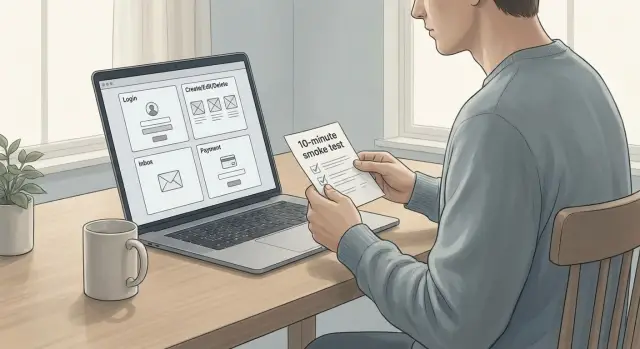
A smoke test is a fast check you run right after a release to answer one question: does the product still work in the ways that matter most? It’s not about finding every bug. It’s a quick pass/fail gate that catches the failures real users hit first.
Think of it as the minimum set of actions a customer would do: log in, complete the main action (create or update something), receive a key email, and (if you charge) complete a payment. If any of those break, you want to know in minutes, not after support tickets pile up.
Smoke tests aren’t full QA. They don’t replace automated tests, deep edge-case testing, accessibility review, or security testing. They also shouldn’t take an hour. If your release check needs a spreadsheet and a meeting, it’ll get skipped. The point is speed and repeatability.
A lot of failures only show up after deploy because production behaves differently than your laptop. The causes are usually boring but brutal: wrong environment variables (API keys, email settings, payment webhooks), rotated secrets, permission differences, migrations that ran but didn’t match what the code expects, or caching/CDN behavior that changes routes, cookies, or headers.
This is especially useful for founders shipping quickly with small teams, and for anyone relying on AI-generated code and rapid prototypes. When you move fast, a simple, consistent smoke test can be the difference between a calm launch and a fire drill.
Before you start: 2 minutes of setup
A 10-minute smoke test works best when you don’t improvise. Spend two minutes setting up a tiny “testing kit” so results are clear and repeatable.
First, pick the exact users you’ll test with. Use one normal account and one admin (or whatever roles your app has). Make sure the accounts are in a clean state: no half-finished onboarding, no expired trial, no locked profile.
Next, confirm where you’re testing. Write down the deployed environment (production, staging, or a preview) and the exact URL. A lot of “bugs” are just someone testing the wrong place or mixing up two versions.
Finally, make sure you can validate the two things you can’t fully “see” from the UI: email and payments. Have an inbox open for the test user (and check spam/promotions). If your app charges money, confirm you’re in the right mode (test vs live) and that you can access wherever you’d verify a successful charge.
Keep a simple note open and record results as you go. Don’t rely on memory.
Keep these items ready:
- Test user and admin credentials
- The environment name and URL you’re testing
- Access to the test inbox (and a way to search it)
- Where you verify payment outcomes (if applicable)
If something fails later, these notes (and a screenshot if needed) save hours of back-and-forth.
The 10-minute run: the simple step-by-step flow
Set a 10-minute timer and run the same route every time. The goal isn’t to prove everything works. It’s to catch the failures that block real users right after deploy.
Use a private browser window so you don’t get a false pass from cached sessions.
The fixed order (don’t improvise)
Run the checks in a strict sequence. That way you can compare results between releases and spot exactly where things broke.
- Open the app like a new user would (landing page to app).
- Log in (or sign up) and confirm you land on the expected first screen.
- Do the one core action your product is built around (create, update, and view the thing).
- Trigger one notification users rely on (email or in-app).
- If you charge money, run a small payment flow end-to-end in test mode.
What to do when something breaks
Treat the first serious failure as a stop sign. Don’t keep clicking around “to gather more info.” You’ll mix symptoms and waste time.
Write a small bug note that makes reproduction easy: what you clicked, what you expected, what happened, and any error message. A screenshot is helpful, but the steps matter more.
After a fix, re-test the broken area first using the same steps. If it passes, continue in order. Random re-checking creates confusion and hides root causes.
Go/no-go in one minute
Before you deploy, decide what must pass. Keep it small: login works, the core create/edit/view flow works, critical emails arrive, and payments succeed (if applicable). If any must-pass item fails, it’s a no-go even if everything else looks fine.
Login and authentication checks
Most smoke tests should start with auth, because one small change can lock everyone out. Use a private window (or a different browser) so you’re not accidentally using a cached session.
The 5 checks that catch most auth failures
Run these quickly, in order, and stop as soon as something looks off:
- Create a brand-new account (if sign-up is enabled) and confirm you land on the expected page.
- Log out, then log back in with the same user.
- Open a protected page while logged out (for example, your dashboard URL) and confirm you’re blocked or redirected to login.
- Use “forgot password” and complete the reset. Confirm the email arrives and the reset link works in a private window.
- After resetting, log in again and confirm you stay logged in after a refresh.
Keep the bar simple. You’re confirming the app can create a session, keep it, and protect private pages.
A common real-world failure: after a deploy, cookies get set for the wrong domain or marked “secure” in a way that breaks on your environment. The symptom looks like “login works,” but every refresh kicks you out.
If your app supports Google/GitHub login, do one quick pass with it too, but don’t let it replace the email/password check. Social auth can succeed while your own session handling is broken.
When any step fails, note the exact screen and message you saw.
Core CRUD flows in under 3 minutes
CRUD is create, view, edit, delete. If any of these break after a deploy, users feel it immediately. The goal here isn’t perfect testing. It’s a fast signal that your app is still usable.
Pick one “core object” your product lives on (a project, task, customer, invoice, listing). Use a test account and run the same loop every time.
The 3-minute CRUD loop
Move quickly and keep it simple:
- Create one new record with a short, unique name like “Smoke 2026-01-16 10:05.” Confirm it saves and you land where you expect.
- Find it again from the main list (or dashboard). If search or filters are key, use them once.
- Edit one obvious field (rename it). Check two places where that value should appear (detail page + list view).
- Delete it. Confirm it’s actually gone after refresh, not just hidden.
- Try one “bad input” once: leave a required field empty, paste very long text, or include special characters. You want clear, human error messages.
If anything fails, record what you did and what you saw. “Click Save -> spinner forever” is much more useful than “CRUD broken.”
What “good failure” looks like
A good app blocks bad input with a short message like “Name is required.” A bad app shows a blank page, raw error text, or silently discards changes.
If you rename a record, the detail page updates, but the list still shows the old name after refresh. That often points to caching, a failed background update, or a partial deploy.
Email and notification checks
Email is where “everything looked fine in the app” turns into “users think it’s broken.” A quick email pass is one of the highest-value parts of a smoke test because it catches missing keys, wrong templates, and blocked sending.
Trigger one real transactional email from the product (not from an admin tool). Good picks are password reset, invite, or a receipt.
Keep the check focused:
- Confirm the email arrives within a couple of minutes.
- Confirm the sender/from address look correct (not a placeholder).
- Scan for obvious template issues (like {{name}} showing up).
- Click the main button and confirm it lands on the right page and the action works.
Watch for signs that often show up after deploy even when the UI looks fine: long delays (workers/queues), duplicates (retries without idempotency), missing variables, wrong environment branding/links, or links that open but fail at the final step.
If you use invite emails, do one full run: send an invite, open it from a different browser (or private window), accept it, and confirm you land in the right workspace/account.
Example: you test password reset, the email arrives, but the button opens a page that says “token invalid.” That often points to a mismatch in your app URL, cookie domain, or secret keys between environments.
Payments and billing checks
Payments fail in predictable ways after a deploy: checkout stops working, the success callback never reaches your app, or the user pays but still looks unpaid. A quick payment pass is one of the most valuable checks you can run.
The one successful payment
Pick the cheapest plan (or a $1 test item) and run a full purchase end-to-end: from pricing to receipt.
- Start checkout and confirm the amount, currency, and plan name are correct.
- Complete payment and verify you land on a clear success page.
- Refresh the app and confirm the user state changes (active plan, access unlocked, credits added, whatever you sell).
- Open the user account or billing screen and confirm status matches what you just bought.
If you use a webhook, this is where issues show up. A common failure: payment succeeds, but access never updates because the webhook secret, endpoint, or environment variable changed.
Failed, canceled, and refund paths
Do one “bad” run on purpose (cancel at checkout, use a card that fails, or trigger any failure mode your provider supports). Users should see a normal message, not a spinner forever.
- Cancel or fail the payment and confirm the app explains what happened and what to do next.
- Confirm the user is not marked as paid (no access granted, no credits added).
- If your product supports refunds or canceling a subscription, test that flow once and confirm status updates after refresh.
Finally, check what your app displays and sends. Your UI and emails should not show full card numbers, security codes, API keys, or raw error dumps. A good rule: if you wouldn’t paste it into a support chat, don’t show it to a customer.
Quick checklist (copy and reuse)
Copy this into your release notes so you can run the same checks every time. Keep it consistent. The goal is to catch the common “it worked yesterday” failures right after deploy.
Release: __________ Date/time: __________ Environment: __________
What changed in this release (1-2 lines):
| Area | Check | Result (Pass/Fail/N/A) | Notes (what broke, screenshot, error text) |
|---|---|---|---|
| Login | Create a new account (or invite a test user) | ||
| Login | Log in, then log out, then log in again | ||
| Login | Password reset works end-to-end (email link opens, new password works) | ||
| CRUD | Create a core record (your “main thing”: project/order/task) | ||
| CRUD | Edit it and refresh the page (change is still there) | ||
| CRUD | Delete/archive it (it disappears from the list) | ||
| CRUD | List/search/filter loads without errors and shows expected items | ||
| You receive the key transactional email (welcome/reset/receipt) within 2 minutes | |||
| Email links land on the right page while logged out and logged in | |||
| Payments | Test checkout succeeds (correct price, correct currency, no double charge) | ||
| Payments | Payment status updates in-app (webhook processed, access granted) | ||
| Payments | Refund/cancel works (or mark N/A if you don’t support it) |
If anything fails, write the smallest detail that helps debug: the exact step, the user email used, and the error text.
Go/No-Go: ________ Owner: ________ If No-Go, rollback? ________ Follow-up ticket(s): ________
Common mistakes that make smoke tests miss real failures
The biggest trap is testing the app you wish you shipped, not the one users actually get. A smoke test should feel a little annoying: fresh browser session, real domain, real data, and the same permissions a normal user has.
A common miss is staying logged in as the developer or admin. That can hide broken permissions, missing onboarding steps, and pages that only work because you already have seeded data. Use an incognito window and a basic user account, or create a new one each time.
Another miss is testing the wrong environment. If you click around in a preview build but customers use production, you can miss the exact things that break after deploy: wrong environment variables, missing migrations, or a misconfigured callback URL.
Email is especially sneaky. It often works locally with a dev inbox, then fails in production because a provider key is missing, a sending domain isn’t verified, or messages land in spam. Treat every deploy like email might be broken until you see a real message arrive.
Auth is another common breakpoint. If you only test “log in works,” you can still ship broken logout, password reset, or session expiry.
A few habits make your smoke test catch more real issues:
- Test as a brand-new user and as a normal existing user (not only as admin).
- Test in the real deployed environment, not just local or preview.
- Verify an actual email arrives (and the link inside works).
- Include logout and password reset every time.
- If something fails, change one thing, retest, and write down what changed.
Don’t ignore “it’s just slow today.” Users hit timeouts, double-click buttons, and refresh mid-load. If a page is flaky during your 10-minute check, that’s often the first real production bug.
Example: catching a post-deploy failure in minutes
Maya runs a small SaaS. She ships a Friday change that “only touches UI” and deploys. Before announcing it, she runs her smoke test in a private window.
Everything looks fine until she tries password reset. The form accepts her email and shows a success message, but no reset email arrives.
Instead of guessing, she checks scope fast. She creates a brand-new test account to trigger the welcome email. That one arrives. Then she tries “change email” (if her app sends a confirmation). That arrives too. So it’s not “all email is broken.” It’s specifically the password reset path.
That points to a common post-deploy failure: one template, one endpoint, or one background job failing while the rest of the system looks healthy. In Maya’s case, the password reset message was moved to a new template ID, but the production environment variable still pointed to the old one.
Now she makes a simple decision:
- If users can’t log in, rollback first, then fix.
- If only password resets are affected and the fix is safe, ship a hotfix.
- Either way, post a short status note so support isn’t surprised.
She chooses a hotfix, updates the template ID, redeploys, and reruns the reset step. Email arrives in under a minute.
Last, she updates her checklist for next time: “trigger password reset and confirm email received” plus “verify the specific email template/worker is healthy, not just general email sending.”
Next steps when something fails (and how FixMyMess can help)
When a smoke test fails, treat it as a stop sign, not a speed bump. If the same failure happens twice, blocks sign-ups or payments, or looks like a security issue (exposed data, odd admin access, leaked keys), stop the release and roll back if you can.
A simple rule: if users can’t log in, create data, or pay, you’re no longer “testing.” You’re shipping a broken product.
Capture a small packet of info before you ask someone to fix it. It saves hours and speeds up the repair:
- Exact steps you took (1, 2, 3), starting from a fresh browser tab
- What you expected vs what happened (include error text)
- Screenshot or short screen recording
- Timestamp and timezone
- Environment details (production vs staging, browser, account email)
Then turn the checklist into a habit. Run it right after deploy, and again after any hotfix. If you track issues, tag them consistently (login, CRUD, email, payments) so patterns stand out.
If your app was generated by tools like Lovable, Bolt, v0, Cursor, or Replit, post-deploy failures are often symptoms of deeper problems: broken auth, exposed secrets, messy architecture, or unsafe database queries. In those situations, patching the one error message isn’t always enough.
If you inherited an AI-generated codebase that keeps breaking after deploy, FixMyMess (fixmymess.ai) can run a free code audit and then remediate the root causes, from auth and logic repair to security hardening and deployment prep.