Safe account access when getting help: separate logins
Learn safe account access when getting help: create separate logins, limit permissions, track activity, and revoke access so you never share personal passwords in chat.
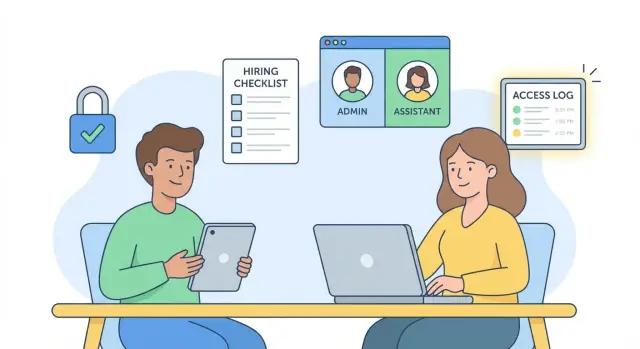
Why password sharing over chat goes wrong
Sending a password in a chat message feels fast, but it’s one of the easiest ways to lose control of an account. Even if you delete the message, you can’t know whether it was copied, forwarded, or saved somewhere else.
Chat tools are built for conversation, not security. Messages sync across devices, get backed up, and can show up in notifications on a locked screen. If the person helping you is on a shared computer, has a compromised browser, or is juggling multiple clients, your password can leak without anyone meaning to.
The uncomfortable truth is that problems happen even with people you trust. A helper might save your credentials in a password manager you don’t control, paste them into the wrong place, or keep them “just in case” so they can jump back in later. Trust changes how safe it feels, not how safe it is.
“Temporary” access also tends to stick around. A task runs long, you need one more tweak next week, then another next month. If you shared a password, the only clean way to end access is to change it everywhere, which often breaks your own logins and connected apps.
Safe account access when getting help comes down to three goals: keep control, keep visibility, and make removal easy. The default approach is simple: give helpers their own login, limit permissions, and make sure you can see what changed.
Key ideas: separate logins, permissions, and visibility
When someone needs to help with your site, app, or billing setup, the safest default is to never hand over your personal password in chat. Instead, create a separate login for them (or invite them as a user) and give only the access they actually need.
It helps to name the type of account you’re dealing with:
- Personal identity accounts are tied to you (email, banking, password managers). They often control recovery for everything else.
- Work accounts are yours but used for business.
- Team accounts are owned by the business and are meant for multiple users.
Whenever possible, helpers should use a team account or their own work login, not your personal one.
Also remember: a login is more than a password.
- Password proves you know the secret.
- 2FA proves you have the device.
- Recovery email/phone decides who can reset the account.
- Backup codes can bypass a lost device.
Finally, don’t mix up authentication and permissions. Authentication is who someone is (their login and 2FA). Permissions are what they can do once inside (view, edit, deploy, manage billing). You want clear identity and limited power, plus an audit trail so you can see who did what.
Decide what kind of account you are granting access to
Before you grant access, pause and name what the account controls. This one step often determines whether a quick fix stays safe or turns into weeks of cleanup.
A practical way to decide:
- Personal identity accounts (email, banking, password managers): Avoid sharing access. If someone needs to guide you, use a live screen-share and you do the clicking.
- Admin dashboards (site admin, ads, analytics, CRM): Add them as a separate user with limited rights.
- Cloud hosting and databases: Use role-based access. Avoid root keys for day-to-day work.
- Source code and deployments: Add them to the repo or deployment tool under their own account so changes are attributable and reversible.
If you’re unsure, ask one question: can this login change passwords, billing, or production data? If yes, treat it as high risk and don’t share it directly.
Example: you hire a freelancer to fix a bug in an AI-generated app. Instead of giving them your email “so they can verify things” and a hosting root key “so they can deploy fast,” invite them to the code repo and give them a limited cloud role that can deploy but can’t touch billing or secrets. You keep ownership, and you can remove access cleanly later.
If your project is already messy (unknown keys, broken auth, unclear roles), FixMyMess can audit the code and access setup and help you rebuild safer access while the repair work is happening.
Step-by-step: create a separate login the right way
The goal is straightforward: the helper can do the work without ever seeing your personal password.
Start by choosing the system that should “own” access. Use the tool that actually controls the work: Google Workspace or Microsoft for docs and email, GitHub for code, your hosting dashboard for deploys, your app admin panel for settings. Avoid a shared inbox or a single “admin” login that gets passed around.
A clean setup usually looks like this:
- Invite them through the tool as a new user (don’t reuse your login).
- Give the smallest role that still lets them finish the task.
- If you control the account, turn on 2FA and keep recovery options with you (not with the helper).
- Set an end date or at least a calendar reminder to review access.
- Write down what you granted and why (a single line in a notes doc is enough).
Example: if you’re asking FixMyMess to diagnose a broken AI-generated app, invite access to the specific repo and hosting project using a separate account and a limited role. Work can move quickly, and you can revoke access in one place when you’re done.
If you can’t find a limited role that fits, treat that as a warning sign and rethink the access path before handing over broad admin power.
Set permissions so helpers can do the job, not everything
Separate logins are step one. Step two is limiting what that login can do.
Start with the least power that still allows progress. If the job is “find what’s broken,” begin with read-only access to analytics, logs, and error reporting. You can always grant more later. Undoing damage is harder.
Be especially cautious with actions that are hard to reverse:
- Billing and payment settings
- Deleting data, projects, users, or backups
- Changing authentication, MFA, or password reset settings
- Managing API keys, secrets, and integrations
- Admin roles and ownership transfer
If your product supports separate environments, use them. Testing in staging (or a safe copy of data) prevents surprises in production.
Some services support scoped, time-limited tokens. If that’s available, use the smallest scope and set an expiry. Renew only if needed.
A solid rule: if a helper could lock you out or run up charges, the permissions are too broad. When FixMyMess repairs broken AI-generated apps, we ask for the minimum access needed and confirm steps before anything sensitive changes.
Safer alternatives to sending passwords
The safest password to share is the one you never send.
A few practical options:
- Invite-based access: Add them as a user with limited permissions.
- Short-lived tokens/keys: Create a scoped credential, then delete it after the task.
- Temporary accounts: Create one you can disable the same day.
- Password manager sharing: If you must share a credential, use a password manager’s sharing feature so you can revoke access later.
- Immediate rotation: If a password was ever exposed, change it right after the work is done.
Be careful with “harmless” screenshots
Screenshots can leak more than you expect: backup codes, API keys, QR codes for 2FA setup, browser password prompts, workspace names, account IDs, even partial card details.
If someone asks for a screenshot “to confirm settings,” double-check what else is visible. For app work, it’s usually safer to invite a helper to a separate account or environment than to send screenshots or personal logins.
Teams like FixMyMess generally work best with controlled access. If you tell us what platform you’re on, we can specify what we need without asking for your private passwords.
Track access and keep an audit trail
Security isn’t only about how you grant access. It’s also about being able to see what happened and when.
Check sign-in history and active sessions anywhere you granted access. Look for new devices, new locations, and sessions that stay active longer than expected. Turn on alerts for new logins and security changes if the service supports it.
Keep a simple access register (a note is fine): who has access, what they can do, when it started, and when it should end. If something important changes (billing, auth settings, a deploy), write down what changed and when.
Red flags worth acting on immediately:
- An admin user appears that you don’t recognize
- 2FA is disabled or reset
- Logins at odd hours or from unusual locations
- New API keys or tokens created without a clear reason
- Many failed logins followed by a successful one
If you inherited an AI-generated codebase with unclear permissions or missing logs, FixMyMess can help map who has access, tighten roles, and verify security changes during a repair.
Common mistakes that create long-term risk
Big security problems often start as a “quick fix.” The most common pattern is sharing the one login that always works: your main admin account. It’s convenient, but it gives the helper the same power you have and makes it harder to tell who changed what.
Another mistake is granting full admin rights “just in case.” If the task is specific (update billing info, fix a signup bug), broad access usually isn’t needed. Those extra permissions tend to stick around, and months later nobody remembers why.
2FA can also quietly go wrong. If a contractor enrolls 2FA using their phone or authenticator app, your account becomes tied to their device. Even if you change the password later, they may still approve logins or block you from signing in when you need it.
Password reuse is the slow leak that turns a small mistake into a bigger incident. One breach becomes many.
If you inherited an AI-generated app with messy auth and unclear access, FixMyMess can help you repair it without turning access into a long-term liability.
Quick checklist before and after someone helps
Before they start
- Invite them as a separate user instead of sharing your credentials.
- Make sure 2FA and recovery options belong to you.
- Grant the smallest role needed (especially around billing and admin).
- Write down who has access and what they’re responsible for.
- If you must share a secret, create a new limited key that you can delete later.
Send one short scope message too: what they should change, what they should not touch, and when you’ll review the result.
After the work is done
- Review sign-in logs and recent activity.
- Confirm billing, admin roles, connected apps, and security settings.
- Revoke access as soon as the task is complete.
- Rotate any secrets they could have seen (API keys, database passwords, webhook tokens).
- Save a short note of what changed.
If the project is an AI-generated app and you’re unsure what secrets might be exposed, FixMyMess can run a free code audit and point out risky authentication, leaked keys, and permission problems before they become a bigger issue.
Example: hiring a freelancer without handing over your password
A founder hires a freelancer to fix a broken login flow in a web app. The app was built fast, and now real users can’t sign in. The founder’s first instinct is to paste passwords in chat so the freelancer can “just get in and fix it.” That’s how accounts get taken over later.
A safer approach is to give the freelancer their own login and only what they need for this task.
For a login-flow fix, they typically need: access to the code repo, a place to see server errors, and a safe way to test sign-ins without touching your personal accounts.
A reasonable access package is usually:
- Repo access under their own account
- A hosting/deploy role that can view logs and redeploy (without ownership or billing control)
- Read-only access to monitoring where possible
- Test accounts or a staging environment
During the work, watch basic signals: unusual sign-in locations, unexpected new API keys, or changes made outside the agreed window.
When the fix is done, treat cleanup as part of the job: remove access, rotate any exposed tokens, disable temporary test users, and document what changed.
If the login problem is tied to exposed secrets or broken auth logic in AI-generated code, FixMyMess can take over the repair without you sharing personal passwords in chat.
Next steps: tighten access now, and get expert help if needed
The best time to fix access is right after someone helps, while everything is still fresh. Spend 15 minutes reviewing the tools that matter most: email, cloud hosting, databases, payment tools, analytics, and your code repo. Confirm who has admin rights, remove stale invites, and document what you changed.
If you suspect exposure, assume the credential is already known: change the password, rotate tokens and API keys, review active sessions, and confirm 2FA is still enabled. Also look for “quiet” access like connected OAuth apps, deploy keys, or personal access tokens created during troubleshooting.
AI-built prototypes deserve extra caution. Secrets often end up where you don’t expect them: client-side code, sample config files, logs, or a “temporary” key that never got removed. Even if you never shared a password, an exposed key can lead to the same outcome.
If you’re stuck untangling access, authentication, or security in an AI-generated app, FixMyMess (fixmymess.ai) can start with a free code audit to identify what’s risky and what to fix first. If you proceed, we can repair and harden the code quickly (most projects finish in 48-72 hours) with AI-assisted tooling plus expert human verification.