Safe workflow for AI code changes that keeps builds stable
Use a safe workflow for AI code changes to freeze scope, review diffs, and track edits so your app stops regressing and stays deployable.
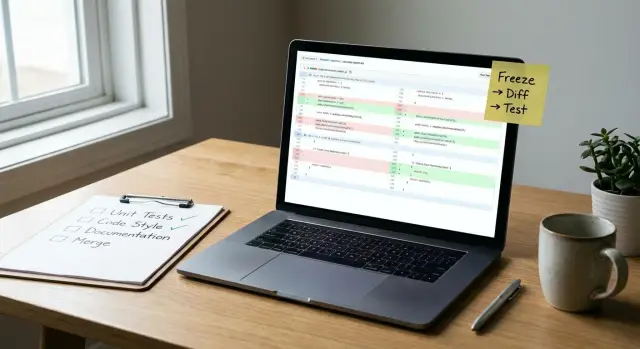
Why your AI tool keeps breaking things
When an AI coding tool regenerates, it often does more than make a small change. It may rewrite whole files, reorder imports, rename variables, swap libraries, or “clean up” code that looked messy to it. The surface feature looks the same, but the logic underneath shifts, and that’s how working parts quietly break.
Small prompt tweaks can trigger big regressions because the model isn’t editing like a careful teammate. It’s re-synthesizing an answer. Change one line like “use Prisma instead” or “make it more secure,” and the tool might rebuild the solution from a different path, touching authentication, database queries, routing, and config. That’s why you can “fix” one bug and end up with three new ones.
A few signs you’re stuck in a break-fix loop:
- Each regeneration changes many unrelated files
- The same bug returns in a different form
- Builds pass, but core flows (login, checkout, upload) fail
- You avoid pulling updates because you fear what changed
- No one can explain why a line was edited
A safer workflow is simple: fewer surprises and faster recovery. You want changes to be small, reviewable, and reversible.
Pick a scope you can actually freeze
Start by shrinking the target. Most breakages happen because the AI is allowed to touch too much at once. A small, clear scope is the simplest way to stop surprise rewrites.
Decide what’s allowed to change, and make everything else off-limits. Be specific. “Fix login” is vague. “Fix login error when returning users sign in, without changing the UI” is much safer.
Write a one-sentence definition of done for this iteration. Describe the user outcome, not the implementation. For example: “A user can sign up, log in, and reach the dashboard on both desktop and mobile.” If you can’t test it in a minute, it’s probably too big.
Freeze new features while you stabilize. Adding features mid-fix creates a moving target and encourages the tool to regenerate parts you already checked.
A simple scope template:
- Goal (done sentence): one line
- Allowed changes: 2-3 files or one area (auth, checkout, etc.)
- Off-limits: styling, database schema, deployment, anything not related
- Success check: 2-3 quick actions you can repeat
Time-box the iteration. Pick a window (like 60-90 minutes) where you only accept changes that move you toward “done.” If you miss the goal, stop and re-scope. That decision alone prevents endless regeneration cycles.
Create a restore point before you generate again
Before you ask an AI tool to “fix” or “add” anything, make sure you can get back to a known-good state in one step. This keeps a small change from turning into a long, confusing recovery.
A restore point is just a clean snapshot: the last version that builds, runs, and still does the core job.
If you use Git, do this work in a separate branch, not on your only branch. If you don’t use Git yet, make a copy of the whole project folder (and name it clearly, like app-restore-2026-01-21). The key rule: never generate on the only copy you have.
Make the snapshot easy to roll back to. That usually means a tagged commit or a single folder you can swap back in.
A restore-point routine that works for most projects:
- Confirm the app still runs (or builds) before you start.
- Save a snapshot (new Git branch/tag, or a dated folder copy).
- Write a 1-2 sentence note of what you’re asking the AI to change.
- Keep the AI output and your prompt together (paste into a text file in the repo).
- Decide your rollback action upfront (for Git: switch back to the baseline branch and discard changes).
That short note matters more than people expect. Two days later, “it broke again” is hard to debug, but “AI changed auth callback and touched database schema” gives you a clear place to look.
A workflow you can follow every time
Treat AI code changes like handling something fragile: move in short steps, check each step, and don’t carry more than you can inspect.
The 5-step loop
Freeze the scope first. Write a tiny task list you can finish today, like “fix login redirect” or “stop secret keys from showing in the client.” If the task isn’t clear, the AI fills the gaps with guesses.
Generate changes for one task at a time. Give the AI a narrow prompt and tell it what files it’s allowed to touch. If it starts reorganizing folders or renaming things, you’ve left the safe zone.
Before you accept anything, review the diff and reject unrelated edits. Watch for classic surprise changes: formatting across many files, dependency upgrades, renamed exports, and “cleanup” changes that aren’t tied to your task.
Run quick checks, then merge only when stable:
- install and build
- run the fastest tests you have
- click through the one screen you changed
- confirm no secrets were added to the repo
Repeat in small cycles, not big rewrites. If you’re stuck in a loop where the same bug returns, stop generating and switch to diagnosis: find the root cause, lock versions, and repair the logic once.
How to freeze changes so the AI stops rewriting everything
If your tool keeps regenerating the same areas, the problem usually isn’t the model. It’s that your “allowed change area” is undefined, so every new prompt becomes permission to rewrite working code. Draw a hard boundary around what is allowed to move.
Freeze the surface area
First, turn off anything that makes wide edits by default. Auto-formatting, “clean up” passes, and broad refactors can change hundreds of lines without improving behavior. That makes regressions hard to spot.
Then lock down the parts that should not change unless you explicitly request it:
- Pin dependency versions so you don’t get surprise upgrades.
- Mark critical files as read-only or “do not edit”: auth, env/config loading, database schema/migrations.
- Tell the AI exactly which files it may edit, and name the specific function or component.
- Add success criteria: expected inputs, outputs, and one or two edge cases.
- If a module works, say so: “Do not modify X. Only change Y to fix Z.”
Make prompts behave like change requests
Treat each prompt like a tiny ticket. Include file names, the behavior you want, and how you’ll know it’s correct. For example: “In login.ts, fix the session cookie not persisting after refresh. Do not change auth.middleware.ts. Success: user stays logged in after reload, and logout clears the cookie.”
If you inherited a prototype where the tool “helpfully” rewrites auth and config on every run, freezing those files often stops the loop immediately.
How to review diffs without getting overwhelmed
Diffs get overwhelming when a tool touches 30 files for a 1-file request. Read changes in layers: first spot the “why did this change?” edits, then verify the risky areas.
Start with a quick scan for unrelated edits. Renames, big formatting shifts, and deleted blocks can hide real logic changes. If the diff is mostly whitespace or reordering, revert the noise and keep only the smallest set of meaningful lines.
Then focus on the places where small tweaks cause big problems:
- Auth and permissions: login checks, role gates, middleware, admin-only routes
- Secrets handling: env vars, API keys, tokens, logging of sensitive values
- Data shapes: API response fields, request validation, DB queries, migrations
- Error handling: default values, retries, “catch and continue” patterns
- Config changes: ports, build scripts, feature flags, dependency versions
After that, look for silent behavior changes. AI often “improves” things by changing defaults (like pagination size), relaxing validation, or returning success on partial failure. These are easy to miss because the code still looks clean.
A simple check: write the request in plain language in one sentence, then confirm the diff matches it. If you asked “add a profile photo upload,” the diff shouldn’t also change password rules, rewrite routing, or alter the users table without a clear reason.
If you keep regressing, label each diff chunk as required, suspicious, or noise. When everything looks suspicious, stop regenerating and get a human review.
Track what was edited and why it changed
Keep a tiny change log. AI tools can make lots of edits fast, but memory fades even faster. A simple record stops the project from turning into guesswork.
Use one place your team already checks (a doc, a note in your repo, or the merge request description). Keep it boring and consistent. Each cycle should answer three questions: what changed, why it changed, and who approved it.
A simple format:
- What changed (files or features touched)
- Why (goal, bug fix, refactor, security issue)
- Prompt used (copy/paste the exact text)
- Output summary (what the AI claims it did)
- Approved by (name + date)
Prompts matter because they explain intent. When something breaks later, you can see whether the AI was asked to “clean up” (risky) or “only change X and nothing else” (safer).
Tag risky edits so they get extra eyes. Mark anything related to auth, payments, file uploads, admin screens, permissions, or secrets. These are the areas where “small” changes can become major incidents.
Also keep a short postponed list: known issues you decided not to fix yet. For example, “Password reset email is flaky, postpone until after launch.” This stops the tool from repeatedly “helping” by revisiting the same unfinished work.
Quick tests that catch most breakages fast
To keep an AI-generated codebase stable, test right after you accept a diff, not after you stack three more changes on top. Think of it as a 2-minute smoke test that answers one question: did we break the app’s basic promise?
Run the same tiny set of checks every time, even if the change feels small. Small changes often hit shared pieces like auth, routing, or validation.
A simple smoke test you can repeat after each accepted diff:
- Open the app from a fresh session (new tab or private window) and confirm it loads without errors.
- Log in (or sign up) and reach the first screen that matters.
- Complete the core flow once (the one action users come for).
- Trigger one error path on purpose (wrong password, empty required field, invalid input) and confirm the message is sane.
- Refresh the page mid-flow and confirm the state doesn’t explode.
When you fix a bug, add one quick regression check for it. If you fixed “checkout crashes when quantity is 0,” keep a one-step check that sets quantity to 0 and confirms you get a friendly validation message.
Know when to stop and revert instead of piling on fixes. Revert if:
- The smoke test fails in more than one place.
- You see new errors you didn’t touch.
- The “fix” changes many unrelated files.
- You can’t explain what changed and why.
- You tried two fixes and the same bug returns.
Example: a prototype that keeps regressing after each regeneration
A founder has a working prototype: a dashboard, a settings page, and a simple login. They use an AI tool to “regenerate the UI” to make it look nicer. The next build succeeds, but login gets weird: unauthenticated users can open the dashboard, and some API calls start failing.
They start by reviewing the diff, not the app. The diff shows a small but important edit: a route guard (or middleware) that used to block access to private pages was removed when the tool rewrote the router file. Nothing else looks obviously wrong, but that one deletion explains the whole behavior.
Next, they freeze scope so the tool can’t touch backend logic. They lock the prompt to “UI only,” restrict file access to the frontend folder, and explicitly mark auth, API, and database files as off-limits. On the next regeneration, the UI changes land without rewriting the login flow.
They also keep a tiny change log for each cycle:
- Regen #12: UI refresh, router file changed, auth guard accidentally removed
- Fix: restore guard, add quick test for protected route
- Freeze: frontend-only edits, auth files excluded
“Done” for this cycle is clear: the UI looks updated, the auth guard is back, the diff is small and understood, and a basic check confirms signed-out users can’t reach private pages.
Common traps (and how to avoid them)
AI coding tools fail most often when you treat one run as both a repair and a redesign. A safe workflow is mostly about separating concerns and refusing mystery edits.
Trap: changing too much in one pass
The quickest way to create regressions is to ask for refactors and new features in the same prompt. The model will “improve” working parts while adding the feature, and you lose the ability to tell what caused the break.
Keep each pass single-purpose: fix a bug, refactor one module, or add one small behavior. If you need both, do them in separate branches or separate sessions.
Trap: trusting big diffs and green builds
Large diffs are where broken auth, missing edge cases, and accidental deletes hide. And a green build only means the code compiles and tests (if any) pass. It doesn’t prove the user flow still works.
Counter-moves that prevent pain:
- Don’t refactor and add features together. Write a one-line goal and reject anything outside it.
- Don’t accept huge diffs without reading. Cap the change size (touch only these files) and re-run in smaller chunks.
- Don’t mix dependency upgrades with behavior changes. Do upgrades in their own PR so breakages have one clear cause.
- Don’t edit production config while experimenting. Keep a separate local config and promote changes only after review.
- Don’t assume builds mean “works.” Click the main path (sign up, sign in, core action, logout) and check logs for silent errors.
A short checklist you can reuse
When AI keeps regenerating files, you need a repeatable routine.
- Before you generate: create a restore point (commit, zip, or backup), write down the scope for this change, and set “do not touch” rules (auth, database schema, env config, deployment files, and any file you already fixed by hand).
- Right after you generate: scan the diff first, not the app. Reject edits unrelated to your scope (formatting churn, renamed files, new dependencies, rewrites of stable modules), and keep only the smallest set of changes that matches the goal.
- Record decisions immediately: add 2-3 lines to a change log: what you asked for, what the AI changed, what you accepted, and what you reverted.
- Before you merge or deploy: run a smoke test (start the app, sign in, create one real record), do a basic security pass (check for exposed secrets, unsafe SQL patterns, and debug endpoints), and make sure rollback is one step away.
- Once a week (or after a big regen): prune abandoned files, pin versions you now trust, and re-freeze the scope for the next round.
Next steps when the loop won’t stop
If the same area breaks twice after regeneration, stop treating it like a small bug. It’s usually structural: unclear requirements, tangled code, missing tests, or a prompt that keeps reintroducing the same wrong assumption. Continuing to patch it often makes the next regeneration worse.
A good next move is a focused audit of the areas that cause the most painful failures in AI-built apps: authentication flows, secrets handling, and overall architecture. Broken auth and exposed keys aren’t “later” problems. They block shipping and can create real risk if the project touches customer data.
Sometimes it’s faster to rebuild one module cleanly than to keep patching. Rebuild makes sense when the code is hard to explain in plain language, changes in one file break unrelated screens, or you keep seeing the same errors return after each regeneration.
Practical options when you’re stuck:
- Freeze regeneration for the problem area and accept only hand-edited fixes until it’s stable.
- Replace the module with a minimal, well-tested version (auth, payments, data access are common candidates).
- Isolate the module behind a clear interface so future AI edits can’t spill into other parts.
- Do a security pass to remove secrets from code and lock down inputs that could allow injection.
- Bring in an external audit when the team is guessing and losing time.
If you inherited an AI-generated app that won’t hold together, FixMyMess (fixmymess.ai) focuses on diagnosing and repairing AI-made codebases: logic fixes, security hardening, refactoring, and deployment prep. A quick audit can help you identify what to lock down first before you run another regeneration.
FAQ
Why does my AI coding tool break working features when I only asked for a small change?
AI tools often regenerate a solution instead of applying a small, careful edit. That can rewrite whole files, change imports, rename variables, or swap libraries, so the app still “looks” the same while the underlying logic shifts.
How do I choose a scope that the AI won’t accidentally expand?
Write a one-sentence “done” outcome and define what is allowed to change. The safest default is to limit edits to a small area or a few specific files and explicitly say what must not be touched, like auth, config, or database schema.
What’s the simplest restore point setup before I regenerate code again?
Create a restore point you can return to in one step. In practice that means working on a separate Git branch or making a clearly named copy of the project folder before generating any new changes.
How should I write prompts so the AI changes only what I intended?
Treat the prompt like a change request: name the exact file, the behavior you want, what must stay unchanged, and how you’ll verify success. The more specific your boundaries are, the less “permission” the AI has to reorganize unrelated parts.
How can I review big diffs without getting overwhelmed?
Start by scanning for unrelated churn like formatting-only edits, mass renames, dependency changes, or big refactors. If the diff doesn’t clearly map to your one-sentence goal, revert the noise and re-run with a tighter scope.
How do I stop the AI from rewriting the same files every time?
Freeze the surface area by turning off broad cleanup behavior and drawing hard boundaries around critical modules. If possible, make sensitive files effectively off-limits and keep dependencies pinned so you don’t get surprise upgrades that ripple through the app.
What quick tests catch most AI regressions fast?
Run the same short smoke test immediately after each accepted change. A good default is to verify the app loads cleanly, you can complete the core flow (like login), and a basic failure case shows a sane error without breaking the session.
When should I stop trying to patch and just revert?
Revert when the change touches lots of unrelated files, the smoke test fails in multiple places, or you can’t explain what changed and why. If you’ve tried two fixes and the same bug returns, stop regenerating and switch to diagnosis instead of stacking more edits.
Do I really need a change log for AI-generated edits?
Keep a tiny change log that captures intent and accountability. A short note of what you asked for, what changed, and what you accepted makes later debugging faster because you can connect a regression to a specific prompt and diff.
When is it worth bringing in FixMyMess instead of regenerating again?
Get help when auth, secrets, or core flows keep regressing, or when the code is hard to explain and each fix causes new failures elsewhere. FixMyMess specializes in diagnosing and repairing AI-made codebases, and a free code audit can tell you what to lock down first; most projects are completed in 48–72 hours with a 99% success rate after human verification.