Secure file downloads with signed URLs: a practical setup
Secure file downloads with signed URLs: stop path traversal, enforce safe content types, and expire links so private files stay private.
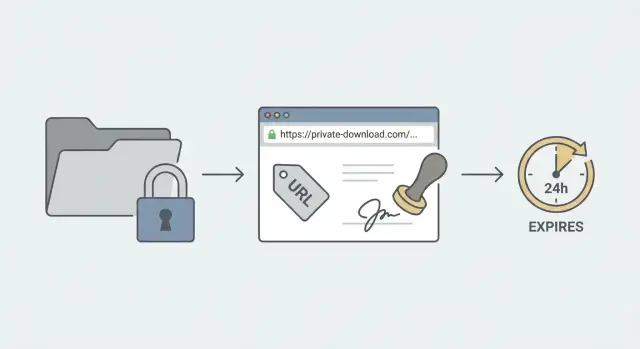
Why private downloads accidentally become public
Most “private downloads” start as a simple idea: put a file on a server, add a route like /download?file=..., and rely on the app to only show the button to logged-in users. The problem is that files aren’t downloaded from the button. They’re downloaded from an address that can be copied, shared, guessed, or hit by a script.
A common failure is serving a private file the same way you serve a public page. If the download URL works without strong checks every time it’s requested, it doesn’t matter where it was shown. Anyone can call the endpoint directly, and the app may return the file.
“Hidden URLs” aren’t protection. Random filenames and long folder paths only slow down casual guessing. They don’t stop:
- A user sharing the link with someone else
- Browser history, logs, screenshots, or support tickets leaking the URL
- Bots scanning for predictable patterns (like
/uploads/or/invoices/) - A bug exposing a directory listing or allowing
../tricks
Download endpoints are attractive targets because they often touch sensitive data (invoices, contracts, exports) and because they’re easy to test: send requests, watch what comes back, repeat. If the endpoint accepts a filename from the request, an attacker can probe for other users’ files or try path traversal to escape the intended folder.
Signed URLs change the rules by making the URL itself carry proof that it was issued by your server for a specific purpose. A proper signed URL usually binds together what file is allowed, what permissions apply (sometimes via user or tenant scope), and how long the link should work.
Signed URLs still aren’t magic. They don’t fix a broken authorization model, and they don’t help if your server signs “any path the user asks for.” They also don’t prevent someone from sharing a link while it’s still valid.
A simple example: a customer support agent copies an invoice download URL from an admin tool and pastes it into a chat. If that URL is just “secret-looking,” it may work forever and become a permanent public endpoint. If it’s a signed, expiring link tied to that invoice, it’s harder to misuse and it stops working after a short window.
Signed URLs, explained without jargon
A signed URL is a normal download link with an extra “proof” attached. The proof is a signature: a short string your server creates using a secret key that only the server knows.
When someone clicks the link, the server can tell whether the URL was issued by your app or tampered with. That’s the core idea.
What is actually being signed?
The signature is calculated over a few specific values, turned into a single message, then “sealed” with your secret key. A typical signed download includes:
- The file identifier (not a raw filesystem path)
- An expiration time (a timestamp)
- Optional context like user ID, tenant ID, or intended action (download)
- Sometimes the HTTP method (GET) so the signature can’t be reused for other requests
If any of those parts change, the signature no longer matches.
Expiration matters because links leak. People forward them, browser history stores them, logs capture them, and screenshots happen. Expiring download links limit the blast radius when that leak is inevitable.
What the server checks before sending the file
When a request comes in, your server repeats the same signing calculation using the values in the request. If the computed signature matches the one in the URL, and the timestamp is still valid, the request passes the first gate.
After that, the server still enforces real permissions. If Alice clicks a link to Bob’s invoice, the signature might be valid, but Alice should still get a “not allowed” response because the file doesn’t belong to her.
Signed URLs show up in a few common forms:
- Query parameters (easy to use, most common)
- Authorization headers (clean URLs, harder to share)
- Cookies (useful for browser downloads without exposing tokens in the URL)
A common mistake in prototype code is implementing signing “halfway” (signature check only, no ownership check). That’s how private files become public once a URL format is discovered.
Prevent path traversal by never trusting file paths
Path traversal is what happens when an app lets a user influence the file path and the user uses that to reach files they should never see. The classic example is ../ (go up a folder), but attackers rarely stop there. They try URL-encoded versions like %2e%2e%2f, double-encoded strings, backslashes (..\\) that work on Windows, or odd separators that get normalized later by the OS.
This is why letting a download endpoint accept something like ?file=reports/2025/invoice.pdf is risky. Even if you add a quick check for ../, you can still get burned by decoding order (decode once vs decode twice), mixed slashes, or a framework that normalizes the path after you validated it.
The safer pattern is simple: users never pass a path. They pass an opaque ID (or a signed token), and the server looks up the real storage location.
Example: instead of GET /download?file=..., use GET /download?docId=8f31.... On the server, fetch docId from your database, confirm the requester is allowed to access it, then read the exact stored path (or object key) that you created. The user never gets a chance to “aim” your file read call.
If you must work with paths (for example, local disk storage), normalize and validate before any file access. A good rule is: build the final path from a known base directory plus a known-safe relative name, then confirm it still stays inside the base directory after normalization.
Practical checks that hold up better than fragile string filters:
- Reject absolute paths (ones that start with
/,\\, or a drive prefix likeC:). - Decode once, normalize, then validate. Don’t validate the raw string.
- Block unexpected separators (mixing
/and\\) and null bytes. - After joining base + requested, confirm the normalized path begins with the normalized base.
- Prefer an allowlist of known file keys from your database over any user-provided filename.
A lot of broken download handlers get this wrong because they focus on the signed URL part and forget that the path is still attacker-controlled.
Enforce content types so files cannot run as web pages
Signed URLs control who can fetch a file. They don’t control how a browser treats that file after it’s fetched. If you serve an uploaded file with the wrong headers, a “download” can turn into a web page that runs in your user’s session.
A common surprise is content type sniffing. Even if you send a generic type, some browsers try to guess what the file is. If the content looks like HTML or JavaScript, the browser may render it instead of downloading it. That’s how a harmless-looking upload becomes a script that runs.
Set the right headers every time
Make your download endpoint the single place that sets headers. Don’t rely on whatever the storage layer “thinks” the type is.
At minimum, set these on the response:
Content-Type: only allow types you expect (for exampleapplication/pdf,image/png).Content-Disposition: attachment; filename="...": forces a download instead of inline rendering.X-Content-Type-Options: nosniff: tells the browser not to guess.
Also treat the filename as untrusted input. If you build filename from user data, strip path separators and control characters. Keep it boring: letters, numbers, dots, dashes, underscores. If you need the “pretty” name, store it separately from the storage key.
Block risky types and use a safe default
If users can upload files, decide what you will never serve back as-is. HTML, SVG, and anything script-like are high risk because they can execute when opened.
A simple policy that works well:
- Allow a small list of known download types (PDF, common images, CSV if you need it).
- Reject or quarantine
text/html,image/svg+xml, and any JavaScript-related types. - If a file’s type is missing or doesn’t match your allowlist, serve it as
application/octet-stream. - Always use
Content-Disposition: attachmentfor user-uploaded files.
Concrete example: if someone uploads “invoice.html” but you serve it with Content-Type: text/html and inline display, opening the link can run scripts. If you force application/octet-stream plus attachment, the same file becomes a download that won’t execute in the browser.
How to sign and validate URLs safely
A signed URL is only as safe as what you sign and how strictly you validate it. The goal is simple: the server should be able to prove the request was allowed for a specific file, for a limited time, and (if needed) for a specific user, without trusting anything the browser sends.
A safe signing pattern
Keep the signing secret on the server only. Don’t ship it to the client, don’t put it in environment variables exposed to the browser build, and never include it in the URL. The URL should carry only public data plus a signature.
Sign a small, strict set of fields and treat everything else as untrusted. A practical minimal set is:
rid: a resource ID (not a file path)exp: an expiry timestampsub: a user ID or tenant ID when downloads are user-scopedsig: the signature (for example, an HMAC)
On the server, create a canonical string in a fixed order (for example rid=...&exp=...&sub=...). Then sign that exact string. When validating, rebuild the canonical string from the parsed values, recompute the signature, and compare.
Use constant-time comparison for the signature check. Normal string equality can leak tiny timing differences that help attackers guess a signature over many requests.
Be strict when parsing. If a field is missing, duplicated, malformed, or out of range, reject the request. Also reject any extra parameters you didn’t sign. Otherwise someone can append &role=admin or &download=true and trick downstream code that reads those values.
Here’s the shape of the validation logic (language-agnostic):
allowed = {rid, exp, sub, sig, kid}
if any query key not in allowed: reject
parse rid, exp, sub (strict types)
if now > exp: reject
canonical = "rid=...&exp=...&sub=..."
expected = HMAC(secret_for(kid), canonical)
if !constant_time_equals(sig, expected): reject
serve file for rid (after authz check)
Finally, plan for key rotation. Add a small kid (key id) so you can keep an old key around briefly while new links use the new key. Old links should expire quickly anyway, so you’re not forced to support old keys for long.
Expiring links and access rules that actually hold up
An expiring signed URL is only useful if the expiry matches what the user is trying to do. Too short and you create support tickets. Too long and you create a quiet backdoor: a “private” file that stays shareable for days.
A simple rule: set the expiry to the shortest window that still fits the task. Viewing a document right now might need 5 to 15 minutes. Downloading a large export might need 30 to 60 minutes. If the action can be resumed later, generate a fresh link after the user signs in again.
One-time vs reusable links
One-time links reduce sharing risk, but they can break real-life flows (mobile switching apps, flaky Wi-Fi, download managers retrying). Reusable links are friendlier, but they need tighter controls.
Practical options that usually hold up:
- Short-lived reusable link for normal downloads.
- One-time link for highly sensitive files (payroll, private keys, legal docs).
- Reusable link plus a download cap (for example, max 3 successful downloads).
- Reusable link scoped to a user or org (signature includes userId/orgId and fileId).
- Reusable link scoped to a session when you need “must be logged in” behavior.
To reduce abuse, add rate limits at the endpoint that validates the signature. Even if the URL is signed, it can still be hammered. Put a ceiling on requests per IP and per user, and consider blocking after repeated failures (bad signatures, expired timestamps).
Logging matters for audits, but keep it minimal. Store fileId, userId/orgId, timestamp, and result (success/denied). Avoid logging the full URL or query string since it may contain the signature.
Example: an invoicing app can issue a 15-minute signed link for an invoice PDF, scoped to the customer’s orgId. If a link leaks to a vendor, it fails because the orgId doesn’t match. If the user needs it tomorrow, they request a fresh link after signing in.
Step-by-step: build a secure download flow
Keep your files private by default. Put them in storage that isn’t served directly by your web server or CDN as a public folder. Treat downloads as an action your app performs, not a static file anyone can guess.
Here is a simple flow that holds up in real apps:
- Store files privately, with IDs: Save each file with a random internal key (or database ID), not a user-supplied name like
../../secret.env. Keep the original filename only as display metadata. - User asks for a download: They hit an endpoint like
GET /downloads/:fileIdwhile logged in. - Check permission first: Look up the file record and confirm the current user is allowed to access it (owner, team member, paid plan, whatever your rules are).
- Generate a short-lived signed URL: Create a URL that includes
fileId, an expiry timestamp, and a signature (HMAC). Make it valid for minutes, not days. - Redirect or return the signed URL: The client then requests the signed URL to actually receive the bytes.
When the signed URL endpoint receives a request, be strict before you touch any file data. Verify the signature and expiry first. Then load the file by its internal key, never by a raw path sent from the client. Finally, stream the file to the user so big downloads don’t fill your server memory.
A good download response also sets safe headers. Force a download with Content-Disposition: attachment and set the Content-Type from trusted metadata (or a server-side detection step). Don’t reflect a user-provided content type, because that’s how “download” endpoints turn into pages that run in the browser.
For errors, be helpful but not revealing. Say “Not found” or “Link expired,” but don’t include internal paths, bucket names, or stack traces.
Common mistakes that turn signed URLs into a false sense of security
Signed URLs can be very safe, but only if you treat them as one piece of a larger access check. Most failures happen when the signature is correct, yet the server still serves the wrong file or serves it in a risky way.
One common trap is signing the “full URL string” exactly as it appears in the browser. Small, harmless changes can break validation or create bypasses: query parameters can be reordered, spaces can be encoded in different ways, or a proxy can add a parameter. If your code signs one version but verifies another, you get flaky downloads and emergency “temporary” workarounds that weaken security.
Another frequent mistake is letting the user control the file path or extension. Even with a valid signature, you don’t want ../ tricks, unexpected Unicode characters, or “.html” uploads sneaking through. A signed URL should usually point to a stable file identifier (like an internal ID), and your server should decide the real storage path.
Expiration is also where good designs quietly fail. Teams generate “temporary” links that last weeks, or they forget to check the timestamp at all. That turns a private file into a long-lived public endpoint that can be shared, indexed, forwarded, or scraped.
Finally, many apps forget that downloads are also a content delivery surface. If you serve user uploads as text/html (or allow the browser to guess), an uploaded file can run like a web page. That can lead to account takeovers via script injection, even though the URL was signed.
Red flags to watch for
These patterns show up often in real code reviews:
- Signatures depend on the exact parameter order or exact URL encoding.
- Users can request arbitrary paths, filenames, or extensions.
- Expiration is missing, not enforced, or set far in the future.
- Responses allow content sniffing or return the wrong content type.
- Signing secrets appear in client code, logs, or verbose error messages.
Example: protecting invoice and document downloads
Picture a customer portal where each account has invoices (PDFs) and ID verification documents (images or PDFs). These files are private by default, but users still need a simple “Download” button.
A common failure mode is that the portal generates a permanent URL like /files/1234/invoice.pdf. Someone forwards it in a group chat, and now anyone who has the link can fetch it. Even worse, search engines and log tools can accidentally store it, turning a private document into a semi-public endpoint.
With signed, expiring downloads, the portal avoids exposing a stable, guessable file address. Instead, it issues a short-lived link that is tied to the exact file and (when appropriate) the current user or organization.
Here’s a practical example flow:
- User clicks “Download invoice” while logged in.
- Server checks: does this user own invoice
inv_9281? - Server generates a signed URL that includes
user_id,file_id, and an expiry time. - The download endpoint verifies the signature and expiry, then fetches the file by
file_idfrom storage (not by a path provided by the browser). - The response forces a safe content type and download behavior (for example,
application/pdfplus a download filename).
The two protections when that link hits a group chat are expiry and scoping. Expiry limits the leak in time. Scoping means the server rejects the request unless the authenticated user (or org) matches what was signed. If you support passwordless emails, you can scope to a session or a one-time token instead. The idea is the same: the link isn’t a universal key.
Support will eventually get: “My link expired.” Don’t solve that by making links last a week. A safer pattern is to let support re-send a fresh link after verifying the user (for example, they must be logged in, or they confirm via email).
Quick checklist and next steps
If you want signed URLs to actually protect private files, the safest setups look boring. They do the same few checks every time, and they never trust input they didn’t create.
Use this checklist to review your download flow:
- Your download endpoint accepts a stable ID (like
file_id), not a user-provided path or filename. - You validate the signature and expiry, and you reject any unexpected query params (no “extra” knobs attackers can tweak).
- You set
Content-TypeandContent-Dispositionon purpose (for example, force downloads for documents instead of letting the browser guess). - Files live in private storage, your app uses least-privilege credentials, and error messages stay vague (no “file exists” hints, no stack traces).
- You log failures (bad signature, expired link, access denied) so you can spot patterns without leaking details to the user.
A simple expectation: if someone copies a valid link from their laptop and pastes it into a different browser, it should either still be valid for the intended user and time window, or fail cleanly. It should never turn into a permanent public endpoint just because it was shared.
Next steps
If you’re tightening an existing system, start small and work outward:
- Pick one sensitive file type (invoices, contracts, exports) and move it behind a signed download endpoint that uses IDs.
- Add strict validation: signature, expiry, and an allowlist of permitted params. Then add content-type and download headers.
- Do a quick abuse pass: try path traversal strings, add random query params, modify the expiry, and confirm every attempt fails safely.
If your app was AI-generated (from tools like Lovable, Bolt, v0, Cursor, or Replit), it’s worth auditing download routes in particular. FixMyMess (fixmymess.ai) focuses on diagnosing and repairing issues like broken authorization, exposed secrets, and unsafe download handlers, and offers a free code audit to map the risks before you commit to changes.
FAQ
Why does my “private download” still work when I paste the link into another browser?
A “private” download becomes public when the URL works on its own without checking permissions every time it’s requested. If someone can copy, guess, or script that URL and your server still returns the file, the download is effectively public even if the button was shown only to logged-in users.
Aren’t long, unguessable URLs enough to protect downloads?
Random-looking paths help a little, but they aren’t security. Links get shared, saved in browser history, captured in logs, pasted into support chats, or discovered by automated scans, and a stable URL can keep working forever if you don’t enforce authorization on the server.
What exactly is a signed URL in plain terms?
A signed URL is a normal download link that includes a signature your server can verify using a secret key. If someone changes the file ID, expiry, or scope, the signature no longer matches and the request is rejected before any file bytes are served.
What should I sign, and what’s the safest way to validate it?
Sign a small, strict set of fields such as a resource ID, an expiry timestamp, and (when needed) a user or org scope, then compute an HMAC over a canonical string in a fixed order. On the way back in, reject missing or malformed fields, enforce expiry, recompute the HMAC, and compare using a constant-time check.
When does a download endpoint become vulnerable to path traversal?
It becomes dangerous when the client can influence the filesystem path, even indirectly. A safer pattern is to accept an opaque file ID, look up the real storage key on the server, confirm the requester is allowed to access it, and only then read or stream the file.
Why do content-type headers matter if the URL is signed?
Because you can accidentally serve an uploaded file like a web page. Force safe download behavior with Content-Disposition: attachment, set a trusted Content-Type, and add X-Content-Type-Options: nosniff so the browser won’t try to “guess” and render something as HTML or script.
How long should an expiring download link last?
Use the shortest window that still lets a normal user complete the action. Many apps do 5–15 minutes for viewing a document and longer only for large exports, then generate a fresh link after the user signs in again instead of keeping a shareable link alive for days.
Can someone share a signed URL and let others download the file?
Signed URLs reduce casual abuse, but they don’t stop someone from forwarding a valid link while it’s still active. If you need stronger control, scope the signature to a user/org or a session and still enforce normal authorization on the server when the download is requested.
How do I rotate signing keys without breaking active links?
Plan for rotation by including a small key identifier (often called kid) and keeping old keys available only briefly while existing links expire. Keep expiry short so you don’t have to support old signing keys for long, and never place signing secrets in client-side code or verbose logs.
My app was generated by an AI tool—what’s the quickest way to check if downloads are unsafe?
Many AI-generated apps ship download routes that only “hide” URLs, accept file=... paths, skip strict validation, or set unsafe headers. If you inherited a prototype that leaks files or has messy auth logic, FixMyMess can run a free code audit and then repair the download flow quickly, including authorization checks, signed URL validation, and safer response headers.