Secure support impersonation with time limits and audit logs
Secure support impersonation with time limits, scoped permissions, and audit trails so you can fix user issues fast without exposing private data.
Why support impersonation can become a privacy problem
Support teams impersonate users because it’s often the fastest way to see what the user sees. A screenshot can miss key details, and step-by-step instructions fall apart when someone is stressed or not technical. Impersonation can turn a vague report like “it doesn’t work” into a clear, fixable issue in minutes.
The privacy risk is that impersonation becomes an “all doors open” move when it’s handled loosely. Once you’re inside an account, you might see personal details, billing info, private messages, uploaded files, or other sensitive data that isn’t needed to solve the ticket. Even if nobody intends to snoop, broad access creates risk: accidental exposure, oversharing in internal notes, or data being viewed by the wrong person.
Secure support impersonation isn’t just “can we log in as the user?” The real goal is to help the user quickly while staying accountable and limiting what support can do and see.
A safe setup is built around a few expectations:
- Minimal access: only what’s required to solve the reported problem.
- Short sessions: access expires automatically, even if someone forgets to end it.
- Clear logs: you can answer who started the session, what they changed, and when.
- User safety: avoid actions that could lock the user out or expose secrets.
- Manager visibility: sensitive actions are easy to review later.
Treat impersonation as a controlled, time-boxed tool, not a convenience shortcut. That’s how you reduce privacy blowups and build trust.
What impersonation is and when it should be used
Impersonation means a support agent temporarily acts as the user inside the product, seeing what the user sees and taking actions as if they clicked the buttons themselves. Done well, it’s a controlled troubleshooting tool, not a way to bypass privacy.
People often mix up three ideas:
- Admin access: manage the system from an admin panel, without pretending to be a user.
- User switching: jump into another account with fewer controls and often little traceability.
- Impersonation: enter a clearly marked session that behaves like the user session, with extra safeguards and logging.
Impersonation is most useful when the problem only happens in the user’s exact context, such as a broken onboarding step, a setting that won’t save, a role or permission that isn’t applied correctly, or a UI bug tied to that account. It can also help verify billing status indicators, but not raw payment data.
Some tasks shouldn’t require impersonation at all. Support should never need to see passwords, one-time codes, full payment details, or secret keys. If a task involves those, it usually means the product is missing safer flows (reset links, masked payment views, separate vaults, or self-serve controls).
Use view-only tools first when you can. If a customer says “my account is stuck on step 2,” a read-only timeline of events (accepted terms, uploaded file, API call failed) often answers the question without entering their session.
A simple rule: impersonate only when you must click through the user’s path to reproduce or fix the issue, and only for as long as it takes to do that one job.
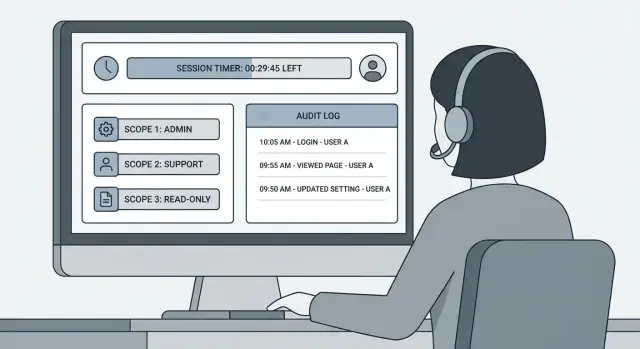
The three controls that make impersonation safer
Support impersonation is easy to turn into silent, wide-open access. If you want it to be safe, treat it like a temporary, tracked tool, not a second login.
1) Time limits (sessions that end on their own)
Impersonation should expire automatically, even if the agent forgets to stop it. Short windows reduce risk from open tabs, screen sharing, and copied session tokens. A good default is 10-15 minutes, with a clear “extend” action that requires a reason.
2) Scoped permissions (only what’s needed)
Impersonation shouldn’t mean “be the user.” It should mean “perform a narrow set of support actions.” Scope can be set by screen (billing page read-only), action (reset MFA, resend invite), or data type (no access to message content). The goal is simple: the agent can fix the problem, but can’t browse.
3) Audit trail + visibility (make it obvious and provable)
Two things prevent most privacy blowups: the agent always knows they’re impersonating, and you can prove exactly what happened later.
A practical setup includes an obvious “Impersonation mode” banner with the customer’s account ID, a session start and end record with an expiry timestamp, and event logs for sensitive actions (who, what, when, where). Tie each session to a reason field linked to a ticket or request.
Example: a customer can’t change their email. Support starts a 10-minute session scoped to account settings, reproduces the error, applies one fix, and the log shows the agent, the action, and the time. If questions come up later, you have facts, not guesses.
Time-limited sessions: practical rules that work
Time limits turn impersonation from an open-ended risk into a controlled task. Assume every extra minute increases the chance of accidental data exposure.
Pick a sensible default session length. For most support work, 10 to 30 minutes is enough to reproduce an issue, check settings, and confirm the fix. If a case needs more time, extending should be a deliberate choice, not something that happens silently.
Require re-authentication to start and to extend a session. That can be a password re-check, SSO re-prompt, or MFA, depending on what you already use. Starting or extending impersonation should feel like accessing something sensitive, because it is.
Sessions should also end automatically in the situations people forget about: inactivity (for example, 5 minutes idle), logout, browser or tab close, losing network, switching accounts or roles, and server-side expiry even if the UI gets stuck.
Add an obvious emergency stop button that ends impersonation instantly, and make it work even if the app is in a weird state. This helps when an agent realizes they opened the wrong user, or a customer says, “Stop, I’m not comfortable with this.”
A practical example: a support agent impersonates a user to confirm why billing settings aren’t saving. After 12 minutes, the session expires and the agent is kicked back to their own account. To continue, they must re-auth and explicitly extend, which prevents an accidental hour-long session while they answer another ticket.
Keep the rules consistent. Short defaults, explicit extensions, and automatic endings are easy to explain to customers and easy to enforce.
Scoped permissions: limit what support can do and see
Impersonation is safest when it isn’t full access. Support should only reach the screens and actions needed to fix the ticket, and nothing else. That reduces accidental damage and makes privacy promises easier to keep.
Start by splitting support into roles that match real work. Many teams do fine with four: Tier 1 support (basic troubleshooting, read-only plus safe edits), Tier 2 support (deeper account fixes), billing support (invoices, refunds, plan changes), and engineering on-call (incident fixes with narrow break-glass access).
Define permissions by action, not by page. A billing page might include both safe and risky actions. Think in verbs you can log and review: view, edit, refund, delete, export. In practice, the riskiest actions are export and delete, plus anything that reveals secrets.
Put high-risk actions behind an extra check. Common patterns include requiring a second role (billing plus manager), requiring a separate approval step, or allowing the action only outside impersonation via admin tools (so the customer view never becomes a “do anything” console). This removes the “I was just clicking around” excuse.
Limit what data is visible during impersonation. Mask fields that rarely matter for support, such as API keys and access tokens, full payment details (show last 4 digits only), and full addresses or phone numbers (show partial unless needed). Avoid showing internal notes or security flags unless there’s a clear reason.
One important warning: permission checks must be enforced on the server. UI-only restrictions are easy to bypass and are a security bug, not a product choice.
Audit trails that answer who did what and when
A good audit trail turns support impersonation from “trust us” into “here are the facts.” It should answer one question quickly: who accessed which account, what they did, and why.
Start by logging the session itself, not just individual clicks. At minimum, capture staff identity, customer identity, and clear start and end times (including auto-expiry). If someone reopens a session later, that should be a new session with its own record.
Then log meaningful actions. You don’t need every mouse move, but you do need a clear history of changes that could affect a user or money.
What to capture (without creating new privacy risks)
Keep logs focused on outcomes and context, and avoid storing sensitive payloads:
- Session facts: admin ID, user ID, start time, end time, and how the session ended (expired or manual stop)
- High-impact actions: settings changed, emails triggered, refunds issued, login methods reset, permissions edited
- Support context: ticket ID, stated reason, and a short internal note for what was verified
- Request metadata: IP, user agent, and source (admin panel or API) to spot unusual patterns
- Data hygiene: redact secrets and tokens, and record references only (for example, “payment method updated,” not full card details)
Make the logs usable. Support leads need search (by user, admin, date range, ticket ID). Compliance needs exports that are readable but don’t leak secrets. A basic CSV export is often enough if sensitive fields are already redacted.
Example: a customer can’t log in, so support impersonates for 10 minutes to verify the account email and reset the login method. Later, the customer asks, “Who changed my settings?” The audit trail should show the admin, the ticket reference, the time window, and the exact change.
How to implement it step by step (without overbuilding)
Aim for the smallest version that’s still safe. This is less about fancy features and more about clear rules, tight access, and proof.
A practical path:
- Define the support jobs to be done. Write down the top 5-10 tasks support must complete (reset password, verify billing status, reproduce a bug, resend an email). For each, list the exact actions required. If an action isn’t tied to a job, it shouldn’t be allowed.
- Design roles and permission scopes. Create one or two support roles, not ten. Map each job to permissions like “view profile,” “view subscriptions,” “trigger password reset,” or “issue refund up to $X.” Avoid broad access like “edit user” unless you can justify it.
- Add time limits and re-auth rules. Use short sessions by default (10-15 minutes) with a hard stop. Require re-authentication for risky actions (exporting data, changing email, disabling MFA, issuing refunds), even inside an active session.
- Add audit events and test them. Log every impersonation start and end, plus sensitive actions taken during the session. Then test your own logs: can you answer “who accessed this user, what did they do, and when” in under a minute?
- Train support and write a short policy. One page is enough: when impersonation is allowed, what to try first, what is never allowed, and how to escalate.
Before shipping, ask someone outside support (like a founder) to resolve a real ticket using the new flow. If they need “full access” to make it work, your scopes are missing a legitimate support action, not a reason to weaken privacy.
Example scenario: fixing a user issue safely
A new customer reports that onboarding fails at the last step. They can log in, but the app keeps sending them back to the setup screen. The support agent needs to see what the customer sees without getting broad access to everything in the account.
The agent starts an impersonation session that’s time-limited to 15 minutes. By default, it’s view-only, with one narrow exception: the agent can edit a single onboarding setting that often causes this loop (for example, a “company profile completed” flag or a required workspace setting).
Inside the session, the agent confirms the loop and opens the settings panel. The UI makes it obvious they’re impersonating, shows a countdown timer, and labels the one permitted edit. The agent changes that one setting, saves, and refreshes the onboarding flow to confirm it completes.
Once the issue is resolved, the agent exits the session instead of keeping it open “just in case.” If the timer runs out first, the system ends the session automatically.
Afterward, the audit trail records what happened:
- Agent identity (and the support role used)
- Customer account affected
- Session start and end timestamps
- The exact field changed, with before and after values
- The reason code or ticket reference
If it fits your product and customer expectations, consider notifying the customer that support accessed their account, including the time window and the type of access. That small bit of transparency prevents surprises and builds trust.
Common mistakes that create privacy blowups
Most privacy problems with impersonation aren’t caused by one big decision. They come from small shortcuts that add up.
One common issue is leaving sessions open too long. If support can impersonate a user for hours (or keep clicking “extend” forever), someone will eventually forget to end the session, switch tabs, or share a screen while still inside the account. The risk isn’t just intent. It’s what happens by accident.
Another frequent mistake is using a shared “support@company” admin login. When something goes wrong, you can’t answer the basic question: who changed it? You also can’t safely remove access for one person without breaking access for everyone.
Permissions often get messy. Impersonation should help support fix a problem, not let them do anything the user can do plus more. Watch out for actions that change account ownership (email, password, MFA, phone number), any export or bulk download path, and default access to payment details, private messages, or other sensitive content. Also look for “admin override” endpoints that bypass normal checks and tools that quietly allow role changes.
Logs fail in two ways: they don’t capture important actions (password resets, exports), or they’re editable. If an admin can alter or delete impersonation records, your audit trail isn’t evidence.
One last trap: impersonation can expose secrets indirectly. If your app returns API keys in responses, shows internal config in error pages, or ships secrets in the client bundle, a normal user session can still leak sensitive data.
Quick checks before you ship impersonation
Before you ship, do a quick preflight that matches how support works on a busy day. If any answer is “not sure,” pause and fix it. It’s far easier to tighten rules now than to explain later why an agent could see or download something they didn’t need.
Preflight checklist
- Sessions always expire on their own (for example after 10-15 minutes) and also end on logout, tab close, and inactivity.
- Each support role has the minimum access needed. Tier 1 can view account state and trigger safe recovery flows, but can’t change billing owner, API keys, or core security settings.
- The product makes impersonation obvious (clear banner, distinct theme, and the customer identity shown at all times).
- You can answer “who, what, when” from one place: who started the session, what actions happened, and when the session ended.
- Sensitive data stays protected during impersonation: secrets are hidden by default, exports are blocked or require approval, and high-risk actions require a second confirmation.
A simple test: ask a teammate to impersonate a dummy user and try to do the wrong thing (export users, view a token, change an email). If they succeed, controls are too loose.
Next steps to roll this out with confidence
Look at your current admin and support flows the way a privacy reviewer would. List every action support can take today (or could take with small changes), then mark the ones that would be harmful if used on the wrong account. This keeps the work grounded and helps you focus on the real risks.
Start with the riskiest actions: viewing or exporting personal data (addresses, payment history, messages), resetting credentials (passwords, MFA, API keys), changing billing or payout details, disabling security settings, deleting accounts, and running admin tools that affect many users at once.
Decide your defaults before anyone starts coding. Defaults matter because most incidents happen under pressure. Pick a short session length, require fresh re-auth for sensitive actions, and decide how users get notified (in-app banner, email for high-risk actions, or both). Keep the policy simple enough that support will follow it.
After shipping, treat permissions and logs as living systems. Put a short internal review on the calendar every quarter. Check that roles still match how support works, and spot-check logs to confirm they answer the basics: who initiated the session, whose account was accessed, what happened, and when.
If your admin tools were generated quickly by AI and the auth or permission layer feels shaky, don’t patch this blindly. Weak server-side role checks and missing logging are common failure points. Teams in that situation sometimes use FixMyMess (fixmymess.ai) to run a targeted audit and tighten impersonation, permission enforcement, and audit events so support stays effective without turning into a privacy incident.
Run one rehearsal: pick a real support issue, impersonate using your new controls, and confirm you can solve the problem without seeing or changing anything you didn’t intend to.
FAQ
What does “support impersonation” actually mean?
Support impersonation is when a staff member temporarily enters a customer’s account to see the product exactly as the customer sees it and to perform specific support actions.
It’s best used to reproduce an issue that only happens in that user’s context, not as a general shortcut for looking up customer data.
When should support impersonate a user, and when should they avoid it?
Use impersonation when you truly need to click through the customer’s exact flow to reproduce or fix the problem, like a stuck onboarding step or a permission-related UI bug.
If the issue can be solved via logs, read-only account state, or admin tools that don’t expose private content, start with those instead.
Why can impersonation turn into a privacy problem so easily?
Impersonation becomes a privacy risk when it effectively turns into “all doors open” access.
Even without bad intent, wide access increases the chance of accidental exposure, oversharing in internal notes, or the wrong person seeing sensitive data such as messages, files, or billing details.
What’s a sensible time limit for an impersonation session?
A strong default is 10–15 minutes, because it’s usually enough to reproduce the issue, apply a fix, and confirm it.
If more time is needed, extending the session should require a deliberate action and a reason so sessions don’t quietly stay open for hours.
Why do time-limited sessions matter if you trust your support team?
Automatic expiry reduces risk from forgotten tabs, screen sharing, and copied session tokens.
It also makes behavior consistent under pressure, because the system ends access even when an agent gets distracted or switches to another ticket.
How do scoped permissions work for impersonation?
Aim to limit actions and data to what’s required for the ticket, such as “view account settings” or “resend verification email,” while blocking unrelated areas.
Mask or block secrets by default, and treat exports, deletes, and security changes as high-risk actions that need extra checks.
What should support never be able to see or do during impersonation?
Passwords, one-time codes, full payment details, and secret keys should never be visible to support during impersonation.
If support needs those to do their job, it’s a sign you need safer product flows like resets, masked views, or separate admin actions that don’t expose secrets.
What should an audit trail capture for impersonation?
At minimum, log who started the session, which customer account was accessed, when it started and ended, and why it was needed.
You should also log high-impact actions like security changes, refunds, permission edits, and exports, without storing sensitive payloads in the logs.
Why is using a shared support admin account a bad idea?
A shared admin login makes it hard to answer “who did this?” and nearly impossible to remove access for one person without affecting everyone.
Individual accounts with role-based access and session logs create accountability and make investigations and reviews much simpler.
What’s the fastest way to implement safer impersonation without overbuilding?
Build the smallest safe version first: define the specific support tasks, map them to narrow permissions, add short time limits, and implement clear session logging.
If your admin tools or permission checks were assembled quickly and feel unreliable, consider getting a focused audit from FixMyMess so server-side enforcement, impersonation scopes, and audit events are correct before you ship.