Soft deletes: retention windows and safe restore flows
Design soft deletes with retention windows, restore tools, and UI safeguards to prevent accidental data loss and keep deletes reversible.
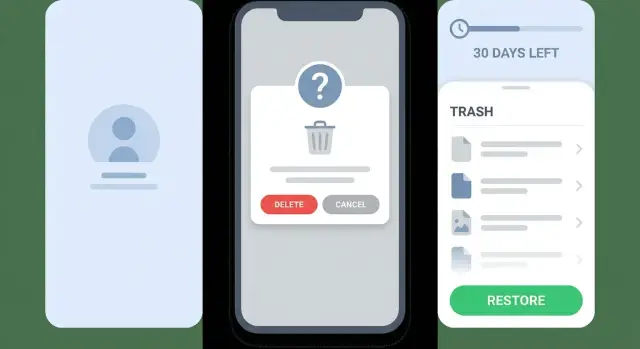
Why accidental deletes turn into real incidents
Accidental deletes happen because most product UIs make deleting feel small and reversible. People click fast, screens lag, and a destructive button sits right next to a harmless one. Bulk actions make it worse: one wrong filter or unclear checkbox, and hundreds of records can disappear before anyone notices.
The causes are mundane, which is exactly why they catch teams off guard: misclicks on touch devices, cramped tables, bulk actions with weak previews, labels like “Remove” that don’t say what will actually be deleted, confusing scope (one item vs a whole workspace), and automation that runs in the wrong account or environment.
When a UI-driven mistake triggers an irreversible delete, it stops being a small error and becomes an incident. Support can’t help, users lose trust, and you can end up in compliance trouble if records are needed for audits, refunds, disputes, or legal requests. Even if you can restore from backups, it’s slow and risky, and it often brings data back in an inconsistent state.
What users expect is simple: a clear message about what will happen, a trash concept, and an undo or restore option. That’s where soft deletes help. With soft deletes, “delete” usually means “hide and mark as deleted” for a period, so recovery is possible without database surgery.
Permanent deletion still matters, but it should be deliberate. Typical cases include legal requirements, security incidents (like removing leaked secrets), or a verified request to erase personal data. The key is to separate everyday deletes from rare, final deletes, and make both flows obvious.
A real scenario: an admin selects “All customers” instead of “This page” and deletes them. Without a retention window and a restore workflow, you’re stuck rebuilding from backups. With them, it’s a two minute restore and a clear explanation to the user.
Soft delete basics: what it is and what it is not
Soft deletes are a safety net. You mark a record as deleted, but you don’t remove it from the database right away. In the product, the item disappears from normal screens and search, but it can be recovered for a period of time.
A hard delete is the opposite: the data is actually removed (or overwritten), and recovery becomes painful or impossible without backups. Hard deletes have their place, but they shouldn’t be the default behavior behind a casual Delete button.
The practical rule: “deleted” should mean hidden, not gone. A deleted project shouldn’t show up in the main list, but an admin should still be able to find it in a trash view and restore it cleanly.
A restore should bring back more than one row. It should re-connect what makes the item usable: key relationships (owner, team, parent objects), attached data when appropriate (files, comments, history), access rules after restore, and predictable handling of side effects like counters, search indexing, and notifications.
Soft delete only works when it’s paired with a retention window: the agreed time between “deleted” and “purged,” when restore is still possible. After the window ends, you can permanently remove the data to reduce risk, cost, and clutter.
Data model patterns that make restore possible
Soft deletes work only if your data model keeps enough context to put things back exactly how they were.
The simplest pattern is a deleted_at timestamp: if it’s null, the record is active; if it has a value, the record is deleted but recoverable. An is_deleted flag can work, but timestamps make retention and reporting easier. A status field (like active, deleted, archived) helps when “not visible” doesn’t always mean “deleted.”
Once you add soft deletes, decide how related data behaves. If you delete a project, what happens to its tasks, files, and membership rows? Pick one rule and enforce it everywhere.
Common restore-friendly approaches:
- Delete cascades: mark children deleted when the parent is deleted, then restore them together.
- Keep children active but hidden: use this only if children are never meaningful without the parent.
- Separate delete states: let tasks be deleted independently of a project, with independent restore.
Unique constraints are a frequent surprise. If a deleted user keeps the same email, can someone else sign up with that email during the retention window? Your options are: treat deleted records as still owning the value, change uniqueness to ignore deleted records, or “free” the value by rewriting it on delete (for example, appending a suffix). The right choice depends on product expectations and legal needs.
Make “active only” the default. Most bugs come from a forgotten filter that makes deleted items appear in search, counts, or exports. Centralizing queries (views, helper methods, repository layer) is often the easiest way to make normal reads automatically exclude deleted rows.
Example: a team member deletes a client record by mistake. If you stored deleted_at and handled related contacts consistently, a single restore action can bring the client and contacts back with original IDs intact.
Retention windows: deciding how long “deleted” stays recoverable
A retention window is the time between “delete” and “gone forever.” Choose it based on real behavior and the cost of recovery. If users delete things in bursts (cleanups, imports, bulk actions), even a short window saves you. If the data is business critical (invoices, customer lists), lean longer.
A practical starting point:
- 7 days: personal apps with low risk and lots of quick “oops” deletes
- 30 days: common default for teams and business apps
- 90+ days: deletes are rare but costly, or audits matter
During the window, treat deleted data as “not part of the product” by default. Hide it from the main UI and exclude it from search, reports, exports, and billing calculations. This prevents confusing numbers like “why does my report include items I deleted?” and reduces the chance someone edits a deleted record.
Communicate the window clearly. A delete confirmation can say: “Moved to Trash. You can restore it for 30 days.” In the Trash view, show remaining time (for example, “Auto-deletes in 12 days”).
There are valid reasons to extend retention: legal holds, incident response, or admin overrides for compliance. If you allow extensions, define who can do it, log it, and make it visible so the team knows what will be purged and when.
Restore flows: how to design them so they work under pressure
A restore flow matters most when something goes wrong: a rushed admin, a buggy script, or a bulk action that hit the wrong filter. If recovery is hard to find or easy to misuse, soft deletes won’t save you when it counts.
Start by making responsibility clear. The same person shouldn’t automatically have power to delete, restore, and permanently purge. Separation prevents accidents and quiet abuse, and it avoids turning “panic restore” into a loophole.
Make the entry point obvious. Most teams succeed with a dedicated “Trash” or “Recently deleted” view that shows what was deleted, when, and by whom. Under pressure, people don’t want to dig through settings or remember hidden admin routes.
A simple role split that works well:
- Regular users can delete their own items.
- Support or admins can restore items.
- A smaller group can purge (hard delete) after approval.
- Developers can run emergency restores only with audited access.
Restoring is not just flipping a flag. The data may no longer fit. A user might restore a project named “Demo,” but someone created a new “Demo” after the delete. Or the restored item points to a workspace or user that no longer exists.
Treat restore like a write operation with full checks: re-check permissions, validate constraints (unique names, required fields), repair or block broken references with a clear message, log the restore with who/when/what changed, and show impact previews for bulk restores.
Step by step: implement soft delete, restore, then purge
You want delete to feel final for the user, but be reversible for you. The simplest way is to treat deletion as a state change, not a removal.
A build order that avoids painful rework:
- Change the delete action to mark a record as deleted (for example, set
deleted_atanddeleted_by). Keep the original data intact. - Update default queries so deleted records don’t appear in normal lists, search results, counts, or exports. Don’t forget background jobs and admin dashboards.
- Add a Trash area that shows deleted items and answers: what was deleted, who deleted it, when, and what it was linked to.
- Implement restore as a first-class action. On restore, re-check constraints that may have changed (unique names, missing parents, changed permissions). If a restore can’t be clean, give a clear reason and a safe fallback (like restoring as a copy).
- Add a scheduled purge job that permanently removes records after the retention window. Purge should be deliberate, logged, and ordered correctly (children first) to avoid orphans.
Do a “bad day” test. Someone bulk-deletes 500 customers, then tries to restore. Make sure the Trash view loads quickly, restores work in batches, and you can answer “what changed?” from logs.
If you inherited an AI-generated codebase, check for hidden hard deletes (raw SQL, cascade rules, background cleanup scripts). These are common reasons a restore flow looks finished but fails in production.
UI safeguards that reduce accidental deletes
Soft deletes are a safety net, but the goal is that people rarely need it. Good UI makes the safe path easy and makes the risky path feel obviously risky.
Start with language. Many users click “Delete” when they really mean “hide this from my list.” Offer choices that match intent: “Archive” for reversible cleanup, “Move to Trash” for recoverable removal, and reserve “Delete forever” for truly permanent action.
A confirmation should do more than ask “Are you sure?” Include the exact item name and a plain sentence about impact (for example, “This will remove access for your team” or “This will delete 23 invoices”). If you support soft deletes, say where the item will go and how long it stays recoverable.
A few patterns prevent most accidents without annoying people:
- Distinct button styles: neutral for Archive, warning for Move to Trash, danger for Delete forever.
- Bulk actions: a review step that shows the count and a short preview.
- Permanent deletion: extra intent (typing the item name or a fixed phrase).
- After deletion: a short banner with Undo and a clear path to Trash.
Bulk deletes deserve special care because they turn one misclick into an incident. If a support lead filters “inactive customers” and accidentally selects all results, a review screen that highlights “532 records selected” plus an Undo can prevent a midnight restore.
Keep “Delete forever” out of busy screens. Put it behind a menu, require higher permissions, or both.
Audit logs and permissions: restore without creating new risks
A restore button is only half the job. When someone asks, “Who deleted this and when?”, you need a clear answer without guesswork. Audit logs also reduce panic during incidents because support can see what happened quickly.
For soft deletes, record delete and restore as separate events. Include the actor (user or service account), timestamp, and source (UI, API key, scheduled job). This helps spot patterns like a misconfigured integration repeatedly deleting records.
Keep the audit trail consistent:
- Action: delete, restore, purge
- Actor: user ID or service account, plus role at the time
- Target: record type and IDs (or a count for bulk actions)
- Context: request ID, IP, and client (admin UI vs API)
- Reason: optional note field for admins and support
Logs are also an early warning system. A sudden spike in deletes, especially bulk deletes or admin actions, should trigger an alert. Even a basic “deletes per hour exceeded normal” rule can catch a broken script before it wipes a large set.
Restores must obey today’s permissions, not yesterday’s. If someone no longer has access to a workspace, they shouldn’t be able to restore into it, and they shouldn’t be able to see the restored data afterward. Apply the same authorization checks you use for normal reads and writes.
Example: a support agent restores 200 customer records after a mistaken bulk delete. The audit log shows the original delete came from an API key used by old automation, not a human. The restore succeeds, and records still follow current access rules.
Common mistakes that break retention and restore
Most teams get soft deletes working in the database, then lose the benefits through small gaps. The result is a “delete” that still behaves like permanent deletion when it matters.
The most common failure is inconsistency. One part of the app hides deleted records, but another path treats them as active. That might be an admin screen, an export job, a mobile view, or a background sync.
Common mistakes:
- You filter deleted items in the main UI, but forget search, analytics, exports, or APIs. Deleted data leaks out, or worse, gets edited.
- The purge job uses the wrong time zone or suffers clock drift, so records purge early.
- You restore a parent, but related records changed since delete (membership, billing status, permissions), so the restored object is incomplete or unsafe.
- Unique constraints collide on restore (email reuse, name reuse), causing partial restores.
- Deleted data is still reachable via direct URLs, cached pages, or search indexes.
Silent failures are the most dangerous. A restore that “succeeds” but skips rows due to conflicts leaves you with missing data and false confidence.
A simple guard is to make restores noisy: show what will be restored, what will be skipped, and why. Log every attempt with counts and the actor.
Quick checklist before you ship
Before you ship soft deletes, run an end-to-end test that matches how mistakes happen: fast clicks, bulk actions, and messy data (attachments, comments, child records). If any step feels confusing or irreversible, it will become a support ticket.
Use this as a final gate:
- Undo works immediately: after delete, the user gets an obvious Undo option for a few seconds, and it restores the full state.
- Trash is easy to find: reachable in one or two clicks, shows what will be purged and when.
- Restore handles real relationships: attachments, linked records, and permissions come back correctly.
- Purge is delayed and auditable: hard deletion happens only after the retention window, and you can prove what was removed and when.
- Support can verify the story: audit history shows who deleted, from where (UI/API), and what was affected.
A simple test scenario: delete a customer record that has files and related notes, restore it from Trash, then confirm everything still loads. Pay extra attention to background jobs or storage cleanup that might delete attachments even when the record is only soft-deleted.
Example: recovering from a mistaken bulk delete
A teammate is cleaning up records and selects 2,000 customers. They meant to archive them, but they click Delete in a bulk action menu. Without soft deletes, this is the moment a small mistake becomes an incident.
What the user sees matters. The UI should make it clear this is reversible and time-limited: “Deleted but recoverable for 30 days,” plus a confirmation that names the impact in plain language (what disappears from views, what changes in the API). Right after the action, show a banner with a one-click Undo and a message like “2,000 customers moved to Trash.”
Support then follows a restore workflow that works under pressure. They open the admin Trash view, filter by timestamp and actor, and restore the batch. A good restore tool runs checks before it reports success: counts match, relationships still point to valid objects, permissions still make sense, and search/exports repopulate as expected.
Every step should be logged: who deleted, what selection was used, how many rows were affected, who restored them, and an optional reason.
After the retention window ends, a scheduled purge removes only items still in Trash. Purges should be separate from user actions, rate-limited, and logged.
Next steps: set a delete policy, then validate it end to end
The fastest way to make deletes safer is to stop treating them as an implementation detail. Write a short delete policy your team can point to when building features, answering support tickets, or debugging a scary “everything is gone” report.
Keep it to one page:
- What counts as a delete (archive, deactivate, soft delete, true removal)
- The retention window (how long items stay recoverable)
- Purge rules (what gets permanently removed, when, and by what job)
- Who can restore, and when approvals are required
- Legal or security exceptions (when immediate purge is allowed)
Then validate the policy with a small test plan. Don’t rely on a single happy path. Make sure the UI, API, and background jobs all agree on what “deleted” means.
A simple set of checks is enough: delete one item and confirm it disappears but stays recoverable, verify it doesn’t appear in search/exports/totals, restore it and verify related records and permissions, repeat with a lower-permission role, then simulate purge and confirm only eligible items are removed.
If you’re dealing with an AI-generated prototype, it’s worth doing a focused remediation pass before you ship, because delete logic is often scattered across the UI and backend. If you need help turning a broken or inconsistent implementation into something production-ready, FixMyMess (fixmymess.ai) focuses on diagnosing and repairing AI-generated apps, including delete/restore flows, permissions checks, and audit logging.
FAQ
What’s the simplest safe default for a Delete button?
Use a soft delete by default: mark the record as deleted (for example with deleted_at) and hide it from normal UI, search, and reports while keeping it restorable. Reserve hard deletes for deliberate, rare cases like verified data erasure requests or security cleanups.
What’s the difference between soft delete and hard delete?
Soft delete means the data stays in your database but is treated as deleted in the product, so you can restore it during a retention window. Hard delete means the data is actually removed, so recovery is difficult or impossible without backups.
How long should a retention window be?
Start with 30 days for most team and business apps, then adjust based on how often accidental deletes happen and how painful recovery is. If audits or disputes are common, longer windows like 90 days reduce risk without changing the user flow.
What data model pattern makes restores actually work?
Store enough context to rebuild the full object, not just a single row. At minimum, keep deleted_at and deleted_by, and be consistent about what happens to related data (children, attachments, memberships) so restore can bring back a usable state.
How do I prevent deleted records from showing up in search, counts, or exports?
Make “active only” the default everywhere, ideally by centralizing queries so deleted rows are automatically excluded. Most real-world failures come from one forgotten path like exports, background jobs, or admin screens that still treats deleted data as active.
Do I really need a Trash or “Recently deleted” screen?
Yes, if you care about quick recovery under pressure. A dedicated Trash view that shows what was deleted, when, and by whom makes restores fast and reduces support back-and-forth when someone bulk-deletes the wrong thing.
What should a restore flow validate before it says “success”?
Treat restore like a real write operation: re-check permissions, validate constraints, and handle conflicts (like a name that got reused) with a clear outcome. If restore can’t be clean, fail loudly and offer a safe fallback like restoring as a copy.
What UI changes reduce accidental deletes the most?
Be explicit about impact and reversibility: name the item, show the count for bulk actions, and say it’s moved to Trash with a restore deadline. Add an immediate Undo for a few seconds and keep “Delete forever” out of busy screens or behind higher permissions.
What should I log to make deletes and restores auditable?
Log delete, restore, and purge as separate events with actor, time, source (UI/API/job), and what was affected. This gives you fast answers to “who did this,” helps detect broken automation, and makes restores safer because you can verify what changed.
Why do AI-generated codebases often break soft delete and restore, and what can I do?
Inherited AI-generated apps often have hidden hard deletes in raw SQL, cascade rules, or cleanup scripts that bypass your Trash and retention window. If your delete/restore logic is scattered or inconsistent, FixMyMess can run a free code audit and then fix or rebuild the flows so accidental deletes are recoverable and permissions and logs are correct.