Status page for small teams: a simple setup and comms template
Status page for small teams: set up a simple public page and a repeatable incident update template so users know what is happening and what to expect.
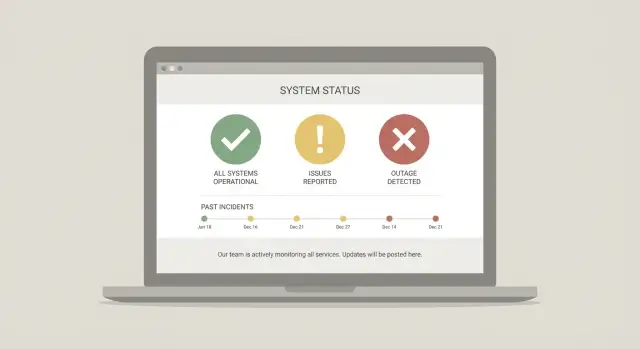
Why a status page matters when you are a small team
When something breaks, users do not just lose a feature. They lose certainty. They refresh, retry, and wonder if it is only them. That confusion quickly turns into support tickets, angry messages, and “Any update?” pings that pull you away from the actual fix.
Silence costs small teams more than big ones. If you have one person debugging and one person doing customer support (or the same person doing both), every repeated question burns time. A simple public update reduces that noise because it answers the same question for everyone at once.
A status page is a single place that says what is working, what is not, and what you are doing about it. It is not a help desk, not a marketing page, and not a promise that outages will never happen. It is a shared source of truth during messy moments.
The goal is simple: clarity while fixes are in progress. Users can quickly tell whether the problem is on your side or theirs, what’s impacted, and when you’ll update them again. You also cut down duplicate tickets and DMs.
Even a lightweight page builds trust because it replaces rumors with timestamps. “Investigating login errors since 10:12” is far more useful than “We are looking into it” buried in a reply thread.
Picture a simple outage: sign-in fails for 30% of users. Without a status page, you get dozens of messages that all sound different, and you waste time confirming it’s real. With a status page, once you confirm the issue, you post a short update. Users can self-serve the answer, and you can focus on getting things back to normal.
What counts as a status page (and what to use it for)
A status page is any place where users can see what’s happening, what’s affected, and what you’ll do next. The best version is a single public page you can update quickly, even while you are still investigating.
Most teams end up using a few channels at once, but they are not interchangeable:
- A public status page is the ongoing record with timestamps.
- An in-app banner gives fast visibility to active users.
- Email reaches people who are not logged in and gives a record.
- Social posts are optional and only worth it if your audience expects them.
Use the in-app banner when the impact is immediate (for example, login failures). Use email when customers must take action (like resetting credentials) or when you need to reach account owners. Use social only when lots of people are asking publicly, and keep it brief.
One source of truth
Pick one place that is always correct: your status page. Every other channel should mirror it in wording, timing, and facts.
A practical rule: write the status page update first, then copy the key lines into the banner, email, and social post. That prevents the common mess where one channel says “degraded” while another says “down,” or where different timelines appear.
When authentication is failing, your status update should clearly say what users see (cannot log in), what is affected (web app, API, or both), what is not affected (billing, read-only access), and when the next update will arrive.
Decide what you will show: components, states, and timestamps
A status page works best when it answers one question fast: what is broken, who is affected, and what happens next. Keep the surface area small so you can update it in seconds while you fix the real problem.
Start with components that map to how users experience your product. Avoid internal labels like “prod-1” or “worker-2”. Use names a customer will recognize, and only add a component if you will actually update it during an incident.
Common components for small products:
- Web app
- API
- Authentication (login/signup)
- Payments
- Background jobs (emails, imports, processing)
Next, keep status levels plain and consistent. Too many options slows you down and invites debates when you need speed.
- Operational
- Degraded performance
- Partial outage
- Major outage
Timestamps matter because they show momentum. At minimum, include when you identified the issue, when you have a fix in place and are watching it, and when it is fully resolved. Adding “last updated” on every incident note also helps, because users mostly want to know whether you are actively working on it.
Finally, host the status page somewhere that is unlikely to go down with your main app. A separate provider or static page on different infrastructure is safer than serving it from the same database and backend that might be failing.
Example: if login breaks after a rushed change, mark “Authentication” as Partial outage, set the incident to Identified, and update the timestamp as soon as you confirm a rollback or patch is being monitored. This gives clarity even before everything is fixed.
Step by step: set up a lightweight status page in one afternoon
A status page only needs to do one job: give users a reliable place to check what’s happening without opening a ticket or refreshing social media.
Choose the lightest option you can maintain during a stressful incident. A hosted status tool is quickest. A simple static page (even a single HTML page) also works if you can update it fast.
A setup you can finish in a few hours:
- Pick the tool and the owner. Choose something one person can update from a phone. Decide who has access before you need it.
- Create components. Keep it short: “API”, “Web app”, “Login”, “Payments”, “Background jobs”. If you cannot explain a component in one line, it’s too detailed.
- Set default status and incident states. Start at “Operational”. Use 3 to 4 states max. Add timestamps for every update.
- Add a subscribe option. If your tool supports email or RSS, enable it. If not, a simple note like “Check back here for updates” is still better than silence.
- Write a short About box. Include what you monitor (high level), when you post updates (for example, “every 30 minutes during an incident”), and what this page is for (status, not support).
Before you call it done, test it like a user would. Load it on your phone, on cellular, and from outside your office network. Make sure updates show immediately and the page is readable without pinching and zooming.
Write updates people can actually use
People do not read status updates to learn how your system works. They read them to answer three questions: Can I use the product right now, what is broken, and when will I know more.
Use plain language. Skip internal terms like “DB failover” or “auth service degraded” unless you also translate them. A good test is whether a new customer would understand the update without asking support.
Be specific about impact, and just as specific about what is not impacted. If only login is failing, say that payments, data access, and the marketing site are working (if true). This reduces duplicate tickets and stops users from making risky guesses.
Give people something they can do right now. Even a small workaround helps: try again in 10 minutes, use password reset, switch browsers, or use a manual process if you have one.
Set expectations for timing. If you cannot estimate a fix, do not invent one. Commit to an update schedule (like every 30 minutes) and keep that promise.
A simple format that stays scannable:
- What is happening (one sentence)
- Who is impacted (and who is not)
- What users can do now (workaround)
- What you are doing (in plain terms)
- Next update time (a specific clock time)
Example update:
“Investigating: Some users cannot log in to the app. Signups and password resets may fail. Existing sessions are still working, and the dashboard loads normally once you are logged in. Workaround: if you are stuck, wait 10 minutes and try again, or use an incognito window. We are fixing a login error introduced in today’s deployment. Next update by 2:30 PM.”
Incident comms template you can copy and reuse
When something breaks, your update should help users decide: should I wait, work around it, or come back later? A simple template keeps your updates consistent even when you are stressed.
Use a title line that is scannable:
[Service] - [User impact] - [Start time + timezone]
Example: Auth - Some users cannot log in - 10:12 UTC
For each update, keep it short and include the next update time:
- What happened: One sentence in plain language (avoid guesses).
- Impact: Who is affected and what does not work.
- What we are doing: The action you are taking right now.
- Workaround (if any): One simple option users can try.
- Next update: A specific time (not “soon”).
Copy-ready update blocks
[Title]
Auth - Some users cannot log in - 10:12 UTC

[Update]
Status: Investigating
What happened: We are seeing elevated login failures.
Impact: Some users cannot sign in; existing sessions may still work.
What we are doing: We are checking the auth service and recent deploy.
Workaround: If you are logged out, please wait before retrying.
Next update: 10:45 UTC
Status: Identified
What happened: A configuration change is blocking token refresh.
Impact: New logins fail for some users.
What we are doing: Rolling back the change and validating.
Next update: 11:10 UTC
Status: Monitoring
What happened: The fix is deployed.
Impact: Logins should be working again.
What we are doing: Watching error rates and retries.
Next update: 11:40 UTC
Status: Resolved
What happened: The rollback restored normal login behavior.
Impact: All users should be able to sign in.
What we are doing: Reviewing logs to prevent a repeat.
Before you post, do a quick internal check so you do not create confusion or leak sensitive details:
- Confirm scope: which users, regions, plans, or devices are affected.
- Confirm wording: facts only, no blame, and no unlabelled guessing.
- Remove sensitive details: keys, internal hostnames, customer data, exact exploit paths.
- Confirm timing: next update time is realistic and has an owner.
Roles and a simple approval flow (without slowing fixes)
Status updates work best when posting them is a defined job, not something people squeeze in between debugging steps. During an incident, the people fixing the bug should not also be writing careful public notes.
Pick a small group who can publish updates: a primary updater and a backup. Decide this ahead of time so you do not wait for “the right person” to wake up or finish a meeting.
Typical roles:
- Incident updater (primary): posts updates, keeps timestamps accurate, keeps language clear.
- Incident updater (backup): takes over if the primary is unavailable.
- Incident lead (usually an engineer): coordinates the fix and shares confirmed facts.
- Support/customer contact: watches inbound reports and shares patterns (who is affected, how often).
- Escalation owner (founder/manager): makes big calls (rollbacks, feature flags, credits, comms to key accounts).
To avoid approval bottlenecks, agree in advance on what the updater can post without asking anyone. A simple rule works well: the updater can publish anything that is (1) confirmed, (2) not blaming a person, and (3) not promising a specific fix time.
A fast, safe flow:
- Engineer to updater: verified facts only (what is broken, who is impacted, what is being tried next).
- Updater posts: translate facts into user language (symptoms, workaround if safe, next update time).
- Time-box approvals: only for high-impact messages (data risk, payments, broad outage). If no response in 5 minutes, post the safe version.
- Escalate when: security might be involved, money is affected, or the fix path is unclear after 30 to 60 minutes.
- Never post: root cause guesses, unverified ETAs, or “all fixed” until monitoring confirms.
Common mistakes that make incidents worse
Most incident pain is not caused by the bug itself. It is caused by silence, mixed messages, and updates that create more questions than answers.
One common failure is waiting for “perfect” information before you say anything. If users notice the problem before you do, trust drops fast. A short first note like “We’re investigating and will update in 20 minutes” sets expectations and buys time.
Another trap is sharing the wrong details too soon. Early guesses about the root cause often turn out wrong, and technical breadcrumbs can expose sensitive data. Avoid posting logs, stack traces, internal IPs, customer identifiers, or anything that hints at secrets. If you suspect a security issue, keep public updates focused on impact and what users should do right now.
Things also break down when the story changes across channels. If your email says “partial outage” but your social post says “all systems down,” people assume you are hiding something. Keep one source of truth, and mirror the same wording everywhere.
Mistakes that tend to drag incidents out:
- Promising “fixed by 3:00 PM” without evidence, then missing it.
- Editing old updates to rewrite history instead of adding a new update.
- Saying “resolved” when you only shipped a change, not confirmed recovery.
- Forgetting to post the final note and next steps once things look stable.
- Letting every engineer post ad hoc updates with different tone and terms.
After the fix, close the loop. Post a clear “Resolved” update with the time, what users should verify, and when you’ll share a short post-incident summary.
Quick checks during an incident
During an outage, people mainly want two things: confirmation that you see the problem, and a clear idea of what happens next.
Start by checking that your status page is accessible from outside your own system. If your app is down and your status page is hosted inside the same stack, users cannot see it, and you lose the one place meant for clarity.
Also make sure your components match how users think. “API” might matter to you, but “Login”, “Checkout”, or “Dashboard” is what users will search for when they are stuck.
A fast checklist you can run in 2 minutes:
- Verify the status page loads from a device and network outside your company.
- Post the first update within your promised window (aim for 10 to 15 minutes), even if it is just: “We’re investigating.”
- Include impact in every update: who is affected, what is broken, and any workaround.
- Add a clear next update time each time you post.
- When resolved, say what changed and what users should do (log out/in, retry payment, reset password). Save a copy of all updates for your post-incident notes.
A small example: if login is failing, do not just write “auth issues.” Say “Some users cannot log in via Google. Email login still works. Next update at 2:30 PM.” That one sentence cuts support tickets fast and buys you time to fix the root cause.
Example: a small team handling a login outage
It’s 9:10am and support sees a spike: users can’t log in, mostly “Invalid session” after entering the right password. It’s peak time, so the goal is clarity, not perfection. One person investigates, one person communicates, and support gets a single message to copy.
Example updates that stay short, timestamped, and clear:
- 0 minutes (9:10am): Investigating login failures. Some users may be unable to sign in. Next update in 15 minutes.
- 15 minutes (9:25am): Identified issue affecting session creation. Working on a fix. Workaround: If you were already logged in, please keep your tab open. New logins may fail. Next update in 30 minutes.
- 45 minutes (9:55am): Fix in progress and being tested. Support note: Please do not reset your password, it will not help with this issue. Next update in 45 minutes.
- 90 minutes (10:40am): Fix deployed and monitoring. If you still can’t log in, wait 2 minutes and try again, or clear cookies for this site. Next update when fully confirmed.
The workaround line reduces support load because it answers the same question before it becomes 50 tickets. Add one internal note for your team (“If user asks, say X”) and keep it consistent.
Resolved message (once confirmed): Resolved: login is working normally again. Between 9:10am and 10:35am some users could not sign in due to a session service error. We’re continuing to monitor.
Next-day follow-up (short): Yesterday’s login outage was caused by a bad config change that blocked session tokens. We added an automated check to catch this before deploy, and tightened rollback steps.
Next steps: make this repeatable and reduce future incidents
A status page earns trust when your response gets a little better each time. After the incident, do two small things: review what happened and schedule one concrete prevention task.
Do a short post-incident review (30 minutes)
Keep it small and factual. You are not looking for blame, you are looking for the next fix that prevents the same outage.
Write down:
- What broke (the specific trigger and the first user impact)
- What made it worse (missing alert, confusing logs, unclear ownership)
- What you will change (one or two concrete changes)
- What you will keep (something that worked, like fast updates or a clear timeline)
Turn the notes into a short “what we changed” entry you can share later. Users do not need every internal detail, but they do appreciate clarity.
Add one preventative task to your backlog
Pick one action that reduces risk the most, and actually schedule it. Examples that usually pay off fast: a basic uptime check with paging, tighter rate limits on login endpoints, rotating secrets that were shared too widely, or a simple rollback plan for deployments.
If you try to fix everything, you will fix nothing. One solid prevention task per incident is enough to build momentum.
Keep your incident template, status update wording, and the owner list in one place so anyone can use them. Once a quarter, do a 15-minute rehearsal: “If login fails, who posts the first update, and what do they say?” The goal is speed without chaos.
If you inherited an AI-generated prototype that keeps breaking in production (auth issues, exposed secrets, tangled code), FixMyMess (fixmymess.ai) can run a quick audit and help turn it into something stable, so incidents become rarer and easier to handle.