Help users without logging in as them: safer support patterns
Help users without logging in as them with screen share, temporary links, and time-boxed access that protect accounts while still solving issues fast.
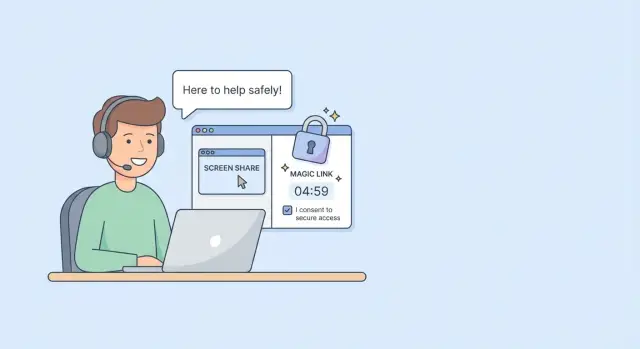
Why you should avoid logging in as a user
It can feel faster to log in as the customer and “just fix it.” You see what they see, click the right buttons, and move on. But that convenience has a cost: once you’re inside their account, you’re responsible for everything that happens there.
When you help users without logging in as them, they stay in control and you stay out of risky territory. That one habit reduces privacy issues, limits security exposure, and keeps support easy to explain later.
What can go wrong when support impersonates a user:
- Privacy leaks: you can end up seeing messages, invoices, files, or personal details you never needed.
- Security fallout: shared credentials get copied into chats, screenshots, and password managers.
- Broken audit trails: later, it’s hard to prove who did what, which hurts compliance and trust.
- Accidental damage: one wrong click can delete data, change settings, or trigger emails.
- Blame and confusion: if something breaks later, customers often assume support caused it.
The goal is simple: fix the issue while the user is the one taking the actions. Your role becomes guidance and verification, not control. It also scales better, because new team members can follow the same safe steps.
This matters most for small SaaS teams where founders, support, and ops all pitch in. If your product was built quickly (including from an AI-generated prototype), you may already have messy permission rules, weak audit logs, or brittle authentication. In that situation, impersonation tends to become a workaround for broken roles instead of a last resort.
Principles of safer support
The safest support keeps the customer’s account and your support work clearly separated. If you can solve the problem without becoming the user, you avoid a whole class of risks: accidental data changes, private data exposure, and “who did what?” disputes.
Start with one hard rule: you should never need the user’s password. If a support workflow depends on “send me your login,” the workflow is broken. It also trains customers to share credentials, which makes phishing and account takeovers more likely.
Consent matters just as much as security. Before you view anything sensitive or make changes, say what you’ll do and why. A simple confirmation like “I’m going to reset your 2FA and you’ll need to re-enroll” prevents surprises and builds trust.
Keep access minimal and short. Ask: what is the smallest permission that lets me fix this, and can it expire automatically?
Make support work visible and reviewable. Someone should be able to read the record later and understand exactly what happened. That protects the customer and your team.
A few habits that make this practical:
- Prefer guided actions (the user clicks) over hidden actions (you click in their account).
- Use one-time or time-limited mechanisms when access is needed.
- Leave a simple trail: what changed, when, and the customer’s confirmation.
Example: a founder is helping a customer who can’t log in after an email change. Instead of logging in as them, support asks the customer to screen share, confirms the exact email on file, triggers a password reset to that address, and notes the customer-approved steps in the ticket. The fix is clear, reversible, and easy to explain later.
Screen share as the default support tool
Screen share is often the safest way to help users without logging in as them. You can see the exact screen and the exact moment something goes wrong, without touching their account or handling their password.
It works especially well for UI bugs, confusing flows, and quick training. If someone says “I can’t find the export button,” a five-minute screen share usually reveals the real issue: a hidden menu, a layout change, or a step they skipped.
How to run a safe screen share
Keep the user in control. Ask them to drive while you guide.
A few habits make screen share safer:
- Ask the user to close unrelated tabs and notifications before starting.
- Narrate actions (“Please click X”) instead of taking over.
- Don’t type or paste secrets (passwords, API keys, recovery codes), even if they offer.
- If a sensitive screen appears, pause and ask them to hide it or stop sharing.
- If you must share your screen, avoid showing internal admin tools or other customers’ data.
Screen share is also useful when you’re diagnosing messy AI-generated prototypes. You can confirm what the user experiences before anyone changes code, which prevents “fixes” that solve the wrong problem.
What to write down (so the ticket is useful)
After the call, capture what you observed, not just “user can’t log in.” Note the device and browser, the exact steps taken, and what happened at each step. Include any error text, the time it occurred, and whether it was repeatable.
Know when to stop. If the issue clearly needs backend changes, data edits, or an admin action, end the screen share and switch to a safer path (like a temporary link or time-boxed access). If sensitive data shows up unexpectedly, pause immediately and reset the plan.
Temporary links: safer than shared credentials
If your goal is to help users without logging in as them, temporary links are one of the simplest upgrades. Instead of asking for a password (or using a shared “support” password), you send a link that gives the user a narrow, time-limited action.
They work well for password resets, email confirmation, and account recovery. The user stays in control, and you avoid handling secrets you should never see.
Magic links vs reset links
A reset link should do one thing: let the user set a new password after proving they control the inbox. It shouldn’t sign them in, change profile data, or expose account details.
A magic link signs the user in without a password. That can be helpful when someone is locked out, but it needs tighter rules because it creates an active session.
Keep any temporary link strict:
- Scope to a single action.
- Expire quickly (often 10-30 minutes, less for sensitive actions).
- Make it one-time use.
- Bind it to one user and one purpose.
- Log when it was issued and when it was used.
Make the user message crystal clear
Confusion causes risky behavior, like forwarding links or clicking old ones. Your email or in-app message should say:
- What the link will do
- When it expires
- That it can be used only once
- What to do if they didn’t request it
Example: “This link will let you reset your password. It expires in 20 minutes and can be used once. If you did not request it, ignore this message.”
If your app was built quickly with AI tools, double-check that these links really expire and can’t be reused. “Temporary” links without expiry are a quiet but serious security bug.
Time-boxed access for rare cases
Sometimes you can’t solve a problem with screen share or a temporary link. Maybe the account is locked, a billing record is stuck, or a background job needs a one-off fix. That’s when time-boxed access helps you fix the issue without living inside the user’s account.
Time-boxed access means a support action that expires on purpose. It does not mean shared credentials, “just for today” admin accounts, or unlimited impersonation.
What it can look like
Teams usually choose one pattern:
- A limited admin session (support signs in as support, not as the user)
- Controlled impersonation where the system records who acted, when, and what changed
Safeguards you should require
Time limits alone aren’t enough. Require:
- A reason code or ticket note before access starts
- A clear expiry (minutes or hours, not days) and automatic timeout on inactivity
- An audit trail of actions taken during the session (views and changes)
- A simple way to revoke access immediately
- Least-privilege scopes (only the screens and actions needed)
When you use it, communicate plainly: what you’ll do, what you won’t do, and how long it should take. For example: “I’m going to open a 20-minute support session to reset the 2FA flag and confirm your email is verified. I won’t view payment details or download any data. You can revoke the session anytime.”
Create an access ladder for your support team
An access ladder is a simple rule: start with the least risky way to help, and only climb when you have to.
A practical ladder has three levels:
- Level 1: Guide-only (no account access). Screen share or step-by-step messages. The user clicks and confirms.
- Level 2: User-authorized actions (user stays in control). Temporary links, one-time codes, or a user-triggered “grant support access” switch.
- Level 3: Admin-only actions (rare, high-risk). Database edits, account merges, disabling security checks, viewing logs with personal data, or anything that can change money, permissions, or identity.
Make Level 3 hard to reach. Define who can approve it (an on-call lead, security owner, or a founder for small teams) and when it’s allowed. If the app is messy, be even stricter, because side effects are more likely.
Documentation doesn’t need to be heavy. For higher-risk actions, require a short record:
- what you accessed and why
- who approved it
- start and end time (or auto-expiry)
- what changed and how the user can verify it
Step-by-step: a safe support flow you can copy
A safe support flow makes the default path low-risk and predictable.
The 5-step flow
- Confirm it’s really them. Use checks you can verify without collecting secrets. For example: confirm they can reply from the account email, or confirm recent non-sensitive activity (like the last successful login time shown in settings).
- Pick the least-powerful tool that can fix it. Start with screen share or guided troubleshooting. Use temporary links or one-time codes when you need a user-triggered action.
- Get clear consent and set expectations. Say what you’ll do, why, and how long it should take. If any sensitive data might appear, warn them first.
- Fix the issue while narrating in plain language. Pause before anything that changes data. Prefer reversible steps.
- Close out with a short summary. Confirm the outcome, list what changed, and give one prevention step.
Avoid “sensitive trivia” for identity checks (full card numbers, SSNs, password hints). If you need more confidence, use a one-time code sent to a verified channel.
Example: a user says they “can’t access their account.” You start with an email reply check, then screen share to watch them sign in. If the issue is a stuck password reset, you generate a one-time reset link that expires soon, explain it expires in 15 minutes, and stay on the call while they complete it.
Common mistakes and traps
The fastest way to turn a simple support ticket into a security incident is to treat access like a casual favor. Most bad outcomes start with “just this once.”
A common trap is asking for passwords or one-time MFA codes over chat or email. Even if the customer offers, taking them puts you in the blast zone: messages get forwarded, inboxes get searched, and you can’t prove who typed what. It also trains users to share secrets.
Another mistake is leaving elevated access in place after the issue is fixed. Temporary admin roles, support bypasses, and special debug accounts tend to stick around because nobody wants to break things. Weeks later, nobody remembers why they exist.
Also watch your own account hygiene. Shared admin logins or personal accounts used for work make it hard to know who did what. When someone leaves, access often stays active.
Traps to guard against:
- Collecting passwords or MFA codes “just to test it”
- Keeping support access enabled after a ticket closes
- Using shared admin credentials or personal accounts
- Making changes without telling the user what changed
- Having no audit trail, then arguing about events later
Example: a user says their subscription looks wrong. If support logs in as them and toggles settings without explanation, the user may later see a different plan and claim they never agreed. Without logs, you have no clear story.
Quick checklist before you touch anything
When support is busy, it’s easy to jump straight into “I’ll just log in and fix it.” Slow down for 60 seconds.
Confirm who you’re helping and what you’re allowed to do. Identity checks don’t need to be complicated, but they should follow your normal policy (verified email reply, an in-app prompt, a known support PIN). Then get explicit consent for the method you plan to use: screen share, a temporary link, or limited admin access.
Checklist:
- Identity confirmed using your standard method, recorded in the ticket
- Consent is explicit (what you’ll access, why, and for how long)
- Temporary links are single-use and expire soon
- Any elevated access is time-boxed, logged, and scoped to the minimum needed
- Notes include what changed, why, and the fastest way to undo it
After the fix, remove or expire access, rotate anything that might have been exposed, and send the user a short summary in plain language. If something required unusual permissions, add a follow-up task to reduce that need next time (a self-serve reset button, clearer error messages, safer admin tools).
Example scenario: fixing an account issue without impersonation
A customer writes: “I changed my email, logged out, and now I can’t get back in.” The temptation is to log in as them, but this is exactly where safer patterns pay off.
Start with a short screen share. Ask the user to try the normal sign-in flow while you watch. Look for simple clues like a typo in the new email, the wrong login method (Google vs password), or an error message pointing to verification.
Next, send a one-time confirmation link to the new email address. The user clicks it while still on the screen share, so you can confirm the moment access is restored without ever seeing their password.
If the link fails or the account is stuck in a weird state, use time-boxed admin access for a narrow check. Give yourself the least power you need, for the shortest time, to verify the account record and fix a single flag.
A simple access ladder in this case:
- Watch on screen share and capture the exact error
- Trigger a one-time email confirmation link
- Use time-boxed admin access only to inspect and correct one setting
Wrap up by having the user sign in successfully on the call, then immediately remove your elevated access and note what changed (what flag, why it happened, and how you verified the fix).
Next steps: make safer support your standard
Write down what your team will do by default, and when higher-risk options are allowed.
A short “support methods policy” that fits on one page is enough:
- Default to screen share for guided help, temporary links for one-off actions, and time-boxed admin access only for rare cases.
- Add guardrails: automatic expiries, clear audit logs, and the smallest permission level that still solves the issue.
- Set an approval rule for elevated access (a second person signs off, or it must be logged in the ticket).
- Standardize how you record changes: what you did, when, and how the user confirmed it worked.
Users will still ask you to “just log in.” Give your team a calm script so nobody improvises:
- “I can’t sign in as you, but I can guide you on a screen share or send a one-time link that expires.”
- “If we need deeper access, it will be time-boxed and logged, and I’ll tell you exactly what I’m changing.”
If you inherited an AI-generated app and basics like audit logs, expiring links, or safe admin roles are missing, it’s worth fixing before support volume grows. Teams use FixMyMess (fixmymess.ai) to diagnose and repair issues like broken authentication, exposed secrets, and risky admin access patterns so support doesn’t rely on impersonation as a workaround.
FAQ
Why is logging in as a customer such a big deal?
Because it makes you responsible for anything that happens in their account while you’re in there. It also blurs the audit trail, increases the chance you’ll see private data you don’t need, and can turn a simple ticket into a trust problem later.
What should support do instead of asking for a user’s password?
Start with a hard rule: you never need their password or MFA code. If you need to see what they see, use screen share with them driving, or use user-triggered tools like a one-time reset link that expires quickly.
How do I run a screen share without exposing private information?
Ask the user to close unrelated tabs and silence notifications before sharing. Have them click while you narrate what to do, and pause immediately if anything sensitive appears so they can hide it or stop sharing.
What details should I capture after a screen-share session?
Write down the exact steps the user took, the device and browser, the precise error text, and whether it was repeatable. Also record what you asked them to do and what changed, so someone else can understand the fix later without guessing.
What’s the difference between a password reset link and a magic link?
A reset link should only let them set a new password after proving they control the email inbox. A magic link signs them in directly, so it should be tighter: short expiry, one-time use, and clearly tied to one account and one purpose.
How long should temporary support links stay valid?
Default to single-use and short-lived, often 10–30 minutes for most cases and less for sensitive actions. If you can’t enforce expiry and one-time use reliably, don’t ship the link flow until you can, because “temporary” links that linger are a real security risk.
When is time-boxed access appropriate, and what does it look like?
Use time-boxed support access where support signs in as support, not as the user, and access expires automatically. If you must impersonate, make it controlled: require a reason, log every action, and make it easy to revoke immediately.
How do I decide which support method to use first?
Use an access ladder: guide-only first, then user-authorized actions, and only then admin-only actions. Make the last step rare by requiring approval and a clear ticket note describing why it was necessary.
How can I verify a user’s identity without collecting risky information?
Confirm identity using a channel you can verify without collecting secrets, like replying from the account email or an in-app prompt. If you need more confidence, send a one-time code to a verified channel rather than asking for “sensitive trivia” like card details or password hints.
Why does this get worse in apps built quickly or from AI-generated code?
AI-generated prototypes often ship with weak roles, missing audit logs, and brittle authentication, so teams start impersonating as a workaround. If you’re stuck in that loop, it’s worth fixing the underlying permissions, logging, and link expiry so support can stay safe; FixMyMess can audit the codebase and help repair those patterns quickly.