Time zone safe scheduling rules for storing dates and times
Time zone safe scheduling rules to store UTC consistently, validate user locale, and avoid mixing date-only fields with timestamps in apps.
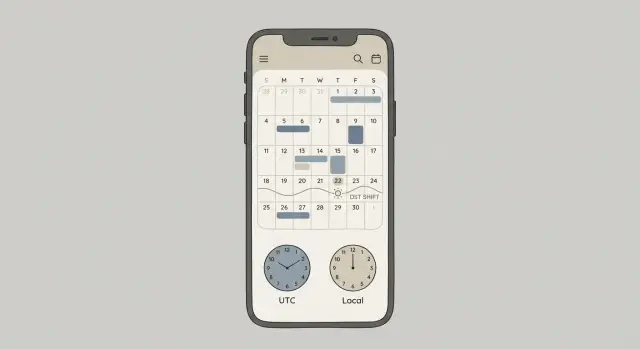
Why scheduling bugs happen when time zones are involved
Scheduling bugs feel personal because they show up at the worst moment: right before a call, a pickup, a deadline, or a reminder.
What users usually report looks like this:
- A meeting time shifts by an hour after saving.
- Reminders fire early (or late), especially around DST changes.
- The same event shows on different days for different people.
- A “9:00 AM” slot turns into “8:00 AM” when someone travels.
These issues are hard to catch because many teams test in one place, on one laptop time zone, across a small set of dates. If everyone on the team is in the same region, the app can look perfect and still be wrong for everyone else. Some bugs only show up weeks later when daylight saving time changes, or when an event crosses midnight in another region.
Under the hood, the main cause is mixing different meanings of “time” without noticing. Sometimes you’re dealing with an exact moment (a timestamp). Other times you’re dealing with a wall-clock rule (like “every day at 9:00 AM in New York”). If you treat those as the same thing, your schedule drifts.
The goal is simple: keep one clear source of truth for the moment you mean, then show it in the right local time for each viewer, consistently.
The core rule: store a single source of truth in UTC
Scheduling gets confusing because two different concepts look similar, but they aren’t.
An instant is a real moment in time: the meeting starts at one exact second globally. A local date and time is what a person sees on their screen: “Monday at 9:00 AM”, which depends on their time zone and daylight saving rules.
For timed events (anything that happens at a specific moment), store the instant in UTC in your database, every time. UTC doesn’t shift when daylight saving time starts or ends, so your stored value stays stable across countries, devices, and servers.
UTC alone still isn’t enough. You also need the time zone context so you can recreate what the user meant when they chose “9:00 AM” in a specific place.
A practical set of fields is:
start_at_utc: the instant in UTC (your source of truth)event_tz: the IANA time zone ID that defines the intended wall clock time (for example, "America/New_York")- optionally, a viewer time zone in the user profile (if display depends on who’s looking)
Example: a user schedules “June 10, 9:00 AM New York time”. You convert that local time to 2026-06-10T13:00:00Z and store it as start_at_utc, plus event_tz="America/New_York". If New York changes DST rules in the future, you still know which rule set to apply.
Pick the right data type: timestamp, local date, or time zone ID
Most scheduling bugs start with a mismatch: you store one kind of time, then later treat it as another. Before you add database columns, decide what the value actually represents.
1) Instant (timestamp): use when the moment matters
A timestamp represents a real moment that should be the same worldwide. Use it for meetings, reminders, deadlines, and anything that should trigger at a specific instant.
Example: “Call starts at 2026-02-01 15:00 in New York.” Once saved, that moment should stay fixed, even if someone views it from London or Tokyo.
2) Local date only: use when the calendar day matters
A local date (no time) is for things tied to a day, not a moment.
Good fits include birthdays, hotel nights, subscription billing dates, all-day events, and vacation days. If you store these as timestamps, you will eventually show the wrong day to someone in a different time zone.
Example: a hotel booking for “June 10-12” should not shift to “June 9-11” just because the user travels.
3) Time zone ID: store the rule set, not just an offset
If a user chose a local time like “9:00 AM,” you also need to know which time zone rules to apply. Store an IANA time zone ID (like America/New_York) rather than a raw offset (like -05:00).
Offsets change with daylight saving time. Zone IDs capture those changes.
A quick rule of thumb:
- Timestamp: meetings, reminders, due times
- Local date: birthdays, billing dates, hotel nights, all-day blocks
- Time zone ID: whenever you accept a local time and need to convert it correctly later
If your app already stores offsets or mixes date-only fields with timestamps, plan a small migration sooner rather than later. It’s cheaper than debugging “wrong day” reports for months.
A simple storage model that stays readable
A readable model starts with one promise: every timed event has one unambiguous moment in time. That moment should be a UTC timestamp. Everything else is supporting context for display and editing.
Here’s a practical event record shape that stays clear months later:
{
  "id": "evt_123",
  "title": "Demo call",
  "start_at_utc": "2026-01-18T17:00:00Z",
  "duration_minutes": 30,
  "start_tz": "America/New_York",
  "start_local_input": "2026-01-18 12:00",
  "created_by_locale": "en-US"
}
Use start_at_utc as the source of truth for reminders, sorting, conflict checks, and API responses. Keep start_tz so you can show the time the way the creator expected, especially across daylight saving time changes. Store start_local_input only if you need edit flows to show exactly what the person typed (useful when the UI accepts partial input).
Avoid values that are easy to misread later, like ambiguous strings (“01/02/2026 5pm”), mixed formats in the same column (sometimes UTC, sometimes local), device offsets without a real zone ID, or two competing truth fields that can disagree.
Naming matters. Prefer explicit names like start_at_utc, start_tz, and (only if truly date-only) start_date.
Step by step: saving a scheduled time correctly
Treat what the user picked (their local date and time) as input, and treat the stored value as output: one UTC timestamp you can trust.
1) Capture the full intent from the UI
When someone schedules something, you need three pieces: the date, the time, and the time zone. “9:00 AM” isn’t enough by itself. Many bugs start when the app silently assumes the server’s time zone or a guessed browser zone.
Example: a user in Los Angeles picks “Mar 10, 9:00 AM” and their time zone is America/Los_Angeles. That combination is the intent you must preserve.
2) Validate the time zone ID before you use it
Only accept known IANA time zone IDs (like Europe/Paris or America/New_York). Strings like “EST” or “GMT+2” are ambiguous and create DST surprises.
Validation should be strict: reject unknown IDs instead of guessing, normalize obvious whitespace issues, and surface a clear error so the user can reselect the zone.
3) Convert to UTC and store a single timestamp
Once the zone is valid, convert (local date + local time + zone) into a UTC timestamp and store that as the source of truth. Store the original zone ID in a separate field so you can show the event the way the creator intended.
Example: “Mar 10, 9:00 AM America/Los_Angeles” becomes a UTC timestamp like 2026-03-10T16:00:00Z (the exact value depends on DST rules).
Step by step: showing the right time for each viewer
Your stored value should not change just because a different person is looking at it. Keep the UTC timestamp as truth, and adjust only for display.
A stable flow looks like this:
- Load the stored UTC timestamp as-is.
- Determine the viewer’s time zone (from their profile, an org setting, or a confirmed browser/device time zone).
- Convert the UTC instant into the viewer’s time zone for display.
- Format the result using the viewer’s locale rules (date order, month names, 12/24-hour clock).
Concrete example: your system stores 2026-01-18T16:00:00Z for a customer call. A viewer in New York should see 11:00 AM on the same calendar day. A viewer in Berlin should see 5:00 PM (17:00). Both are correct because they are the same moment.
Two details prevent most bugs:
Don’t overwrite the stored value after conversion. If someone edits the time, convert their input back to UTC before saving.
Also remember: formatting is not conversion. Locale formatting changes how you write the time (like 01/18 vs 18/01), not what moment it represents.
Do not mix date-only fields with timestamps
A calendar has two different kinds of things: moments on a clock (“meet at 3:00 PM”) and date concepts (“all day on April 12”). Problems start when you store a date concept as if it were a clock moment.
All-day events are the classic trap. If you store “April 12” as a timestamp like 2026-04-12T00:00:00Z, you’ve secretly attached it to midnight in UTC. For someone in a negative offset time zone, that can display as the previous evening, and the UI may label it as April 11.
A realistic off-by-one bug looks like this: you create an all-day PTO entry for April 12 while your computer is set to Los Angeles. Your backend saves 2026-04-12T00:00:00Z. When you later view it in Los Angeles, that UTC midnight is 5:00 PM on April 11 local time, so the event appears on the wrong day.
A simple rule keeps this sane:
- If it’s tied to a clock time, store a UTC timestamp (plus the time zone ID if you need to preserve the original intent).
- If it’s a date concept, store a date-only value and treat it as a local date.
- If it spans multiple whole days, store a local start date and local end date (an exclusive end is often easiest).
When you truly need both (for example, a “due date” that becomes overdue at a specific hour), model them as separate fields. Don’t overload one timestamp to mean both “this day” and “this moment.”
Validate user locale and time zone without guessing wrong
Locale and time zone are different settings. Locale is about language and formatting (like 12-hour vs 24-hour time, and how dates look). Time zone is about the actual offset rules for a place. If you guess one from the other, you’ll eventually show the wrong day or the wrong hour.
A common trap: a user has locale set to en-GB (so you format dates as 31/01/2026), but they are currently in America/New_York. If you assume “GB means London,” your conversion will be off, especially around daylight saving time.
What to collect and validate:
- Locale (BCP 47 tag, like
en-US). Use it only for formatting and language. - Time zone ID (IANA, like
America/New_York). Store and use it for conversions. - A clear “event time zone” choice when it matters (webinars, appointments, flights).
- An auto-detected default time zone, but confirm it when scheduling.
- A simple re-check when the zone changes (device change, travel, VPN).
If detection fails, fall back to a sensible default (often UTC) and ask the user to choose.
Travel: when “my time” is not the right time
Decide whether an event is anchored to a place or to the person.
A dentist appointment is anchored to the clinic’s time zone, even if the patient travels. A personal reminder might follow the user’s current time zone.
Make that rule visible in the UI: “Happens at 9:00 AM in Los Angeles time” vs “Happens at 9:00 AM wherever you are.”
DST and other edge cases that break naive conversions
Daylight saving time is where “it worked in testing” bugs show up. The problem is usually not UTC storage. The problem is converting a user’s local input into a real instant.
Two DST traps
Some local times do not exist. On the “spring forward” night, the clock jumps ahead, so a time like 02:30 might be skipped. If a user schedules “March 10, 02:30” in a zone that jumps from 02:00 to 03:00, your app has to decide what that means.
Some local times happen twice. On the “fall back” night, 01:30 can occur in two different offsets (before and after the shift). If you store only a local time without a time zone rule, you can’t know which one the user meant.
Pick a clear policy and stick to it:
- If the time is missing, move it forward to the next valid time, or block it and ask the user to pick a new time.
- If the time is repeated, consistently choose “earlier” or “later,” or prompt the user when it matters.
- Log the rule you applied so support can explain what happened.
Other edge cases exist. Leap seconds are rare and most systems ignore them, but you should be aware when comparing “exact” durations. More common is storing only a UTC offset instead of a real time zone ID. Offsets don’t carry historical rule changes, so past and future conversions can be wrong even if your timestamps look correct.
Common mistakes that create time drift and wrong dates
Most scheduling bugs aren’t big logic errors. They’re small assumptions that stack up until a meeting lands an hour late, or a reminder fires on the wrong day.
One classic mistake is storing a user’s local time as if it were UTC. Someone picks “9:00 AM” in New York, you store 2026-01-18 09:00:00Z, and now everyone else sees a shifted time. It may look fine in tests if you happen to be in the same zone as your server.
Another common trap is saving only the numeric offset (like -0500) instead of a real time zone ID (like America/New_York). Offsets change with DST, and zone rules can also change over time. If you save only the offset, you’re freezing a temporary fact and losing the rules you need later.
Parsing date strings without a clear format or time zone is also a silent killer. “03/04/2026” can mean two different dates depending on locale, and “2026-01-18 09:00” means nothing without a zone.
A few patterns show up again and again:
- Using the server time zone when scheduling reminders or cron jobs
- Converting to local time on save, then converting again on read
- Storing timestamps in multiple columns with different assumptions
- Treating a date-only field as a midnight timestamp
- Logging times without including the zone and offset
A quick sniff test: for any stored value, can you explain which instant it represents and which zone rules you’ll apply when you display it?
Quick checks before you ship scheduling features
Treat scheduling like payments: small mistakes become support tickets fast.
Before you ship, make sure these rules are true in your model and your code:
- Timed events store one UTC timestamp as the source of truth, and store an event time zone ID when the event is meant to happen in a specific place.
- Date-only concepts (birthdays, due dates, holidays) are stored as date-only values, not as midnight timestamps.
- You convert only at the edges: when the user enters a time (input) and when you show it (display). Business logic runs on UTC instants or on date-only values.
- Locale and time zone are validated explicitly. If you have to guess, show what you guessed and let the user change it.
- You test at least three zones (for example, UTC, America/Los_Angeles, Asia/Tokyo) and include a DST change week in your test set.
A simple sanity check is to schedule one meeting for “next Monday at 9:00 AM” in Los Angeles, then view it as a user in Tokyo. If the meeting date changes unexpectedly, you’re mixing “event time zone” and “viewer time zone” somewhere.
Also search your codebase for places where you add hours or days to “fix” offsets. Those patches often hide deeper issues, like storing local time as if it were UTC.
A realistic example and what to do if your app is already broken
A good test is a story that forces the tricky cases.
Example: the same meeting, three different realities
A team schedules a meeting for Monday at 10:00 AM in New York. The scheduler is in New York and picks “Mon 10:00 AM”. Your app stores the UTC instant (for the moment in time) and the organizer’s time zone ID (like America/New_York).
Now two people view it:
- Priya in London sees it as 3:00 PM local time.
- Alex is traveling. He created the event in New York, but on Monday he is in Los Angeles. He sees it as 7:00 AM local time, because the meeting is still tied to the original UTC instant.
During the DST change week, broken apps show their cracks. If your app re-converts using a “current device time zone” without the saved event time zone, or if it stores “Mon 10:00” without a zone, you can end up showing 9:00 AM or even the wrong date for someone overseas.
Next steps if your app already shows the wrong times
Start by finding the source of truth you use today (or admitting you have more than one). Then fix it end to end, not screen by screen.
A focused audit usually includes:
- Listing every column that stores time and marking it as UTC, local date-only, or unclear
- Searching for manual offset math
- Checking where date-only values get parsed and later treated like timestamps
- Confirming you store and reuse an IANA time zone ID for events that need it
- Running one DST-week test through both save and display
If this problem came from an AI-generated prototype (Lovable, Bolt, v0, Cursor, Replit) and the scheduling logic is already drifting in production, FixMyMess (fixmymess.ai) can run a free code audit to pinpoint where the first bad conversion happens, then help repair the storage and conversion rules so times stop shifting.
FAQ
What’s the safest default way to store meeting times?
Store timed events as a single UTC timestamp and treat it as the source of truth. Convert to local time only when you display it, and convert back to UTC only when the user edits and saves.
If I store everything in UTC, why do I still need a time zone field?
UTC keeps the stored instant stable, but it doesn’t tell you what the user meant when they picked a wall-clock time. Store the event’s IANA time zone ID too so you can recreate the intended local time later, even across DST changes.
When should I use a timestamp vs a date-only value?
A timestamp is for an exact moment that should be the same worldwide, like a meeting start or a reminder firing time. A date-only field is for day-based concepts like birthdays, hotel nights, and all-day PTO, where shifting the day for different time zones is a bug.
How should I store all-day events so they don’t move to the wrong day?
Don’t store all-day events as “midnight UTC,” because that can display as the previous day in negative-offset time zones. Store a date-only start (and usually a date-only end, often exclusive) and treat it as a calendar date, not as a clock instant.
Why is “EST” a bad time zone to save in my database?
Use an IANA time zone ID like America/New_York, not abbreviations like “EST.” Abbreviations can map to multiple places and rules, and they don’t reliably capture daylight saving behavior.
How do I handle users traveling so times don’t feel wrong?
Decide a clear rule: is the event anchored to a place (like a clinic) or to the person (like a personal reminder)? If it’s place-based, keep the event time zone fixed; if it’s person-based, display and trigger it in the user’s current time zone.
What should my app do when a user picks a time that DST skips or repeats?
Some local times don’t exist during spring-forward, and some happen twice during fall-back. Pick a policy (block and ask, or shift to the next valid time, or choose earlier/later consistently) and apply it the same way everywhere you parse local input.
Does the user’s locale determine their time zone?
Don’t guess a time zone from locale. Locale is for formatting and language, while time zone is for conversion rules; store both separately and validate the time zone explicitly.
What are the minimum tests to catch time zone scheduling bugs before launch?
Test at least three zones with very different offsets and include dates around DST changes. Also test the same saved event viewed by different users in different zones, and verify that you never re-save converted display values as the stored truth.
My app already shows the wrong times—what’s the fastest way to fix it?
Start by identifying your current source of truth and labeling every time field as UTC timestamp, date-only, or unclear. If you inherited an AI-generated prototype and times are already drifting, FixMyMess can run a free code audit to pinpoint the first bad conversion and help you repair the model and conversions, often within 48–72 hours.