Emails from the Right Domain: Sender Identity and Spam Checks
Learn how to confirm emails from the right domain, what sender identity really means, why messages hit spam, and the exact provider settings to check.
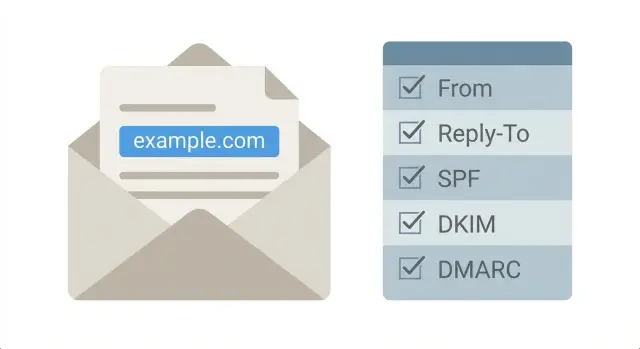
What it means to send from the right domain
“Emails from the right domain” means your message both looks and verifies as if it truly came from your business domain (like @yourcompany.com), not from a random service domain or a mismatched address.
Your sender identity is the set of details that tells both the recipient and the mailbox provider who you are. It includes the display name (like “Alex from Acme”), the email address ([email protected]), and the domain after the @ (acme.com). Those pieces should match what people expect to see from your business.
It also helps to separate two things:
- What you put in the visible From field.
- What system actually sends the email.
A newsletter tool, CRM, help desk, or your own app will send through its own servers. That’s normal. What matters is whether those servers are authorized to send on behalf of your domain.
In practice, “right domain” usually means your setup is consistent end to end: the visible From address uses your domain (not @gmail.com and not a vendor default), replies go where you intend (Reply-To matches your plan), and mailbox providers can verify the message is authorized for your domain (SPF, DKIM, and DMARC).
Why it matters is simple: inbox providers are trying to protect users from fake senders. If your message claims “From: [email protected]” but the sending system can’t prove it’s allowed to represent your domain, it looks suspicious. That mismatch can reduce trust, push your emails into spam, or add “via” labels that make people hesitate.
A common example: you set your newsletter tool to show From: [email protected], but you never verified acme.com inside the tool. To a mailbox provider, it can look like someone is impersonating Acme. The fix usually isn’t rewriting the email. It’s making the domain and sender setup match.
Why “wrong domain” emails land in spam
Inbox providers are paid to be suspicious. They spend all day trying to catch messages that pretend to be from a brand but are really sent by someone else. Spoofing and phishing often start with the sender domain.
When your email looks like it’s from one domain, but the actual sending system is tied to another, providers treat it as a warning sign. Even if the subject line and content are fine, a domain mismatch can resemble impersonation.
A lot of filtering is identity checking. Providers compare what the message claims (the visible From) with what the headers say (where it really came from and whether the sender is authorized). If the signals don’t line up, the safest place for the email is often spam. Sometimes it lands in Promotions or Junk, but the root issue is still trust.
Reputation matters too. A brand-new domain, or a domain that hasn’t sent much email, has little history. Trust builds when recipients open, reply, and don’t report spam. If you send from a different domain than people expect, you lose that trust and can end up leaning on the reputation of whatever system is actually sending.
Here are a few “wrong domain” situations that often raise suspicion:
- Your From address uses your company domain, but the provider is sending through a shared or unrelated domain.
- A tool quietly swaps in a default From address like [email protected].
- Reply-To is your domain, but bounces and delivery signals point somewhere else.
- You use a subdomain for sending, but it isn’t aligned with what you show in From.
That’s why emails can land in spam even when nothing looks obviously broken. Most checks happen quietly, and providers rarely tell you which mismatch tipped the scale.
Example: you run a small campaign from [email protected], but your tool is configured to send from acme-mailer.com. Recipients see “Acme” in the inbox, but the provider sees mixed identity signals. The message may be filtered before anyone even reads it.
Signs your messages aren’t coming from your domain
Most people look at the From name and assume everything is fine. Inboxes look at more than what you typed into the composer. If key identity parts point to a different domain, your email can look like it’s pretending to be you.
Common clues include:
- Recipients see “via” or “sent on behalf of” next to your name. This often means another service is doing the sending and your domain isn’t fully authorized.
- The From address shows your domain, but when someone hits Reply, it goes to a different domain or system you didn’t expect.
- Bounce messages go to an unfamiliar address. This points to a different Return-Path, which is a strong authenticity signal.
- Your email tool warns about authentication, such as “domain not verified” or “DKIM missing.”
- Simple test emails land in Promotions or Spam more often than usual.
A quick reality check: send a test email to two inboxes you control (for example, one Gmail and one Outlook) and compare what each shows for sender details. If one shows “on behalf of,” or if reply behavior changes, you have a mismatch.
Example: you send a newsletter from [email protected] using a new provider. The recipient sees “Your Brand via provider-mail.com,” and replies go to [email protected]. Even if your message is legitimate, that split identity is a red flag for filters and confusing for readers.
If you see any of these signs, pause before your next campaign. Review From, Reply-To, and bounce/Return-Path settings, plus any warnings in your provider dashboard.
The three addresses to verify: From, Reply-To, Return-Path
When people talk about emails from the right domain, they often mean more than what’s visible. Three different “addresses” can be involved in one message. If they don’t match your domain (or don’t match each other), mailbox providers may treat the email as suspicious.
From: what recipients see
The From address is what readers see in their inbox. It should match your brand and your intended sending domain (for example, [email protected]). If the From says yourcompany.com but the message is actually sent “on behalf of” another domain, filters can notice.
Also check the sender name (like “Your Company Billing”). If it changes often, looks random, or doesn’t match your website and signature, people hesitate. Lower engagement can hurt deliverability over time.
Reply-To: where replies go
Reply-To tells email apps where to send replies. Often it should match From. It can be different for a real reason, like sending marketing from one address while routing replies to a shared support inbox.
Keep it consistent and intentional. A Reply-To pointing to a totally different domain can look like phishing, especially when the From address is your brand.
Return-Path: the bounce address (often hidden)
Return-Path is used for bounces and delivery errors. Many providers set it automatically, and it may use a system domain or a subdomain. That can be normal, but it should still align with your sending setup. If Return-Path points somewhere unexpected, it’s often a sign the tool is sending through the wrong domain or an unverified identity.
To diagnose, open the full headers of a message you sent to yourself (often called “show source” or “original message”). Look for:
- From: does it show your domain exactly?
- Reply-To: is it expected and brand-aligned?
- Return-Path: does it match your provider or configured sending domain?
- “Mailed-by” / “Sent-by” / “on behalf of”: do any show a different domain?
If any of these don’t match what you intended, you’ve found something concrete to fix in your provider settings.
Sender authentication basics (SPF, DKIM, DMARC) without jargon
If you want emails from the right domain, you need more than the right From name. Mailbox providers also check whether your sending service is allowed to send for your domain and whether the message was altered on the way.
In plain English:
- SPF is a rule in your domain settings that lists which servers are allowed to send email for your domain.
- DKIM is a signature added to each message that recipients can verify using a key published in your domain settings.
- DMARC is a policy that tells providers what to do if SPF or DKIM checks fail, and where to send reports.
What “alignment” means (and why it matters)
Alignment is just a matching game. The domain your reader sees in the visible From should match the domain proven by SPF or DKIM, or at least be in the same domain family.
If your From address is [email protected], but the message authenticates as a different domain (like a tool’s shared domain), some providers treat that as suspicious even if the email is otherwise fine. Subdomains can work (like mail.company.com) as long as they’re set up to align with what you show in From.
What to expect when you change these settings
SPF, DKIM, and DMARC are DNS records. You add or edit them wherever your domain is managed (often your registrar or DNS host). Two practical realities:
- Changes can take time to spread. Some updates show quickly, others take hours.
- Small typos break things. Extra spaces, missing quotes, or putting the record in the wrong field can cause checks to fail.
A simple way to remember it: SPF answers “Is this server allowed to send?”, DKIM answers “Was this message signed correctly?”, and DMARC answers “What should happen if those answers don’t match what the recipient expects?”
Step-by-step: confirm your provider is sending as your domain
To send emails from the right domain, two things must match: the address people see (your From domain) and the domain your sending tool is authorized to use.
A simple 5-step check
Before you touch DNS, get clear on what you’re sending and what tool is sending it.
- Write down the exact From domain you want (for example,
[email protected]). Be precise.yourdomain.comandmail.yourdomain.comare different. - Identify what system sends the email. Is it your inbox provider, a marketing tool, or your app (password resets, receipts, alerts)? Each one needs its own setup.
- Find the tool’s domain authentication area. Look for wording like “Authenticate domain,” “Sending domains,” or “Email DNS records.”
- Add or verify SPF and DKIM in your DNS. SPF authorizes the service. DKIM signs the message.
- Add a basic DMARC policy and start in monitoring mode so you can see what’s failing before you block anything.
After publishing DNS changes, wait a bit, then use the sending tool’s verification button if it has one.
Send a test and confirm alignment
Send a test email to a personal inbox (Gmail is fine). In the message details, look for “mailed-by” and “signed-by.” Ideally they match your domain (or an approved subdomain). If they show a different domain you don’t control, you still aren’t sending as your domain.
Example: a founder uses an AI-built app for signups, and password reset emails arrive as “via a random platform domain.” That usually means the app is sending through a default provider account, not your verified domain. Fix it by connecting the correct sending service, authenticating the domain there, and updating the app’s From settings to match.
If the tool claims “authenticated” but tests still fail, the usual causes are DNS typos, adding records to the wrong domain, or having multiple SPF records instead of one.
Subdomains and multiple tools: keeping everything aligned
Subdomains let you separate types of mail without changing your main brand domain. A common setup uses one subdomain for newsletters, another for receipts, and the main domain for personal team email. Done well, this protects reputation: if a marketing send gets complaints, it won’t automatically drag down password resets and receipts.
A typical pattern looks like:
- news.yourdomain.com for marketing campaigns
- billing.yourdomain.com for invoices and receipts
- app.yourdomain.com for transactional messages like sign-in codes and alerts
- yourdomain.com for human-to-human mail (support, sales, founders)
This separation is usually worth it when you send campaigns at scale or have critical transactional mail that must land reliably. If you only send occasional announcements, one domain can be simpler.
Where things go wrong is alignment drift across tools. You can set your From address to look right, but a hidden piece (like the bounce or Return-Path domain) may come from a different subdomain or even the provider’s shared domain. One mis-set subdomain can break alignment and make inboxes suspicious.
To keep emails from the right domain across multiple tools, set a consistent rule and apply it everywhere: marketing platform, app email service, CRM, and support inbox. Decide what each tool is allowed to send as, and avoid “whatever the tool auto-selected” defaults.
It also helps to keep a simple internal note: which From domains are approved for each mail type, which tool owns each subdomain, who updates DNS/authentication records, and what to test after changes.
Example: your product sends login codes from [email protected], but your marketing platform sends from [email protected] while its bounce domain is still a default like bounce.vendor-mail.com. Everything looks fine in the From line, yet deliverability drops after a campaign. The fix isn’t “change the copy.” It’s aligning the sending domain pieces so every tool uses what you intended.
Common mistakes that cause domain mismatch
Most “domain mismatch” problems aren’t fancy hacks. They’re small setup choices that add up until mailbox providers stop trusting you.
One common mistake is using a free mailbox domain (like a personal webmail address) while branding the message as your company. Even if the display name looks right, the domain doesn’t match your brand.
Another frequent issue is SPF being present but wrong. Teams add a second (or third) SPF record when they connect a new tool. SPF must be a single record that includes all approved senders. Multiple SPF records can cancel each other out.
DKIM issues are also easy to miss. A key can be disabled during a provider change, left in a non-signing state, or break after a domain migration. When DKIM isn’t signing, you lose one of the strongest identity signals.
Other mistakes that create mismatches quickly:
- Turning on a strict DMARC policy (like reject) before confirming every legitimate sender is aligned.
- Mixing different From domains across templates and automations so your brand shifts depending on which message is sent.
- Assuming a “verified domain” badge means DNS is fully correct, even when records are incomplete or published in the wrong place.
Small example: a startup uses [email protected] for customer replies, but their marketing tool sends newsletters as [email protected] and one automation uses a different From domain. At the same time, they added a new SPF record for the marketing tool instead of updating the existing one. Some messages pass, some fail, and inbox placement becomes inconsistent.
If you see this pattern, pick your sending domains, make sure every tool is included in a single SPF record, confirm DKIM is actively signing, and keep DMARC in monitoring until your legitimate sources are aligned.
Quick checklist before sending your next campaign
Before you hit send, do a quick pass to confirm your email is actually being sent as your domain (and not “on behalf of” a vendor domain). This is the fastest way to catch small settings that lead to spam.
Send yourself a test message to a Gmail or Outlook inbox and open the message details (“Show original,” “View source,” or “Message headers”). You’re looking for two things: the visible addresses match what you expect, and the authentication results say PASS and line up with your domain.
Keep the checklist simple:
- From address is yours and consistent with your brand domain or chosen subdomain.
- Reply-To is intentional and doesn’t surprise you.
- SPF includes the service that actually transmits the message.
- DKIM is enabled, signing, and aligned with the same domain family as From.
- DMARC exists, and reports (if enabled) are arriving.
After the test email arrives, look for an authentication summary: SPF PASS, DKIM PASS, and DMARC PASS. Also confirm the domain shown for these passes matches the same domain family as your From address.
Example: your From is [email protected], but in the headers you see DKIM signed by acme-mailer.com and DMARC shows fail. That usually means your provider isn’t configured to sign as acme.com, or your DNS records are incomplete.
Example scenario and next steps if it’s still going to spam
A small startup launches with a brand new domain and uses a third-party tool to send onboarding emails. They set the From name to their brand, but the emails still look “off” in inboxes. Some recipients see a “via” label, replies are rare, and early users report the message is in spam.
Usually this comes down to a mismatch between what you see in the email client and what mail systems verify behind the scenes. Even if the visible From address looks right, the actual sending domain (often reflected by Return-Path and signing domains) can be different. With a new domain, that mismatch is enough for filters to get cautious.
What they changed:
- Updated the provider’s From address setting to use their real domain (not a default or shared domain).
- Added or corrected SPF, DKIM, and DMARC records in DNS for the exact domain that sends.
- Split sending by purpose: a dedicated subdomain for marketing, while keeping the main domain for personal mail.
- Checked message headers to confirm Return-Path and the DKIM domain match what they configured.
Within a week, they saw fewer bounces, fewer “via” labels, better inbox placement, and more consistent branding across clients. Replies improved too, because recipients trusted what they were seeing.
If your settings look right but messages still land in spam, focus on the practical troubleshooting path:
- Ask your email provider which domain is used for Return-Path and DKIM signing.
- Check DNS for duplicate or conflicting SPF entries.
- Confirm you’re not sending from multiple tools without aligning authentication.
- Review recent changes: new domain, new IP pool, or a sudden volume spike.
- For workplace recipients, ask their IT team what rule or signal triggered the spam decision.
If an AI-built app is sending mail incorrectly (wrong headers, hardcoded domains, exposed keys, or broken auth flows), FixMyMess at fixmymess.ai can run a free audit and help fix the code and configuration so your sender identity matches what receivers verify.
FAQ
What does “sending from the right domain” actually mean?
It means the visible From address uses your business domain and the email also verifies as authorized for that same domain. You’re aiming for a consistent identity: what people see, what inbox providers check, and what your sending tool is actually allowed to send.
Why do recipients see “via” or “sent on behalf of” next to my name?
Usually it means the sending service isn’t fully authorized to send as your domain, so the inbox shows the service domain as the real sender. It can also happen when your From, Reply-To, or signing domain don’t match cleanly, which makes the message look like it’s being sent through a third party.
Which email addresses should I check to confirm it’s really coming from my domain?
Start by checking these three: From (what readers see), Reply-To (where replies go), and Return-Path (where bounces go). If any of them point to an unexpected domain, or don’t align with your authenticated domain, inboxes may treat the message as suspicious.
What is Return-Path, and why does it matter if it’s different?
It’s the bounce address used for delivery errors, and it’s a strong behind-the-scenes identity signal. It doesn’t always have to be your main domain, but it should be expected for your setup and align with how your provider authenticates mail for you.
What is SPF, and what happens if it’s wrong?
SPF is a DNS rule that tells inbox providers which servers are allowed to send mail for your domain. If SPF is missing or doesn’t include your sending tool, your email can fail authentication and lose trust, even if the content looks fine.
What is DKIM, and how do I know it’s working?
DKIM is a cryptographic signature added to each email so recipients can verify it wasn’t altered and that it’s tied to your domain. If DKIM isn’t signing (or signs as a different domain than your From), you lose one of the strongest legitimacy signals and can see more spam placement.
Do I need DMARC, and what’s the safest way to start?
DMARC is a policy that tells inbox providers what to do when SPF or DKIM don’t match what your From address claims. A safe default is to start with monitoring (so you can see failures) before moving to stricter enforcement, because strict settings can block legitimate mail if something is misaligned.
Should I send from a subdomain (like news.mycompany.com) or my main domain?
Use subdomains when you want to separate reputations, like marketing versus transactional mail. A common approach is to keep your main domain for person-to-person email and use a dedicated subdomain for bulk sends, but only if you’ll consistently authenticate and use it everywhere you send.
How can I quickly test whether my emails are aligned and authenticated?
Send a test email to an inbox you control and open the full message details or headers. Look for whether SPF, DKIM, and DMARC show a pass, and confirm the domains shown there match the same domain family as your visible From address.
My settings look right but emails still go to spam—what should I do next?
First, confirm which domain is used for DKIM signing and Return-Path in your sending tool, because that often reveals the mismatch. Then check for common setup errors like duplicate SPF records, missing DKIM, or multiple tools sending without consistent domain authentication; if an AI-built app hardcoded the wrong sender settings or keys, FixMyMess can run a free audit and fix the code and configuration so your mail reliably matches your domain.