Verify a fix is real: simple before and after checks
Verify a fix is real with quick, non-technical tests: capture a before result, compare after changes, try a second account, refresh, and re-check.
What a real fix looks like in plain language
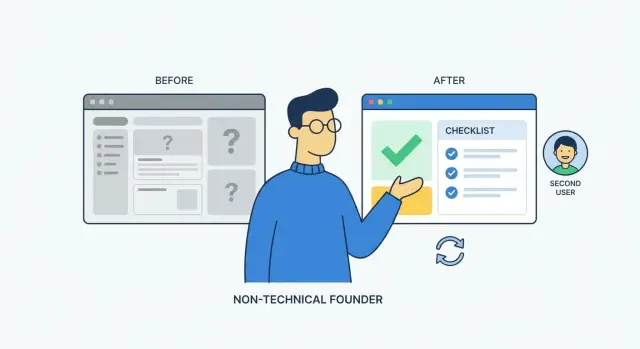
A real fix is easy to describe: the problem is gone in the exact situation where it used to happen, and it stays gone when you repeat the same action.
If you can’t explain what “fixed” means in one sentence, it’s easy to accept a change that only looks good in a quick demo. Demos usually happen on one device, one account, and one perfect path. Real users don’t behave that neatly.
To verify a fix is real, focus on proof you can repeat, not opinions like “seems fine” or “works on my machine.” You’re not judging the code. You’re checking the outcome.
A simple definition you can reuse:
A fix is real when the same steps that failed before now succeed, and they still succeed after you repeat them under slightly different conditions.
Why quick demos can mislead
Many bugs hide behind “special” conditions: you’re already logged in, your browser has saved data, or you have access you didn’t realize you had.
AI-generated prototypes can add another trap: they sometimes behave differently depending on who created the first records. The builder’s account looks fine, while brand-new users hit errors.
What counts as solid proof (no code reading required)
Pick one short test you can run in under a minute and treat it like a receipt. The steps should be clear enough that someone else could follow them, and you should be able to show a before result and an after result.
Solid proof usually has these traits:
- Clear, repeatable steps
- A captured “before” result (error, wrong screen, broken button)
- A captured “after” result (correct screen, correct data, no error)
- The same result twice in a row
- One quick “normal” variation you didn’t use in the demo (a different account, a refresh, a different browser)
If you can do that, you have evidence, not a guess.
Capture a clear “before” result
Start by capturing a clean “before” result: one specific thing that fails, recorded in a way someone else can repeat. Without this, it’s easy to mistake a lucky click for a real fix.
Pick a single task that used to break and keep it narrow.
- Too broad: “Checkout fails.”
- Clear: “Entering a card number and clicking Pay shows a spinner forever.”
Write down the exact steps you took, in order, as if you were explaining it to a friend who’s never seen the app. Include the page you were on, the buttons you clicked, and what you typed (mask private data). Small details matter because many bugs only show up after a specific path.
Save what you saw. A screenshot is enough if it shows the error message. If the issue is timing-based (loading forever, redirect loop, a button that sometimes does nothing), a 10 to 20 second screen recording is better. Add one sentence about what you expected and what actually happened.
Also note the environment, because the same app can behave differently across devices and browsers:
- Device (phone or laptop)
- Browser (Chrome, Safari, etc.)
- Account state (logged out, test account, main account)
- Date/time (helps if someone checks logs)
- The exact visible result (error text, blank page, endless loading)
Example note: “On iPhone Safari, logged out, tap Sign up, enter email, tap Create account, page refreshes and returns to the same form with no message.”
Step-by-step: run a simple before-and-after test
A before-and-after test is the fastest way to verify a fix without reading code. The idea is simple: repeat the exact same steps you used to see the problem and check whether the outcome truly changed.
1) Re-run the same steps, not “similar” ones
Use your “before” proof (screenshot, recording, or notes) and follow it like a recipe. Small tests beat “click around and see” sessions because they make it obvious what actually improved.
Keep it consistent:
- Start from the same place (same page and app state)
- Do the same actions in the same order
- Use the same input
- Look for the same failure point you captured before
- Repeat once right away to confirm it’s consistent
2) Compare outcomes, not effort
After the change, don’t judge by how smooth it felt. Compare what happened to what you recorded before.
If “before” was “Login button spins forever,” then “after” should be clearly different: you land on the dashboard, or you get a clear error message you can act on (like “password too short”).
Also confirm the change actually sticks. If the app says “Saved!” but the update disappears after a reload, that’s not a real fix. It’s a nicer-looking failure.
3) If it still fails, write down what changed
If the after test fails, capture what’s different: the exact error text, which step you were on, and what you entered. One small difference (account, browser, data) often explains why a fix looks right but isn’t.
Try a second account to avoid false confidence
A fix can look perfect on your own account and still be broken for everyone else. Your account often has saved sessions, remembered settings, or older data that quietly makes the problem disappear.
Create a clean test user that behaves like a brand-new customer:
- Log out fully (don’t just close the tab)
- Open a private/incognito window so there are no saved cookies
- Sign up or log in with a second account (different email)
- Repeat the exact flow that was “fixed”
- Confirm the result matches what you expected
If the bug is related to onboarding, permissions, billing, or profile setup, the second account is often where the truth shows up.
Also watch for role problems. If your app has roles like admin and member, test both. A fix that only works for an admin is not finished.
Example: “Invite teammate” works for the admin, but the new member gets a blank screen when accepting the invite. That often points to a broken session or missing permission checks.
Refresh and retry: prove it survives a reset
A fix can look perfect once, then fail the moment the page reloads or the app starts fresh. That usually means the “success” came from something temporary, like cached data, a stuck session, or state that only exists in the current tab.
The goal is simple: reset the app back to a normal state, then repeat the same test and see if the result stays the same.
The quick reset routine (2-3 minutes)
Run your confirmed “after” test, but add one reset at a time:
- Hard refresh the page, then repeat the test
- Log out and log back in, then repeat the test
- Close the browser/app completely and reopen it, then repeat the test
- Try once in a private/incognito window
Don’t change the test steps while you do this. If you “help” the app by clicking around, reloading mid-flow, or switching paths, you won’t know what actually worked.
What “consistent” looks like
A real fix is boring. You do the same thing after a refresh and it behaves the same way every time.
Red flags that often show up only after a reset:
- Works right after sign-in, breaks after a refresh
- Works until logout, fails on the next login
- First try works, second try shows a blank screen or different error
Example: you reset your password and it says “Success.” After a hard refresh, the new password doesn’t work. That suggests the message changed, but the update didn’t stick.
A few quick variations that catch most issues
Don’t test a hundred things. Test one normal flow first, then add one small twist that commonly breaks apps.
Good variations:
- Empty input: leave one required field blank and submit
- Long input: paste an unusually long name/address/note
- Common typo: add a trailing space, wrong case, or one wrong character
- Different browser or device: try once on another browser or your phone
- Repeat immediately: do the same action twice in a row
Example: after a signup fix, create an account with a normal email. Then try again with the same email but with a trailing space. If the app treats them as different users, something is still off.
When to stop (so testing stays quick)
Stop once a test teaches you something new.
- If a variation fails, stop and report exactly what you did and what happened
- If two variations behave the same way, move on
- If it works in one extra browser/device, that’s usually enough for now
A quick checklist you can reuse every time
You don’t need a perfect QA process. You need the same small set of checks every time, so “fixed” has a clear meaning.
Before you test, write the expected result in plain words.
- Good: “After I enter the right email and password, I land on the dashboard.”
- Better: add one visible detail that proves it worked, like the dashboard title.
Template you can paste into a note:
- Fix name + expected result (plain words): ______________________________
- Before result (what happened): Pass / Fail | Date: ____ | Notes: _______
- After result (same steps): Pass / Fail | Date: ____ | Notes: __________
- Second account check: Pass / Fail | Date: ____ | Notes: _____________
- Refresh/reset check: Pass / Fail | Date: ____ | Notes: _____________
Keep notes concrete. Replace “seems fine” with “Got error: ‘Invalid token’ after refresh” or “Dashboard loads but settings page is blank.”
Common mistakes that make a fix look real when it isn’t
A fix can feel done because the screen looks better once. But a real fix works the same way, every time, for the people who matter.
Common traps:
- Testing only as the builder/admin account (extra permissions and saved state hide bugs)
- Changing three things at once (you can’t tell what helped, or what broke)
- Trusting a single successful run (timing and data issues often fail on the second try)
- Not repeating the exact steps that caused the bug (same page, same order, same inputs)
- Forgetting caching (old scripts, stored sessions, or stale responses can mask problems)
If a fix keeps flipping between working and not working, that’s usually a sign of a deeper cause: sessions, permissions, messy data, fragile logic, or an AI-generated pattern that only works on the happy path.
Example scenario: login works for you, fails for new users
You (the founder) can log in every time, so it looks fixed. But a new user signs up and gets stuck on a blank page or an “invalid session” error.
A typical “before” story: you open the app, click Log in, and land on the dashboard. A teammate creates a new account, verifies their email, and the app redirects them back to the login screen in a loop. It might happen only on mobile or only right after signup, so it’s easy to miss if you test only with your saved account.
Right after someone says “done,” run three checks:
- Before-and-after: repeat the exact steps that failed (new signup, email verify, first login)
- Second account: do it with an account that has never logged in before
- Refresh test: once you reach the dashboard, refresh and click to a second page (like Settings)
If it passes once but fails later, assume it’s still unstable. For login bugs, the cause is often a temporary token, a cookie that isn’t set correctly, or a session that breaks after refresh. One extra check that catches this: wait 5 to 10 minutes and try the same new account again.
When you report results, keep it short and specific so nobody argues about what “works” means:
“Before: New user signup -> email verified -> first login loops back to login screen. After: Created Account B, completed signup, logged in, reached dashboard, refreshed twice, session stayed active. Tested again after 10 minutes, still works.”
Next steps if you still don’t trust the fix
If you can’t confidently verify a fix, treat that as a useful signal. It usually means the test is unclear, the fix is fragile, or the problem is bigger than one patch.
Write a tiny test note that anyone can follow:
- Steps you took (click by click)
- What you expected
- What happened
- Device and browser
- Environment (production vs staging) and time
Then ask for a repeatable proof, not a promise. A good fix comes with a simple way to show it stays fixed.
A practical bar that works for most apps: “Show me it works for a new user, after a refresh, three times in a row.” If it can’t pass that, it’s not ready to ship.
If your product is an AI-generated app and fixes keep feeling shaky, a focused audit can be faster than patching blindly. FixMyMess (fixmymess.ai) specializes in diagnosing and repairing AI-built codebases so the same bug doesn’t keep coming back after logout, refresh, or a brand-new account.
FAQ
What’s the simplest definition of a “real fix”?
A fix is real when the exact steps that failed before now succeed, and they still succeed when you repeat them. If it only works once, or only in a perfect demo path, treat it as unproven.
Why can a quick demo make a broken fix look “done”?
Because demos often use one device, one account, and a clean happy path. Saved logins, cached data, or admin permissions can hide the bug, so the app looks fine even though real users still hit the issue.
What should I capture as the “before” proof?
Write one narrow task that fails and capture the result. A screenshot works for clear errors, and a short screen recording works better for loops, endless loading, or buttons that sometimes do nothing.
What details should I note so someone else can reproduce it?
Record the device and browser, whether you were logged in or logged out, and the exact visible outcome you saw. Adding the time helps someone match your steps to logs if they need to investigate.
How do I run a proper before-and-after test?
Follow your “before” steps like a recipe and don’t improvise. Then compare outcomes to what you recorded, repeat once immediately, and confirm the success actually sticks after a reload.
Why do I need to test with a second account?
Create a brand-new test user and run the same flow from a clean state, ideally in a private window. Many issues only show up for first-time users because their sessions, permissions, or initial records differ from the builder’s account.
How do I confirm the fix survives a refresh or reset?
Do a hard refresh and repeat the test, then log out and log back in and repeat it again. If it only works until you refresh or restart, the fix is usually relying on temporary state instead of a durable change.
What quick variations catch most “it works for me” bugs?
Add one small twist after the normal flow, like an empty required field, unusually long input, or repeating the same action twice. One extra browser or device test is often enough to catch the most common edge cases without turning it into a huge QA effort.
How should I report results so there’s no arguing about “works”?
Send a short note with click-by-click steps, what you expected, what happened, and your device/browser. Avoid vague phrases like “seems fine” and include the exact error text or the exact screen you ended up on.
What if fixes keep flipping between working and failing in an AI-generated app?
It’s often faster to do a focused diagnosis than to keep patching blindly, especially with AI-generated code that only works on the happy path. FixMyMess can audit the codebase, identify the real cause, and deliver verified fixes quickly, often within 48–72 hours, starting with a free code audit.